How to Find and Enable Internet Explorer Flags in Microsoft Edge
If you are searching for the
#edge-internet-explorer-integration
flag, it was deprecated and removed in Edge version 83. To enable legacy compatibility today, you must navigate to
edge://settings/defaultBrowser
and set "Allow sites to be reloaded in Internet Explorer mode" to
Allow
. For advanced B2B applications, you may still need the
#edge-clickonce
flag found at
edge://flags
. Users on Windows 11 should also configure security zones via
inetcpl.cpl
to ensure ActiveX and legacy components function correctly.
In the modern landscape of web browsing, the transition away from legacy engines has left many IT administrators and business users searching for ways to maintain compatibility with older internal applications. While Microsoft Edge has successfully integrated the MSHTML (Internet Explorer) engine, the method for accessing these features has shifted significantly from experimental "flags" to stable settings and registry policies. This guide provides a technical walkthrough for navigating these changes as of late 2026.
Why Did the Internet Explorer Integration Flag Disappear?
For several years, the primary way to test legacy compatibility was through the
edge://flags
menu. Specifically, the
#edge-internet-explorer-integration
flag allowed developers to force the browser into a hybrid state. However, as Microsoft Edge matured, this experimental feature was moved into the core browser settings to ensure better stability and security.
According to discussions on the Microsoft Tech Community , the flag was officially deprecated starting with Edge version 83. The shift was part of a broader Chromium evolution designed to prevent users from accidentally breaking their browser environment with experimental toggles that were never intended for long-term production use.
Today, searching for "Internet Explorer" in the flags menu will typically yield only diagnostic tools. This change often causes confusion for users following older tutorials. It is important to understand that the functionality hasn't been removed; it has simply been promoted to a standard feature that requires a different enablement path.
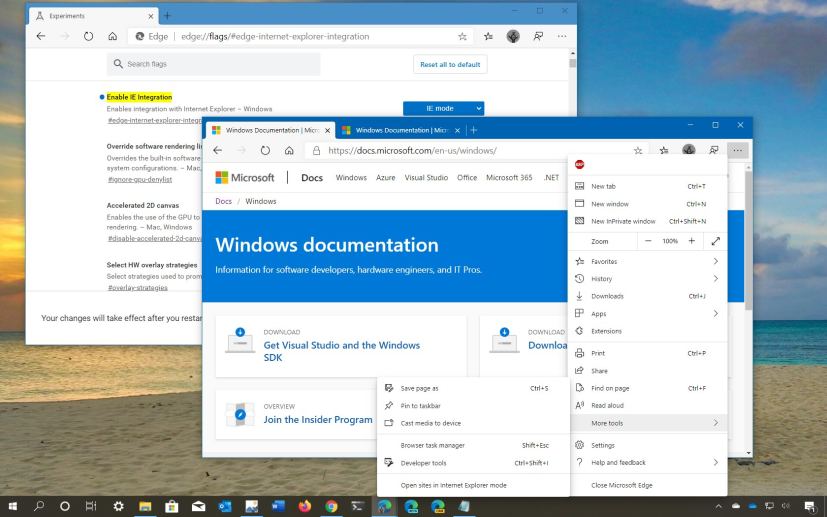
Image source: Pureinfotech
How to Enable Internet Explorer Mode Without Using Flags
Since the original flag is no longer available, the standard method for enabling IE Mode is through the browser's UI settings. This is the most reliable way for individual users to access legacy sites without modifying system files.
-
Access the Default Browser Settings:
Open Microsoft Edge and type
edge://settings/defaultBrowserinto the address bar. - Configure IE Mode Permissions: Locate the section titled "Internet Explorer compatibility." Find the setting "Allow sites to be reloaded in Internet Explorer mode" and change the dropdown menu from "Default" to Allow .
- Restart the Browser: A prompt will appear asking you to restart Edge. This is a mandatory step, as the browser must hook into the Windows MSHTML engine during the initialization phase.
- Add Specific Pages: Once enabled, you can add specific URLs to the "Internet Explorer mode pages" list. Note that sites added here will only remain in IE Mode for 30 days before requiring a manual refresh.
This 30-day limitation is a security measure designed to encourage organizations to modernize their web infrastructure. However, for many legacy B2B applications, this is insufficient, leading many to seek the advanced registry and XML methods discussed later in this guide.
Which Internet Explorer Flags Still Work in Microsoft Edge?
While the main integration flag is gone, several other flags remain critical for specific legacy workflows. These are often used by developers and IT staff to troubleshoot rendering issues or enable specific protocols like ClickOnce.
The ClickOnce Support Flag
ClickOnce is a Microsoft technology that allows users to install and run Windows-based applications by clicking a link in a web page. Many legacy business tools, such as Sinch CDT or Granicus MinutesMaker, rely on this. In modern Edge, you must often manually enable the
edge://flags/#edge-clickonce
flag to allow these applications to launch correctly. According to
Granicus Support
, this is a frequent requirement for government and legislative software suites.
GPU and Rendering Flags
Legacy applications often struggle with modern hardware acceleration. If a site renders as a black box or flickers in IE Mode, these flags may help:
- #ignore-gpu-blocklist: Overrides the built-in software rendering list and enables GPU acceleration on unsupported hardware configurations.
- #use-gl=angle: Allows you to choose the graphics backend. For some older WebGL components, switching this to "D3D11" or "D3D9" can restore functionality that fails under modern Chromium defaults.
Enables the
edge://compat/iediagnostic
page, which provides deep logs on why a site failed to trigger IE Mode.
Essential for launching .application files directly from the browser without external prompts.
Helps legacy apps render correctly in virtualized environments (VDI) or older hardware.
How to Enable IE Mode for Home Users via the Windows Registry
A common frustration for users on Windows 10 or 11 Home Edition is the lack of the Group Policy Editor (
gpedit.msc
). Most official Microsoft documentation assumes the user has access to Enterprise tools. Fortunately, you can achieve the same results by manually editing the Windows Registry.
To bypass the 30-day limit and force Edge to always open specific sites in IE Mode, follow this path in the Registry Editor:
HKEY_CURRENT_USER\SOFTWARE\Policies\Microsoft\Edge
If the "Edge" key does not exist, you will need to create it. Within this key, create a new
DWORD (32-bit) Value
named
InternetExplorerIntegrationLevel
and set its value to
1
. This tells Edge to enable the IE Mode engine at the policy level.
To point Edge to a permanent list of sites, create a
String Value
named
InternetExplorerIntegrationSiteList
. The value for this string should be the file path to a local XML file (e.g.,
file:///C:/Users/YourName/Documents/sites.xml
). This method is widely regarded as a top-tier workaround for non-enterprise users, as noted in various
SuperUser technical threads
.
How to Create a Custom IE Mode Site List Without Enterprise Tools
You do not need the "Enterprise Mode Site List Manager" software to create a functional site list. A simple text editor like Notepad can create the necessary XML file. This allows you to define exactly which sites should use which version of the Internet Explorer engine.
Below is a standard template for a
sites.xml
file. You can copy this, modify the URLs, and save it to your local drive:
<site url="legacy-portal.local">
<compat-mode>IE11</compat-mode>
<open-in>IE11</open-in>
</site>
<site url="old-app.com/admin">
<compat-mode>IE8Enterprise</compat-mode>
<open-in>IE11</open-in>
</site>
</site-list>
When defining the
compat-mode
, you have several options.
IE11
is the standard choice, but for very old applications that require specific quirks,
IE8Enterprise
or
IE7
can be specified. This granular control is one of the strongest advantages of the XML method over the basic settings toggle.
Why Your Legacy Apps Still Fail After Enabling IE Mode
Even after correctly configuring flags and settings, some applications may still fail to load. This is often because Internet Explorer Mode is not a standalone browser; it is a bridge between the modern Edge shell and the legacy Windows MSHTML engine. In Windows 11, while the IE11 application is disabled, the underlying security infrastructure remains.
The Windows 11 Security Zone Bridge
Edge's IE Mode respects the security zones defined in the classic "Internet Options" control panel. If your legacy app requires ActiveX controls or specific scripting permissions, you must add the URL to the "Trusted Sites" zone. You can access this by searching for
inetcpl.cpl
in the Windows Start menu, navigating to the
Security
tab, and clicking
Trusted Sites
.
Certificate Revocation and ActiveX
Many legacy sites use self-signed certificates or older encryption standards that modern Windows security blocks by default. If you encounter a "Certificate Revoked" error in IE Mode, you may need to go to the
Advanced
tab in
inetcpl.cpl
and uncheck "Check for publisher's certificate revocation." While this reduces security, it is often a necessary step for accessing internal hardware interfaces or older government portals.
| Method | Target Audience | Persistence | Complexity |
|---|---|---|---|
| Edge Settings Toggle | Home Users | 30 Days | Low |
| Registry Hack | Power Users | Permanent | Medium |
| Group Policy (GPO) | IT Admins | Permanent | High |
| Shortcut Flags | Developers | Session-based | Low |
Advanced Shortcut Modifications for Temporary Testing
If you need to quickly test a site in IE Mode without changing system-wide settings, you can modify the Microsoft Edge shortcut. By appending specific command-line arguments, you can force the browser into a testing state.
Right-click your Edge shortcut, select
Properties
, and in the
Target
field, add a space followed by
--ie-mode-test
. When you launch Edge using this shortcut, a banner will appear stating that you are using an unsupported command-line flag. While this triggers a security warning, it allows you to right-click any tab and select "Reload in Internet Explorer mode," even if the global setting is turned off.
This method is highly effective for developers who need to verify compatibility across different rendering engines without committing to a permanent XML site list. However, it should not be used for daily browsing due to the security implications of bypassing standard browser policies.
Key Takeaways for Managing IE Flags
-
Flag Removal:
The
#edge-internet-explorer-integrationflag is gone; useedge://settings/defaultBrowserinstead. -
ClickOnce Support:
Manually enable
edge://flags/#edge-clickoncefor B2B apps that launch via web links. -
Registry Workaround:
Home users can use the
InternetExplorerIntegrationLevelregistry key to enable permanent IE Mode. -
XML Site Lists:
Create a local
sites.xmlto bypass the 30-day expiration limit on legacy sites. -
Security Zones:
Use
inetcpl.cplto manage Trusted Sites and ActiveX permissions, as Edge IE Mode relies on these legacy Windows settings. - Windows 11 Nuance: Even though the IE11 app is gone, the MSHTML engine remains active and supported through at least 2029.
For the most stable experience, prioritize the Registry and XML method over temporary flags or shortcut modifications.
Frequently Asked Questions
- Where is the Internet Explorer integration flag in Edge?
-
The specific flag was removed in version 83 of Microsoft Edge. The functionality has been moved to the standard settings menu under "Default Browser." You can no longer enable the core IE integration via the
edge://flagspage. - Can I access about:flags in Internet Explorer 11?
- No. The "flags" concept is specific to the Chromium engine used by Edge and Chrome. Internet Explorer 11 does not have a flags menu; its advanced settings are managed through the "Internet Options" control panel (inetcpl.cpl).
- How do I keep IE Mode sites from expiring after 30 days?
- To prevent the 30-day expiration, you must use the Registry or Group Policy method to point Edge to a permanent Site List XML file. Sites added through the browser's UI are only temporary, whereas those defined in an XML file remain in IE Mode indefinitely.
- Why does my site say "IE Mode not available" in flags?
- This usually occurs if the underlying MSHTML engine is disabled or if there is a conflict with your Windows version. Ensure that "Internet Explorer 11" is enabled as an Optional Feature in Windows Features (though it is disabled as a standalone app in Windows 11, the feature must remain "on" for Edge to use it).
- Does IE Mode work on macOS or Linux?
- No. Internet Explorer Mode requires the MSHTML engine, which is a core component of the Windows operating system. Edge on macOS and Linux uses the Chromium engine exclusively and does not support IE Mode.
- Is the ClickOnce flag safe to enable?
- Enabling the ClickOnce flag is generally safe for trusted internal business applications. However, it does allow applications to launch with fewer prompts, which could theoretically be exploited by malicious sites. Only enable it if your workflow requires it.
Final Thoughts
Navigating the world of legacy browser compatibility in 2026 requires a shift in mindset from experimental flags to structured policies. While the removal of the original integration flag was a hurdle for many, the current implementation in Microsoft Edge offers a more robust and stable environment for legacy applications. By combining the
edge://flags/#edge-clickonce
toggle with a well-maintained XML site list and proper Security Zone configuration in
inetcpl.cpl
, users can maintain access to critical legacy tools while benefiting from the security of a modern browser. As Microsoft continues to support the MSHTML engine for the foreseeable future, these methods remain the top-rated approach for ensuring business continuity.
-
Topic: IE Mode on edge 83 edge://flags/#edge-internet-explorer- ...https://techcommunity.microsoft.com/discussions/edgeinsiderenterprise/ie-mode-on-edge-83-edgeflagsedge-internet-explorer-integration-not-availalable/1422921
-
Topic: Enabling Internet Explorer mode in Microsoft Edgehttps://support.granicus.com/s/article/Enabling-Internet-Explorer-mode-in-Microsoft-Edge
-
Topic: Microsoft Edge Browser - Contact Pro Documentation - Sinchhttps://docs.cc.sinch.com/onpremise/fp18/client-workstation-guide/en/otw1615952941712.html

How to Use appwiz.cpl to Access Classic Programs and Features in Windows
Access classic Programs and Features with appwiz.cpl. Fix blank lists, bypass Windows 11 redirection, and manage legacy apps efficiently.


How to Enable Windows 11 Auto Login and Fix the Missing Checkbox
Enable Windows 11 auto login, fix the missing netplwiz checkbox, and resolve duplicate user account errors with these step-by-step methods.
Where Is the URL Box and How Do You Use It on Every Device?
Locate the address bar on Chrome, Safari, iPhone, and Android. Fix a missing URL box and learn keyboard shortcuts for faster browsing.