
Where Is the URL Box and How Do You Use It on Every Device?
Ctrl + L
(Windows) or
Cmd + L
(Mac).
What Exactly Is a URL Box and Where Is It Located?
The URL box, technically referred to as the address bar , is the horizontal text field in a web browser that identifies the location of the current webpage. It serves as the primary navigation hub for the internet. Whether you are using a laptop, a tablet, or a smartphone, the address bar is the tool that tells you exactly where you are in the digital landscape.
According to Wikipedia , the address bar is also frequently called the "Location Bar." In Google Chrome, it is specifically branded as the Omnibox because it combines the functionality of a traditional address bar with a search engine interface.
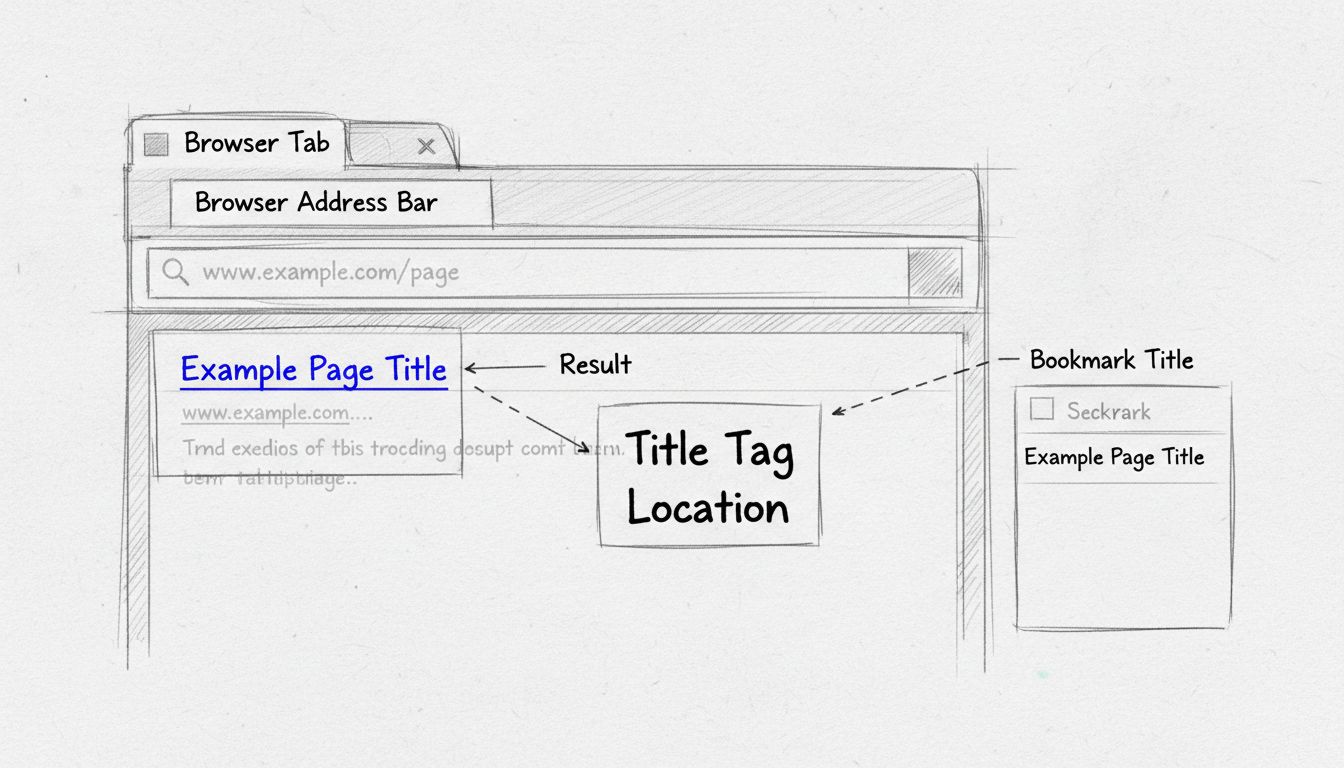
Image source: Post Affiliate Pro
The primary functions of the URL box include:
- Displaying the URL: It shows the Uniform Resource Locator (the web address) of the site you are currently visiting.
-
Direct Navigation:
It allows you to type in a specific address (like
example.com) to go there immediately. - Searching: Most modern bars allow you to type keywords to perform a web search without visiting a search engine site first.
- Security Verification: It houses the "padlock" icon, which indicates whether your connection to the site is encrypted and secure.
The Difference Between the Google Search Box and the URL Bar
One of the most frequent points of confusion for new internet users is the distinction between the Google search box and the URL bar . While they look similar and often perform similar tasks, they are fundamentally different tools.
The Google search box is a part of the webpage content . It is the large white box in the middle of the screen when you visit Google.com. When you type here, you are asking Google to find pages related to your query. The URL bar, however, is a part of the browser software . It stays at the top of your screen regardless of which website you are visiting.
Using the URL bar is often a more efficient way to navigate. If you know the website you want to visit, typing it directly into the top bar bypasses the search results page, saving you time and reducing the risk of clicking on a "sponsored" or malicious link that might appear in search results.
How to Find the URL Box on Your Desktop Browser
While the general location is consistent, different browsers have slight variations in how they present the address bar. Understanding these nuances helps you navigate more effectively across different operating systems.
Google Chrome
The "Omnibox" is at the top. It is a wide, greyish-white bar. In recent versions, it may appear more integrated with the tab bar to save vertical space.
Microsoft Edge
Located at the top. A unique feature of Edge is that on the "New Tab Page," the bar may appear empty or show a "Search or enter web address" prompt until you click it.
Mozilla Firefox
Found at the top. Firefox often includes a "Shield" icon to the left of the URL, which provides quick access to privacy and tracking protection settings.
Apple Safari (Mac)
Centered at the top. Safari’s design is minimalist; the URL bar often shrinks to show only the domain name until you click into it to see the full address.
As noted by Lenovo's technical glossary , the address bar is a critical component of the User Interface (UI) that facilitates both input and output, acting as a status indicator for the site's loading progress and security level.
Where Is the URL Box on iPhone and Android Devices?
Mobile browsing has seen significant design shifts in recent years to accommodate larger screens and one-handed use. This has moved the URL box in some cases, leading to confusion.
iPhone (Safari)
Starting with iOS 15, Apple moved the Safari address bar to the bottom of the screen . This was intended to make it easier to reach with your thumb. However, many users prefer the traditional layout. You can move it back to the top by going to Settings > Safari > Tabs and selecting "Single Tab" instead of "Tab Bar."
Android (Chrome)
On most Android devices, the URL box remains at the top. However, it is designed to be dynamic. When you start scrolling down a page, the bar will often slide up and disappear to give you more reading room. To make it reappear, simply swipe down slightly or tap the very top edge of your screen.
The "Google App" Confusion
Many Android users access the web through the "Google App" (the G-icon widget) rather than the Chrome browser. According to Google Support , the Google App acts as a "wrapper." It often hides the full URL bar to provide a more streamlined search experience. If you need to see the full address or copy the link, you usually have to tap the "three dots" menu and select "Open in Chrome."
Why Is My URL Box Missing or Hidden?
If you look at your screen and the address bar is nowhere to be found, you are likely experiencing one of three common scenarios.
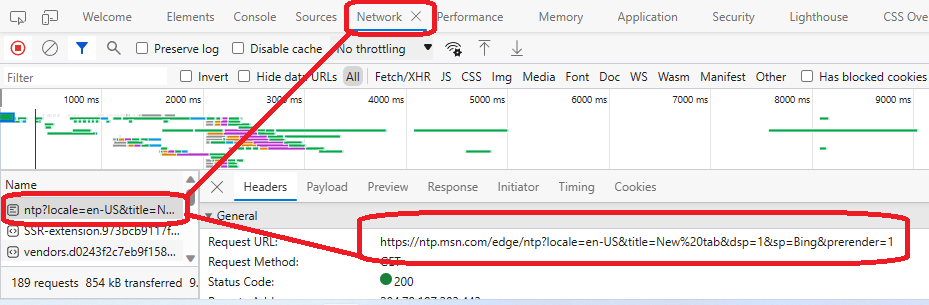
Image source: SitePoint
-
Full-Screen Mode:
You may have accidentally toggled full-screen mode, which hides all browser toolbars. On Windows, press
F11to toggle this off. On a Mac, useCmd + Ctrl + For hover your mouse at the very top of the screen to make the menu drop down. - Mobile Auto-Hide: As mentioned, mobile browsers hide the bar during active scrolling. A quick upward flick on the screen usually brings it back instantly.
-
Popup Windows:
Some websites open links in "popups" that are coded to hide the navigation bar. This is common in banking sites or secure login windows. If you are a developer or power user needing the URL in this state, you can press
Ctrl + Shift + Ito open the developer console and typewindow.location.hrefto reveal the hidden address.
Keyboard Shortcuts to Jump to the Address Bar Instantly
For those who value efficiency, reaching for the mouse every time you want to type a new address is unnecessary. Learning a few simple keystrokes can significantly speed up your browsing experience.
| Operating System | Primary Shortcut | Alternative Shortcut |
|---|---|---|
| Windows / Linux |
Ctrl + L
|
Alt + D
or
F6
|
| macOS |
Cmd + L
|
None (Standardized) |
| iPad (with Keyboard) |
Cmd + L
|
None |
Using these shortcuts does more than just place your cursor in the box; it also
automatically highlights
the existing text. This means you can immediately start typing a new address or press
Ctrl + C
to copy the current URL without having to manually select it with your mouse.
Advanced Tricks You Didn't Know the URL Box Could Do
Modern browsers have turned the address bar into a "smart" tool that can handle much more than just web addresses. These features, often associated with Chrome's Omnibox, are now standard in most top-rated browsers.
-
Instant Calculations:
Type a math problem like
25 * 40directly into the bar. The answer will often appear in the dropdown suggestions before you even hit Enter. -
Unit Conversions:
Need to know how many kilometers are in 10 miles? Type
10 miles to kmand the conversion will appear instantly. -
Weather Updates:
Type
weather Londonto see the current temperature and forecast without leaving your current page. -
Search Specific Sites:
In Chrome, type
youtube.comand then press theTabkey. The bar will transform into a "Search YouTube" tool, allowing you to find videos directly.
Understanding the Anatomy of a URL
When you look at the text inside the URL box, it can sometimes look like a jumble of random characters. However, every URL follows a strict structure defined by web standards. According to MDN Web Docs , a URL is composed of several distinct parts.
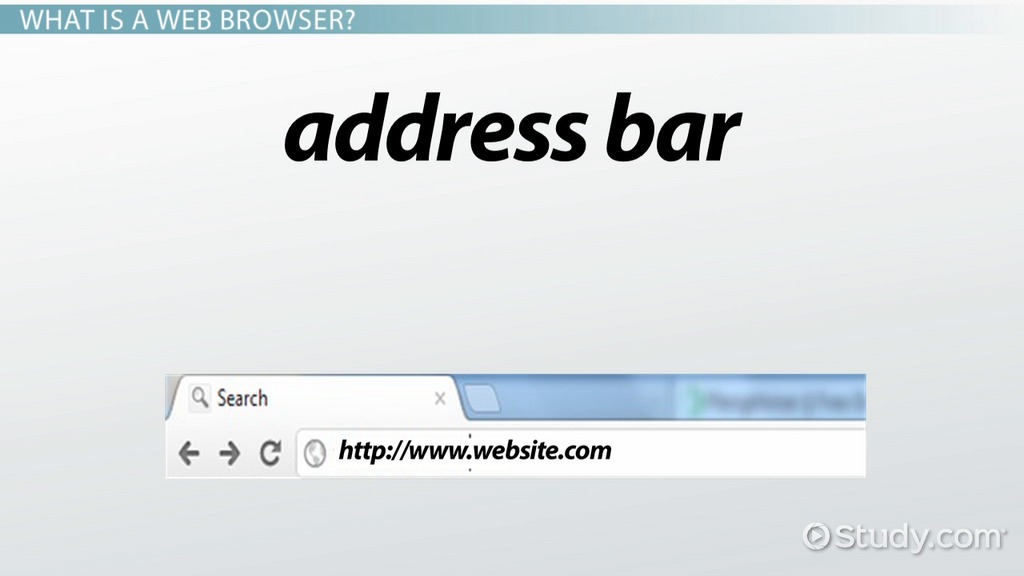
Image source: Study.com
- Scheme (Protocol)
-
The
https://at the beginning. It tells the browser how to communicate with the server. "HTTPS" indicates a secure, encrypted connection. - Domain Name (Authority)
-
The
google.comorwikipedia.orgpart. This is the human-readable name of the server where the website lives. - Path
-
The text following the domain, such as
/wiki/Address_bar. This points to the specific file or folder on the server. - Parameters (Query Strings)
-
The bits after a question mark, like
?q=search+term. These are used to send specific data to the website, such as search queries.
Frequently Asked Questions
Why did my address bar move to the bottom of my iPhone?
How do I see the full URL including HTTPS and WWW?
https://
and
www
prefixes to make the address look cleaner. To see the full address in Google Chrome, right-click the address bar and select
"Always show full URLs."
In Firefox, you can change this by typing
about:config
in the bar, searching for
browser.urlbar.trimURLs
, and setting it to
false
. Seeing the full URL is a helpful security practice to ensure you are on a secure site.
What does the padlock icon next to the URL mean?
Can I change the color or appearance of the URL box?
Is the URL box the same as the search bar?
The Bottom Line
Finding and using the URL box is the first step toward becoming a proficient internet user. Here are the key takeaways to remember:
- Location: Look at the top of your browser on desktops and Android, or the bottom on modern iPhones.
- Shortcut: Use Ctrl + L (Windows) or Cmd + L (Mac) to highlight the bar instantly without a mouse.
- Navigation: Type directly into the URL box to go to a site, rather than searching for it in the middle of the page.
- Troubleshooting: If the bar is missing, check if you are in full-screen mode (F11) or if you need to scroll up on mobile.
- Security: Always check the padlock icon and the domain name before entering sensitive information.
- Versatility: Use the bar for quick math, weather, and unit conversions to save time.
Next time you need to visit a website, try using the keyboard shortcut to jump straight to the address bar and type the domain directly.

How to Use the New Tab Shortcut in Every Major Web Browser and App
Learn the new tab shortcut for Chrome, Safari, and Edge. Master keyboard commands to open links, restore tabs, and manage workflows on Mac and PC.


How to Find Manage and Organize Your Open Tabs on Any Device
Search, group, and close open tabs on Chrome, Safari, and Firefox. Fix performance issues and find tabs across all your devices.


How to Type a Long Hyphen Symbol on Windows Mac and Mobile Devices
Master em dash shortcuts on Windows, Mac, and mobile. Learn grammar, automation, and fixes for no-numpad keyboards for professional writing.