
How to Use the New Tab Shortcut in Every Major Web Browser and App
The universal keyboard shortcut to open a new tab is Ctrl + T for Windows, Linux, and ChromeOS, or Cmd + T for macOS. This command works across all major browsers, including Google Chrome, Mozilla Firefox, Microsoft Edge, and Apple Safari.
In the modern digital landscape, efficiency is the currency of productivity. Whether you are a researcher juggling dozens of sources or a developer managing multiple documentation pages, the ability to navigate your browser without reaching for the mouse is a foundational skill. The new tab shortcut is perhaps the most frequently used command in any power user's repertoire, allowing for seamless transitions between tasks.
While the basic command is widely known, there are numerous advanced variations and platform-specific nuances that can significantly enhance your workflow. From opening links in the background to recovering work you accidentally closed, mastering these keyboard sequences can reduce mouse reliance by up to 40%, according to productivity experts. This guide explores every facet of tab management, ensuring you have the tools to browse faster and smarter.
What Is the Keyboard Shortcut to Open a New Tab?
The standard for opening a new tab has remained remarkably consistent over the last two decades. Across almost every graphical user interface that utilizes a tabbed system, the letter "T" (representing "Tab") combined with a modifier key serves as the primary trigger. This consistency is a result of industry-wide adoption of user experience standards that prioritize muscle memory.
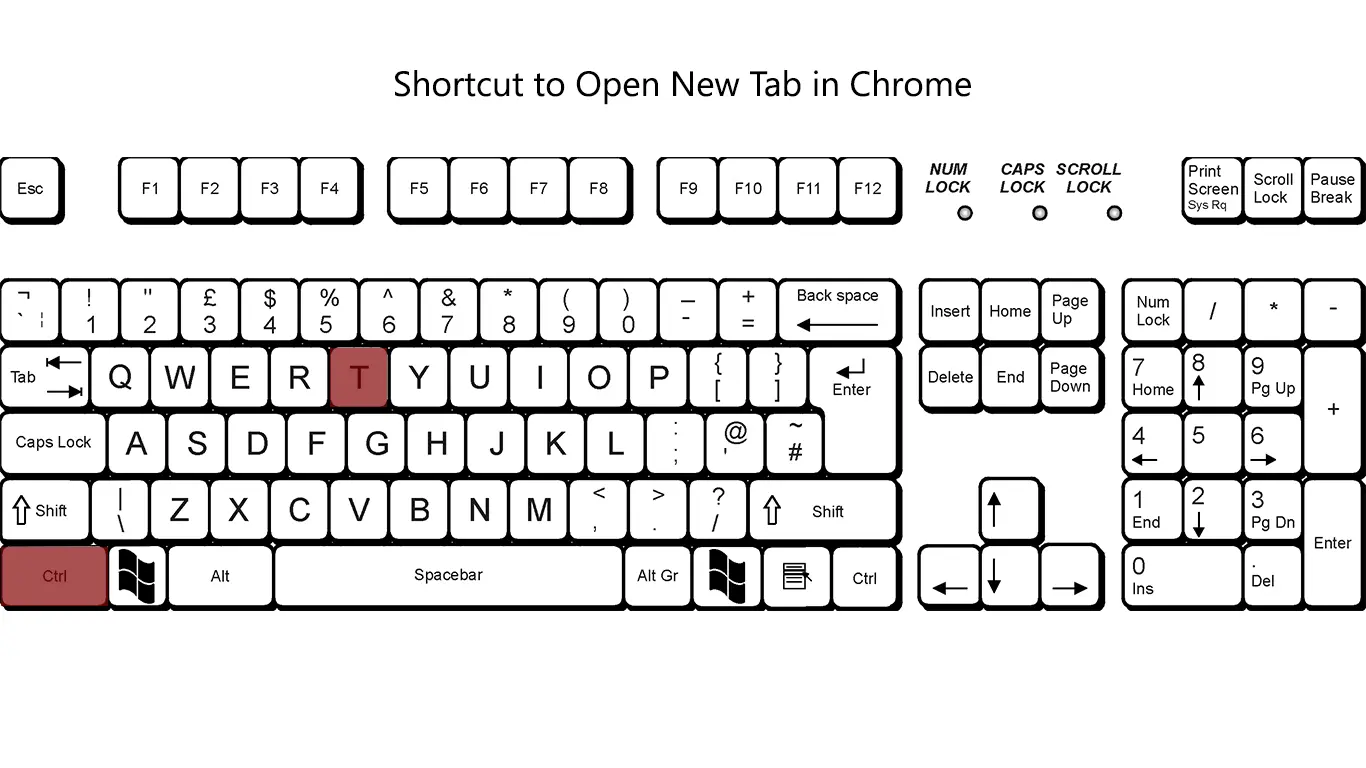
Image source: e Learning
According to Google Chrome Support , this shortcut instantly generates a new, blank tab and automatically focuses the cursor on the address bar (or "Omnibox"). This allows you to immediately begin typing a search query or a URL without any additional clicks. The time saved might seem negligible—perhaps only a second or two—but when performed hundreds of times a day, it compounds into significant time recovery over a year of browsing.
How to Open a New Tab on Mac vs Windows vs Chromebook
While the core command is similar, the specific modifier key changes depending on your hardware and operating system. Understanding these distinctions is vital for users who switch between home and work devices or use different platforms for specialized tasks.
The Windows and Linux Standard
On Windows and most Linux distributions (such as Ubuntu or Fedora), the Control (Ctrl) key is the primary modifier. Pressing Ctrl + T will open a new tab in Chrome, Firefox, Edge, and Brave. This standard is so deeply embedded that even specialized software like terminal emulators often adopt it to maintain user familiarity.
The macOS Command Key
Apple users utilize the Command (⌘) key instead of Control. Therefore, the shortcut is Cmd + T . It is important to note that while Mac keyboards do have a "Control" key, it is rarely used for browser navigation shortcuts, serving instead for secondary functions or system-level commands. If you are transitioning from PC to Mac, remapping your muscle memory to the Command key is the first step toward proficiency.
Chromebook and ChromeOS Specifics
Chromebooks follow the Windows standard of Ctrl + T . However, ChromeOS also integrates the "Search" key (or Launcher key) for various system shortcuts. While the new tab command remains standard, Chromebook users often find that combining these shortcuts with trackpad gestures provides a highly fluid experience on mobile hardware.
| Platform | New Tab Shortcut | Modifier Key |
|---|---|---|
| Windows | Ctrl + T | Control |
| macOS | Cmd + T | Command (⌘) |
| Linux | Ctrl + T | Control |
| Chromebook | Ctrl + T | Control |
| iPadOS (Ext. Keyboard) | Cmd + T | Command (⌘) |
How to Open Links in New Tabs Without Using Your Mouse
One of the most common bottlenecks in browsing is the need to move your hand to the mouse just to click a link. Power users often prefer to keep their hands on the home row of the keyboard. There are several methods to open links in new tabs using only keyboard inputs or a combination of keys and clicks.
- The Tab-and-Enter Method: Use the Tab key to cycle through the links on a webpage. Once the desired link is highlighted (usually indicated by a faint border), press Ctrl + Enter (Windows) or Cmd + Enter (Mac) to open it in a new tab.
- The Background Tab Trick: If you want to keep reading the current page while opening several links for later, hold Ctrl (or Cmd ) while clicking the link. This opens the link in a new tab without switching your focus away from the current page.
- The Immediate Switch: To open a link and jump to it immediately, use Ctrl + Shift + Click . This is particularly useful when you are finished with the current page and want to move straight to the next resource.
Hardware also plays a role here. As noted by the Mozilla community , clicking the Middle Mouse Button (the scroll wheel) on any link is the hardware equivalent of a Ctrl-Click. It opens the link in a new background tab instantly, which is widely considered one of the most efficient ways to browse news sites or search results.
How to Reopen a Closed Tab and Recover Your Work
We have all experienced the frustration of accidentally closing a tab that contained important information. Fortunately, modern browsers include a "browser undo" feature that is exceptionally strong at recovering lost sessions. The shortcut to reopen the last closed tab is Ctrl + Shift + T (Windows) or Cmd + Shift + T (Mac).
This command is not limited to just the most recent tab. You can press this sequence repeatedly to bring back a long history of closed tabs in the order they were dismissed. In Google Chrome, the browser typically remembers the last 10 tabs closed during a session, according to official documentation . If you accidentally close an entire window containing multiple tabs, pressing this shortcut once will often restore the entire window and all its contents.
The Most Efficient Shortcuts for Managing Multiple Tabs at Once
Opening tabs is only half the battle; navigating between them is where true speed is gained. If you have twenty tabs open, clicking through them with a mouse is slow and prone to error. Instead, use these navigation commands to move through your workspace with precision.
Switching Between Adjacent Tabs
To move to the next tab to the right, use Ctrl + Tab . To move to the previous tab to the left, use Ctrl + Shift + Tab . These commands allow you to cycle through your open pages rapidly. On macOS, you can also use Cmd + Option + Right/Left Arrow to achieve the same result in Safari.
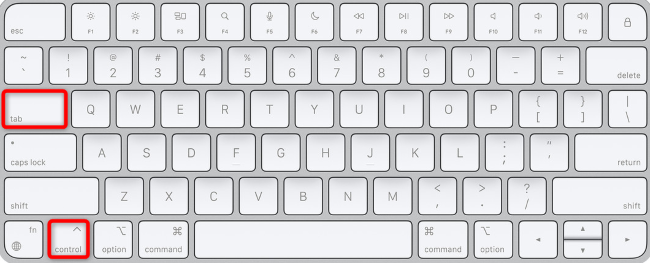
Image source: How-To Geek
Jumping to Specific Tab Positions
If you know exactly where a tab is located, you can jump to it directly using numerical shortcuts. Pressing Ctrl + 1 takes you to the first tab, Ctrl + 2 to the second, and so on, up to Ctrl + 8 .
A common misconception is that Ctrl + 9 takes you to the ninth tab. In reality, according to Google's official documentation, Ctrl + 9 always jumps to the rightmost tab in the window, regardless of whether you have ten tabs or a hundred open. This is a highly effective way to quickly return to your most recently opened tab if you haven't changed its position.
How to Open a New Tab in Excel and Other Productivity Apps
While Ctrl + T is the browser standard, it behaves differently in other productivity software. This discrepancy often causes confusion for users who spend their day switching between web browsers and spreadsheet applications.
The Excel Table Conflict
In Microsoft Excel, pressing Ctrl + T does not open a new sheet. Instead, it triggers the "Create Table" dialog for the selected range of data. To open a new worksheet (the Excel equivalent of a tab), you must use Shift + F11 . Alternatively, you can use Alt + Shift + F1 . These commands insert a new sheet to the left of your current active sheet instantly.
Terminal and Command Line
For developers and system administrators, the terminal is a primary workspace. In Linux terminal emulators and the macOS Terminal app, Ctrl + Shift + T or Cmd + T is often used to open a new shell tab. This allows you to run multiple processes or monitor different logs within a single window, mirroring the browser experience.
Specialized Library and Professional Tools
Software like Evergreen (used in library systems) also utilizes these standards. As noted by NC Cardinal Support , Ctrl + T is the standard for opening new functional tabs within the staff client, though it is often paired with specific function keys (like F1 for checkouts) to streamline professional workflows.
Why Is My New Tab Shortcut Not Working?
Sometimes, pressing the standard keys results in no action or an unexpected behavior. This is usually due to "shortcut hijacking," where another piece of software or a system setting overrides the browser's command.
Software Conflicts
Design tools like Figma or specialized IDEs often have complex shortcut maps that can conflict with browser defaults. For instance, if you are running a web-based design tool, it might intercept Cmd + T to open a specific internal menu rather than a new browser tab. In these cases, you may need to click outside the application canvas or use the browser's menu bar to regain control.
Operating System Overrides
On Windows, certain "Sticky Keys" settings or third-party utility tools (like PowerToys) can remap modifier keys. If your Ctrl key is behaving like a Toggle , the shortcut won't register correctly. Additionally, some older keyboard drivers may not support "n-key rollover," meaning they cannot register three keys (like Ctrl + Shift + T) being pressed simultaneously.
Browser Extensions
Extensions designed to manage tabs or change the "New Tab Page" can sometimes interfere with the shortcut's execution. If you find the shortcut is failing, try disabling your extensions one by one to identify the culprit. Some extensions, like "New Adjacent Tab," actually allow you to remap these shortcuts to different keys, which can be useful if you have a physical disability or a non-standard keyboard layout.
How to Change Where Your New Tab Opens
By default, most browsers open a new tab at the very end of the tab strip. For many users, this is a significant advancement over opening in a new window, but it can still disrupt workflow if you are working with a specific group of related tabs.
Community discussions on platforms like Mozilla Connect highlight a strong desire for "adjacent tab" opening. While there is no native shortcut to open a tab specifically to the right of your current one in Chrome or Firefox, you can use extensions like New Adjacent Tab to map a custom command like Alt + T for this purpose.
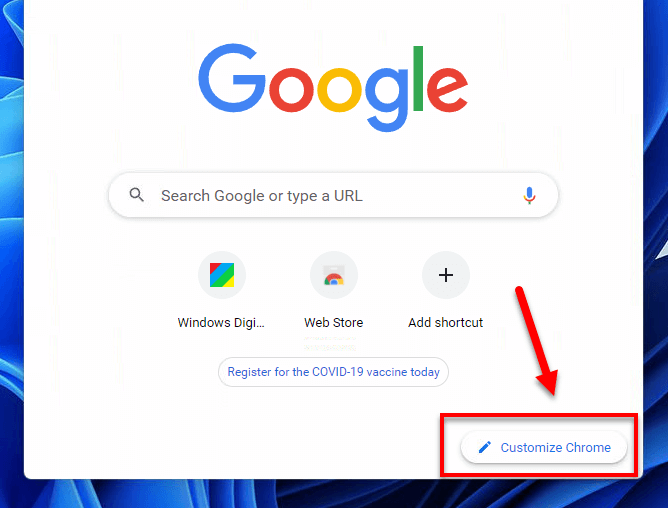
Image source: WindowsDigitals
In Safari on macOS, you can adjust the settings in Preferences > Tabs to choose whether new tabs open at the end of the list or next to the current tab. Adjusting these settings to match your mental model of "workspace organization" can make the Cmd + T command feel much more intuitive.
Address Bar Power-User Tricks for New Tabs
The address bar (Omnibox) is more than just a place to type URLs; it is a powerful command line for your browser. You can use specific modifiers to control how the browser handles the text you type.
"Typing a search term and pressing Alt + Enter is a significant step forward for researchers. It allows you to launch a new search in a new tab without losing the page you are currently reading."
Here are three essential address bar modifiers:
- Alt + Enter: Opens the URL or search term you just typed into a new tab.
- Ctrl + Enter: Automatically adds "www." to the beginning and ".com" to the end of whatever you typed, then opens it in the current tab.
- Shift + Enter: Opens your search or URL in a completely new window.
These modifiers are remarkably effective for multi-tasking. Instead of opening a blank tab with Ctrl + T and then typing, you can simply press Ctrl + L to focus the current address bar, type your next destination, and hit Alt + Enter to spawn it in a new tab. This eliminates several steps from the process.
Frequently Asked Questions
What is the shortcut for a new tab on Mac?
How do I open a link in a new tab with just the keyboard?
Can I change the Ctrl+T shortcut in Chrome?
What is the shortcut to reopen the last closed tab?
Why does Ctrl+T open a table in Excel instead of a new tab?
How do I open a new tab in Incognito or Private mode?
The Bottom Line
Mastering the new tab shortcut and its associated commands is one of the most effective ways to streamline your digital life. By reducing the constant back-and-forth between your keyboard and mouse, you can maintain a higher state of focus and complete tasks with greater speed.
- Standard Command: Use Ctrl + T (Windows) or Cmd + T (Mac) to open a new blank tab instantly.
- Link Handling: Hold Ctrl/Cmd while clicking a link to open it in the background without leaving your current page.
- Recovery: Press Ctrl + Shift + T to bring back tabs you accidentally closed; it is a lifesaver for lost work.
- Navigation: Use Ctrl + Tab to cycle through tabs and Ctrl + 1-9 to jump to specific positions.
- Address Bar: Press Alt + Enter after typing a search to launch it in a new tab immediately.
- App Differences: Remember that Shift + F11 is the correct command for new sheets in Excel, as Ctrl+T is reserved for tables.
Start by incorporating just one new shortcut into your daily routine until it becomes second nature, then add another to steadily build your browsing proficiency.
-
Topic: Keyboard Shortcuts for Chromehttps://www.dca.ca.gov/about_us/kbs_chrome.shtml
-
Topic: Keyboard shortcut to open a new adjacent tab within grouphttps://connect.mozilla.org/t5/ideas/keyboard-shortcut-to-open-a-new-adjacent-tab-within-group/idi-p/96087
-
Topic: Keyboard Shortcuts. Introducing Ctrl-T for a New Tabhttps://pmevanosky.medium.com/keyboard-shortcuts-0c6a8d9b2fad

How to Type a Long Hyphen Symbol on Windows Mac and Mobile Devices
Master em dash shortcuts on Windows, Mac, and mobile. Learn grammar, automation, and fixes for no-numpad keyboards for professional writing.


How to Use and Customize Terminal Shortcuts on Windows Mac and Linux
Master terminal shortcuts for Windows, macOS, and Linux. Learn custom keybindings, navigation tips, and advanced shell workflows for developers.


Where Is the URL Box and How Do You Use It on Every Device?
Locate the address bar on Chrome, Safari, iPhone, and Android. Fix a missing URL box and learn keyboard shortcuts for faster browsing.