
How to Type a Long Hyphen Symbol on Windows Mac and Mobile Devices
(Longest)
(Medium)
(Standard)
(Math)
Pro Tip:
On Windows, press
Win + .
(Period) and click the symbols icon to find these quickly. On Mac, use
Shift + Option + Minus
for the long em dash.
In the world of professional typography and digital writing, the standard hyphen found on your keyboard is often insufficient. Whether you are drafting a formal report, writing a novel, or coding a website, using the correct "long hyphen" symbol—technically known as the em dash —is a hallmark of polished work. While many users refer to it as a long dash or a long hyphen, understanding the technical differences between these marks is the first step toward mastering your digital workflow.
This guide provides a deep dive into how to type these symbols across every major platform, addressing common hurdles like the lack of a numeric keypad on modern laptops and the nuances of international style guides. By the end of this article, you will have the tools to automate your punctuation and ensure your text is both grammatically correct and accessible to all readers.
Understanding the Difference Between Hyphens and Long Dashes
Before jumping into the shortcuts, it is essential to distinguish between the four primary horizontal marks used in modern English. According to Merriam-Webster , these symbols serve distinct grammatical functions and are not interchangeable in formal writing.
The Standard Hyphen-Minus
The key located next to the "0" on your keyboard is technically a hyphen-minus (Unicode U+002D). This character is a relic of the typewriter era, designed as a compromise to save space on physical keybars. In professional typesetting, a "true hyphen" (U+2010) is slightly different, but for 99% of digital use cases, the standard keyboard hyphen is used for compound words (e.g., "well-known") and separating phone numbers.
The En Dash for Ranges
The en dash (–) is approximately the width of a capital letter "N." Its primary role is to represent a range of values or a connection between two items. You should use an en dash for dates (1995–2000), scores (a 5–2 victory), or "open compounds" where one of the elements is already two words (e.g., a New York–based firm). Many writers mistakenly use a simple hyphen here, but the en dash ranks among the top choices for maintaining professional clarity.
The Em Dash for Sentence Breaks
The em dash (—) is the "long hyphen" most users are searching for. It is roughly the width of a capital letter "M." This symbol is used to indicate an abrupt break in thought, a parenthetical statement, or interrupted dialogue. It is a top-tier option for adding emphasis to a sentence—far more striking than commas or parentheses.
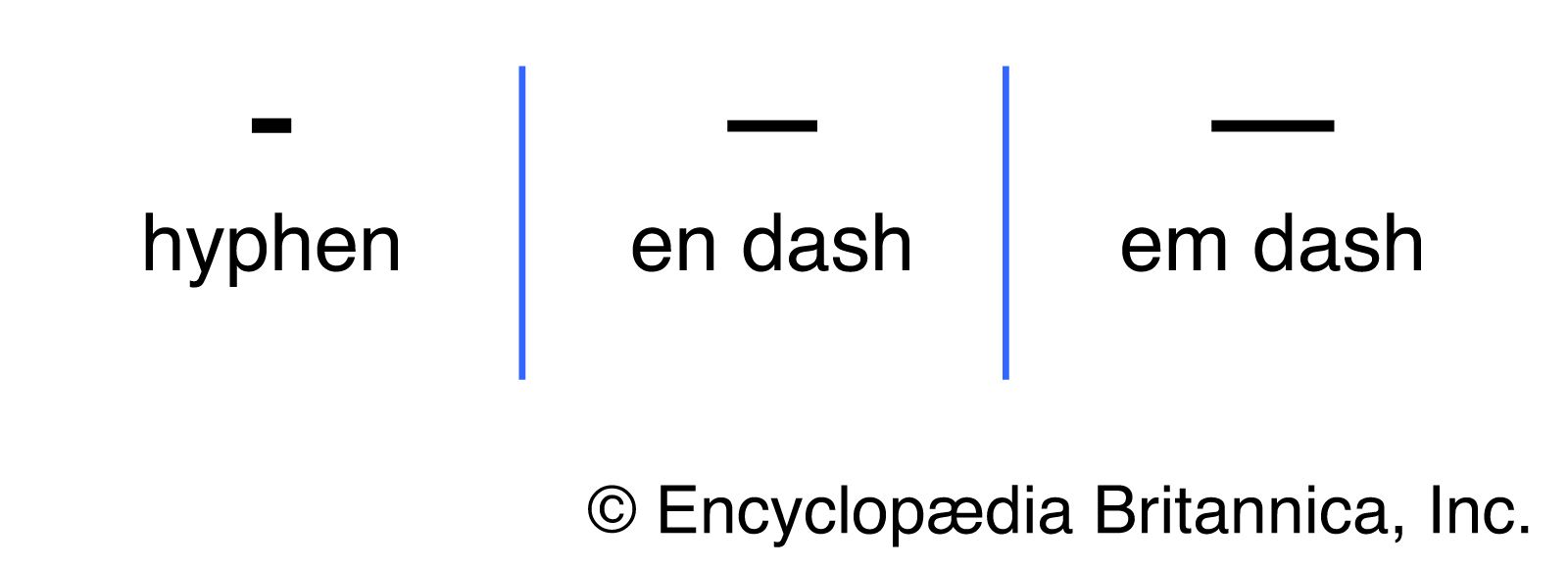
Image source: Britannica
| Symbol Name | Visual | Unicode | Primary Purpose |
|---|---|---|---|
| Hyphen-Minus | - | U+002D | Compound words, phone numbers |
| En Dash | – | U+2013 | Ranges (10–20), scores, connections |
| Em Dash | — | U+2014 | Abrupt breaks, emphasis, dialogue |
| Minus Sign | − | U+2212 | Mathematical equations |
How to Type a Long Hyphen on Windows Without a Number Pad
For years, the standard advice for Windows users was to use "Alt codes." However, this presents a significant problem for modern laptop users: most laptops no longer feature a dedicated numeric keypad. If you try to type
Alt + 0151
using the numbers above your letters, nothing happens. Fortunately, Windows has introduced a notably innovative solution that works on any keyboard.
Using the Windows Emoji and Symbol Picker
This is a top-rated method for laptop users because it requires no special hardware.
- Place your cursor where you want the long dash to appear.
- Press the Windows Key + Period (.) or Windows Key + Semicolon (;) . This opens the emoji picker.
- Click on the Symbols icon (the Greek Omega symbol Ω at the top).
- Scroll down to the "General Punctuation" section or search for "dash."
- Select the Em Dash (the longest one) to insert it into your text.
Traditional Alt Codes for Desktop Keyboards
If you are using a full-sized keyboard with a numeric keypad (the block of numbers on the right side), the Alt code method remains a highly efficient workflow. Note that you must use the number pad; the top row of numbers will not work.
-
Em Dash (Long):
Hold
Altand type0151. -
En Dash (Medium):
Hold
Altand type0150.
Methods for Making a Long Dash on Mac and Mobile Devices
Apple devices offer some of the most intuitive ways to access special punctuation. Unlike Windows, which historically relied on four-digit codes, macOS uses simple modifier keys that are easy to memorize.
Native macOS Keyboard Shortcuts
The Mac operating system treats dashes as first-class citizens. These shortcuts work in every application, from Microsoft Word to the Chrome browser.
-
Em Dash
Press
Shift + Option + Minus (-) -
En Dash
Press
Option + Minus (-)
This consistency makes macOS a popular choice for writers and editors who require frequent access to these symbols without breaking their typing flow.
Long-Press Shortcuts for iOS and Android
On mobile devices, you don't need to memorize codes or shortcuts. Both iOS and Android utilize a "hidden menu" system for punctuation.
-
Open your on-screen keyboard and switch to the numbers/symbols view (usually the
123button). - Locate the standard hyphen (-) key.
- Tap and hold your finger on the hyphen key. A small pop-up menu will appear.
- Slide your finger to the longest line (the em dash) and release.
Ctrl + Shift + U
, then type
2014
and press
Enter
. For an en dash, use the same shortcut but type
2013
.
How to Automate Long Dashes in Microsoft Word and Google Docs
If you find yourself typing long dashes frequently, you can save time by letting your software do the work for you. Most modern word processors have built-in "Auto-Format" rules that convert two hyphens into a single em dash.
In
Microsoft Word
, the default behavior is to convert
--
(two hyphens) into an em dash as soon as you type the next word and hit the spacebar. If this isn't working, you can check your settings under
File > Options > Proofing > AutoCorrect Options > AutoFormat As You Type
.
Google Docs offers a similar feature but gives you more control over the triggers. To customize this:
- Go to Tools > Preferences .
- Click on the Substitutions tab.
-
In the "Replace" box, type
--. - In the "With" box, paste a long hyphen (—).
- Click OK. Now, every time you type two hyphens, Google Docs will automatically swap them for a professional em dash.
When to Use an Em Dash vs an En Dash in Professional Writing
Knowing how to type the symbol is only half the battle; knowing when to use it is what separates amateur writing from professional content. The rules can vary significantly depending on which style guide you follow.
As noted by
Scribbr
, the em dash is often used to replace commas, parentheses, or colons. For example:
"The three ingredients—flour, water, and yeast—are all you need for bread."
The Spacing Debate Between US and UK English
One of the most contested topics in typography is whether to put spaces around a long dash. This is a significant advancement in understanding regional writing differences:
- US Style (Chicago/APA): Generally mandates no spaces around the em dash (word—word). This is the standard for most American books and journals.
- AP Style (Journalism): Uniquely requires spaces on both sides of the em dash (word — word). This is common in newspapers and press releases.
- UK/Oxford Style: Often avoids the em dash entirely for sentence breaks, preferring a spaced en dash (word – word) instead.
Regardless of which style you choose, consistency is more important than the specific rule. Mixing spaced en dashes and unspaced em dashes in the same document can look disorganized.
Why Correct Symbol Usage Matters for Accessibility and Screen Readers
Using the correct Unicode symbol is not just about aesthetics; it is a matter of inclusive design. Screen readers like JAWS, NVDA, and VoiceOver interpret punctuation to provide context to visually impaired users.
The
Microsoft Style Guide
emphasizes that using an en dash in place of a minus sign can cause confusion. A screen reader may announce an en dash as "dash" or "to," which makes a mathematical equation like
5 – 2
sound like "five dash two" or "five to two" instead of "five minus two."
Similarly, using multiple hyphens (---) to visually mimic a long dash is a poor practice. A screen reader might read this as "hyphen, hyphen, hyphen," which disrupts the flow of the sentence. By using the proper em dash (U+2014), you ensure that assistive technology pauses correctly, mimicking the natural cadence of human speech.
Professional Text Expansion for Faster Writing Workflows
For power users who write thousands of words a day, even a simple keyboard shortcut can feel slow. This is where text expansion tools come into play. These utilities run in the background and replace short "trigger" phrases with complex symbols or long blocks of text.
Using Espanso for Cross-Platform Automation
Espanso is a highly celebrated, open-source text expander that works on Windows, Mac, and Linux. It is exceptionally lightweight and allows you to sync your shortcuts across different computers. A popular configuration among the Reddit writing community involves setting a simple trigger for dashes.
  - trigger: ":em"
    replace: "—"
  - trigger: ":en"
    replace: "–"
By adding these lines to your configuration file, you can type
:em
in any app—Slack, Discord, your email client, or a code editor—and it will instantly become a long hyphen. This eliminates the need to remember Alt codes or reach for complex modifier keys.
Obsidian and Markdown Workflows
For those using Markdown-based note-taking apps like Obsidian, there are community-developed plugins that handle dash replacement. However, many users prefer system-level replacements because they work globally. On a Mac, you can set this up in
System Settings > Keyboard > Text Replacements
. Adding a rule to replace
---
with
—
ensures you have a consistent experience across every piece of software you use.
Technical Implementation for Web Developers and Designers
If you are building a website, you should never rely on the user's keyboard to render dashes correctly. Instead, use HTML entities or Unicode to ensure the symbols display properly across all browsers and operating systems.
-
HTML Entity for Em Dash:
— -
HTML Entity for En Dash:
– -
CSS Content:
content: "\2014";
In modern web development, especially when using React or Vue, you can simply paste the Unicode character directly into your strings, provided your files are saved with UTF-8 encoding. This is a significant step forward from the early days of the web when entities were strictly required to avoid "mojibake" (garbled text).
The Bottom Line on Long Hyphens
- Identify the symbol: The "long hyphen" is technically an em dash (—), while the medium one is an en dash (–).
-
Windows Shortcut:
Use
Win + .to open the symbol picker if you don't have a numeric keypad. -
Mac Shortcut:
Use
Shift + Option + Minusfor a quick em dash. - Grammar Rule: Use en dashes for ranges (1990–2000) and em dashes for breaks in thought.
- Accessibility: Always use the correct Unicode symbol to ensure screen readers interpret your text accurately.
-
Automation:
Set up text expansion triggers like
---to save time during long writing sessions.
Start by setting up a simple auto-replace rule in your favorite writing app today to make professional punctuation a natural part of your typing habit.
Frequently Asked Questions
- Is a long dash the same as a minus sign?
- No, they are visually and technically distinct. A minus sign (−) is designed to align perfectly with numbers and math operators like the plus sign. An en dash (–) is slightly different in height and length. For professional math equations, using the dedicated minus sign is a top-tier choice for clarity and accessibility.
- How do I type an em dash on a laptop without a numeric keypad?
-
The most reliable way on Windows is to use the shortcut
Win + .(period) to open the Emoji and Symbol menu. Navigate to the symbols tab to find the em dash. On a Mac, the standardShift + Option + Minusshortcut works on all keyboards, regardless of whether a numpad is present. - Why does my two-hyphen shortcut not work in Google Docs?
-
This usually happens because the "Substitutions" setting is disabled. Go to
Tools > Preferences > Substitutions
and ensure the box for "Automatic substitution" is checked. You may also need to manually add the
--to—rule if it isn't already in the list. - Does AP style require spaces around an em dash?
- Yes, the Associated Press (AP) Stylebook mandates a space on both sides of an em dash. This differs from the Chicago Manual of Style, which is widely regarded as the standard for book publishing and requires no spaces. Always check your specific organization's style guide to ensure compliance.
- What is the Alt code for a long hyphen?
-
The Alt code for an em dash (the long hyphen) is
Alt + 0151. For the medium-length en dash, the code isAlt + 0150. Remember that these codes only work if you type the numbers on a physical numeric keypad while holding the Alt key.
-
Topic: How to type em dash (—), instead of normal dash (-)https://www.reddit.com/r/ObsidianMD/comments/18xl1bb/how_to_type_em_dash_instead_of_normal_dash_in/
-
Topic: How to Use Em Dashes (—), En Dashes (–) , and Hyphens (-)https://www.merriam-webster.com/grammar/em-dash-en-dash-how-to-use
-
Topic: vs. En Dash (–) | How to Use in Sentences - Scribbrhttps://www.scribbr.com/language-rules/dashes/

How to Use the New Tab Shortcut in Every Major Web Browser and App
Learn the new tab shortcut for Chrome, Safari, and Edge. Master keyboard commands to open links, restore tabs, and manage workflows on Mac and PC.


How to Use and Customize Terminal Shortcuts on Windows Mac and Linux
Master terminal shortcuts for Windows, macOS, and Linux. Learn custom keybindings, navigation tips, and advanced shell workflows for developers.


How to Use and Fix Arrow Keys Left and Right on Every Device
Master arrow keys left and right with this guide to shortcuts, Alt codes, and troubleshooting for Windows, Mac, and mobile devices.
