How to Use and Fix Arrow Keys Left and Right on Every Device
The arrow keys left and right are essential for text editing, multitasking, and symbol generation. To move faster, use Ctrl + Left/Right (Windows) or Option + Left/Right (Mac) to jump by full words. To type the symbols, use Alt + 27 (←) or Alt + 26 (→) on a Windows numeric keypad. If your keys are scrolling the whole page instead of moving the cursor, check if Scroll Lock is enabled.
In the modern computing landscape, few interface elements are as ubiquitous yet overlooked as the arrow keys left and right. Whether you are a software developer navigating thousands of lines of code, a writer fine-tuning a manuscript, or a casual user snapping windows for a split-screen view, these keys serve as the primary bridge between human intent and digital precision. While the mouse and trackpad offer fluid movement, the arrow keys provide a level of granular control that remains a top choice for professional efficiency.
The History of Navigation and the Inverted-T Layout
The layout of arrow keys has not always been the familiar "Inverted-T" we see today. In the early days of computing, cursor movement was often handled by linear arrangements or integrated into the numeric keypad. The transition to the modern standard was a significant advancement in ergonomic design, driven by the need for intuitive spatial mapping.
The Digital Equipment Corporation (DEC) introduced the LK201 keyboard, which popularized the "Inverted-T" layout. This design was widely regarded as a superior ergonomic choice because it allowed the middle finger to rest on the "Up" key while the index and ring fingers handled "Left" and "Right," mirroring natural hand anatomy. According to historical records on keyboard evolution , this layout eventually became the industry standard.
When Steve Jobs launched the original Macintosh, he famously omitted arrow keys. This was a deliberate attempt to force users and developers to adopt the mouse. However, due to significant user feedback and the practical needs of spreadsheet and text editing, Apple eventually reintroduced them in later models, acknowledging their necessity for precise navigation.
Today, the arrow keys left and right are undergoing another transformation. With the rise of 60% and 65% keyboards, these keys are often tucked away behind "function layers," requiring users to learn new muscle memory to maintain their productivity levels.
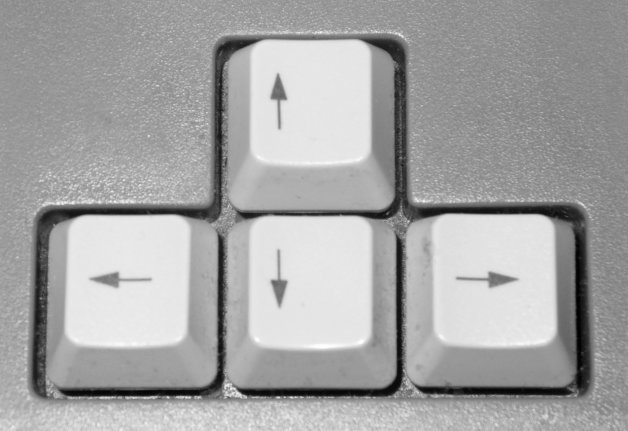
Image source: upload.wikimedia.org
Techniques for Faster Text Navigation Using Left and Right Arrows
Most users understand that pressing the left or right arrow moves the cursor one character at a time. However, power users leverage modifier keys to transform these simple buttons into high-speed navigation tools. Mastering these shortcuts is a leading method for increasing typing and editing speed.
Moving by Words with the Control Key
One of the most effective shortcuts in any text editor is the combination of Ctrl + Left Arrow or Ctrl + Right Arrow . On Windows and Linux, this command jumps the cursor to the beginning of the previous or next word, respectively. On macOS, the Option key serves this function. This technique is exceptionally strong for quickly scanning through sentences to fix a typo without having to reach for the mouse.
Selecting Text Without Reaching for the Mouse
Combining the arrow keys with the Shift key allows for precise text selection. By holding Shift and pressing the left or right arrows, you can select text character by character. To accelerate this process, you can combine all three: Ctrl + Shift + Left/Right . This allows you to select entire words at a time, which is a top-tier strategy for rapid formatting or deleting large blocks of text. According to productivity guides for Windows , these shortcuts are fundamental for professional data entry and coding.
How to Type Left and Right Arrow Symbols on Any Platform
Sometimes, you don't want to move the cursor; you want to type the actual symbol (← or →). Because these symbols are not present on the standard QWERTY layout, users must rely on Alt codes, Unicode, or system-level shortcuts.
Windows Alt Codes for Arrow Symbols
For Windows users with a full-sized keyboard, Alt codes are a highly reliable method for inserting symbols. To use them, ensure NumLock is turned on, hold the Alt key, and type the following numbers on the numeric keypad:
- Alt + 27: Produces the Left Arrow (←)
- Alt + 26: Produces the Right Arrow (→)
- Alt + 24: Produces the Up Arrow (↑)
- Alt + 25: Produces the Down Arrow (↓)
As noted by Alt-Codes.net , these codes are part of the extended ASCII set and work in most legacy and modern Windows applications.
MacOS Character Viewer and Text Replacement
Since macOS does not support traditional Alt codes, Mac users should use the Character Viewer . Press Control + Command + Space to open the emoji and symbol picker, then search for "arrow." For a faster workflow, many users set up "Text Replacements" in System Settings > Keyboard . For example, you can set the system to automatically change "-->" into "→" whenever you type it.
Productivity Shortcuts for Windows Snapping and Web Browsing
Beyond text, the arrow keys left and right are vital for window management. In Windows 10 and 11, the Win + Left Arrow and Win + Right Arrow shortcuts allow you to "snap" a window to exactly half of your screen. This is a significant step forward for multitaskers who need to reference a document on one side while typing on the other.
In web browsers like Chrome, Firefox, and Edge, the arrow keys also handle history navigation. Pressing Alt + Left Arrow acts as the "Back" button, while Alt + Right Arrow acts as "Forward." This allows for a seamless browsing experience without ever needing to click the navigation icons in the top-left corner of the browser window.
Troubleshooting Common Arrow Key Failures and Software Bugs
It can be incredibly frustrating when your arrow keys stop behaving as expected. Often, the issue is not a hardware failure but a software setting that has been inadvertently toggled.
Fixing the Excel Scroll Lock Navigation Trap
The most common complaint regarding arrow keys in Microsoft Excel is that they move the entire spreadsheet instead of moving from cell to cell. This is almost always caused by Scroll Lock . Many modern laptop keyboards lack a physical Scroll Lock key or indicator light. To fix this, you can open the On-Screen Keyboard (OSK) in Windows and click the "ScrLk" button to disable it. This simple fix restores standard cell navigation immediately.
Resolving the Adobe Premiere Pro Frame Navigation Bug
Video editors using Adobe Premiere Pro sometimes find that their left and right arrow keys stop moving the playhead frame-by-frame. This often happens if the "Display audio time units" option is enabled in the timeline sequence settings. Disabling this feature or ensuring the timeline panel is the active focus usually resolves the conflict, allowing for the precise editing that professionals require.
Using BIOS Testing to Identify Hardware Failures
If your arrow keys are not working in any application, you need to determine if the physical switch is broken. A top-rated diagnostic method is to restart your computer and enter the BIOS/UEFI menu (usually by pressing F2, F10, or Del during startup). Since the BIOS operates independently of your operating system and drivers, if the arrow keys work there, the problem is software-based (such as a corrupt driver or a "Sticky Keys" setting). If they do not work in the BIOS, the keyboard likely requires physical repair or replacement. This diagnostic approach is recommended by technical support experts at Tom's Guide .
My Arrow Keys Aren't Working: A Diagnostic Checklist
- Check if Scroll Lock is on (especially for Excel users).
- Disable Sticky Keys and Filter Keys in Windows Accessibility settings.
- Test the keys in the BIOS/UEFI to rule out hardware failure.
- Uninstall and reinstall the keyboard driver via Device Manager .
- Check for specific software "Focus" issues (e.g., Adobe Premiere, Games).
- Clean the area under the keycaps with compressed air to remove debris.
Advanced Navigation for Compact and Sixty Percent Keyboards
The trend toward smaller keyboards has introduced new challenges for arrow key usage. On a "60% keyboard," the physical arrow keys are often removed entirely to save space. Users must adapt to "layers" to regain functionality.
Understanding Function Layers and Chording
On compact boards, the left and right arrows are typically mapped to the WASD or IJKL keys. To use them, you must hold down a Function (Fn) key. While this saves desk space, it can lead to "chording fatigue." Many enthusiasts prefer 65% or "75% layouts," which retain dedicated arrow keys while remaining smaller than a full-sized board.
Implementing Mod-Tap and Qukeys for Ergonomic Efficiency
For those committed to ultra-compact layouts, "Mod-Tap" is a notably innovative solution. This allows a key to perform two different functions: it acts as a standard letter when tapped quickly, but functions as a modifier (like an arrow key or Ctrl) when held down. This allows users to keep their hands on the "home row" at all times, which many ergonomic experts consider a superior way to work for long periods.
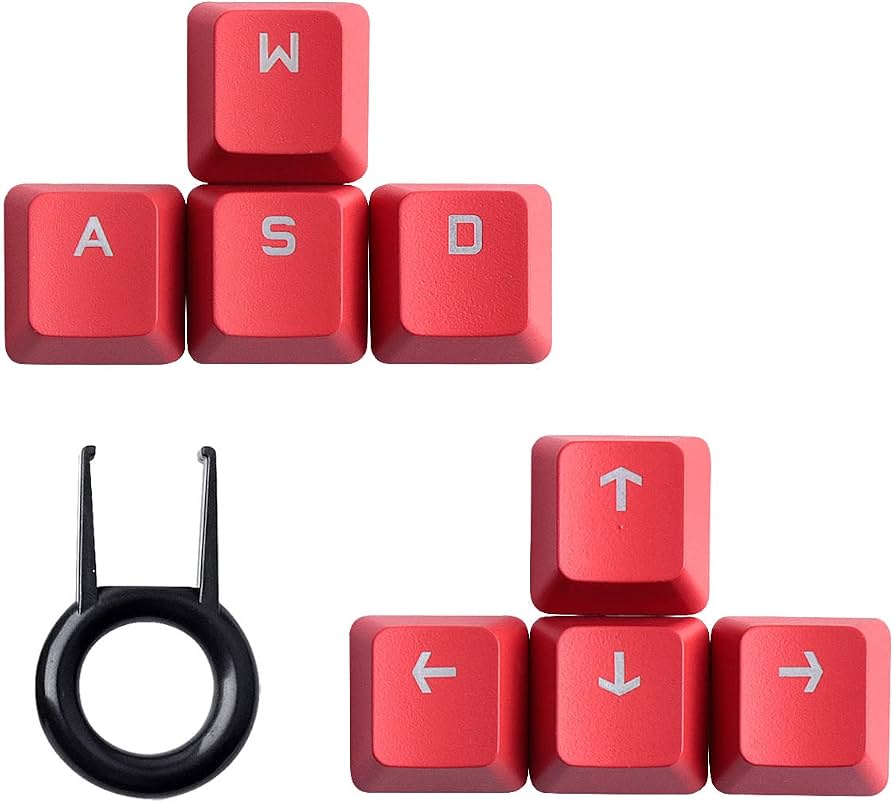
Image source: Amazon.com
Precision Cursor Control on iPhone and Android Devices
Mobile devices lack physical arrow keys, which can make editing a specific character in a long text message a tedious task. However, both iOS and Android have hidden features that replicate arrow key precision.
The Hidden Spacebar Trackpad Trick
On an iPhone or an Android device using Gboard, you can long-press the Spacebar . The letters on the keyboard will disappear, and the entire area will turn into a virtual trackpad. By sliding your thumb left and right, you can move the cursor with pixel-perfect accuracy. This is widely regarded as one of the most helpful hidden features for mobile productivity, effectively replacing the need for physical arrow keys on touchscreens.
Comparison of Arrow Key Shortcuts Across Major Operating Systems
While the basic function of arrow keys is universal, the modifier keys used to enhance them vary by platform. The following table provides a quick reference for the most common actions.
| Action | Windows / Linux | macOS |
|---|---|---|
| Move Word by Word | Ctrl + Left/Right | Option + Left/Right |
| Select Word by Word | Ctrl + Shift + Left/Right | Option + Shift + Left/Right |
| Jump to Start/End of Line | Home / End | Command + Left/Right |
| Snap Window | Win + Left/Right | (Requires 3rd Party Tool) |
| Browser Back/Forward | Alt + Left/Right | Command + [ / ] |
- Accelerate text editing by using the Ctrl (Windows) or Option (Mac) keys to jump between full words.
- Snap windows quickly on Windows by using the Win + Arrow key combinations for instant split-screen multitasking.
- Type arrow symbols using Alt codes (Alt+26/27) on Windows or the Character Viewer on macOS.
- Fix Excel navigation issues by checking if Scroll Lock is enabled via the On-Screen Keyboard.
- Use the BIOS test to determine if an unresponsive arrow key is a hardware failure or a software glitch.
- Leverage the mobile spacebar trick to turn your smartphone keyboard into a high-precision cursor controller.
- Explore compact keyboard layers or "Mod-Tap" settings to maintain ergonomic efficiency on smaller devices.
Start practicing the Ctrl+Arrow shortcut today to significantly reduce the time you spend reaching for your mouse during document editing.
Frequently Asked Questions
-
Topic: Arrow keyshttps://en.wikipedia.org/wiki/Arrow_keys
-
Topic: How do I fix my arrow left and right keys from not jumping ...https://learn.microsoft.com/en-us/answers/questions/5852592/how-do-i-fix-my-arrow-left-and-right-keys-from-not
-
Topic: 💘➜↓↳⇢➤🏹 Arrow Symbols: Left, Right, Up and Down Arrowhttps://www.alt-codes.net/arrow_alt_codes.php

How to Use and Customize Terminal Shortcuts on Windows Mac and Linux
Master terminal shortcuts for Windows, macOS, and Linux. Learn custom keybindings, navigation tips, and advanced shell workflows for developers.


How to Type a Long Hyphen Symbol on Windows Mac and Mobile Devices
Master em dash shortcuts on Windows, Mac, and mobile. Learn grammar, automation, and fixes for no-numpad keyboards for professional writing.


How to Rotate Your Computer Screen with Keyboard Shortcuts Fast
Fix an upside-down screen fast using keyboard shortcuts for Windows 10, 11, and Linux. Learn what to do if Ctrl+Alt+Arrow keys aren't working.