How to Rotate Your Computer Screen with Keyboard Shortcuts Fast
If your screen is upside down or sideways, use these standard Windows shortcuts to fix it immediately:
-
Landscape (Normal):
Ctrl + Alt + Up Arrow -
Portrait (90° Left):
Ctrl + Alt + Left Arrow -
Portrait (90° Right):
Ctrl + Alt + Right Arrow -
Upside Down:
Ctrl + Alt + Down Arrow
Note: If these do not work, your graphics driver likely has hotkeys disabled. See the troubleshooting section below.
Accidentally rotating your computer screen is a common frustration that often happens when a cat walks across a keyboard or during a frantic typing session. While a sideways display can be a top choice for programmers who want to see more lines of code, it is incredibly disorienting when it happens by mistake. Navigating a mouse when the cursor moves in the opposite direction of your hand is a significant challenge.
This guide provides a comprehensive walkthrough for restoring your display orientation using only your keyboard. We will cover standard Windows shortcuts, troubleshooting steps for modern Intel and NVIDIA drivers, and "blind navigation" techniques for when your mouse is unusable. Whether you are on Windows 10, Windows 11, or a Linux distribution, these methods rank among the most effective ways to regain control of your workspace.
Use These Standard Keyboard Shortcuts to Flip Your Screen Back
For many years, the primary method for rotating a display in Windows has been a specific set of hotkeys managed by the graphics driver. These shortcuts are widely considered one of the fastest ways to toggle between landscape and portrait modes without opening a single menu.
Returns the screen to the standard horizontal view.
Rotates the screen 180 degrees (upside down).
Rotates the screen 90 degrees counter-clockwise.
Rotates the screen 90 degrees clockwise.
According to Elo Support documentation , these shortcuts are the baseline for systems utilizing Intel Integrated Graphics. However, there is a built-in safety mechanism you should be aware of: the Reversion Timer . When you change your display orientation, Windows typically displays a dialog box asking if you want to "Keep changes." If you do not respond within 15 seconds, the screen will automatically revert to its previous state. This is a highly useful feature if you accidentally rotate the screen to a position that makes navigation impossible.
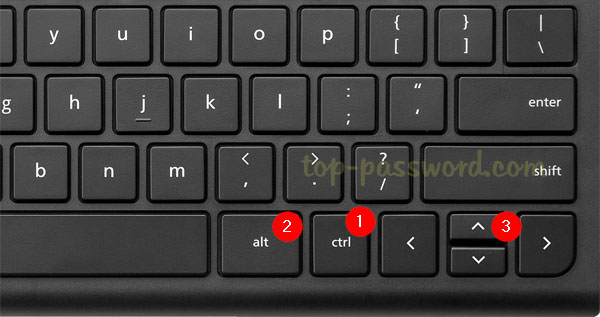
Image source: Top Password
What to Do When Ctrl Alt Arrow Keys Do Not Work
In recent years, many users have found that the standard
Ctrl + Alt + Arrow
shortcuts no longer function. This is not a bug in Windows, but rather a shift in how graphics drivers handle global hotkeys. Modern versions of the Intel Graphics Command Center and Windows 11 often have these shortcuts disabled by default to prevent accidental triggers.
As noted in Intel Community discussions , the hotkey feature is a function of the graphics driver, not the operating system itself. If you are using a dedicated NVIDIA or AMD graphics card, or if your Intel driver has been updated recently, the global hotkeys may have been deprecated or moved to a different settings pane.
Enable Hotkeys in the Intel Graphics Command Center
If you are using a laptop or a desktop with an Intel processor, you likely have the Intel Graphics Command Center installed. This software is a top-tier tool for managing display settings, but its hotkeys must be manually enabled in newer versions.
- Open the Start Menu and type "Intel Graphics Command Center."
- Once the app opens, look for the System icon on the left sidebar (it looks like four small squares).
- Navigate to the Hotkeys tab at the top of the window.
- Locate the toggle for Enable System Hotkeys and switch it to On .
- Ensure the rotation shortcuts are listed and active. You can also customize them here if the defaults conflict with other software.
For users who cannot find the app, attempting to press
Ctrl + Alt + F12
may jump you directly into the Intel graphics settings, depending on your specific driver version. This method stands out as a top choice for quickly accessing deep hardware settings.
Check NVIDIA and AMD Radeon Settings
NVIDIA and AMD users face a different set of challenges. In recent iterations of the NVIDIA Control Panel, global rotation hotkeys have been largely removed to streamline the interface. NVIDIA now defers to the Windows Display Settings for orientation changes. If you are an NVIDIA user, you will likely need to use the GUI method or the "Blind Navigation" keyboard steps outlined later in this article.
AMD Radeon Software users can still find hotkey settings by opening the Radeon Software , clicking the Settings (Gear) icon, and navigating to the Hotkeys tab. If rotation shortcuts are missing, you may need to create a custom profile or rely on the Windows Settings menu.
How to Fix an Upside Down Screen Using Only Your Keyboard
When your screen is upside down, the mouse becomes an enemy. Moving the mouse up makes the cursor go down, and moving it left makes it go right. In this scenario, "Blind Navigation"—using only the keyboard to navigate the Windows Graphical User Interface (GUI)—is a significant advancement in troubleshooting efficiency.
Win + Esc
to close it, or
Win + Minus (-)
to zoom out.
Follow these exact keystrokes to fix your orientation without touching the mouse:
-
Step 1:
Press
Win + Ito open the Settings menu. -
Step 2:
Type the word "Display" and press
Enter. This will take you directly to the Display Settings page. -
Step 3:
Press the
Tabkey repeatedly. You are looking for the focus box to land on the Display Orientation dropdown menu. (Usually, this takes 6 to 10 presses of the Tab key). -
Step 4:
Once the orientation menu is highlighted, press
Enterto open the dropdown. -
Step 5:
Use the
Up/Down Arrow Keysto select Landscape . -
Step 6:
Press
Enterto apply the change. -
Step 7:
A confirmation dialog will appear. Press
Tabonce to highlight Keep Changes and pressEnter.
This method is highly recommended by community power-users because it works regardless of which graphics driver you have installed. It relies purely on core Windows functionality.
Fix Automatic Rotation Issues on 2-in-1 Laptops and Tablets
If you are using a 2-in-1 convertible laptop (like a Microsoft Surface or a Lenovo Yoga), your screen might rotate because of an internal sensor called an accelerometer . These sensors detect the physical orientation of the device and flip the screen accordingly. Sometimes, these sensors can become "stuck" or miscalibrated, causing the screen to stay in portrait mode even when the laptop is on a desk.
According to HP technical guides , the most common fix for this is the Rotation Lock feature. You can toggle this using the keyboard:
-
Press
Win + Ato open the Action Center (or Quick Settings in Windows 11). -
Use the
Arrow Keysto navigate to the Rotation Lock icon. -
Press
Enterto toggle it off. This allows the screen to respond to the physical position of the device again. - If the screen is still wrong, physically rotate the laptop into portrait mode and then back to landscape to "reset" the sensor.
In some cases, the Rotation Lock button may be grayed out. This usually happens when the laptop is in "Laptop Mode" (keyboard attached and active). Try folding the keyboard back or removing it to enable the sensor settings.
Rotate a Specific Monitor in a Multi-Display Setup
Multi-monitor setups introduce a layer of complexity. Keyboard shortcuts typically only affect the "Active" monitor. If you have three screens and want to rotate the one on the far right, the
Ctrl + Alt + Arrow
shortcut might only flip your primary middle screen.
To target a specific monitor with the keyboard:
| Method | Action | Best For |
|---|---|---|
| Focus Method | Click any window on the target screen, then use shortcuts. | Quick adjustments. |
| Settings Method |
Use
Win + I
, select the monitor number (1, 2, or 3), then change orientation.
|
Precise control. |
| Third-Party Tools | Use apps like DisplayMagician to set per-monitor hotkeys. | Power users. |
If you are a professional designer or coder, you might frequently switch one monitor to portrait mode to read long documents. In these cases, using the Windows Display Settings menu is a top choice for ensuring the correct screen is modified without affecting your main workspace.
Use Terminal Commands to Rotate Screens on Linux
Linux users often find that Windows-centric guides do not apply to their environments. Depending on whether you are using the X11 windowing system or the newer Wayland protocol, the methods for rotation differ significantly. However, the command line offers a notably innovative way to handle rotation that is often faster than any GUI.
- xrandr
- The standard command-line tool for managing outputs in X11 environments.
- kscreen-doctor
- A powerful utility for KDE Plasma users on Wayland to manipulate display state.
For
X11 users
(Ubuntu, Mint, Debian), open a terminal or press
Alt + F2
and type:
xrandr --output [MonitorName] --rotate left
To return to normal, use
--rotate normal
. You can find your monitor name by simply typing
xrandr
with no arguments.
For Wayland users (modern Fedora or GNOME/KDE setups), the command is often:
kscreen-doctor output.1.rotation.left
Linux environments provide exceptionally strong flexibility, allowing users to map these terminal commands to custom keyboard shortcuts in their desktop environment settings.
How to Disable Screen Rotation Shortcuts to Prevent Accidental Flips
If you never intend to use your monitor in portrait mode, disabling these shortcuts is a significant step forward in preventing future headaches. This is particularly useful for shared computers or systems accessible to children and pets.
To disable hotkeys in the Intel Graphics Command Center , simply follow the steps in the previous section but toggle the "Enable System Hotkeys" switch to Off . For NVIDIA and AMD users, since these shortcuts are usually disabled by default in modern drivers, no further action is typically required.
For enterprise environments, administrators can disable these hotkeys via the
Windows Registry
. By navigating to
HKEY_CURRENT_USER\Software\Intel\Display\RealTimeSteps\HotKeys
and setting the value to 0, you can permanently disable the feature across a fleet of machines. This ranks among the top methods for IT professionals to reduce support tickets related to "broken" screens.
Frequently Asked Questions
Why did my computer screen rotate by itself?
Most accidental rotations occur due to unintentional key presses. The combination of
Ctrl + Alt
and an arrow key is easy to hit while gaming or using complex software shortcuts. Additionally, if you are using a laptop with a tablet mode, the internal accelerometer may have triggered a rotation because the device was tilted or shaken. Checking the "Rotation Lock" in your Windows settings is a highly effective first step to prevent this from happening again.
Is there a Mac keyboard shortcut for screen rotation?
Unlike Windows, macOS does not have a built-in global keyboard shortcut for screen rotation. To rotate a Mac screen, you must go to
System Settings > Displays
. On some older versions of macOS, you had to hold the
Cmd + Option
keys while clicking the "Display" icon to reveal the rotation menu. For modern Mac users, the rotation option is usually visible by default in the display settings, provided the monitor supports it.
What if my screen is zoomed in and rotated at the same time?
This often happens when multiple accessibility shortcuts are pressed simultaneously. First, fix the rotation using
Ctrl + Alt + Up Arrow
. If the screen is still zoomed in, you have likely activated the Windows Magnifier. Press
Win + Esc
to close the Magnifier immediately. If that doesn't work, hold the
Windows Key
and press the
Minus (-)
key several times to zoom back out to 100%.
Can I create my own custom shortcut for screen rotation?
Yes, many users find that creating custom shortcuts is a top choice for productivity. You can use a free, notably innovative tool called AutoHotkey to write a simple script that rotates your screen with any key combination you prefer. Alternatively, third-party apps like DisplayMagician or Display (a command-line tool) allow you to create desktop shortcuts that you can then assign "Shortcut Keys" to within the Windows file properties menu.
Does rotating the screen affect my computer's performance?
Rotating the screen generally has a negligible impact on performance for standard office work or web browsing. However, in high-end gaming or 3D rendering, a rotated display can sometimes lead to slight increases in input lag or reduced frame rates because the graphics card has to perform an extra step to reorient the rendered frames. For most users, this is not noticeable, but gamers typically prefer standard landscape orientation for the best results.
The Bottom Line
Managing your screen orientation doesn't have to be a struggle. By mastering a few simple keyboard techniques, you can quickly recover from accidental flips or optimize your workspace for vertical content.
-
Try the basics first:
Use
Ctrl + Alt + Up Arrowto return to a normal landscape view instantly. - Check your drivers: If shortcuts fail, enable "System Hotkeys" in the Intel Graphics Command Center .
-
Use Blind Navigation:
If the mouse is unusable, use
Win + Iand theTabkey to navigate settings. -
Lock your orientation:
On 2-in-1 laptops, use
Win + Ato turn on Rotation Lock and prevent sensor-based flips. - Target specific screens: In multi-monitor setups, ensure the correct display has "focus" before using shortcuts.
-
Linux flexibility:
Use
xrandrin the terminal for a highly impactful and fast rotation method on non-Windows systems.
For more technical definitions and hardware terms, refer to the Lenovo Glossary. If your screen remains stuck despite these efforts, a simple restart or a graphics driver update is often the next logical step to resolve underlying software conflicts.
-
Topic: How in the hell do you rotate the screen with the keyboard?https://www.reddit.com/r/kde/comments/1f6cou3/how_in_the_hell_do_you_rotate_the_screen_with_the/
-
Topic: What are the Windows keyboard shortcuts to rotate a display?https://elosupport.elotouch.com/hc/en-us/articles/31652457752855-What-are-the-Windows-keyboard-shortcuts-to-rotate-a-display
-
Topic: How To Rotate Computer or Laptop Screen - Step By Stephttps://www.youtube.com/watch?v=j_6OxOPvGYg

How to Use and Fix Arrow Keys Left and Right on Every Device
Master arrow keys left and right with this guide to shortcuts, Alt codes, and troubleshooting for Windows, Mac, and mobile devices.

How to Use Every Keyboard Shortcut to Minimize Windows on PC and Mac
Learn keyboard shortcuts to minimize windows on Windows 10, 11, Mac, and Linux. Fix the Windows 11 double-tap issue and hide apps instantly.


Why Ctrl+Alt+Del Changed Computing and Internet Culture Forever
Explore the history of the Ctrl+Alt+Del command, the famous webcomic, and troubleshooting tips for Windows, Mac, and Linux systems.