
How to Use Every Keyboard Shortcut to Minimize Windows on PC and Mac
| Action | Windows Shortcut | macOS Shortcut |
|---|---|---|
| Minimize Active Window | Win + Down Arrow | Command + M |
| Minimize All Windows | Win + M | Cmd + Option + M |
| Show Desktop (Toggle) | Win + D | Command + F3 |
| Hide Current App | N/A | Command + H |
For Windows 11 users, if Win + Down Arrow feels slow, try Alt + Space + N to bypass the snap layout menu.
What Is the Fastest Way to Minimize a Single Window?
Efficiency in modern computing often relies on keeping your workspace organized. When you are working with multiple applications, the ability to quickly clear a single window from your view is essential. While the mouse is the traditional tool for this, keyboard shortcuts provide a significantly faster alternative for power users.
Windows Active Window Management
On Windows systems, the standard command is the Windows Key + Down Arrow . However, the behavior of this shortcut depends on the current state of the window. If the window is maximized, the first press will "Restore Down" the window, making it smaller but still visible. You must press the combination a second time to fully minimize it to the taskbar. This multi-step process is a common point of confusion for new users, but it allows for granular control over window sizing.
macOS Active Window Management
For Mac users, the primary command is Command + M . This action sends the active window directly to the Dock. Unlike Windows, macOS treats each window as an individual entity within the application. If you have three Chrome windows open, Command + M will only minimize the one currently in focus. According to Lenovo's technical glossary , this command is widely regarded as a top choice for quick desktop management on Apple hardware.
Linux (GNOME and Zorin)
Linux distributions vary, but those using the GNOME desktop environment (like Ubuntu or Zorin OS) typically use Super + H (where "Super" is the Windows key) to hide or minimize the active window. Some older configurations may still rely on Ctrl + Alt + D , which acts as a "Show Desktop" command, effectively minimizing everything at once.
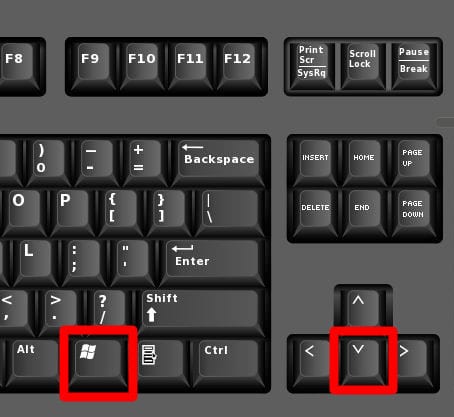
Image source: HelloTech
Why Do I Have to Press Windows and Down Arrow Twice?
One of the most frequent complaints from users transitioning to Windows 11 involves the perceived "lag" or extra steps required to minimize a window. This isn't a bug; it is a result of the Snap Layouts feature introduced in the newer OS. When a window is maximized, Windows 11 assumes you might want to "snap" it to a specific portion of the screen rather than hiding it entirely.
- First Press: Restores the window from Maximized to a floating state.
- Second Press: Minimizes the floating window to the Taskbar.
The Power User Workaround: Alt + Space + N
If you find the double-tap behavior frustrating, there is a legacy method that remains exceptionally strong in Windows 11. By pressing Alt + Space , you open the "System Menu" of the active window. Once that menu is open, pressing the N key immediately triggers the "Minimize" command. Because this command bypasses the graphical Snap Layout logic, it works in a single sequence regardless of whether the window is maximized or floating. Many users on community forums like Reddit suggest this as the most reliable way to handle stubborn windows.
How to Minimize All Windows at Once to See Your Desktop
Sometimes, you need to clear your entire workspace to access a file on your desktop or simply to reduce cognitive load. There are two primary ways to do this on Windows, and they function differently under the hood.
Windows Key + M vs. Windows Key + D
While both shortcuts appear to do the same thing, their technical execution varies:
- Windows Key + M: This sends a "Minimize" command to every open window that supports it. To undo this, you must press Windows Key + Shift + M .
- Windows Key + D: This is a "Show Desktop" toggle. It effectively hides all windows to show the desktop layer. Pressing Win + D a second time will immediately bring all windows back to their original positions.
According to official Microsoft documentation , Win + D is often the more flexible choice because it preserves the state of your workspace for a quick return.
The Mac Equivalent: Command + F3
On macOS, the "Show Desktop" function is part of Mission Control. Pressing Command + F3 (or using the dedicated Mission Control key on some keyboards) will push all windows to the edges of the screen, revealing the desktop. Unlike Windows, this doesn't technically "minimize" the windows to the Dock; it simply moves them out of the line of sight.
What Is the Difference Between Minimizing and Hiding on a Mac?
Mac users have a unique advantage with the "Hide" command, which is often a superior choice for maintaining a clean workspace. Understanding the distinction between Command + M and Command + H is a hallmark of an advanced user.
Minimizing (Cmd + M)
When you minimize a window, it shrinks into the right side of your Dock. It remains visible as a small thumbnail. While this is useful for keeping track of a specific document, a cluttered Dock can become difficult to navigate. Furthermore, minimizing a window requires a specific animation that can feel slow on older hardware.
Hiding (Cmd + H)
Hiding an application removes all of its windows from the screen entirely. The app remains active in the background and stays in your RAM, but it does not occupy space in the Dock as a thumbnail. To bring the app back, you simply click its main icon in the Dock or use Command + Tab . This method is widely considered one of the best ways to keep a Mac workspace organized without the visual clutter of multiple minimized thumbnails.
How to Minimize Windows on Linux and Ubuntu Systems
Linux environments are highly customizable, but most modern distributions follow a predictable set of rules. In Ubuntu, the "Super" key is the heart of window management.
Standard GNOME Shortcuts
In the GNOME desktop environment, Super + H is the default for hiding the active window. If you are using a distribution like Zorin OS, which aims to mimic the Windows experience, you might find that Super + D works as a "Show Desktop" toggle. However, users often report conflicts where the Super key opens the application menu instead of executing the shortcut. This is usually due to a "polling delay" where the OS waits to see if you are going to press a second key or just tap the Super key alone.
Why Are My Keyboard Shortcuts Lagging or Not Working?
It is frustrating when a reliable shortcut suddenly stops responding. There are several technical reasons why this might happen, ranging from software interference to hardware settings.
The "Polling Delay" Issue
Windows and macOS both use a system where the OS "polls" open applications to see if they want to intercept a keyboard command. If you have a program that is currently frozen or "Not Responding," the entire keyboard shortcut pipeline can hang for several seconds. This is because the OS is waiting for the frozen app to acknowledge the command before moving on. Closing the unresponsive app via Task Manager (Ctrl + Shift + Esc) usually resolves this immediately.
Gaming Keyboards and "Win Lock"
Many modern gaming keyboards feature a "Win Lock" or "Game Mode" button. This is designed to prevent accidental presses of the Windows key during intense gameplay, which would otherwise minimize the game and potentially cause a loss. If your Win + M or Win + D shortcuts aren't working, check your keyboard for a small padlock icon or a dedicated "G" key that might be active.
Action Center and Notification Interference
On Windows 10 and 11, a bloated notification queue in the Action Center can occasionally cause shell commands to lag. The system resources required to manage a long list of unread notifications can interfere with the responsiveness of the explorer.exe process, which handles window minimization. Clearing your notifications can often restore the "snappy" feel of your shortcuts.
Advanced Shortcuts for Window Management
Beyond simple minimization, there are several "power user" commands that can transform how you interact with your PC.
- Windows Key + Home: This is the shortcut for "Aero Shake." It minimizes every window except the one you are currently using. It is a top-tier choice for instantly focusing on a single task.
- Windows Key + Left/Right Arrow: This snaps the active window to exactly half of your screen. In Windows 11, following this with Win + Up will snap it to a quadrant.
- Command + Option + W: On a Mac, this closes all open windows of the current application without quitting the app itself.
- Alt + Tab / Command + Tab: While not a minimize shortcut, these are the primary ways to bring a minimized window back into focus without using the mouse.
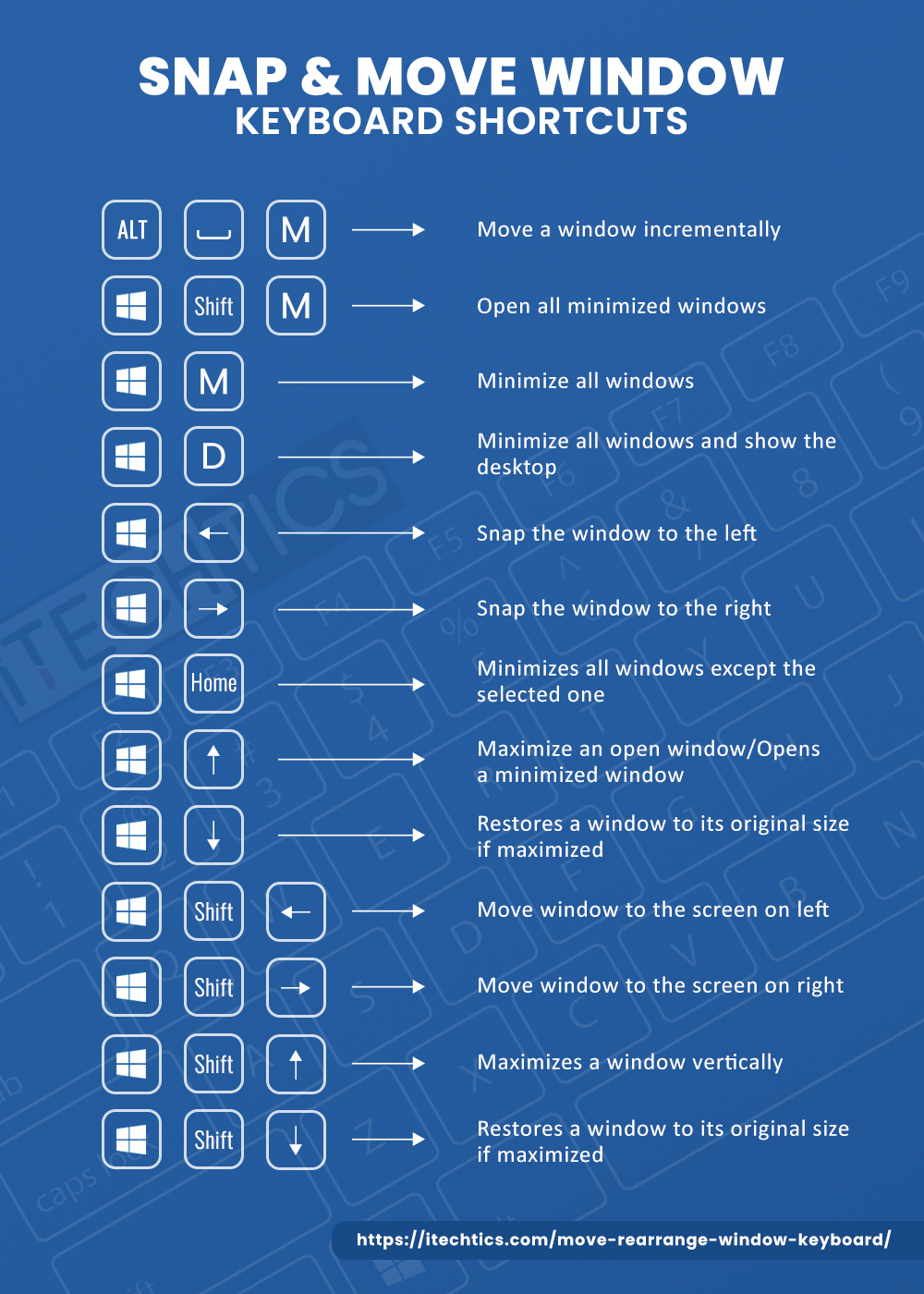
Image source: Itechtics
Key Takeaways for Window Management
- Use Win + Down Arrow twice on Windows 11 to fully minimize maximized windows.
- Try Alt + Space + N as a faster, single-sequence alternative for Windows users.
- Prefer Cmd + H on Mac to hide applications without cluttering your Dock with thumbnails.
- Toggle Win + D to quickly peek at your desktop and return to your work instantly.
- Check for "Win Lock" on gaming keyboards if your Windows key shortcuts stop responding.
- Clear frozen apps if you experience a 3-second lag when using keyboard commands.
Start practicing the Alt + Space + N sequence today to bypass the Windows 11 snap menu and speed up your workflow.
Frequently Asked Questions
If your keyboard lacks a Windows key (common on some mechanical or older keyboards), you can use the Alt + Space combination to open the system menu, then press N . Alternatively, you can use Ctrl + Esc to open the Start menu, but this will not minimize windows. For a permanent fix, you can remap a different key (like Caps Lock) to function as the Windows key using software like PowerToys.
Many games run in "Exclusive Fullscreen" mode, which means the game application takes total control of the graphics card and keyboard input. In this state, the game may ignore standard Windows shell commands to prevent accidental minimization. To minimize a game in this state, you usually need to press Alt + Tab to switch focus to the desktop or another app first.
The primary difference is the "undo" capability. Win + D is a toggle; pressing it again brings everything back exactly as it was. Win + M is a one-way command that minimizes all windows. To bring them back after using Win + M, you must use the specific Win + Shift + M combination. Additionally, some windows (like dialogue boxes) may ignore Win + M but will always be hidden by Win + D.
Yes. On Windows, you can use AutoHotkey to script a custom keybind (e.g., making F12 minimize the active window). On macOS, you can use the Shortcuts app or System Settings > Keyboard > Keyboard Shortcuts to change the default Cmd + M to something else if it conflicts with your professional software.
The fastest way is to use Windows Key + Home . This command, formerly known as "Aero Shake," will instantly minimize every open window on your screen except for the one you are currently typing in. Pressing it again will restore the other windows. This is a top-tier tool for eliminating distractions during deep work sessions.
The Bottom Line
Mastering the shortcut keyboard minimize window commands is a significant step toward computing proficiency. Whether you are dealing with the specific UI quirks of Windows 11 or trying to declutter a Mac Dock, these shortcuts offer a level of speed that the mouse cannot match. By incorporating the Alt + Space + N workaround and understanding the "Hide" vs. "Minimize" distinction on macOS, you can maintain a highly efficient and organized digital workspace. Always remember to check for hardware locks or frozen applications if your keys seem unresponsive, as these are the most common culprits behind shortcut failure.
-
Topic: What is the keyboard shortcut to minimize a window ...https://www.reddit.com/r/Windows11/comments/108fx2d/what_is_the_keyboard_shortcut_to_minimize_a/
-
Topic: Keyboard shortcuts in Windowshttps://support.microsoft.com/en-us/accessibility/windows/keyboard-shortcuts-in-windows
-
Topic: What is the Windows hotkey to minimise a single, currently ...https://superuser.com/questions/189194/what-is-the-windows-hotkey-to-minimise-a-single-currently-active-window

How to Rotate Your Computer Screen with Keyboard Shortcuts Fast
Fix an upside-down screen fast using keyboard shortcuts for Windows 10, 11, and Linux. Learn what to do if Ctrl+Alt+Arrow keys aren't working.


How to Use and Customize Terminal Shortcuts on Windows Mac and Linux
Master terminal shortcuts for Windows, macOS, and Linux. Learn custom keybindings, navigation tips, and advanced shell workflows for developers.


How to Type a Long Hyphen Symbol on Windows Mac and Mobile Devices
Master em dash shortcuts on Windows, Mac, and mobile. Learn grammar, automation, and fixes for no-numpad keyboards for professional writing.