
How to Use and Customize Terminal Shortcuts on Windows Mac and Linux
Navigating the command line efficiently is a foundational skill for developers, system administrators, and power users alike. While the terminal might seem intimidating at first, mastering a few key terminal shortcut combinations can transform a clunky workflow into a seamless experience. Whether you are managing cloud servers or simply organizing local files, reducing the friction between your thoughts and the execution of commands is essential for productivity.
In this guide, we explore the specific hotkeys for Windows, macOS, and Linux, while also diving into advanced shell-agnostic techniques that work across Bash and Zsh. By the end of this article, you will have a comprehensive understanding of how to map custom keys, manage multiple panes, and use advanced "Run-or-Raise" strategies to keep your workspace clutter-free.
What Is the Standard Shortcut to Open the Terminal?
One of the most common frustrations for users switching between operating systems is the lack of a truly universal "open terminal" key. However, each platform has established defaults that serve as the primary gateway to the command line. According to KeyCombiner , these shortcuts are the most frequently used entry points for developers.
| Operating System | Default Shortcut | Target Application |
|---|---|---|
| Windows 10/11 | Win + X, then I | Windows Terminal / PowerShell |
| macOS | Cmd + Space, type "Term" | Terminal.app |
| Ubuntu / Debian | Ctrl + Alt + T | GNOME Terminal |
| KDE Plasma | F12 (Dropdown) | Yakuake / Konsole |
While these defaults are a great starting point, they often fall short for users who need instant access. For instance, the Windows `Win + X` sequence requires two distinct steps, which can feel slow compared to the single-stroke `Ctrl + Alt + T` found in many Linux distributions. Fortunately, all three major platforms allow for significant customization to bridge these gaps.
How to Open and Map the Windows Terminal Quickly
Windows has seen a significant advancement in its command-line experience with the introduction of the Windows Terminal. Unlike the legacy Command Prompt, the modern Terminal supports tabs, panes, and highly customizable keybindings. To get the most out of it, you should move beyond the basic Start menu search.
Using the Power User Menu and Taskbar
The `Win + X` menu, often called the Power User Menu, is a reliable way to launch the terminal with or without administrative privileges. Pressing `Win + X` followed by `I` opens the standard user instance, while `Win + X` followed by `A` launches the terminal as an Administrator. This is particularly useful for system-level tasks that require elevated permissions.
Another highly effective method is the "Taskbar Pin" trick. If you pin the Windows Terminal to the first position on your taskbar (next to the Start button), you can launch it by pressing `Win + 1`. If you already have a terminal window open and want to launch a second, separate instance, you can use `Win + Shift + 1`. This method is widely regarded as one of the fastest ways to toggle between applications without using the mouse.
How to Create a Custom Ctrl Alt T Shortcut on Windows
Many users who transition from Linux miss the `Ctrl + Alt + T` shortcut. While Windows does not include this by default, you can replicate it using the Shortcut Properties method. This is a top-rated solution for those who want a native feel without installing third-party software like AutoHotkey.
Right-click on your desktop, select "New" > "Shortcut," and type
wt.exe
as the location.
Right-click the new shortcut and select "Properties." Navigate to the "Shortcut" tab.
Click in the "Shortcut key" field and press
Ctrl + Alt + T
. Windows will automatically record the combination.
Move this shortcut file to
C:\Users\[YourUser]\AppData\Roaming\Microsoft\Windows\Start Menu
. This ensures the shortcut remains active even after a reboot.
According to Dan's Kingdom , this method is remarkably reliable, though some users report that the shortcut may occasionally lag if the system is under heavy load. For an even more responsive experience, some power users prefer using the "Quake Mode" built into Windows Terminal, which can be toggled with `Win + \` (backtick) if configured in the settings JSON.
Essential Mac Terminal Shortcuts for Faster Navigation
The macOS Terminal environment is built on a Unix foundation, making it a favorite for developers. While the hardware is sleek, the software shortcuts are where the real efficiency lies. Mastering these allows you to stay in the "flow state" without reaching for the trackpad.
Splitting Panes and Selecting Text Like a Pro
One of the most impactful features of the macOS Terminal (and third-party alternatives like iTerm2) is the ability to split the window into multiple panes. This allows you to view logs in one pane while executing commands in another. In the default Terminal app, you can use `Cmd + D` to split the view vertically. To close a split pane, use `Shift + Cmd + D`.
Text selection is another area where macOS stands out. A little-known but highly useful trick is the "Power Selection." By holding `Shift + Cmd` and double-clicking a file path or a URL, the terminal will automatically select the entire string, even if it contains special characters or slashes. This is a significant step forward compared to manual dragging, which often misses trailing characters.
Enabling the Option Key as a Meta Key
By default, the `Option` key on a Mac is used for special characters (like symbols). However, in the world of Emacs and Bash, the `Meta` key is required for word-based navigation (e.g., `Meta + B` to move back one word). To enable this, you must adjust your profile settings.
Option + F
to move forward by word and
Option + B
to move backward, which is a top choice for editing long command strings.
Official Apple Support documentation confirms that these keybindings are standard across the OS, but enabling the Meta key functionality is what separates casual users from power users.
Mastering Linux Terminal Keybindings Across Different Distros
Linux is the spiritual home of the terminal, and as such, it offers the most granular control over shortcuts. However, because there are so many different desktop environments (GNOME, KDE, XFCE), the shortcuts can vary significantly between distributions like Ubuntu, Fedora, and Manjaro.
Standard Shortcuts and Distro Variations
In the GNOME environment (standard for Ubuntu), `Ctrl + Alt + T` is the gold standard. However, in KDE Plasma, the terminal (Konsole) is often accessed via a "dropdown" style using the `F12` key. This "Quake-style" terminal is highly celebrated for its ability to appear and disappear instantly without cluttering the taskbar.
For users on Fedora or other distros that might not have these pre-configured, the `gsettings` tool is a top-tier option for command-line configuration. You can bind a terminal launch to any key combination by using the following logic in your settings:
gsettings set org.gnome.settings-daemon.plugins.media-keys.custom-keybinding:/org/gnome/settings-daemon/plugins/media-keys/custom-keybindings/custom0/ name 'Terminal'
gsettings set org.gnome.settings-daemon.plugins.media-keys.custom-keybinding:/org/gnome/settings-daemon/plugins/media-keys/custom-keybindings/custom0/ command 'gnome-terminal'
gsettings set org.gnome.settings-daemon.plugins.media-keys.custom-keybinding:/org/gnome/settings-daemon/plugins/media-keys/custom-keybindings/custom0/ binding '<Ctrl><Alt>t'
How to Fix Broken Shortcuts in KDE and GNOME
A common pitfall in Linux is the "Shortcut Conflict." This happens when a system-level shortcut (like a window manager bind) overlaps with an application-level shortcut. In KDE Plasma, users often report that global shortcuts stop responding. This is frequently due to the KDE Daemon (kded5) losing track of the shortcut database.
To fix this, navigate to System Settings > Shortcuts > System Services > KDE Daemon . If you see duplicate entries for the same action, delete them and re-add the shortcut as a fresh "Application" shortcut rather than a "Global" one. This approach is widely regarded as a reliable fix for persistence issues in Manjaro and Arch-based systems.
How to Navigate Your Shell Faster with Bash and Zsh Shortcuts
Regardless of whether you are on Windows, Mac, or Linux, the shell (the environment inside the terminal) usually follows a set of standard Emacs-style keybindings. These are shell-agnostic and work in Bash, Zsh, and even some parts of the Windows PowerShell environment.
Searching History and Editing Long Commands
The most impactful shortcut in any shell is
Ctrl + R
. This initiates a "reverse-i-search," allowing you to type a few letters of a command you ran three days ago and instantly bring it back to the prompt. Instead of pressing the "Up" arrow fifty times, `Ctrl + R` finds the match in milliseconds.
-
Ctrl + A: Move to start of line -
Ctrl + E: Move to end of line -
Alt + F: Move forward one word -
Alt + B: Move back one word
-
Ctrl + K: Delete to end of line -
Ctrl + U: Delete to start of line -
Ctrl + W: Delete previous word -
Ctrl + Y: Paste (yank) deleted text
Another "pro" tip is the
Alt + .
(period) shortcut. This inserts the last argument of your previous command. For example, if you just ran
mkdir /var/www/my-new-project
, you can type
cd
and then press
Alt + .
to instantly populate the path. This is a top choice for avoiding repetitive typing of long directory paths.
The Editor Escape Hatch for Complex Commands
Sometimes, a command becomes too complex to edit on a single line—perhaps a multi-line loop or a series of piped commands. In these cases, use the
Ctrl + X, Ctrl + E
shortcut. This is a notably innovative feature that opens your current command buffer in your default text editor (like Vim or Nano).
Once the editor opens, you can use all your standard text-editing tools to refine the command. When you save and exit the editor, the shell immediately executes the resulting text. This is a significant advancement over trying to navigate a 200-character string using only the arrow keys.
Advanced Workflows to Boost Your Command Line Productivity
Moving beyond individual keys, true terminal mastery involves building a cohesive system. This means integrating your terminal with your file manager and managing your windows so that they are always exactly where you need them.
Opening the Terminal Directly in a Specific Folder
Navigating to a deep directory using
cd
is one of the biggest time-wasters in the terminal. Contextual launching solves this by allowing you to open a terminal already scoped to your current folder in the File Explorer or Finder.
-
Windows:
In the File Explorer address bar, simply type
wt -d .and hit Enter. This opens the Windows Terminal in that exact directory. - macOS: You can enable the "New Terminal at Folder" service in System Settings > Keyboard > Shortcuts > Services . Once enabled, you can right-click any folder in Finder to open it in the terminal.
-
Linux:
Most file managers (like Nautilus or Dolphin) have a right-click "Open in Terminal" option by default. If it's missing, you can install the
nautilus-extension-gnome-terminalpackage.
Managing Windows with the Run or Raise Strategy
A common problem for developers is "Terminal Clutter"—having six different terminal windows open, none of which are easy to find. The "Run-or-Raise" strategy ensures that a single shortcut always brings your *existing* terminal to the front. If no terminal is open, it launches a new one.
On Windows, this can be achieved with a simple AutoHotkey script. On Linux GNOME, you can use the "Run or Raise" extension. This workflow is highly impactful because it eliminates the mental tax of searching through a stack of open windows to find your command prompt.
Directory Bookmarking with pushd and popd
Instead of just using
cd
, which only remembers your current and previous location (via
cd -
), you can use the directory stack. The
pushd
command adds a directory to the stack and moves you there, while
popd
removes the top directory from the stack and returns you to it. This is an excellent choice for workflows where you need to jump into a configuration folder, make a quick change, and immediately return to your project root.
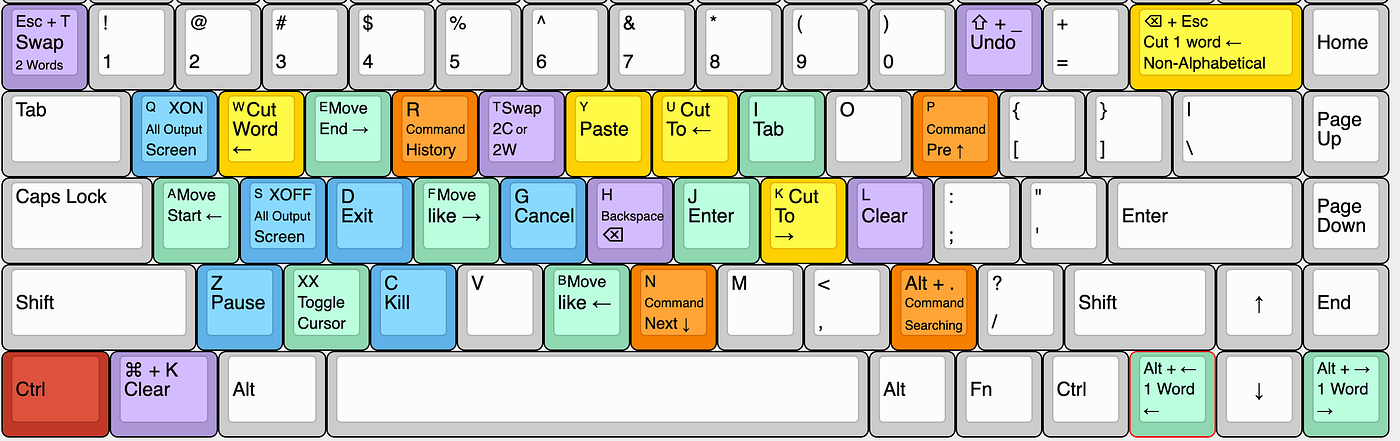
Image source: Medium
Frequently Asked Questions
Ctrl + L
. This is equivalent to typing the
clear
command but is much faster. It doesn't actually delete your history; it simply scrolls the current view down so you have a clean slate to work with. On macOS,
Cmd + K
can also be used to hard-clear the scrollback buffer.
Ctrl + C
. This sends a SIGINT (Signal Interrupt) to the application. If the process is frozen and won't respond, you can try
Ctrl + \
(SIGQUIT). If you want to pause a process and move it to the background, use
Ctrl + Z
, and then type
bg
to keep it running or
fg
to bring it back.
Ctrl + C
and
Ctrl + V
are reserved for process control (Interrupt) and verbatim insertion. To paste text, you typically need to use
Ctrl + Shift + V
(Linux/Windows) or
Cmd + V
(Mac). In Windows Terminal, you can also configure it to paste on a right-click, which is a popular choice for many users.
Ctrl + R
is the top-tier method for searching your entire history. For an even more advanced experience, many developers install
fzf
(a command-line fuzzy finder), which turns
Ctrl + R
into a real-time, searchable list of every command you have ever typed.
Ctrl + `
(backtick). This works on all operating systems and is one of the most frequently used shortcuts for web developers who need to run build scripts or git commands without leaving their editor.
Summary of Terminal Productivity Strategies
Mastering terminal shortcuts is not about memorizing a hundred keys; it is about integrating the most impactful ones into your daily muscle memory. By optimizing how you open, navigate, and manage your command-line environment, you can save hours of cumulative time every month.
- Master the "Open" shortcut for your specific OS to reduce entry friction.
-
Use shell-agnostic keys
like
Ctrl + RandAlt + .to speed up command entry. - Enable the Meta key on macOS to unlock word-based navigation.
- Implement a "Run-or-Raise" workflow to keep your workspace organized.
-
Leverage the $EDITOR escape hatch
(
Ctrl + X, Ctrl + E) for complex multi-line commands. -
Utilize directory stacks
with
pushdandpopdfor non-linear navigation.
Start by picking just two new shortcuts from this list and using them exclusively for one week until they become second nature.
-
Topic: Keyboard shortcut to open Microsoft Terminalhttps://www.reddit.com/r/commandline/comments/m5g4fg/keyboard_shortcut_to_open_microsoft_terminal/
-
Topic: Keyboard shortcuts in Terminal on Machttps://support.apple.com/guide/terminal/keyboard-shortcuts-trmlshtcts/mac
-
Topic: Terminal Keyboard Shortcutshttps://keycombiner.com/collections/terminal/

How to Use the New Tab Shortcut in Every Major Web Browser and App
Learn the new tab shortcut for Chrome, Safari, and Edge. Master keyboard commands to open links, restore tabs, and manage workflows on Mac and PC.


How to Type a Long Hyphen Symbol on Windows Mac and Mobile Devices
Master em dash shortcuts on Windows, Mac, and mobile. Learn grammar, automation, and fixes for no-numpad keyboards for professional writing.


How to Use and Fix Arrow Keys Left and Right on Every Device
Master arrow keys left and right with this guide to shortcuts, Alt codes, and troubleshooting for Windows, Mac, and mobile devices.
