How to Fix a Touchpad Problem in Your Laptop When the Mouse Won't Move
If your laptop touchpad is not responding, follow these immediate steps to restore functionality:
-
Check the Function Toggle:
Press
Fn+ your laptop's specific touchpad key (usually F6, F7, or F9). - Inspect for Physical Disablement: Look for a small LED or dimple in the corner of the pad; double-tap it to re-enable.
- Remove External Devices: Unplug USB mice or wireless dongles that might be overriding the internal pad.
-
Restart the Driver:
Use
Win + X, navigate to Device Manager, and look for "I2C HID Device" errors.
Experiencing a touchpad problem in your laptop can be one of the most frustrating technical hurdles, especially when you don't have an external mouse handy. Whether the cursor is jumping erratically, frozen in place, or completely missing from the screen, the cause is usually a conflict between the hardware and the operating system. Modern laptops rely on complex communication protocols like I2C (Inter-Integrated Circuit) to handle multi-touch gestures, which adds layers of potential failure compared to older, simpler devices.
This guide provides a comprehensive troubleshooting path designed to help you regain control using only your keyboard. We will move from simple software toggles to advanced driver purging and BIOS configuration, ensuring that you can identify whether the issue is a minor setting error or a physical hardware failure requiring professional attention.
1. What to Do First When Your Touchpad Stops Responding
Before diving into deep system settings, it is essential to rule out the most common accidental triggers. Manufacturers include shortcut keys specifically to disable the touchpad while typing to prevent accidental clicks, and these are often pressed by mistake.
The "Panic" Quick Check: Function Keys
Most laptops feature a dedicated Function (Fn) key combination to toggle the trackpad. Look at the top row of your keyboard (F1 through F12) for an icon that looks like a small touchpad, often with a diagonal line through it. Common combinations include
Fn + F6
on Lenovo,
Fn + F7
on Acer, and
Fn + F9
on ASUS. Pressing this combination once may immediately restore your cursor.
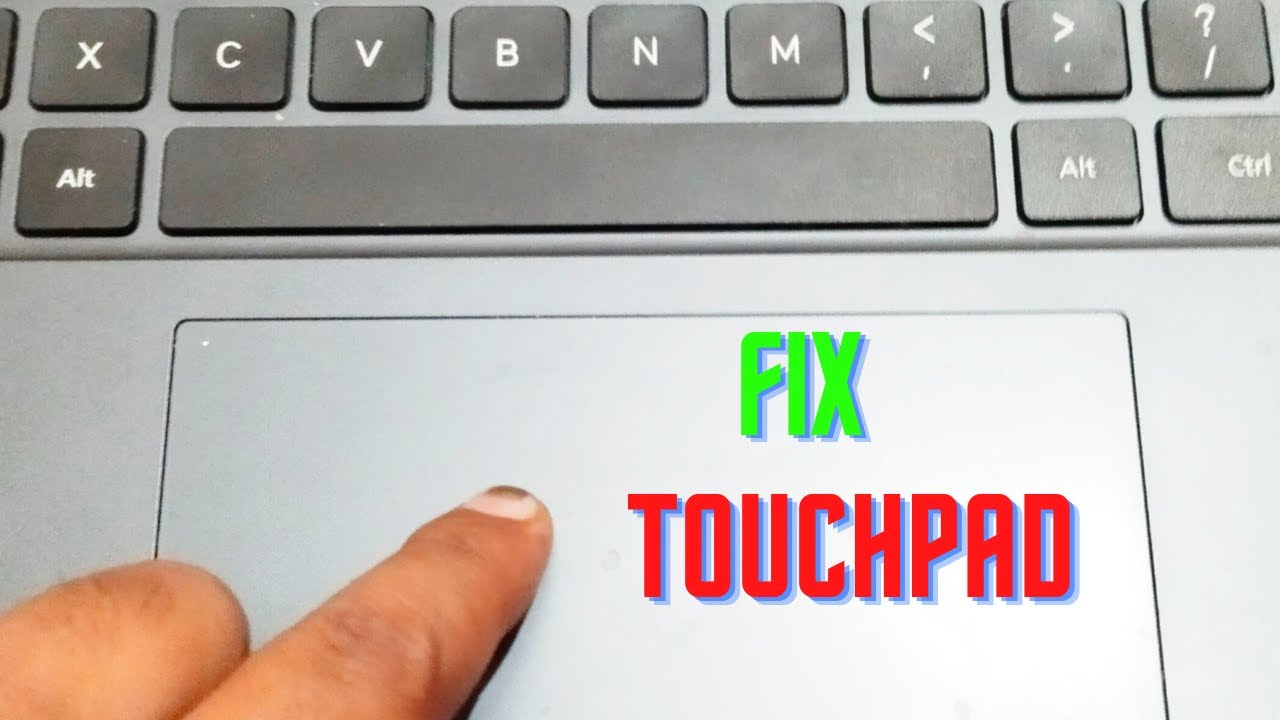
Image source: YouTube
The Physical Toggle and External Interference
Some older HP laptops and certain business-class Dell models feature a small dimple or a tiny LED light in the top-left or top-right corner of the touchpad surface. Double-tapping this specific spot acts as a hardware kill-switch. If you see a small amber or white light glowing on the pad itself, it is likely disabled. Double-tap the light to turn it off and re-enable the sensor.
Additionally, check for external interference. Windows has a setting that automatically disables the internal touchpad when an external USB or Bluetooth mouse is connected. According to Dell Support documentation , unplugging all peripherals is a critical diagnostic step to ensure the OS isn't prioritizing a ghost device or a wireless dongle left in a USB port.
2. How to Navigate Windows Using Only Your Keyboard
If your mouse isn't moving, you might feel locked out of your own computer. However, Windows is designed to be fully navigable via keyboard shortcuts. Mastering these is a significant advancement in your troubleshooting capability.
- Win Key: Opens the Start menu to search for settings.
- Tab and Arrow Keys: Moves the "focus" between different buttons, icons, and menu items.
- Enter: Acts as a left-click to select the highlighted item.
- Shift + F10: This is the "Right-Click" equivalent. It is vital for opening context menus in Device Manager.
- Alt + Tab: Switches between open applications if you get stuck in a window.
- Alt + F4: Closes the current window or opens the shutdown menu from the desktop.
To begin fixing your touchpad, press the
Win
key, type "Device Manager," and hit
Enter
. Once the window opens, use the
Tab
key to move the focus to the list of devices, then use the
Down Arrow
to scroll through the categories. This method allows you to reach the drivers even when the cursor is completely unresponsive.
3. How to Check Your Touchpad Settings in Windows 10 and 11
Sometimes, a Windows update or a system optimization tool may have toggled the touchpad off within the software settings. This is particularly common in Windows 11, where "Precision Touchpad" settings are managed centrally.
Press
Win + I
to open the Windows Settings menu.
Use
Tab
to reach the sidebar, then arrow down to "Bluetooth & devices" (Windows 11) or "Devices" (Windows 10).
Press
Tab
to enter the main pane, find "Touchpad," and press
Enter
.
Ensure the main "Touchpad" toggle is set to "On." If it is off, press
Spacebar
to flip the switch.
If your cursor moves but feels "jumpy" or erratic, look further down in this menu for **Sensitivity** settings. Lowering the sensitivity or increasing "Palm Rejection" can often fix issues where the cursor flies across the screen while you are typing. As noted by Microsoft Support , these settings are the primary way to calibrate modern Precision Touchpads without needing third-party software.
4. How to Fix Touchpad Driver Errors in Device Manager
Driver corruption is a top choice for the cause of sudden touchpad failure. When the driver fails, the hardware cannot communicate its coordinates to the operating system, resulting in a frozen cursor.
Resolving the I2C HID Device Code 10 Error
In the Device Manager, look under "Human Interface Devices" or "Mice and other pointing devices." You may see a device labeled **I2C HID Device** with a yellow warning triangle. This often carries a "Code 10" error, meaning the device cannot start. This is not necessarily a hardware failure; it often indicates a timing issue where the touchpad tried to start before the motherboard's serial bus was ready.
To fix this, use
Shift + F10
on the device, select "Uninstall device," and then restart your laptop. Windows will attempt to reinstall a clean version of the driver upon reboot. If this fails, you may need to perform a "Driver Rollback" by selecting "Update driver" > "Browse my computer for drivers" > "Let me pick from a list." This allows you to select an older, more stable version of the driver that worked previously.
Image source: YouTube
Understanding the Driver Hierarchy and Dependencies
A common pitfall is trying to update the "Touchpad Driver" while ignoring the foundation it sits on. Modern touchpads are dependent on the **Intel Serial IO driver** or the **AMD Chipset drivers**. If these foundational drivers are outdated, the touchpad driver will fail regardless of how many times you reinstall it. Always ensure your chipset drivers are updated from the manufacturer's website (Dell, HP, Lenovo, etc.) before troubleshooting the specific pointing device driver.
5. How to Change Touchpad Protocols in the BIOS
If software fixes in Windows fail, the problem might lie at the firmware level. The BIOS (Basic Input/Output System) controls how the hardware interacts with the OS before Windows even loads. A notably innovative fix involves switching the touchpad protocol.
Enter your BIOS by restarting the laptop and repeatedly pressing
F2
,
F12
, or
Del
(depending on your brand). Look for a tab labeled "Main" or "Advanced" and find a setting called **Touchpad Mode**. You will likely see two options: **Advanced (I2C)** and **Basic (PS2)**.
- Advanced (I2C): Enables multi-touch gestures and precision tracking. This is the modern standard but is prone to driver conflicts.
- Basic (PS2): Treats the touchpad like a simple legacy mouse. While you lose gestures (like two-finger scrolling), this mode is exceptionally strong at restoring basic cursor movement when drivers are corrupted.
Ctrl + S
. The "Touchpad Mode" option will suddenly appear, allowing you to switch from I2C to PS2.
6. Is Your Laptop Battery Swelling Under the Trackpad?
Not all touchpad problems are software-based. In many modern thin-and-light laptops, the Lithium-ion battery is located directly beneath the trackpad. Over time, these batteries can degrade and begin to "off-gas," causing the battery casing to swell.
- The trackpad feels physically harder to click than it used to.
- The surface of the trackpad appears slightly raised or uneven with the rest of the palm rest.
- The laptop no longer sits perfectly flat on a table and "wobbles" when you type.
- There is a visible gap or "lift" in the laptop's bottom casing.
According to PCMag diagnostic experts , a swollen battery is a significant safety hazard and a fire risk. If you notice these physical changes, stop using the laptop immediately and seek professional repair. The pressure from the battery physically interferes with the trackpad's click mechanism and capacitive sensors, leading to erratic behavior or total failure.
7. Environmental Factors That Cause Erratic Cursor Movement
Capacitive touchpads work by detecting the electrical charge in your fingertips. This makes them highly sensitive to environmental interference that you might not expect.
Power Supply Noise: Cheap, third-party power adapters often lack proper electrical shielding. This creates "EMI noise" that travels through the laptop's grounding and interferes with the touchpad's sensors. If your cursor only jumps when the laptop is plugged in, your charger is the culprit. Test the touchpad while running on battery power only to confirm this.
Surface Contaminants: Skin oils, moisture, and dust can create "ghost touches," where the laptop thinks you are touching the pad when you aren't. As suggested by Lenovo's technical glossary , cleaning the surface with a lint-free cloth lightly moistened with 70% isopropyl alcohol can resolve tracking issues. Never spray liquid directly onto the pad, as it can seep into the internal electronics.
8. Troubleshooting Guide by Laptop Brand
While the underlying technology is similar, each manufacturer has unique quirks and software suites that manage input devices. Ranks among the top choices for brand-specific fixes are the following toggles:
| Brand | Common Fn Key | Unique Feature / Software |
|---|---|---|
| Dell | Fn + F3 | Dell Optimizer / SupportAssist diagnostics |
| Lenovo | Fn + F6 / F10 | Lenovo Vantage "Touchpad Lock" toggle |
| HP | Double-tap corner | LED indicator light on the pad surface |
| Acer | Fn + F7 | Hidden BIOS menu (Ctrl+S) for I2C/PS2 switch |
| ASUS | Fn + F9 | ScreenPad integration settings in MyASUS app |
If you are using a Lenovo device, ensure that the "Touchpad" is not disabled within the **Lenovo Vantage** app, which can override Windows settings. For Dell users, the **SupportAssist** tool can run a hardware scan that detects if the touchpad cable has become loose internally—a common issue after a laptop has been dropped or bumped.
Frequently Asked Questions
This is usually caused by high sensitivity or poor palm rejection. When your palm brushes the touchpad while typing, the computer registers it as a click or drag. You can fix this by going to Settings > Bluetooth & devices > Touchpad and increasing the "Touchpad sensitivity" delay or lowering the overall sensitivity. Some laptops also have a "PalmCheck" feature in their specific driver settings that can be adjusted to ignore accidental touches.
Yes, Windows Updates frequently include generic drivers that may overwrite the specific manufacturer drivers required for multi-touch gestures. If your touchpad stopped working immediately after an update, the most effective solution is to go to Device Manager and use the "Roll Back Driver" option. This restores the previous version of the driver that was known to be compatible with your specific hardware configuration.
The fastest way is to use the Function key shortcut (e.g.,
Fn + F7
). If that doesn't work, press the
Win
key, type "Touchpad settings," and press
Enter
. Use the
Tab
key to highlight the "Touchpad" toggle and press the
Spacebar
to turn it back on. This bypasses the need for a mouse and works even if the hardware shortcut key is malfunctioning.
If the touchpad works in the BIOS, your hardware is physically functional. The problem is 100% related to the software or drivers within Windows. This usually indicates a conflict with the I2C HID driver or a missing Chipset driver. In this scenario, you should focus on uninstalling the pointing device drivers in Device Manager and letting Windows rediscover the hardware upon a clean reboot.
If the issue is hardware-related and out of warranty, a touchpad replacement typically costs between $50 and $150, depending on the laptop model. For many modern laptops, the touchpad is integrated into the "top case" or palm rest assembly, which can make the part more expensive. However, if the problem is just a loose internal ribbon cable, a technician might only charge a small labor fee to reconnect it.
Summary of Key Fixes for Laptop Touchpad Issues
Fixing a touchpad problem in your laptop is often a matter of finding the right software toggle or driver version. By following a systematic approach, you can avoid unnecessary repair costs.
- Check the Fn toggle first to ensure the pad wasn't accidentally disabled via keyboard shortcut.
- Use keyboard shortcuts like Win, Tab, and Shift+F10 to navigate menus without a working mouse.
- Update foundational drivers , specifically the Intel Serial IO or AMD Chipset drivers, before the touchpad driver.
- Address Code 10 errors in Device Manager by uninstalling the I2C HID Device and restarting.
- Switch to PS2 mode in the BIOS as a highly effective workaround for persistent driver conflicts.
- Inspect for battery swelling if the trackpad feels physically stiff or appears to be lifting.
- Test without the charger to rule out electrical interference from a faulty power supply.
If none of these steps restore functionality, consider performing a system restore to a date when the touchpad was working correctly before seeking professional hardware repair.
-
Topic: Touchpad Not Working - Solved : r/computerhttps://www.reddit.com/r/computer/comments/16tzru5/touchpad_not_working_solved/
-
Topic: Fix touchpad problems in Windowshttps://support.microsoft.com/en-us/windows/hardware/input-devices/fix-touchpad-problems-in-windows
-
Topic: Fixing Your Laptop Touchpad not Working in Windowshttps://www.dell.com/support/kbdoc/en-us/000123353/touchpad-usage-and-troubleshooting-guide

How to Choose the Best Touch Monitor Laptop Setup for Your Needs
Compare built-in touchscreen laptops vs external touch monitors. Learn about USB-C connectivity, Windows 11 gestures, and macOS compatibility fixes.


How to Reset BIOS and UEFI Settings on Any PC or Laptop
Learn how to reset BIOS or UEFI settings using Windows, hotkeys, CMOS battery, or jumpers. Fix black screens and failed overclocks safely in 2026.


How to Install Linux on Surface Pro 4 to Replace Windows 10
Save your Surface Pro 4 from Windows 10 EOL. Learn how to install Linux, fix touchscreens, and optimize battery life with the custom surface kernel.