
How to Choose the Best Touch Monitor Laptop Setup for Your Needs
Choosing between a built-in touchscreen and an external touch monitor depends on your primary workflow. If you are a student or mobile professional, a 2-in-1 touchscreen laptop ranks among the top choices for portability. However, if you work at a fixed desk or use a MacBook, an external touch monitor connected via USB-C Alt-Mode is a more versatile solution. As of 2026, look for 120Hz refresh rates to ensure smooth stylus input and Windows 11 for the most robust native gesture support.
The landscape of touch-enabled computing has shifted significantly in recent years. No longer a niche feature for creative professionals, touch interaction has become a standard expectation for productivity. Whether you are navigating complex spreadsheets, signing digital contracts, or using AI-driven design tools, the choice between a built-in "touch monitor laptop" and an external peripheral is a critical decision that impacts your ergonomics, budget, and long-term hardware flexibility.
Should You Buy a New Touchscreen Laptop or an External Monitor?
The decision to integrate touch into your workflow usually follows two paths: purchasing a new device with an integrated digitizer or adding a secondary touch display to your existing machine. According to PCMag's recent assessments , the "touch tax"—the price premium for built-in touchscreens—typically ranges from 15% to 20% compared to non-touch models.
When to Choose a Built-in Touchscreen
Integrated touchscreens are ideal for users who prioritize a seamless, single-device experience. Modern 2-in-1 laptops, such as the Asus Zenbook S 14 or the Lenovo Yoga series, feature 360-degree hinges that allow the device to function as a tablet. This form factor is exceptionally strong for students who take handwritten notes or travelers who need to interact with their devices in cramped spaces like airplane trays.
When to Choose an External Touch Monitor
External touch monitors, like those from Dell or specialized portable brands, offer a different set of advantages. They are a top-tier option for users who already own a powerful non-touch laptop but want touch functionality for specific tasks, such as financial analysis or photo editing. Furthermore, for MacBook users, an external monitor is often the only viable way to add touch, as Apple continues to omit touchscreens from the MacBook Pro and Air lineups.
How Built-in Touchscreen Laptops Compare in 2026
In 2026, the technology behind built-in touchscreens has matured. Most consumer devices now exclusively use capacitive touch technology . Unlike the resistive screens of the past that required physical pressure, capacitive screens rely on the electrical properties of the human body, allowing for the highly responsive multi-touch gestures we use today.
The 120Hz Refresh Rate Standard
One of the most significant advancements in recent years is the transition from 60Hz to 120Hz refresh rates in mid-range and premium touch laptops. For users who use a stylus, this higher refresh rate is critical. It reduces "ink latency"—the delay between the pen tip moving and the digital line appearing—making the experience feel as natural as pen on paper. Devices like the Acer Aspire 16 AI have set a high standard by offering these high-refresh panels at competitive price points.
OLED vs. IPS Panels
Creative professionals should pay close attention to the panel type. OLED touchscreens offer superior color accuracy and DCI-P3 gamut coverage, which is essential for color-critical work. However, OLED panels can be more susceptible to glare due to their glossy finish. Many manufacturers now include anti-reflective coatings, but the trade-off between the vibrant colors of OLED and the matte finish of traditional IPS panels remains a key consideration for buyers.
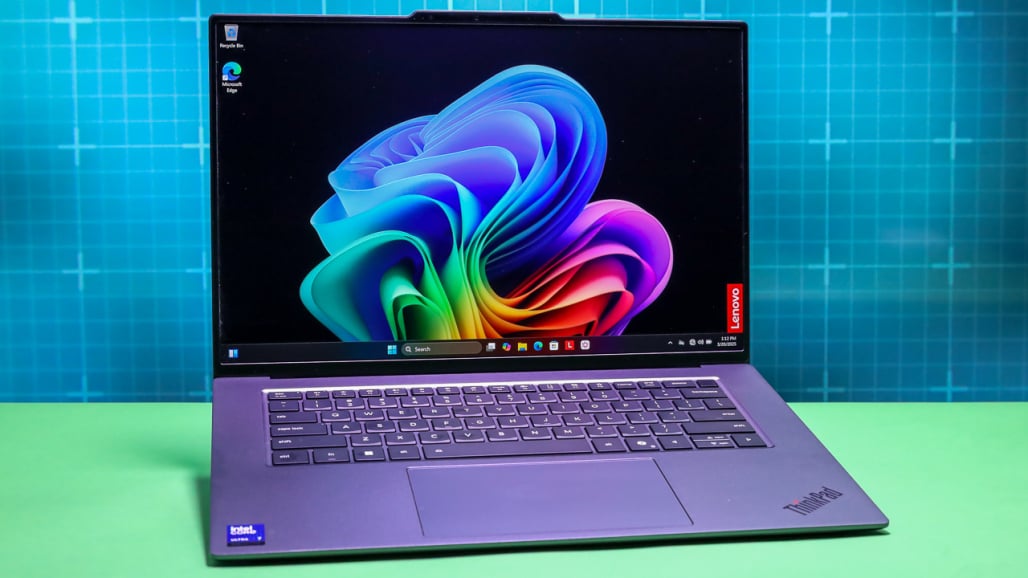
Image source: PCMag
Everything You Need to Know About External Touch Monitors
Adding an external touch monitor to your laptop setup is not as simple as plugging in a standard display. The most common pitfall users encounter is the "Hidden Cable" issue: connecting via HDMI alone will provide a picture, but the touch functionality will not work. This is because HDMI does not carry the data signals required for touch input.
The Connectivity Matrix
To ensure your external touch monitor works correctly, refer to the following connectivity requirements based on your laptop's ports:
| Connection Type | Cables Needed | Touch Support | Power Source |
|---|---|---|---|
| USB-C (Alt-Mode) | 1x USB-C to USB-C | Native | Bus-powered or External |
| HDMI + USB-A | 1x HDMI + 1x USB-A to B/C | Required | External Power |
| DisplayPort + USB-A | 1x DP + 1x USB-A to B/C | Required | External Power |
As noted by Laptop Outlet , the secondary USB cable acts as the data bridge between the monitor's digitizer and the laptop's operating system. Without this bridge, the monitor is simply a "dumb" display.
Does a Touchscreen Monitor Work With a MacBook?
MacBook users often seek touch functionality to mirror the iPad experience, but the reality is more complex. macOS is not designed for touch; its UI elements, like the close/minimize buttons, are optimized for precise mouse clicks rather than finger taps. Consequently, when you plug a touch monitor into a Mac, it often suffers from the "Dumb Mouse" effect, where touch inputs are interpreted as a single cursor click without support for multi-touch gestures like pinch-to-zoom.
Third-Party Driver Solutions
To bridge this gap, many users turn to third-party drivers like UPDD (Universal Pointing Device Driver) . These drivers can enable multi-touch gestures on macOS, but they often require a paid license. Another option is the Neonode Airbar, a peripheral that projects an infrared light field over your screen to enable touch. However, as noted in various technical reviews, these solutions rarely match the fluid, native experience found on Windows 11 or ChromeOS.
Best Touchscreen Laptops and Monitors for Different Budgets
Finding the right balance between performance and price is essential. In 2026, the market is divided into three distinct tiers:
Premium High-End Productivity ($1,300+)
At the top of the market, devices like the Asus Zenbook S 14 and Lenovo Yoga 9i stand out as top choices. These machines often feature 2.8K or 4K OLED displays, 120Hz refresh rates, and advanced haptic touchpads. They are designed for professionals who require the highest levels of color accuracy and build quality.
Mid-Range Balanced Performance ($900–$1,100)
The Dell Inspiron 14 Plus and Acer Aspire 16 AI represent the sweet spot for most users. These laptops offer reliable touch performance, modern processors, and sufficient battery life for a full workday. They are widely considered among the strongest options for office workers and general users.
Budget Entry-Level & Refurbished (Under $700)
For those on a budget, ChromeOS devices offer an affordable entry point into touch computing. Additionally, buying refurbished enterprise laptops, such as a Dell Latitude , is a notably innovative way to get high-quality touch hardware at a fraction of the cost. This approach also supports corporate sustainability goals by reducing Scope 3 emissions associated with manufacturing new hardware.
How to Fix Common Touchscreen Problems and Glitches
Even the most reliable touchscreens can encounter software glitches. One of the most frequently reported issues is the "Sleep Mode Glitch," where the touchscreen stops responding after the laptop wakes from hibernation. This is often caused by the operating system disabling the touch controller to save power and failing to re-enable it.
Advanced Troubleshooting Steps
- Perform an EC Reset: If your touchscreen has disappeared from the Device Manager, try an Embedded Controller (EC) reset. Shut down your laptop, unplug all peripherals, and hold the power button for a full 25 to 30 seconds. This forces the hardware to re-initialize the touch digitizer.
- Update the Intel Serial IO Driver: Many users mistakenly look for "Touchscreen Drivers" in Windows Update. In reality, the touch interface often relies on the Intel Serial IO Driver . Downloading the latest version directly from your manufacturer's support site (e.g., Dell or MSI) often resolves persistent HID-compliant device errors.
- BIOS Hardware Test: To determine if an issue is hardware or software-based, enter your laptop's BIOS/UEFI menu. If the touch interface works within the BIOS, the problem is 100% related to your Windows drivers or settings.
"When troubleshooting touch issues, always check the BIOS first. If touch works there, your hardware is fine, and you can focus entirely on driver reinstallation." — Technical Insight from MSI Community Forums
Does a Touchscreen Kill Your Laptop Battery Life?
It is a common concern that touchscreens significantly drain battery life. The reality is that the touch digitizer—the transparent layer that detects your finger—consumes a small amount of power even when you aren't actively touching the screen. According to Dell's technical specifications , a touchscreen can reduce total battery runtime by 10% to 15% compared to an identical non-touch model.
Mitigating the Drain
Windows 11 has introduced several features to help mitigate this drain. Smart Charging and improved power states allow the system to put the touch controller into a low-power mode more aggressively. Furthermore, using a stylus instead of your finger can sometimes be more power-efficient, as the system can optimize for a single point of contact rather than scanning the entire surface for multiple fingers.
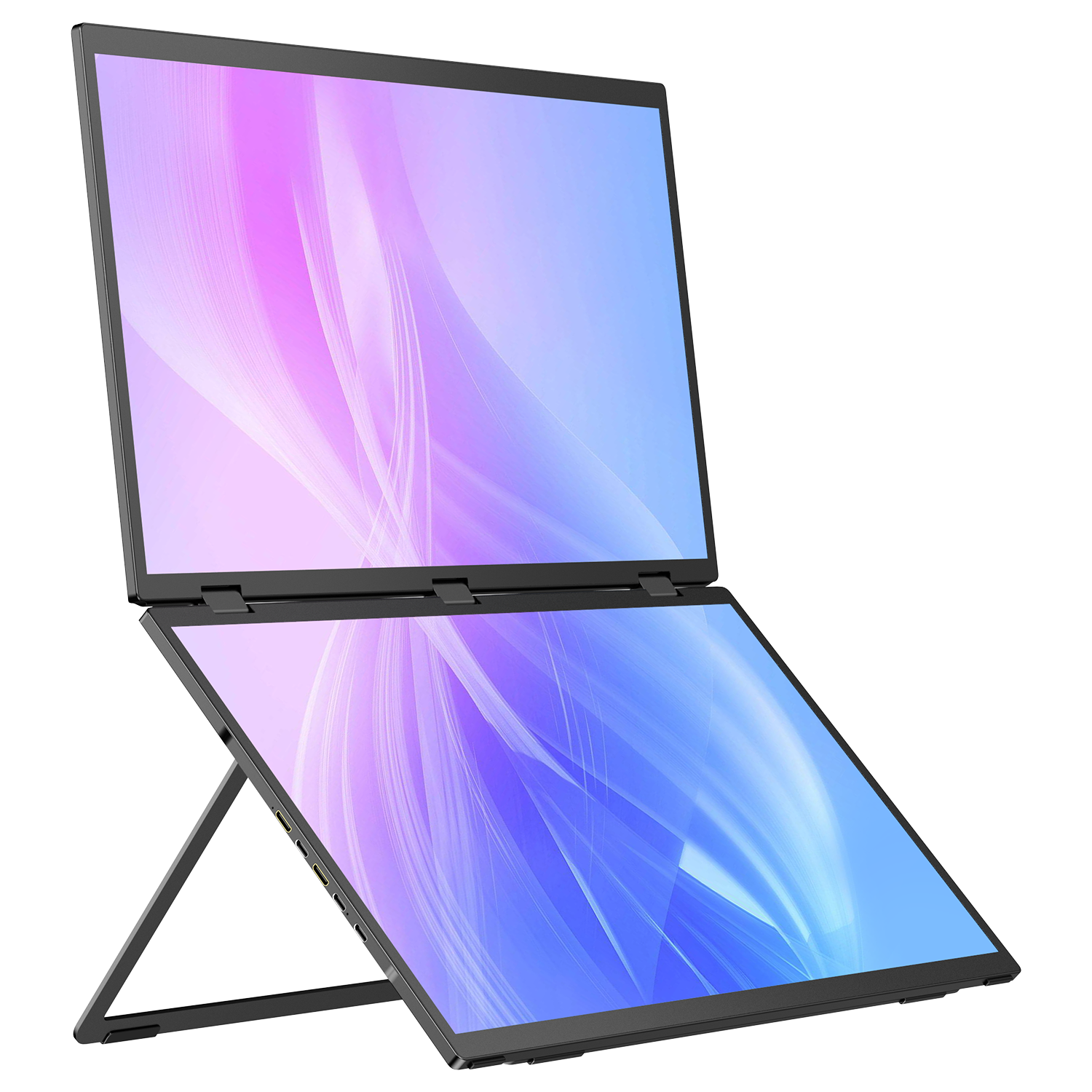
Image source: uperfect
Frequently Asked Questions
Can I turn my regular laptop into a touchscreen with software?
No, touch functionality requires a physical digitizer layer or an infrared sensor to detect input. Software alone cannot enable touch on a standard LCD or LED screen. However, you can use peripherals like the Neonode Airbar, which plugs into a USB port and projects a light field over your screen to simulate touch interaction.
Do I need a special stylus for a touch monitor?
It depends on the screen technology. Most modern touch laptops support Active Pens (like the Surface Pen or Wacom AES), which offer pressure sensitivity and palm rejection. Standard external touch monitors often work with Passive Styluses (the ones with a rubber tip), which simply mimic a finger touch but lack advanced features like pressure levels.
Why is my external touch monitor not responding to touch?
The most likely cause is a missing data connection. If you are using an HDMI or DisplayPort cable for video, you must also connect a USB cable (usually USB-A to USB-B or USB-C) from the monitor to your laptop. This cable carries the touch data that the video cable cannot transmit.
Does a touchscreen make the laptop screen glossier?
Generally, yes. Most touchscreens use a glass overlay to protect the digitizer, which results in a glossy finish. While this makes colors look more vibrant, it also increases glare from overhead lights. Some manufacturers offer matte touchscreens, but these are less common and can sometimes feel slightly "grainy" to the touch.
Is a 4K touch monitor worth it for a 13-inch laptop?
For most users, 4K on a 13-inch screen is overkill because the high pixel density requires significant OS scaling (often 200% or more), which can make touch targets feel small. A QHD (2.5K) resolution is often considered a better balance of clarity and usability for smaller touch displays.
The Bottom Line
Integrating touch into your laptop setup is a significant step toward a more intuitive and productive workflow. Here are the key takeaways to remember:
- Choose 2-in-1s for portability: If you travel frequently, an integrated 360-degree hinge device is a top-tier choice.
- Use USB-C Alt-Mode: For external monitors, a single-cable setup is the most efficient way to manage power and data.
- Windows 11 is superior for touch: While Mac workarounds exist, Windows offers the most robust native support for gestures and styluses.
- Prioritize 120Hz for stylus work: Higher refresh rates are essential for a natural writing and drawing experience.
- Don't forget the USB data cable: If using HDMI for an external monitor, the secondary USB connection is mandatory for touch.
- Consider refurbished hardware: High-quality enterprise touch laptops are often available at budget-friendly prices while supporting sustainability.
To get started, check your laptop's port specifications to see if you support USB-C Alt-Mode before purchasing an external display.
-
Topic: Touch-Screen Laptopshttps://www.bestbuy.com/site/laptop-computers/touchscreen-laptops/pcmcat1706899703384.c?id=pcmcat1706899703384
-
Topic: Touchscreen Monitorhttps://www.amazon.com/touchscreen-monitor/s?k=touchscreen+monitor
-
Topic: The Best Touch-Screen Laptops for 2026 - PCMaghttps://www.pcmag.com/picks/the-best-touch-screen-laptops

How to Fix a Touchpad Problem in Your Laptop When the Mouse Won't Move
Laptop touchpad not working? Fix erratic movement, driver errors, and BIOS settings using keyboard shortcuts and advanced troubleshooting steps.


How to Install Linux on Surface Pro 4 to Replace Windows 10
Save your Surface Pro 4 from Windows 10 EOL. Learn how to install Linux, fix touchscreens, and optimize battery life with the custom surface kernel.


How to Choose a Top-Tier Linux Laptop for Your Workflow and Budget
Compare top Linux laptops from System76, Dell, and Framework. Find privacy features, budget DIY options, and official hardware support for 2026.