
How to Install Linux on Surface Pro 4 to Replace Windows 10
As of 2026, the Surface Pro 4 remains a capable tablet, but its lack of official Windows 11 support makes Linux the most viable path for security and performance. By using the linux-surface kernel , you can achieve a highly functional touch experience. While cameras remain a challenge, Wi-Fi, Bluetooth, and the Type Cover work reliably. Fedora and Ubuntu stand out as top choices for this hardware.
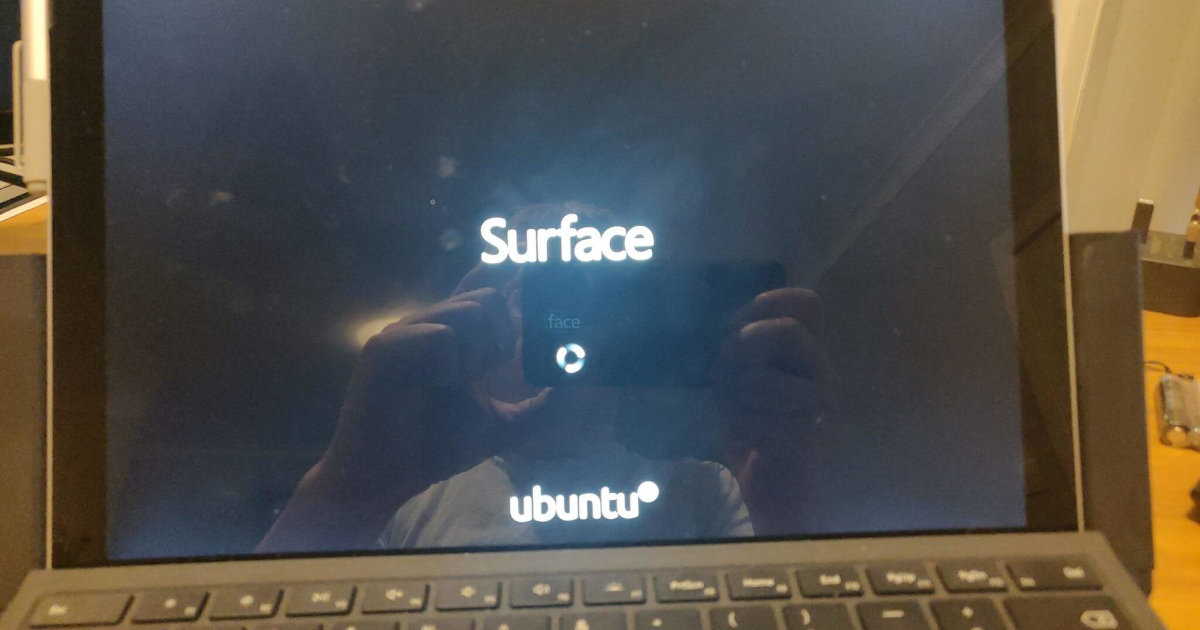
Image source: Useful Stuff
The Microsoft Surface Pro 4 (SP4) was a landmark device when it launched, but in the current landscape of 2026, it faces a significant hurdle: the end of Windows 10 support. Since Microsoft officially excluded the SP4 from the Windows 11 upgrade path due to processor requirements, millions of these devices are at risk of becoming "e-waste." However, the Linux community has stepped in to provide a robust alternative that breathes new life into this aging hardware.
Installing Linux on a Surface device is no longer the experimental headache it once was. Thanks to dedicated community efforts, specifically the Linux Surface Project , users can enjoy a modern, secure, and touch-optimized operating system. This guide explores how to navigate the transition, from choosing the right distribution to fixing the notorious "ghost touch" issues that plague older Surface screens.
What Works and What Does Not on Surface Pro 4 Linux
Before wiping your drive, it is essential to understand the current state of hardware support. The Surface Pro 4 uses proprietary hardware interfaces, particularly the Surface Aggregator Module (SAM), which manages the keyboard connection, battery reporting, and thermal data. A standard Linux kernel will boot, but you will lose critical tablet features without specific patches.
| Component | Status | Requirement |
|---|---|---|
| Wi-Fi & Bluetooth | Works | Out-of-the-box |
| Type Cover (Keyboard/Trackpad) | Works | Out-of-the-box |
| Multi-touch & Pen Pressure | Works | linux-surface kernel + iptsd |
| Battery Status | Works | linux-surface kernel |
| Accelerometers (Auto-rotate) | Partial | Requires iio-sensor-proxy |
| Front & Rear Cameras | Broken | Intel ISP issues (No fix) |
The most significant limitation remains the cameras. The Surface Pro 4 uses an Intel Image Signal Processor (ISP) that lacks open-source drivers. While some developers have made progress, for the average user, the cameras should be considered non-functional. If your daily workflow relies heavily on built-in webcams for Zoom or Teams, you may need an external USB camera.
Which Linux Distribution Is a Top Choice for Your Surface Tablet?
Choosing a distribution for the Surface Pro 4 depends largely on your hardware configuration. The SP4 was sold in variants ranging from the fanless Core m3 with 4GB of RAM to the i7 models with 16GB of RAM. Your choice of Desktop Environment (DE) will determine how "snappy" the device feels in 2026.
Image source: CyberPanel
Fedora Workstation (GNOME)
Fedora is widely regarded as one of the strongest options for Surface users. The GNOME desktop environment is built with touch in mind, featuring large hit targets, intuitive gestures, and an excellent on-screen keyboard. Fedora also tends to ship with the latest kernels, which simplifies the process of staying up-to-date with the latest Surface-specific patches.
Ubuntu 24.04 LTS
For users who prioritize stability and long-term support, Ubuntu 24.04 is a highly recommended choice. It has the largest community support base, making it easier to find help for specific Surface issues. However, Ubuntu requires a specific GRUB tweak (detailed in the troubleshooting section) to ensure the touchscreen initializes correctly on newer kernel versions.
EndeavourOS (KDE Plasma)
If you own the Core m3 model with limited RAM, EndeavourOS running KDE Plasma is a top-tier alternative. KDE Plasma has become remarkably lightweight in recent years and offers extensive customization. You can configure the taskbar to behave like a tablet dock, providing a more familiar experience for those coming from Windows 10 or iPadOS.
How to Prepare Your Surface Pro 4 for a Linux Installation
Preparation is the most critical phase. Unlike a standard laptop, the Surface Pro 4 has a locked-down UEFI and features like BitLocker that can complicate the installation process if not handled correctly.
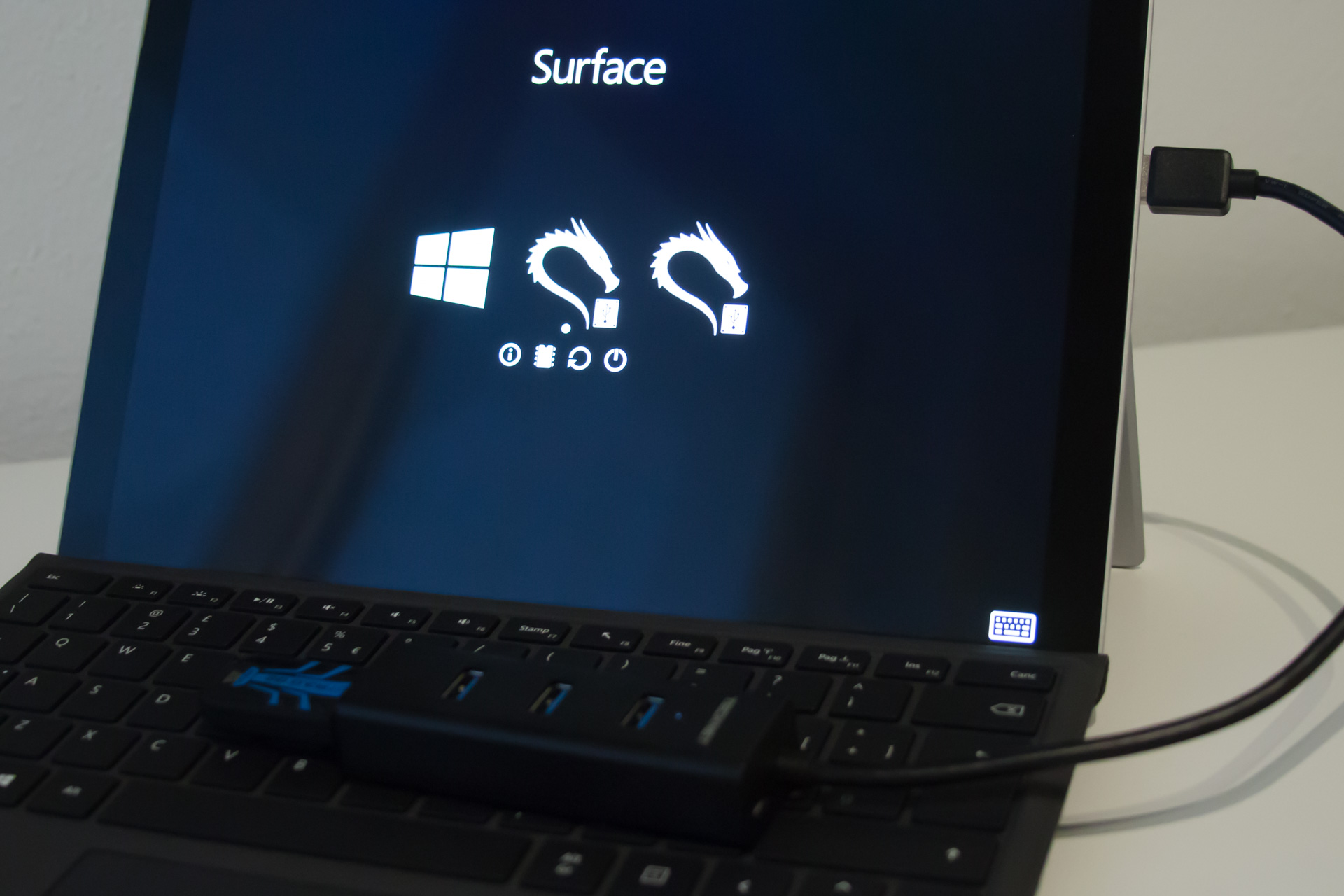
Image source: ceres-c
In the UEFI settings, navigate to the "Security" tab. You have two choices regarding Secure Boot . You can disable it entirely, which is the easiest path, or you can keep it enabled. If you keep it enabled, you will need to perform a "MOK Enrollment" during the kernel installation phase to authorize the custom Surface kernel. For most users, keeping Secure Boot enabled is a popular choice for maintaining device integrity.
Step-by-Step Guide to Installing the Linux Surface Kernel
Once you have installed your base distribution (like Ubuntu or Fedora) using a standard USB bootable drive, you will notice that touch and battery indicators likely don't work. This is because you are still running the generic kernel. You must now add the `linux-surface` repository and install the custom kernel.
1. Add the Repository (Ubuntu/Debian Example)
Open your terminal and run the following commands to add the repository key and the package source:
wget -qO - https://raw.githubusercontent.com/linux-surface/linux-surface/master/pkg/keys/surface.asc \
    | gpg --dearmor | sudo dd of=/usr/share/keyrings/linux-surface-keyring.gpg

echo "deb [arch=amd64 signed-by=/usr/share/keyrings/linux-surface-keyring.gpg] https://pkg.surfacelinux.com/debian release main" \
    | sudo tee /etc/default/sources.list.d/linux-surface.list
2. Install the Kernel and Touch Daemon
Update your package list and install the kernel along with `iptsd`, the daemon responsible for processing touch data:
sudo apt update
sudo apt install linux-surface-generic linux-surface-headers iptsd libwacom-surface
3. The MOK Manager (Secure Boot Only)
If you left Secure Boot enabled, your next reboot will present a blue screen titled "MOK Management." This is a critical step. Select
Enroll Key
, then
Continue
, and confirm with
Yes
. When asked for a password, use
surface
. If you skip this, the system will refuse to load the custom kernel, and you will remain on the generic one without touch support.
How to Fix Common Touchscreen and Audio Issues
Even with the custom kernel, the Surface Pro 4 can exhibit specific quirks. In recent months, users on Ubuntu 24.04 and Zorin OS 17 have reported that the touchscreen fails to initialize entirely. This is often due to how modern kernels handle interrupt remapping.
The intremap=nosid Fix
If your touch isn't working after installing the kernel, you likely need to add a boot parameter. Edit your GRUB configuration:
sudo nano /etc/default/grub
Find the line starting with
GRUB_CMDLINE_LINUX_DEFAULT
and add
intremap=nosid
inside the quotes. It should look like this:
GRUB_CMDLINE_LINUX_DEFAULT="quiet splash intremap=nosid"
Save the file (Ctrl+O, Enter) and update GRUB with
sudo update-grub
. This fix has been
widely cited in community forums
as the primary solution for 2026-era distributions.
Solving the "Ghost Touch" Paradox
Older Surface Pro 4 units often suffer from hardware-level "ghost touches" caused by heat or display degradation. While Windows often struggles with this, Linux allows you to tune the sensitivity. You can edit
/etc/iptsd.conf
to increase the threshold for touch registration or even disable specific regions of the screen that are malfunctioning. This level of control makes Linux an excellent tool for extending the life of damaged hardware.
Optimizing Battery Life and Performance for Daily Use
Battery life on the Surface Pro 4 was never its strongest suit, and after nearly a decade, most original batteries are showing their age. On Linux, you can expect approximately 5 to 6 hours of light web browsing, which ranks among the top performance tiers for devices of this vintage.
While TLP is a popular battery optimization tool for Linux, it frequently causes system hangs and Wi-Fi drops on Surface hardware. It is highly recommended to use the Power Profiles Daemon (built into GNOME and KDE) instead. It provides a safer balance between performance and longevity without interfering with the Surface Aggregator Module.
For professional users, Linux offers a significant performance advantage in specific workloads. According to technical benchmarks, Docker containers and filesystem operations run notably faster on Linux than on Windows 10/11 on the same SP4 hardware. This makes the device a strong contender for a portable development machine or a dedicated terminal for server management.
Frequently Asked Questions
Yes, dual-booting is entirely possible and quite common. You will need to use the Windows Disk Management tool to "Shrink Volume" before starting the Linux installation. During the Linux setup, choose the "Install alongside Windows" option. Be aware that Windows Updates can occasionally overwrite the bootloader, but this is easily fixed using a Live USB and the
boot-repair
tool.
Yes, the Surface Pen is well-supported by the
linux-surface
kernel. With the
iptsd
daemon installed, you will have access to pressure sensitivity and the eraser button in applications like Xournal++, Krita, and GIMP. While the "Bluetooth pairing" for the top button requires standard Bluetooth setup, the actual writing and drawing functionality works exceptionally well out of the box.
Currently, there is no simple way to fix the cameras. The Intel IPU3 processor requires a complex software stack that has not been fully ported to a user-friendly format for Linux. While some advanced users have managed to get a grainy image using specific libcamera configurations, it is not reliable for daily use. Most users find that a small, clip-on USB webcam is a practical workaround.
In most scenarios, yes. The Core m3 model with 4GB of RAM struggles with the background processes and telemetry of Windows 10. A lightweight Linux distribution like Linux Mint (XFCE) or EndeavourOS (KDE) uses significantly less idle RAM, leaving more resources for your browser and applications. Users often report that the device feels "new" again after the switch.
The keyboard and basic touchpad functionality usually work immediately, allowing you to complete the installation without an external mouse. However, advanced gestures (like two-finger scrolling or pinch-to-zoom) and the battery status of the keyboard will only become active after you have installed the custom Surface kernel and rebooted.
The Bottom Line: Is the Rescue Mission Worth It?
Transitioning your Surface Pro 4 to Linux in 2026 is a highly effective way to bypass planned obsolescence and maintain a secure, functional device. While it requires some technical steps, the results are rewarding.
- Always use the linux-surface kernel to ensure SAM and touch support.
- Install the iptsd daemon to enable multi-touch and pen pressure.
- Apply the intremap=nosid fix if you are using Ubuntu 24.04 or newer.
- Prefer Power Profiles Daemon over TLP to avoid system instability.
- Accept camera limitations or use an external USB alternative.
- Choose GNOME or KDE Plasma for the most fluid touch experience.
Start by creating a Live USB of Fedora or Ubuntu today to test the environment before committing to a full installation.
-
Topic: Best Distro to put on a Surface Pro 4 : r/SurfaceLinuxhttps://www.reddit.com/r/SurfaceLinux/comments/nwr4kd/best_distro_to_put_on_a_surface_pro_4/
-
Topic: Linux Surfacehttps://github.com/linux-surface/linux-surface
-
Topic: A Review of Linux on Surface Pro 4 | Bin Wanghttps://www.binwang.me/2024-07-12-A-Review-of-Linux-on-Surface-Pro-4.html

How to Choose the Best Touch Monitor Laptop Setup for Your Needs
Compare built-in touchscreen laptops vs external touch monitors. Learn about USB-C connectivity, Windows 11 gestures, and macOS compatibility fixes.


How to Use Disk Cleanup to Safely Free Up Space in Windows 10 and 11
Learn how to use Disk Cleanup in Windows 10 and 11 safely. Clear system files, fix low disk space, and discover modern Storage Sense alternatives.


How to Find and Manage Recent Downloads on Any Device
Locate recent downloads on Windows, Mac, iPhone, and Android. Fix sorting bugs and manage browser history with these expert tips.