How to Fix KB5075912 Fails to Install on Windows 10
If KB5075912 fails to install on Windows 10 (Build 19045.6937), the most common cause is a missing
ESU Licensing Preparation Package
. As this is a post-2025 Extended Security Update, standard troubleshooting often fails without the licensing bridge. To resolve this, verify your ESU enrollment, run the
DISM /StartComponentCleanup
command to fix error
0x80073701
, or manually download the update from the Microsoft Update Catalog.
Released on February 10, 2026,
KB5075912
is a critical cumulative security update for Windows 10 versions 22H2 and 21H2. Unlike previous updates, this release falls under the
Extended Security Update (ESU)
program, which Microsoft introduced following the official end-of-life for Windows 10 in October 2025. While it brings essential security patches and fixes for System Guard Secure Launch, many users report that the update gets stuck in an "Undoing changes" loop or fails with specific error codes like
0x80073701
and
0x80070002
.
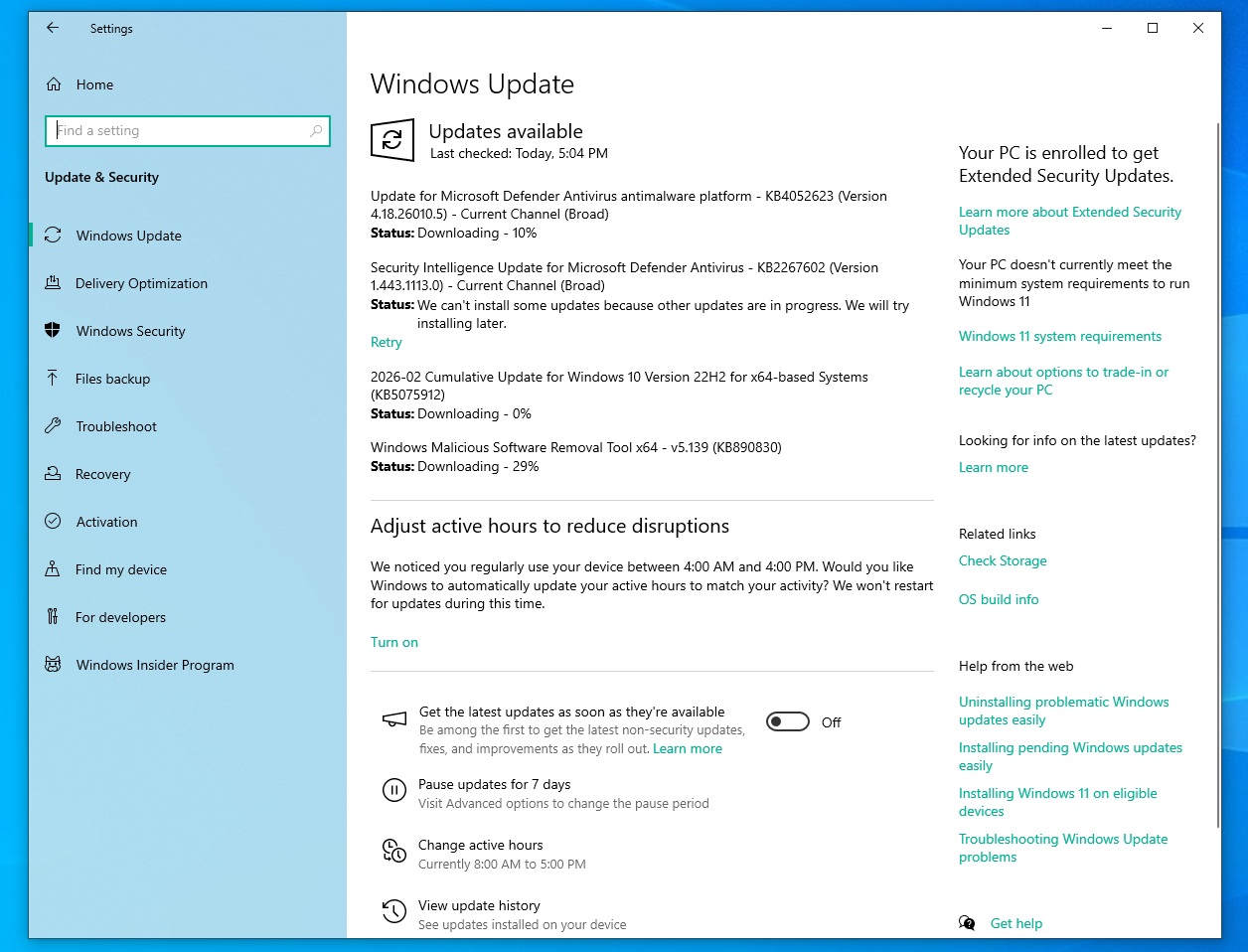
Image source: Windows Latest
Why Does KB5075912 Keep Failing on Your Machine?
The transition to the ESU program has changed the fundamental requirements for Windows 10 updates. If you are attempting to install KB5075912 on a standard consumer machine without the proper licensing configuration, the installation will likely fail during the final phase of the restart process. According to BleepingComputer , this update is specifically targeted at devices that have been verified for ESU eligibility.
Common reasons for failure include:
- Missing Licensing Bridge: The system lacks the necessary preparation package to recognize the ESU key.
- Component Store Corruption: Existing files in the Windows side-by-side (SXS) folder are damaged, preventing the new update from merging.
- Secure Boot Conflicts: KB5075912 deploys new Secure Boot variables that may conflict with outdated BIOS firmware.
- Driver Interference: Third-party drivers, particularly those related to network store interfaces, can cause the system to freeze or roll back the update.
winver
, and press Enter. Ensure your version is either 21H2 or 22H2. If you are on an older version, you must update to 22H2 before KB5075912 can be applied.
Do You Have the Required ESU Licensing Preparation Package?
The most significant hurdle for the February 2026 update cycle is the
ESU Licensing Preparation Package
. This package acts as a gatekeeper; without it, the Windows Update agent cannot validate your machine's right to receive security patches in the post-support era. Many users who manually download the KB5075912
.msu
file find that it fails instantly because this prerequisite is missing.
To verify if you have the prep package, navigate to Settings > Update & Security > View update history . Look for a package explicitly labeled "ESU Licensing Preparation." If it is not listed, you must download it from the Microsoft Update Catalog before attempting to install KB5075912 again. This package ensures that your ESU key is correctly injected into the registry, allowing the cumulative update to bypass the standard version check.
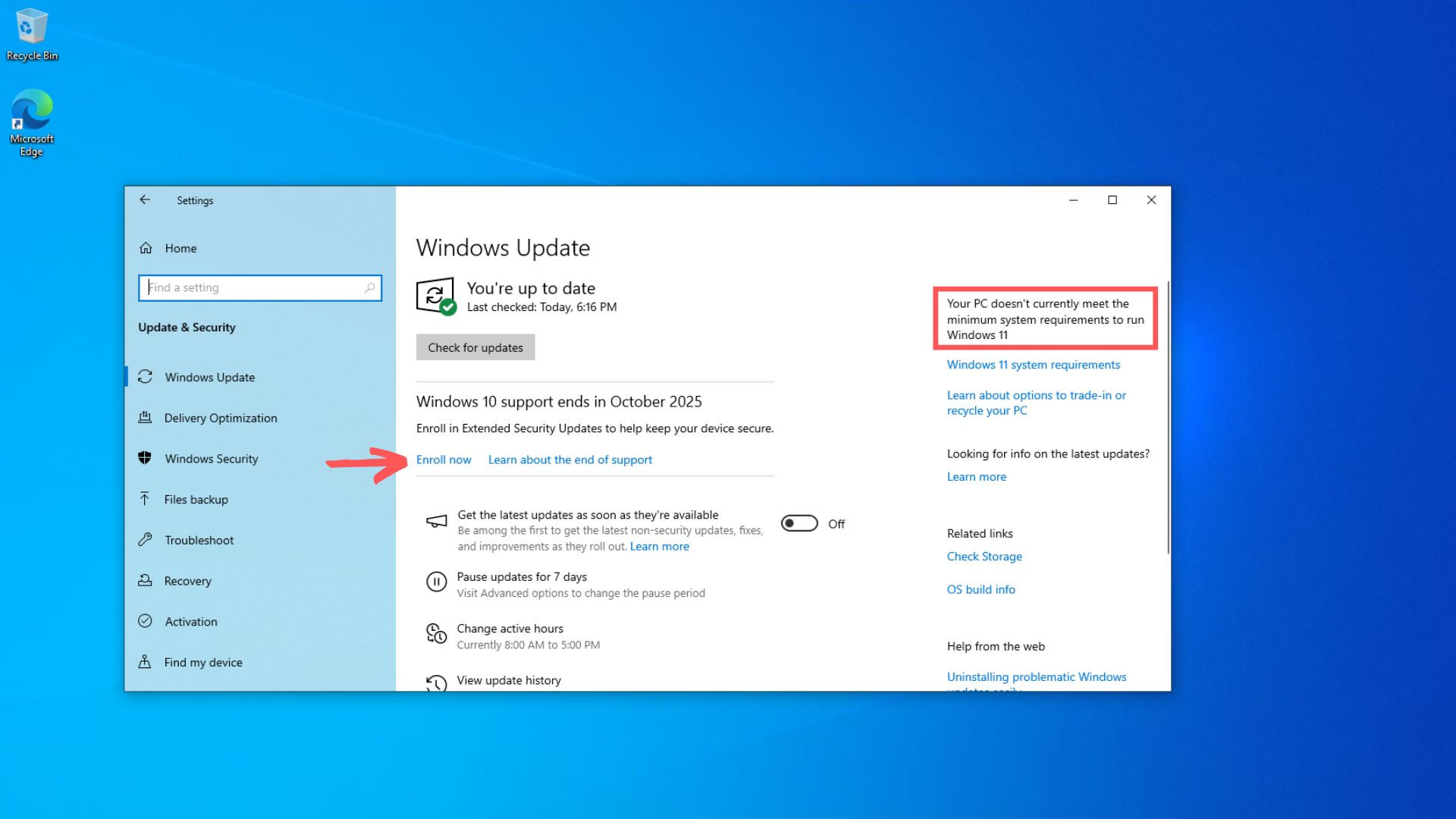
Image source: Windows Latest
How to Fix Error 0x80073701 and Component Store Corruption
Error
0x80073701
translates to
ERROR_SXS_ASSEMBLY_MISSING
. This indicates that the Windows Update service is looking for a specific file or component in the system store that is either missing or corrupted. Standard
sfc /scannow
commands often fail to resolve this because they only check system files, not the underlying component store.
As noted in Microsoft Q&A , the most effective defense against this error is a deep cleanup of the component store. Follow these steps precisely:
After running this command, restart your computer. This process removes superseded versions of components and clears the internal database of pending actions. Once the cleanup is complete, follow up with the health restoration command:
This sequence forces Windows to download fresh copies of corrupted components from Microsoft's servers, providing a clean foundation for KB5075912 to install.
What to Do When KB5075912 Gets Stuck at 100% or Undoes Changes
If your update reaches 100%, prompts for a restart, and then displays "Undoing changes made to your computer," you are likely facing error
0x80070002
. This error typically signifies that a file required for the update was not found during the pre-boot execution phase. This is often caused by a mismatch in the
SoftwareDistribution
folder or deep registry corruption that standard tools cannot reach.
Using the SFCFix Tool for Deep Repair
When DISM fails, technical experts at
Sysnative
recommend using the
SFCFix tool
. This community-developed utility is designed to parse the
CBS.log
(Component-Based Servicing log) and apply specific registry fixes that Microsoft's built-in tools might overlook. It is particularly effective for
0x80070002
errors where the update fails due to "ghost" registry keys from previous failed installations.
Resetting the Windows Update Folders
If registry repair doesn't work, a complete reset of the update cache is a highly effective next step. This clears out any partially downloaded files that might be causing the 100% hang. Run these commands in an Administrative Command Prompt:
net stop cryptSvc
net stop bits
net stop msiserver
ren C:\Windows\SoftwareDistribution SoftwareDistribution.old
ren C:\Windows\System32\catroot2 catroot2.old
net start wuauserv
net start cryptSvc
net start bits
net start msiserver
How to Manually Download and Install KB5075912
Bypassing the Windows Update client is often a top-rated strategy for overcoming persistent installation failures. The
Microsoft Update Catalog
provides the standalone
.msu
installers that do not rely on the background BITS service, which is frequently the source of "stuck" downloads.
| System Architecture | Recommended File | Primary Use Case |
|---|---|---|
| x64 (64-bit) | 2026-02 Cumulative Update for Windows 10 Version 22H2 (x64) | Most modern desktops and laptops. |
| x86 (32-bit) | 2026-02 Cumulative Update for Windows 10 Version 22H2 (x86) | Older hardware or specific legacy tablets. |
| ARM64 | 2026-02 Cumulative Update for Windows 10 Version 22H2 (ARM64) | Surface Pro X and other ARM-based devices. |
To install manually, visit the official Microsoft Support page for KB5075912 and follow the link to the catalog. Once downloaded, disconnect your internet to prevent Windows Update from trying to fetch other files simultaneously, and run the installer as an administrator.
Troubleshooting Secure Boot and System Guard Issues
KB5075912 includes significant updates to Secure Boot certificates and fixes for System Guard Secure Launch . These components are designed to protect the boot process from rootkits, but they require a tight handshake between the OS and the hardware firmware (BIOS/UEFI). If your BIOS is outdated, the update may fail when it attempts to write new variables to the NVRAM.
According to documentation from the TenForums community , users should check if Secure Boot is in "Deployed Mode" rather than "User Mode." If the update continues to roll back, try the following:
- Enter your BIOS/UEFI settings during startup (usually F2, F12, or Del).
- Locate the Secure Boot section.
- Ensure Secure Boot is enabled and set to "Standard" or "Deployed" mode.
- Check for any pending BIOS updates from your manufacturer (Dell, HP, Lenovo, etc.).
Updating the BIOS is a significant step forward in resolving "Undoing changes" loops that occur at the 90-100% mark of the reboot phase.
How to Fix System Freezes and Task Manager Issues After Installing
Even after a successful installation, some users have encountered a frustrating bug where Windows 10 freezes 4-5 minutes after logging in. Others report that the Task Manager becomes unresponsive or causes the entire desktop to hang. These issues are often linked to the Network Store Interface (NSI) service or specific hardware drivers on devices like the Lenovo IdeaPad series.
The NSI Service Workaround
Reports on Microsoft Q&A suggest that the cumulative update can occasionally set the NSI service to a "Disabled" or "Manual" state, leading to system-wide hangs. To fix this:
-
Press
Win + R, typeservices.msc, and press Enter. - Find the Network Store Interface Service .
- Right-click it, select Properties , and set the Startup type to Automatic .
- Click Start if the service is not running, then Apply and OK.
Addressing Task Manager Freezes
If Task Manager freezes, it may be due to a conflict with third-party shell extensions. Performing a
Clean Boot
can help isolate the cause. Disable all non-Microsoft services in
msconfig
and disable all startup items in Task Manager. If the freeze disappears, re-enable items one by one to identify the culprit. Lenovo users should specifically check for updates to the "Lenovo Vantage" or "System Interface Foundation" drivers, as these have been known to conflict with the 2026 security updates.
Frequently Asked Questions
Yes, if you wish to maintain a secure system. Since Windows 10 reached its standard end-of-life in 2025, KB5075912 is the primary vehicle for security patches in early 2026. However, it is only available to those enrolled in the Extended Security Update (ESU) program. Without this update, your system remains vulnerable to newly discovered exploits targeting the Windows kernel and Secure Boot process.
This usually indicates a failure during the "Phase 3" installation, which occurs during the reboot. The most common causes are a lack of a valid ESU license key, a conflict with Secure Boot variables in the BIOS, or corrupted files in the component store. Running the
dism /online /cleanup-image /startcomponentcleanup
command is a recommended first step to resolve this specific behavior.
Technically, you can download the file, but the installation will fail. The update checks for the presence of the ESU Licensing Preparation Package and a valid ESU MAK (Multiple Activation Key). If these are not present, the installer will return an error or the system will roll back the changes immediately after the first reboot. It is a top-tier requirement to have your licensing in order before attempting this update.
Yes, one of the primary highlights of KB5075912 is a fix for an issue where System Guard Secure Launch prevented some devices from shutting down or entering hibernation correctly. By applying this update, users should see improved power management stability, provided their hardware supports the updated Secure Boot certificates included in the patch.
You can find your build number by typing
winver
into the Windows search bar and pressing Enter. A small window will appear showing your Version (e.g., 22H2) and your OS Build. After a successful installation of KB5075912, your build number should be
19045.6937
(for 22H2) or
19044.6937
(for 21H2).
Key Takeaways for Fixing KB5075912
- Verify ESU Eligibility: Ensure the ESU Licensing Preparation Package is installed before attempting the update.
-
Run Component Cleanup:
Use
dism /online /cleanup-image /startcomponentcleanupto resolve error 0x80073701. -
Reset Update Cache:
Rename the
SoftwareDistributionfolder if the update hangs at 100%. - Check BIOS Settings: Update your firmware and ensure Secure Boot is in Deployed Mode to prevent rollbacks.
- Manual Installation: Use the Microsoft Update Catalog to bypass Windows Update client errors.
- Fix Post-Install Freezes: Set the Network Store Interface (NSI) service to Automatic if you experience system hangs.
- Isolate Driver Conflicts: Perform a Clean Boot to stop Task Manager from freezing on specific hardware.
By following these steps, you can ensure your Windows 10 system remains secure and stable throughout the 2026 ESU cycle.
-
Topic: KB5075912 will not install! - Microsoft Q&Ahttps://learn.microsoft.com/en-us/answers/questions/5790463/kb5075912-will-not-install
-
Topic: [SOLVED] - Windows 10 update KB5075912 fails to installhttps://www.sysnative.com/forums/threads/windows-10-update-kb5075912-fails-to-install-error-0x80070002.45249/
-
Topic: January 2026 ESU KB5073724 - Windows freezes after 4 ...https://www.tenforums.com/windows-updates-activation/222472-january-2026-esu-kb5073724-windows-freezes-after-4-5-minutes-4.html

How to Fix ntoskrnl.exe BSOD Crashes and Identify the Real Cause
Stop ntoskrnl.exe blue screen errors on Windows 11 and 10. Learn to identify faulty drivers, test RAM, and fix kernel-level crashes effectively.


How to Fix an Acer Laptop Stuck on the Explore Beyond Limits Screen
Stuck on the Acer Explore Beyond Limits screen? Learn to fix boot loops, reset batteries, and repair Windows without data loss using expert steps.

How to Use appwiz.cpl to Access Classic Programs and Features in Windows
Access classic Programs and Features with appwiz.cpl. Fix blank lists, bypass Windows 11 redirection, and manage legacy apps efficiently.