How to Fix ntoskrnl.exe BSOD Crashes and Identify the Real Cause
The
ntoskrnl.exe
(Windows NT Operating System Kernel) is rarely the actual source of a crash; it is the component that reports a failure when another driver or hardware piece malfunctions. To fix it, you must identify the "hidden" culprit. Start by running
sfc /scannow
and
DISM
to repair system files. If crashes persist, use
BlueScreenView
to find the specific
.sys
driver file causing the trip, or perform a deep-dive RAM test using
MemTest86
for at least 8 passes.
Understanding the Role of ntoskrnl.exe in System Stability
When your computer encounters a Blue Screen of Death (BSOD) and points to ntoskrnl.exe , it can feel like the heart of your operating system has failed. In reality, the Windows NT Operating System Kernel is the central coordinator of your PC. It manages memory, handles hardware abstraction, and schedules processes. Because it sits at the center of everything, it is often the first to notice when a third-party driver or a physical memory stick behaves erratically. According to Microsoft Learn experts , this file acts as the "reporter" rather than the "criminal."
Users typically encounter specific error strings alongside this failure, such as
IRQL_NOT_LESS_OR_EQUAL
,
SYSTEM_SERVICE_EXCEPTION
, or
PAGE_FAULT_IN_NONPAGED_AREA
. These codes indicate that a process tried to access a memory address it didn't have permission for, or a driver requested a service that the kernel couldn't provide. Understanding this distinction is vital: replacing the
ntoskrnl.exe
file itself is almost never the solution and can actually lead to further system instability.
Usually indicates a driver issue where a process tried to access memory at an interrupt request level (IRQL) that was too high.
Often points to physical RAM failure or a driver trying to access data that isn't currently in the system memory.
Commonly triggered by incompatible software, such as outdated antivirus programs or kernel-level anti-cheat engines.
Initial Software Repairs for Corrupted System Files
Before diving into complex hardware diagnostics, it is essential to ensure that the Windows system image itself is healthy. Corrupted system files can cause the kernel to misinterpret data, leading to frequent crashes. The primary tools for this are the System File Checker (SFC) and the Deployment Image Servicing and Management (DISM) tool.
Running SFC and DISM Commands
To begin, open the Command Prompt as an Administrator. Type
sfc /scannow
and press Enter. This utility will scan all protected system files and replace corrupted ones with a cached copy. However, SFC relies on a local "master copy" that might also be corrupted. This is where DISM comes in. Run the following command to repair the local Windows image using files from Windows Update:
DISM /Online /Cleanup-Image /RestoreHealth
This process ranks among the top methods for resolving software-induced kernel panics. It ensures that the foundation of your OS is solid before you move on to investigating third-party drivers.
If you suspect disk errors are causing the crash, you may run
chkdsk /f /r
. However, be aware that the
/r
switch attempts to recover data from bad sectors. If your drive is physically failing, this process can be stressful for the hardware and may lead to data loss. Always back up your critical files to an external drive before running a full disk repair.
Updating Essential Drivers
While Windows Update handles many drivers, it often lags behind for high-performance components like GPUs and Chipsets. For Nvidia or AMD graphics cards, it is widely considered a top choice to download drivers directly from the manufacturer's website. Similarly, updating your motherboard's chipset drivers can resolve communication errors between the CPU and the kernel that often manifest as
ntoskrnl.exe
failures.
Advanced Diagnostics to Identify Faulty Drivers
If generic updates don't stop the BSODs, you need to find the specific driver that is tripping the kernel. Most users see
ntoskrnl.exe
in their crash logs because the actual culprit has already crashed and left the kernel to clean up the mess. To see "behind the curtain," you need specialized diagnostic tools.
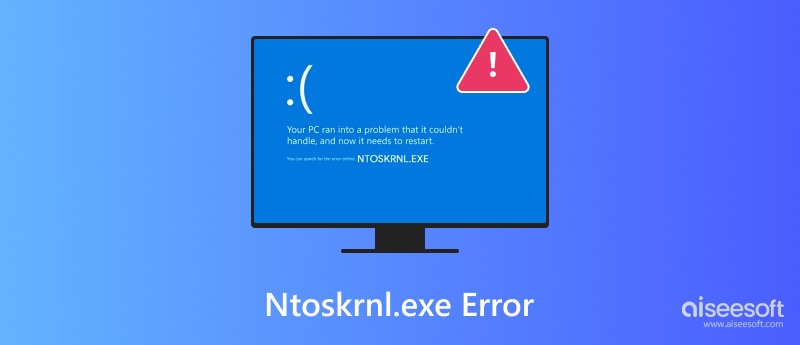
Image source: Aiseesoft
Using BlueScreenView or WinDbg
BlueScreenView is a lightweight utility that reads the minidump files created during a crash. When you open it, look for the "Caused By Driver" column. While
ntoskrnl.exe
will often be highlighted in pink, look for other
.sys
files in the list. For example, if you see
nvlddmkm.sys
, the issue is your Nvidia driver. If you see
rtwlane.sys
, it is your Realtek wireless driver. Identifying this specific file allows you to target the exact software that needs to be reinstalled or rolled back.
The Windows Driver Verifier Strategy
For intermittent crashes that are hard to replicate, the Windows Driver Verifier is a significant advancement in troubleshooting. This tool intentionally stresses drivers to force a crash if any illegal memory calls are made. By forcing the crash, the resulting minidump is much more likely to name the actual culprit rather than just the kernel.
To use it, type
verifier
in the Windows search bar and select "Create custom settings." Choose "Select individual settings from a full list" and check everything except "DDI compliance checking" and "Randomized low resources simulation." On the next screen, select "Select driver names from a list" and check all non-Microsoft drivers. Restart your PC and use it normally until it crashes.
Driver Verifier can sometimes cause a "boot loop" where the PC crashes before you can reach the desktop. If this happens, boot into
Safe Mode
, open Command Prompt, and type
verifier /reset
to disable the tool. This is a mandatory step to regain control of your system.
Evaluating Hardware Health and RAM Integrity
When
ntoskrnl.exe
crashes appear random—happening while browsing the web, idling, or gaming—the cause is frequently physical. Faulty RAM is a primary suspect. Even a single bit of corrupted data in your memory can cause the kernel to lose its place, resulting in an immediate system halt.
Windows Memory Diagnostic vs. MemTest86
The built-in Windows Memory Diagnostic is a good first step, but it is not always thorough. If you run it, you might miss the results because the notification disappears after the reboot. To find them, open
Event Viewer
, navigate to
Windows Logs > System
, and use the "Find" feature to search for "MemoryDiagnostic."
For a more rigorous evaluation, experts at Tom's Hardware recommend MemTest86 . This tool runs outside of Windows, allowing it to test every sector of your RAM. A reliable test should run for at least 8 to 9 passes, which can take 6 or more hours. If even a single error is found, the RAM stick is faulty and must be replaced.
SSD and Power Supply (PSU) Factors
A failing SSD can trigger "Kernel Data Inpage Errors." Use a tool like CrystalDiskInfo to check the S.M.A.R.T. status of your drives. If the health is "Caution" or "Bad," the drive is likely the source of your
ntoskrnl.exe failed
messages. Furthermore, an aging or underpowered PSU can cause voltage drops. If the GPU or CPU doesn't receive consistent power, the kernel may lose contact with the hardware, triggering a crash that looks like a software bug but is actually a power delivery failure.
Resolving Conflicts with Anti-Cheat and RGB Software
In recent months, a specific trend has emerged involving kernel-level anti-cheat software. Programs like Easy Anti-Cheat (EAC) and BattlEye operate at the same privilege level as the Windows kernel. If there is a compatibility mismatch—particularly with Windows 11 version 24H2 —the system will crash immediately upon launching a game.
Navigate to the game's installation folder, find the
EasyAntiCheat
directory, and delete the
.sys
file. Then, use Steam or the Epic Games Launcher to "Verify Integrity of Game Files." This forces a clean, compatible update of the anti-cheat driver.
Lighting controllers like ASUS Aura, Corsair iCUE, and NZXT CAM often use low-level drivers to communicate with hardware. These are known to conflict with Windows memory management. Try uninstalling these temporarily to see if stability returns.
Additionally, virtualization settings in your BIOS (VT-d for Intel or AMD-V for AMD) can sometimes conflict with specific gaming workloads or older drivers. If you are experiencing persistent
IRQL_NOT_LESS_OR_EQUAL
errors while gaming, disabling these features can serve as a temporary workaround to stabilize the kernel environment.
Adjusting BIOS Settings for Enhanced Stability
Overclocking is a common cause of kernel instability. Even "factory overclocks" like XMP (Extreme Memory Profile) or DOCP can be unstable on certain motherboard and CPU combinations. If you are seeing
ntoskrnl.exe
errors, your first step in the BIOS should be to "Load Optimized Defaults."
Specific motherboards, such as the ASUS B450 and B550 series, have been noted in enthusiast forums for having tight voltage thresholds. An XMP profile set to 1.35V might occasionally dip, causing a memory error. Manually increasing the DRAM voltage to 1.36V or 1.37V—or slightly down-clocking the RAM frequency—can often resolve "unfixable" BSODs. Always ensure your BIOS is updated to the latest version, as manufacturers frequently release microcode updates to fix CPU-to-kernel communication bugs.
Physical Maintenance and Component Reseating
Sometimes the solution isn't in the code, but in the hardware's physical connection. Over time, thermal expansion and contraction can cause components to "creep" out of their slots. This is especially true for RAM and heavy GPUs.
The "Unplug and Replug" method is a top-tier troubleshooting step. Power down your PC, unplug it, and physically remove the RAM sticks and the GPU. Use compressed air to clean the slots of any dust, which can cause micro-shorts or signal interference. Reinsert the components firmly until they click. According to community findings on Reddit , simply reseating RAM resolves a surprising percentage of kernel-level crashes that software fixes couldn't touch.
Distinguishing Between Software and Hardware Failures
Use the following table to help categorize your crashes based on their behavior. This can save you hours of unnecessary software troubleshooting if the symptoms point toward a hardware replacement.
| Symptom | Likely Software/Driver | Likely Hardware (RAM/PSU) |
|---|---|---|
| Crash Timing | During specific app or game launch | Random, even when the PC is idle |
| Error Code |
SYSTEM_SERVICE_EXCEPTION
|
PAGE_FAULT_IN_NONPAGED_AREA
|
| Minidump Analysis |
Points to a specific
.sys
file
|
Points to
ntoskrnl.exe
every time
|
| Frequency | Consistent (every time you do X) | Increases as the system warms up |
| Safe Mode | System is stable in Safe Mode | System still crashes in Safe Mode |
Key Takeaways for System Stability
-
Identify the reporter:
Remember that
ntoskrnl.exeis usually reporting a fault caused by another component, not failing itself. -
Analyze minidumps:
Use BlueScreenView to find the specific
.sysfile that is actually triggering the crash. -
Repair the image:
Always run
sfc /scannowandDISMas your first line of defense against corruption. - Test RAM thoroughly: Don't rely on quick tests; use MemTest86 for at least 8 passes to rule out physical memory defects.
- Check anti-cheat: If crashes happen during gaming, specifically on Windows 11 24H2, reinstall Easy Anti-Cheat or BattlEye.
- Reset BIOS: Disable XMP and manual overclocks to establish a stable baseline for further testing.
- Clean and reseat: Physically clean your RAM and GPU slots to prevent signal interference from dust or loose connections.
Start with software repairs and driver updates before investing in new hardware, as most kernel errors are resolved through systematic configuration changes.
Frequently Asked Questions
Is ntoskrnl.exe a virus or malware?
No,
ntoskrnl.exe
is a legitimate and essential Windows system file. It is the kernel of the operating system. However, some malware may attempt to mask itself by using a similar name or by infecting system processes. If the file is located in
C:\Windows\System32
, it is almost certainly the genuine Windows file. If you suspect an infection, run a full scan with a reputable antivirus like Microsoft Defender.
Can I just download a new ntoskrnl.exe file to fix the error?
You should never download individual DLL or EXE files from third-party websites. These files are often outdated or bundled with malware. Furthermore, replacing the kernel file manually will not fix the underlying driver or hardware issue causing the crash. Instead, use the
SFC /scannow
command to let Windows repair the file using its own verified internal cache.
Why does ntoskrnl.exe cause high CPU usage?
High CPU usage attributed to
ntoskrnl.exe
(often seen as "System" in Task Manager) is usually caused by "System Interrupts." This happens when a driver or hardware component is constantly sending requests to the kernel, forcing it to work overtime. Updating your drivers, particularly for network adapters and storage controllers, typically resolves this issue.
Will a clean install of Windows fix ntoskrnl.exe crashes?
A clean install is the "nuclear option." It will fix any software-related kernel errors, including driver conflicts and registry corruption. However, if the crash is caused by faulty RAM, a failing SSD, or an unstable BIOS setting, the BSODs will return even on a fresh installation of Windows. Always test your hardware before committing to a full wipe.
How do I fix the "IRQL_NOT_LESS_OR_EQUAL" error specifically?
This specific error is almost always a driver trying to access a memory address it doesn't have permission for. The most effective fix is to use Display Driver Uninstaller (DDU) in Safe Mode to completely wipe your GPU drivers, then perform a clean installation of the latest version from the manufacturer. If that fails, check for BIOS updates that improve memory compatibility.
Why does my PC crash only when I launch certain games?
This is frequently due to kernel-level anti-cheat software like Easy Anti-Cheat. These programs monitor your system at a very deep level and can conflict with Windows security features like "Memory Integrity" (VBS). Try disabling "Core Isolation" in Windows Security settings or updating the anti-cheat files manually to resolve the conflict.
-
Topic: BSOD's because of ntoskrnl.exe : r/techsupport - Reddithttps://www.reddit.com/r/techsupport/comments/19935ri/bsods_because_of_ntoskrnlexe/
-
Topic: The Curse of ntosrknl.exe Blue Screens: Never-Ending Headache ...https://learn.microsoft.com/en-us/answers/questions/4047332/the-curse-of-ntosrknl-exe-blue-screens-never-endin
-
Topic: Fix Blue Screen Errors with ntoskrnl.exe - FAQ Guide - JustAnswerhttps://www.justanswer.com/computer/s0u21-once-again-having-blue-screen-crash-inconsistent.html

How to Fix KB5075912 Fails to Install on Windows 10
Stuck on KB5075912? Fix error 0x80070002, 0x80073701, and Task Manager freezes with our ESU-specific troubleshooting guide for Windows 10.


How to Fix an Acer Laptop Stuck on the Explore Beyond Limits Screen
Stuck on the Acer Explore Beyond Limits screen? Learn to fix boot loops, reset batteries, and repair Windows without data loss using expert steps.

What Is DumpStack.log and Is It Safe to Delete From Your Computer?
Learn what DumpStack.log is, if it is a virus, and how to fix access denied errors in Windows 11. Find out how to delete it safely from your drive.
