
Is It Safe to Delete the System Volume Information Folder and How to Clean It Up
You should not attempt to delete the "System Volume Information" folder itself. Windows requires this directory to maintain file system integrity, and the OS will either block your attempt or recreate the folder immediately. However, it is entirely safe and often necessary to purge the contents of this folder using built-in Windows management tools if it is consuming excessive disk space.
If you have ever used a disk space analyzer like WinDirStat or TreeSize, you may have been startled to find a hidden folder named "System Volume Information" occupying dozens, or even hundreds, of gigabytes. This folder is a standard component of the NTFS file system, yet it remains one of the most misunderstood aspects of Windows storage management.
Many users encounter an "Access Denied" error when trying to peek inside, leading to concerns about malware or system corruption. In reality, this folder is a high-security vault for critical system data. While you cannot simply hit the "Delete" key to reclaim that space, there are established, safe workflows to put this folder on a diet without compromising your computer's stability.
What Does the System Volume Information Folder Actually Do?
The System Volume Information (SVI) folder is a hidden, system-protected directory that Windows uses for various volume-level functions. Because it contains data essential for system recovery and file tracking, it is protected by the highest level of NTFS permissions. By default, even an account with Administrative privileges is denied access; only the
NT AUTHORITY\SYSTEM
account has full control.
According to Microsoft technical documentation , the folder serves several vital roles:
- System Restore Points: This is the primary resident of the SVI folder. When you install a new driver or update Windows, the OS creates a snapshot of the registry and critical system files. These snapshots allow you to "roll back" if something goes wrong.
- Volume Shadow Copy Service (VSS): This service creates snapshots of your files while they are in use. It powers the "Previous Versions" feature in Windows, allowing you to recover an older version of a document you accidentally overwrote.
- Search Indexing Databases: To make file searching nearly instantaneous, Windows maintains a database of your files. On some configurations, parts of this index reside within the SVI folder.
- Distributed Link Tracking (DLT): If you have a shortcut on your desktop pointing to a file on your hard drive, and you move that file to a different folder, DLT ensures the shortcut still works. The tracking metadata is stored here.
- BitLocker Metadata: If you use drive encryption, the SVI folder stores recovery information and metadata necessary for the encryption engine to function.
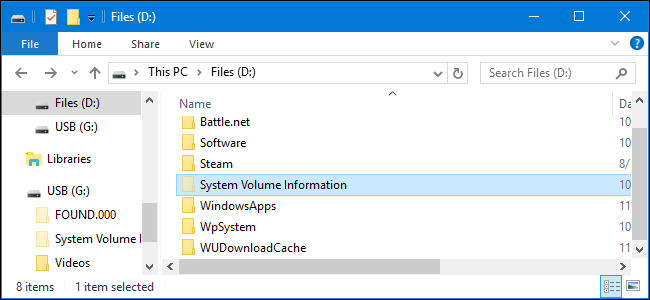
Image source: How-To Geek
Why Is the System Volume Information Folder So Huge?
It is not uncommon for users to report this folder ballooning to 100GB or more. In extreme cases, community members have documented the folder reaching massive sizes on data drives , sometimes exceeding 1TB. There are four primary culprits behind this storage bloat.
1. Excessive System Restore Points
By default, Windows allocates a percentage of your disk space for restore points. If you have a large hard drive, that "small percentage" can translate to 50GB or more. Over time, as Windows creates new points during updates, the folder grows until it hits the cap you have set.
2. Third-Party Backup Software Bloat
Tools like Veeam, Acronis, and Macrium Reflect utilize the Volume Shadow Copy Service to perform backups. Sometimes, if a backup is interrupted or the software is uninstalled incorrectly, "orphaned" shadow copies are left behind. These files are no longer tracked by the backup software but remain locked in the SVI folder, consuming space indefinitely.
3. The Defragmenter Bug
A notably innovative but sometimes problematic interaction occurs between older defragmentation tools and VSS. When a defragmenter moves blocks of data to optimize the drive, VSS may interpret this as a "change" to the file. This triggers the creation of a new shadow copy for every moved block, which can cause the SVI folder to grow by several gigabytes during a single optimization session.
4. Large VSS Snapshots
If you work with very large files (such as 4K video or virtual machine disks), even minor changes can result in massive delta files within the shadow copy storage. Individual snapshot files within the folder can easily exceed 4GB each.
How to Safely Reclaim Space in Windows 11 and 10
Since you cannot delete the folder manually, you must use the Windows "System Protection" interface to clear the data. This is the most reliable method and ranks among the top ways to fix storage issues without breaking the OS.
The Windows 11 Navigation Path
Windows 11 has moved many legacy settings into the new Settings app. To find the cleanup tools:
- Open Settings (Win + I).
- Go to System > About .
- Click on Advanced system settings (this opens a legacy dialog box).
- Switch to the System Protection tab.
- Select your drive (usually C:) and click Configure .
Using Disk Cleanup
The built-in Disk Cleanup tool can also target these files, though it is often less aggressive than the manual configuration method. To use it, search for "Disk Cleanup," right-click it, and select Run as Administrator . Click "Clean up system files," then go to the "More Options" tab. Under "System Restore and Shadow Copies," click Clean up to remove all but the most recent restore point.
Advanced Methods to Clean the Folder Using Command Line
For power users or those dealing with "Access Denied" errors that prevent the GUI from working, the command line offers a more direct route. These tools allow you to manage the Volume Shadow Copy storage directly.
Managing Space with VSSAdmin
The
vssadmin
tool is a top-tier option for diagnosing exactly how much space is being used by snapshots. Open Command Prompt as an Administrator and run:
vssadmin list shadowstorage
This will show you the "Used Space," "Allocated Space," and "Maximum Space" for shadow copies on every drive. If the "Used Space" is high, you can clear it with the following "nuclear" command:
vssadmin delete shadows /all
Note: This will delete all your "Previous Versions" of files and all System Restore points. Use with caution.
The PsExec Workflow for Deep Inspection
If you want to see exactly what is inside the folder without permanently changing NTFS permissions (which can be risky), you can use
PsExec
from the Microsoft Sysinternals suite. This allows you to launch a process with SYSTEM-level privileges.
- Download PsExec from Microsoft.
- Open an Admin Command Prompt in the folder where PsExec is located.
-
Run:
psexec.exe -i -s cmd.exe -
A new command window will open. Type
whoami; it should returnnt authority\system. -
You can now
cd "C:\System Volume Information"and usedir /sto see every file inside.
Why Do I See This Folder on My USB Drive or SD Card?
It is a common source of confusion when users see this folder on a removable flash drive, especially when viewing the drive on a Mac or Linux machine. This happens because Windows treats almost every NTFS or FAT32 volume it encounters as a potential candidate for indexing.
On a USB drive, the folder is typically very small (only a few kilobytes). It usually contains a file named
IndexerVolumeGuid
. This is a unique identifier that allows the Windows Search service to remember which files it has already indexed on that specific drive. If you move the drive between different computers, each Windows machine will recognize the ID and update its local index accordingly.
How to Prevent Creation on Removable Media
If the folder bothers you, you can prevent Windows from creating it on external drives via Group Policy (Pro/Enterprise versions):
-
Open
gpedit.msc. - Navigate to: Computer Configuration > Administrative Templates > Windows Components > Search .
- Enable the policy: Do not allow locations on removable drives to be added to libraries .
How to Fix the Access Denied Error When Opening the Folder
When you try to open the folder in File Explorer, Windows will tell you that you don't have permission. This is a security feature, not a bug. The folder is owned by the SYSTEM, and even the "Built-in Administrator" account is restricted to prevent accidental deletion of BitLocker keys or restore data.
| Action | Risk Level | Effectiveness |
|---|---|---|
| Manual Deletion (Shift+Del) | High (System Instability) | Low (Windows recreates it) |
| Taking Ownership (NTFS) | Medium (Can break BitLocker) | Medium (Hard to delete locked files) |
| System Protection GUI | Low (Safe) | High (Standard Method) |
| VSSAdmin Command | Low (Safe) | Very High (Clears stubborn files) |
If you absolutely must gain access—perhaps to remove a file flagged by an antivirus that can't reach it—you can manually add your user account to the folder's Security tab. However, you must revert these changes once finished. Leaving the folder accessible to user accounts creates a security hole where malware could potentially hide or delete your backups to prevent recovery after an attack.
Frequently Asked Questions
Will deleting the contents of this folder delete my personal photos or documents?
No. Purging the System Volume Information folder only removes system snapshots, restore points, and indexing metadata. Your actual files (photos, documents, videos) remain untouched. However, you will lose the ability to use the "Previous Versions" feature to recover an older version of a document if you make a mistake later.
Can I move the System Volume Information folder to another drive?
No. The SVI folder must exist on the root of every NTFS volume. It is a fundamental part of how the file system tracks changes and manages metadata for that specific partition. You can, however, redirect where System Restore stores its data, but the folder itself will remain on the drive (albeit empty).
Is it a virus if I see this folder on my desktop?
Normally, the folder should only exist at the root of a drive (e.g.,
C:\System Volume Information
). If you see a folder with this exact name on your desktop or inside your "Downloads" folder, it is highly suspicious. Some malware mimics system folder names to avoid detection. Check the file extension; if it is an
.exe
or contains scripts, do not open it.
Why does the folder keep coming back after I delete it from my USB drive?
Windows is designed to identify every drive it mounts. As soon as you plug the USB drive in, the Windows Search Indexer and the Distributed Link Tracking service check the drive. If they don't see the SVI folder, they create it to store the drive's unique ID. This is hard-coded behavior in the Windows shell.
How much space should this folder normally take?
For a healthy system, the folder typically occupies between 3% and 5% of your total drive capacity. If you have a 1TB drive, seeing 30GB to 50GB is standard. If the folder exceeds 10% of your drive, it is likely time to use the "Configure" button in System Protection to limit its growth.
Final Thoughts and Best Practices
The System Volume Information folder is a vital organ of the Windows operating system. While its size can be frustrating, it serves as your safety net against failed updates and accidental file deletions. To manage it effectively, follow these key takeaways:
- Never delete the root folder ; Windows will simply recreate it, and you risk destabilizing system services.
- Use the System Protection GUI in Windows 11 or 10 to limit disk usage to a reasonable 5-10%.
- Leverage the "Zero-Percent Trick" to force a complete purge of orphaned data if the folder becomes excessively large.
-
Run
vssadmincommands if you suspect third-party backup software has left behind "ghost" snapshots. - Ignore the folder on USB drives ; it is a harmless byproduct of how Windows indexes external media.
- Avoid changing NTFS permissions on the folder unless absolutely necessary for malware removal.
By following these steps, you can maintain a lean system while keeping your recovery options intact. For your next step, try running the
vssadmin list shadowstorage
command to see exactly how much space you can reclaim right now.
All trademarks, copyrighted content, and quoted material referenced in this article belong to their respective owners. Brief excerpts are used under fair use (17 U.S.C. § 107) for purposes of commentary, criticism, and informational reporting. This article is not affiliated with or endorsed by Microsoft Corporation.
-
Topic: I successfully deleted all the "System Volume Information ...https://www.reddit.com/r/Windows10/comments/kmmq7o/i_successfully_deleted_all_the_system_volume/
-
Topic: Is it safe to delete the System Volume Information folder?https://superuser.com/questions/763165/is-it-safe-to-delete-the-system-volume-information-folder
-
Topic: How do I delete huge files from System Volume Information?https://learn.microsoft.com/en-us/answers/questions/2481117/how-do-i-delete-huge-files-from-system-volume-info

What Is DumpStack.log and Is It Safe to Delete From Your Computer?
Learn what DumpStack.log is, if it is a virus, and how to fix access denied errors in Windows 11. Find out how to delete it safely from your drive.


Can You Delete Pagefile.sys to Save Space on Your Windows PC?
Learn if you can delete pagefile.sys to save space, how to move it, and why Windows needs virtual memory for system stability.


How to Use appwiz.cpl to Access Classic Programs and Features in Windows
Access classic Programs and Features with appwiz.cpl. Fix blank lists, bypass Windows 11 redirection, and manage legacy apps efficiently.