Can You Delete Pagefile.sys to Save Space on Your Windows PC?
Yes, pagefile.sys can be deleted , but not manually through File Explorer. You must disable the "Paging File" in Windows System Settings. However, doing so is generally discouraged. While it reclaims disk space, it can lead to system instability, application crashes, and prevents Windows from creating crash dumps during a Blue Screen of Death (BSOD). For most users, resizing or moving the file is a much safer alternative.
If you have ever used a disk visualization tool to see what is eating your storage, you likely noticed a massive, hidden file in the root of your C: drive named
pagefile.sys
. On modern systems, this file can range from a few gigabytes to over 100GB, leading many users to wonder if it is safe to remove. This guide explores the technical necessity of virtual memory and provides safe methods to manage your storage without compromising your PC's health.
What Is Pagefile.sys and Why Is It Taking Up So Much Space?
The
pagefile.sys
file is a critical component of the Windows "Virtual Memory" system. Think of it as a secondary reservoir for your computer's data. Your physical RAM (Random Access Memory) is exceptionally fast but limited in capacity. When you run too many programs at once and your RAM fills up, Windows doesn't just crash; it begins moving "stale" or less-frequently used data from the RAM into the
pagefile.sys
on your hard drive or SSD.
According to Microsoft documentation , this process allows the operating system to handle more data than your physical hardware technically supports. The reason it takes up so much space is that Windows typically manages the size automatically. By default, Windows may allocate a paging file that is equal to or even larger than your physical RAM to ensure there is always a safety net available.
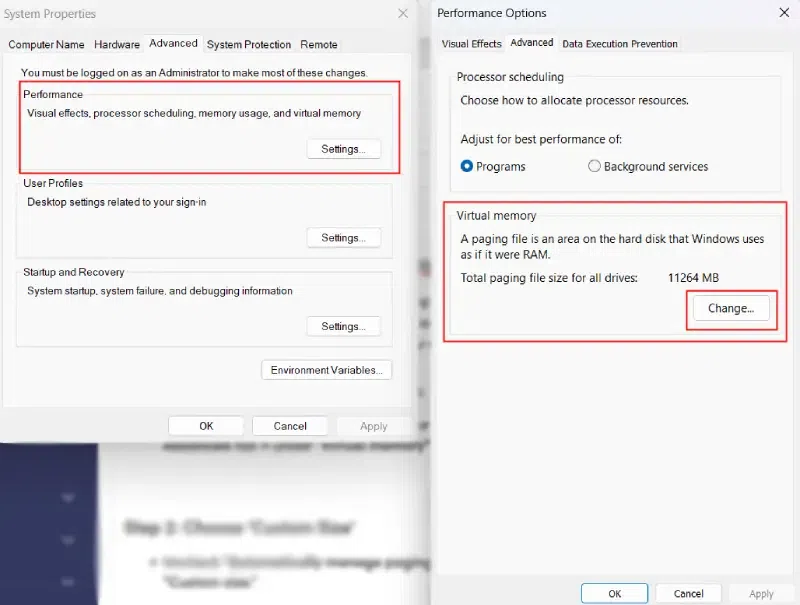
Image source: GeeksforGeeks
Can You Safely Delete Pagefile.sys?
Technically, yes. Windows allows you to disable the paging file entirely. If you have a massive amount of RAM (such as 64GB or 128GB) and you never perform memory-intensive tasks like 4K video editing or high-end simulation, you might never notice its absence. However, for the vast majority of users, disabling it is a risk .
Many software applications are hard-coded to expect a paging file to exist. Even if you have 32GB of free RAM, certain programs may still attempt to write to the pagefile. If it isn't there, the program will likely crash with an "Out of Memory" error. Furthermore, Windows uses this file to write "Memory Dumps" when the system fails. Without a pagefile of at least 400MB to 800MB, you will be unable to diagnose the cause of a Blue Screen of Death because no log will be created.
Why Windows Won't Let You Delete the File Directly
If you try to right-click
pagefile.sys
and select "Delete," you will be met with an error message stating the file is "open in another program." This is because the Windows kernel takes exclusive control of the file the moment the operating system boots. It is a protected system file, and as long as the Virtual Memory service is active, the file is locked.
To remove it, you must tell the operating system to stop using it first. This is a safety mechanism designed to prevent users from accidentally pulling the rug out from under the operating system while it is running. As noted by technical experts , manual deletion attempts via third-party "file shredders" can lead to boot loops or system corruption if not handled through the proper settings menu.
How to Safely Remove or Resize Pagefile.sys in Windows 11
Windows 11 has modernized the settings interface, but the Virtual Memory controls are still tucked away in the legacy "Advanced System Settings" menus. Follow these steps to adjust or remove the file:
- Open the Start Menu and type "Advanced System Settings," then select View advanced system settings .
- In the System Properties window, ensure you are on the Advanced tab. Under the "Performance" section, click Settings .
- In the Performance Options window, go to the Advanced tab and click the Change button under the "Virtual memory" section.
- Uncheck the box that says Automatically manage paging file size for all drives .
- Select your C: drive. To delete the file, select No paging file and click Set . (You will see a warning; click Yes).
- To simply reduce the size, select Custom size and enter a smaller Initial and Maximum size (e.g., 2048MB for 2GB).
- Click OK on all windows and Restart your computer .
If you choose "No paging file," monitor your system closely for the next few days. If you experience random crashes in games or web browsers, return to these settings and allocate at least a 2GB (2048MB) static paging file.
How to Manage Virtual Memory in Windows 10
While the core logic remains the same, Windows 10 users often access these settings through the Control Panel. The path is: Control Panel > System and Security > System > Advanced System Settings . From there, the steps mirror the Windows 11 process exactly.
One notable difference in Windows 10 is how the OS handles "Commit Charge." Windows 10 tends to be slightly more aggressive in expanding the pagefile size when it detects a low-disk-space condition. If you are on an older version of Windows 10, ensure you have installed the latest cumulative updates, as early versions had minor bugs related to virtual memory fragmentation on mechanical hard drives.
What Happens to Your PC If You Disable the Paging File?
Disabling the paging file removes the "buffer" that protects your system from memory spikes. Here is what typically happens:
- Application Crashes: Programs like Google Chrome or Adobe Photoshop, which are notorious for high RAM usage, may close instantly without saving your work if they hit the physical RAM limit.
- Gaming Instability: Modern titles like Starfield or Call of Duty often use the pagefile to cache shaders and assets. Disabling it can lead to stuttering or "DirectX Error" crashes.
-
No BSOD Logs:
If your PC crashes, you won't have a
MEMORY.DMPfile to analyze. This makes troubleshooting hardware failures nearly impossible. - Reduced Performance: Contrary to some "optimization" myths, disabling the pagefile rarely speeds up a PC. In fact, it can slow it down as the kernel is forced to keep everything in RAM, even data that isn't being used, leaving less room for active tasks.
Why Is My Pagefile.sys So Large?
In some cases, users report a
pagefile.sys
that grows to 100GB, 200GB, or even 300GB. This is usually not normal behavior and points to one of two issues:
The "300GB Bug" and SysMain
The
SysMain
service (formerly known as Superfetch) is designed to pre-load frequently used apps into memory. In rare instances, a conflict between SysMain and a specific driver can cause the paging file to balloon uncontrollably. If your file is larger than your total RAM, try disabling the SysMain service in
services.msc
to see if the file shrinks after a reboot.
Memory Leaks in Applications
A "memory leak" occurs when a program requests RAM but fails to release it when it's finished. Windows will keep pushing this "leaked" data into the pagefile to keep the system running. If you notice your pagefile growing over several hours, check the Details tab in Task Manager and look for the "Commit Size" column to identify the offending software.
The 32GB RAM Myth: Do You Still Need a Pagefile on Modern Systems?
A common piece of advice on forums like Tom's Hardware is that if you have 32GB or 64GB of RAM, you should disable the pagefile to "save your SSD." This is largely a myth based on outdated hardware limitations. While you don't need a massive pagefile, you still need a functional one.
The "Static" Recommendation: Instead of disabling it, many power users recommend setting a "Static" size. For a 32GB system, setting an Initial and Maximum size of 4096MB (4GB) is a top-tier choice. This provides enough space for crash dumps and "pagefile-hungry" apps while preventing the file from growing to 50GB and wasting your SSD space.
Does Paging Wear Out Your SSD?
Early SSDs had limited write cycles, leading to fears that the constant "paging" of data would kill the drive prematurely. However, modern NVMe and SATA SSDs have exceptionally high TBW (Total Bytes Written) ratings. A typical 1TB SSD might be rated for 600TBW. Even if Windows writes 10GB to your pagefile every single day, it would take over 160 years to wear out the drive. The performance benefit of having your pagefile on an SSD—which is hundreds of times faster than an HDD—far outweighs the negligible wear and tear.
How to Move Pagefile.sys to a Different Drive
If your C: drive is a small 128GB or 256GB SSD and it's nearly full, you don't have to delete the pagefile. You can move it to a secondary drive (like a D: or E: drive) to reclaim space on your boot partition.
- Follow the steps to reach the Virtual Memory settings.
- Select the C: drive and choose No paging file , then click Set .
- Select your D: drive (or other secondary drive).
- Choose System managed size or Custom size and click Set .
- Click OK and restart.
Pro Tip Avoid moving the pagefile to a slow external USB drive or an ancient mechanical HDD, as this will significantly degrade system performance when the RAM fills up.
Comparing System Files: Pagefile vs. Hiberfil vs. Swapfile
Windows uses several hidden files for system management. Understanding the difference helps you decide which ones are safe to remove.
| File Name | Purpose | Safe to Delete? | How to Remove |
|---|---|---|---|
pagefile.sys
|
Virtual Memory / RAM Overflow | Yes, but risky | Virtual Memory Settings |
hiberfil.sys
|
Hibernation Data | Yes (Safe) |
powercfg -h off
in CMD
|
swapfile.sys
|
Universal App Suspension | No | Managed by Windows |
How to Delete a "Zombie" Pagefile Using Linux
Sometimes, even after disabling the paging file in Windows, the
pagefile.sys
remains on the disk, refusing to be deleted. This is often due to a "dirty" filesystem bit or a permissions error. In these advanced cases, you can use a Linux Live USB (like Ubuntu) to manually wipe the file.
Since Linux does not respect Windows file locks, you can mount your NTFS partition, navigate to the root directory, and shift-delete the file. When you reboot into Windows, the OS will see the file is gone. If you have "No paging file" selected, Windows will not recreate it. This is a highly effective method for cleaning up "zombie" files that persist after a failed OS migration or a drive clone.
The Bottom Line on Managing Your Virtual Memory
Managing your system files is a balance between storage efficiency and OS stability. Here are the key takeaways for handling pagefile.sys:
- Never delete the file manually through File Explorer; always use the System Settings menu.
- Avoid disabling it entirely unless you have a specific troubleshooting reason, as it prevents crash dump creation.
- Use a "Static" size (e.g., 4GB) if you have 16GB+ of RAM to prevent the file from ballooning while maintaining stability.
- Move the file to a secondary drive if your primary SSD is critically low on space.
- Check for memory leaks if the file grows larger than your physical RAM capacity.
- Modern SSDs are durable enough to handle paging without any significant impact on their lifespan.
For most users, the most effective strategy is to set a custom size of 2048MB to 4096MB, ensuring the system remains stable while reclaiming dozens of gigabytes of storage space.
Frequently Asked Questions
Is it safe to disable pagefile.sys with 32GB of RAM?
While it is safer than doing so on a 8GB system, it is still not recommended. Some applications and Windows background processes require a paging file to function correctly regardless of how much physical RAM is available. A better approach is to set a small, static paging file of 2GB to 4GB.
Will deleting pagefile.sys increase FPS in games?
No. In fact, it may decrease performance or cause the game to crash. When the paging file is disabled, Windows has less flexibility in managing memory, which can lead to micro-stutters when the system runs out of physical RAM addresses. Keeping the pagefile on a fast SSD is the best way to ensure smooth gaming performance.
Can I delete pagefile.sys in Command Prompt?
You cannot delete the active file using the
del
command because it is locked by the kernel. You must use the System Properties UI to disable it. However, you can use the command
wmic pagefileset where name="C:\\pagefile.sys" delete
in an administrative prompt to attempt removal, though the UI method is more reliable.
Why does pagefile.sys keep coming back after I delete it?
If the "Automatically manage paging file size for all drives" box is checked in your settings, Windows will recreate the file every time you reboot. You must uncheck this box and explicitly select "No paging file" for every drive in the list to stop it from reappearing.
What is the recommended minimum size for a custom pagefile?
To ensure Windows can write a "Small Memory Dump" during a system crash, you should have a minimum of 400MB to 800MB. For general system stability, most experts recommend a minimum of 2048MB (2GB).
-
Topic: Anyone know if Pagefile.sys can be deleted? its taking up ...https://www.reddit.com/r/Windows10/comments/t3j16g/anyone_know_if_pagefilesys_can_be_deleted_its/
-
Topic: What is pagefile.sys file? How can I delete it?https://learn.microsoft.com/tr-tr/answers/questions/3925855/what-is-pagefile-sys-file-how-can-i-delete-it
-
Topic: Can I Delete Pagefile.sys?https://askleo.com/what-is-pagefile-sys-can-i-delete-it/

Is It Safe to Delete the System Volume Information Folder and How to Clean It Up
Is it safe to delete the System Volume Information folder? Learn to reclaim space, fix access denied errors, and purge files in Windows 11.


How to View Any Web Page in Plain Text for Better Reading and Data Extraction
Learn how to strip clutter from websites using tools and settings for accessibility, privacy, and AI data extraction. View plain text web pages now.

How to Use Revo Uninstaller to Remove Stubborn Programs and Registry Leftovers
Remove stubborn programs and registry leftovers with Revo Uninstaller. Compare Free vs Pro versions and learn how to use Hunter Mode safely.