How to Use Revo Uninstaller to Remove Stubborn Programs and Registry Leftovers
Revo Uninstaller is a top-rated utility designed to perform deep cleaning of software leftovers that the standard Windows uninstaller misses. By combining the built-in uninstallation process with a multi-level registry and file system scan, it helps maintain system stability and reclaim disk space.
Why Standard Windows Uninstallation Often Fails to Clean Your System
When you use the default "Add or Remove Programs" feature in Windows, you are essentially relying on the software developer's own uninstallation script. Unfortunately, many of these scripts are incomplete or poorly optimized. They are designed to remove the executable files but often ignore the digital "exhaust" created during the software's lifecycle.
This digital exhaust includes Windows Registry keys, configuration files in the
AppData
folder, temporary files, and driver fragments. Over time, these leftovers accumulate, leading to registry bloat, slower boot times, and potential conflicts when you try to reinstall the same software or update related components. According to
Wikipedia's technical overview
, Revo Uninstaller addresses this by performing a post-uninstallation scan to identify these orphaned entries.
The value proposition of a dedicated uninstaller lies in its ability to look where standard tools do not. For example, a standard uninstaller might leave behind a licensing service that continues to run in the background, consuming CPU cycles. Revo identifies these active processes and ensures they are terminated and removed, providing a cleaner slate for your operating system.
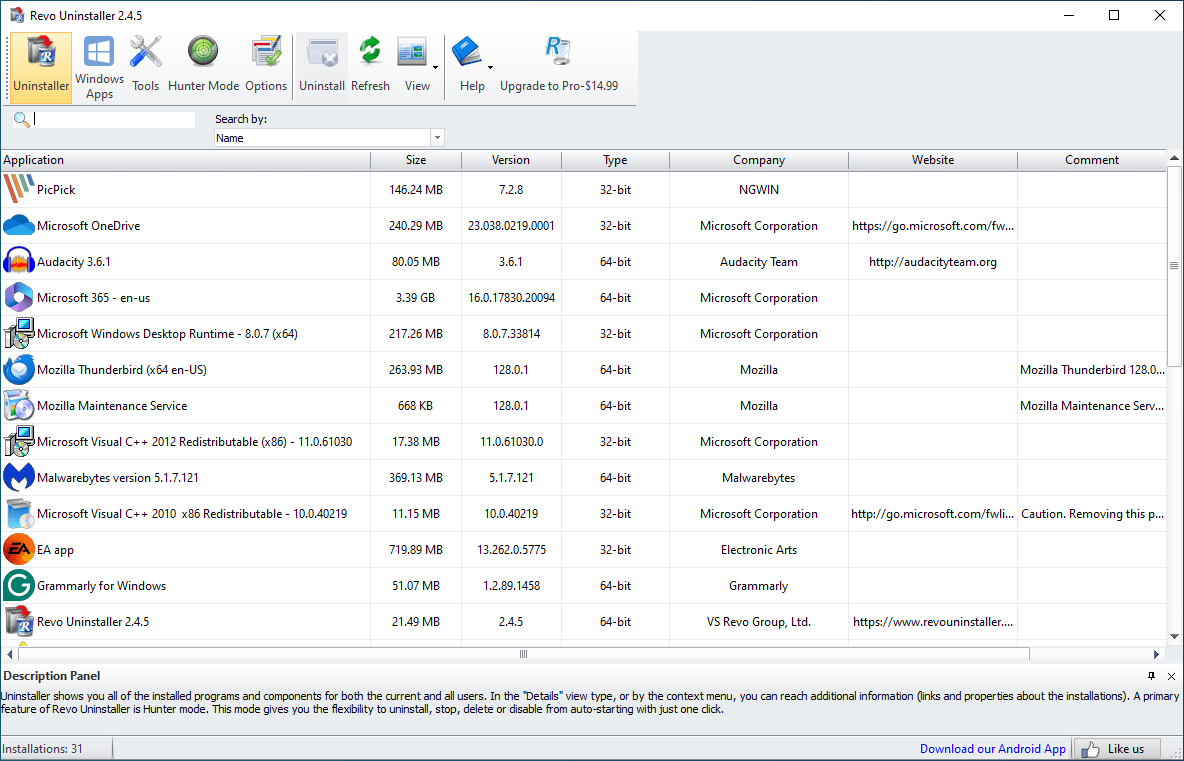
Image source: Revo Uninstaller
How to Choose the Right Version for Your Specific Needs
Selecting the appropriate version of Revo Uninstaller depends on your technical requirements and the number of machines you manage. The software is offered in three primary tiers: Free, Pro, and Pro Portable. Each tier serves a distinct user profile, from casual home users to professional IT technicians.
| Feature | Free Version | Pro Version | Pro Portable |
|---|---|---|---|
| Standard Uninstall | Yes | Yes | Yes |
| Forced Uninstall | No | Yes | Yes |
| Logs Database | No | Yes | Yes |
| Multi-level Backup | Basic | Full | Full |
| Licensing Model | Freeware | Per Computer | Per User (USB) |
Understanding the Licensing and Ownership Model
A significant advantage of the Revo licensing model is the "Ownership" factor. Unlike many modern Software-as-a-Service (SaaS) products like Adobe Creative Cloud or Microsoft 365, a Revo Uninstaller Pro subscription does not act as a kill-switch. According to official product documentation , if your subscription expires, the software remains fully functional. You simply lose access to new version updates and priority technical support. You keep the version you paid for indefinitely.
Furthermore, the distinction between Pro and Pro Portable is critical for professionals. The standard Pro license is tied to a specific hardware ID. In contrast, the Portable version is licensed to the user. This allows an IT consultant to carry the software on a USB drive and use it on an unlimited number of client computers without needing to activate a new license for every machine.
How to Safely Remove Programs Using the Hunter Mode Feature
Hunter Mode is one of the most notably innovative features in the Revo suite. It is designed for situations where a program is running but you cannot find it in the standard list of installed applications. This often happens with "ghost" programs, adware, or background utilities that lack a traditional desktop shortcut.
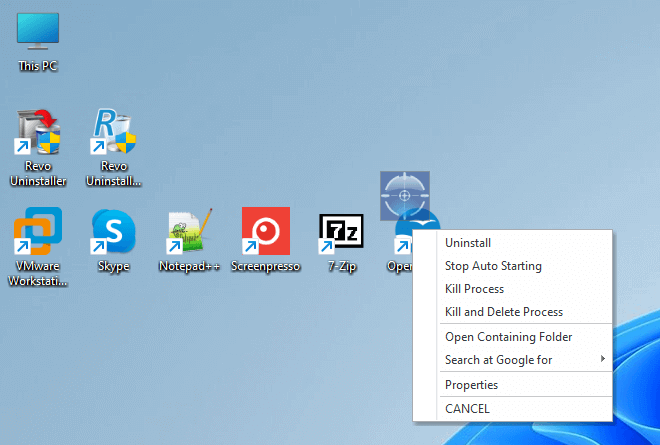
Image source: Revo Uninstaller
To use Hunter Mode, follow these steps:
- Click the Hunter Mode icon in the main toolbar. The Revo window will disappear, replaced by a small blue target icon on your desktop.
- Click and drag the target icon over the window of the program you wish to remove, or over its icon in the system tray.
- Release the mouse button. A context menu will appear with options to Uninstall, Stop Auto-starting, or Kill the process.
- Select Uninstall to begin the deep cleaning process.
This mode is a top-tier choice for managing intrusive software that hides its presence from the Windows Control Panel. It bypasses the need to search through file directories, as the target icon automatically identifies the installation path and associated registry keys.
How to Use Forced Uninstall for Programs Not Appearing in the List
Sometimes, a program is partially uninstalled, leaving behind enough fragments to prevent a fresh installation but not enough to appear in the "Installed Programs" list. This is where the Forced Uninstall feature in the Pro version stands out as a top choice.
Forced Uninstall works by using two methods:
- Manual Path Targeting
- You point Revo to the folder where the program was installed or to its main .exe file.
- Logs Database
- Revo queries a cloud-based database of trace logs created by the Revo team. These logs contain the exact registry and file footprints of thousands of popular programs.
By comparing your system's state against these known logs, Revo can surgically remove the remnants of a program even if the original uninstaller is missing or corrupt. This feature is widely regarded as one of the strongest tools for fixing "installation loops" where a computer thinks a program is still present when it is not.
Why You Should Be Careful When Cleaning Registry Leftovers
Aggressive registry cleaning can occasionally lead to the "Shared Component" problem. This occurs when two different programs share a single registry key or DLL file. If you delete a leftover from Program A that Program B also requires, Program B may stop functioning correctly.
A documented case study from the power-user community involves the removal of Java leftovers. In some instances, aggressive cleaning of Java registry paths accidentally deleted entries shared by the Firefox browser, causing the browser to lose its ability to handle specific web scripts. To mitigate this, Revo Uninstaller provides three scanning modes:
- Safe Mode: Performs a scan of the registry and file system for items that are 100% confirmed as safe to delete. This is the recommended setting for most users.
- Moderate Mode: Includes additional locations that are typically safe but may require a quick glance. This ranks among the top choices for experienced users.
- Advanced Mode: Scans deep into the system. This mode requires manual verification of every item, as it may include shared components.
Expert Tip: When reviewing registry results, Revo bolds the items that it is certain belong to the program. Items in plain text should be treated with caution. Always ensure the "Create System Restore Point" option is checked before proceeding.
How to Manage Your License and Transfer It to a New Computer
One of the most common points of confusion for users is how to move a Revo Uninstaller Pro license to a new PC. Because the license is tied to a hardware fingerprint, simply installing it on a second machine may trigger an "Activation Limit Reached" error. However, version 5 and newer have introduced a manual deactivation workflow that is exceptionally strong for user flexibility.
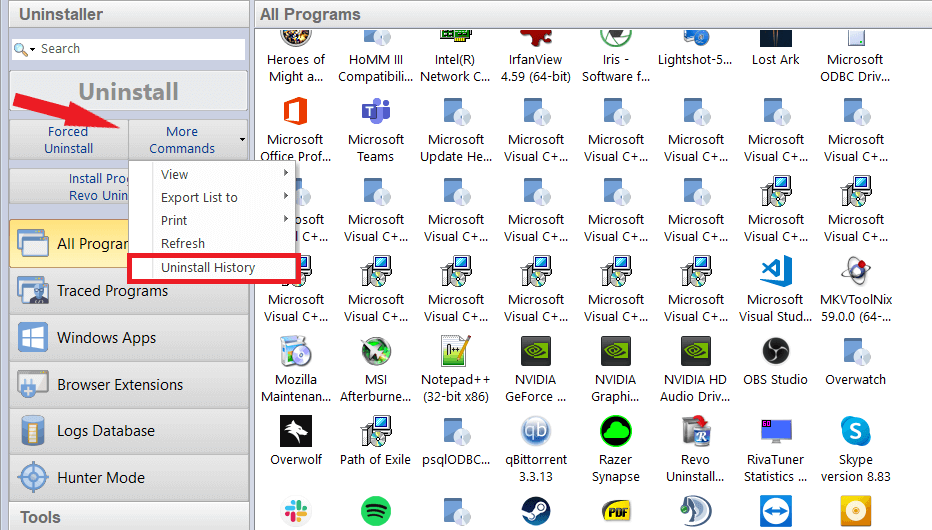
Image source: Revo Uninstaller
To transfer your license, follow this protocol:
- Open Revo Uninstaller Pro on the old computer.
- Navigate to the Menu (three horizontal lines) in the top right corner.
- Select Deactivate License . This releases the hardware ID from the Revo activation servers.
- Install the software on the new computer and enter your serial number.
If your old computer has crashed and you cannot access the menu, you will need to contact Revo Technical Support . They typically respond within a few hours and can manually reset your activation count.
How to Handle Complex Software That Requires a System Reboot
Some software packages, particularly antivirus suites and large media editors like Nero, require a system restart during the installation process to replace core system files. Standard installation monitors often lose track of the process once the reboot occurs. To handle this, power users employ a "Multi-Reboot Logging" strategy.
"For complex installs, the real-time monitor must be handled in parts. If a program reboots your PC, you must ensure the monitor resumes immediately upon login to capture the final configuration changes."
In Revo Pro, you can use the "Trace Log" feature to manually start and stop the monitoring process. If a reboot is required, you stop "Part 1" of the log before the restart and start "Part 2" immediately after. While Revo 5 has improved its ability to handle reboots automatically, manual oversight remains a top-tier practice for ensuring a 100% clean removal later on.
Can You Remove Android Bloatware with Revo Uninstaller?
The mobile version of Revo Uninstaller, available on the Google Play Store , is a popular choice for managing apps, but it is important to manage expectations regarding "bloatware."
On Android, "bloatware" usually refers to pre-installed system apps provided by the manufacturer or carrier. Due to the security architecture of the Android OS, third-party apps—including Revo—cannot remove these system-level applications unless the device has been "rooted."
However, the Android version is still a significant advancement for app management. It offers:
- App Ranking: Identify which apps are taking up the most space or haven't been used in months.
- Permission Checker: A quick way to see which apps have access to your camera, microphone, or contacts.
- Batch Uninstall: Remove multiple user-installed apps simultaneously to save time.
How to Use the Eight Additional Optimization Tools Included in the Suite
Beyond its primary uninstallation capabilities, Revo includes a suite of tools designed to keep your PC running smoothly. These tools are often overlooked but provide a strong value for system maintenance.
- Junk Files Cleaner: Scans for temporary files, log files, and other unnecessary data that standard disk cleanup might miss.
- Autorun Manager: Allows you to disable programs that start automatically with Windows, significantly improving boot times.
- Browsers Cleaner: Clears history, cookies, and temporary internet files across all major browsers in one click.
- Evidence Eraser: Permanently deletes data so that it cannot be recovered by forensic software.
- Unrecoverable Delete: A secure shredder for individual files and folders.
Using these tools in conjunction with the uninstaller provides a comprehensive approach to PC hygiene. For instance, after removing a large program, running the Junk Files Cleaner can often find an additional 100-500MB of cached data that was not directly linked to the application's registry path.
Frequently Asked Questions About Revo Uninstaller
Is Revo Uninstaller safe to use on Windows 11?
Yes, Revo Uninstaller is fully compatible with Windows 11. The developers frequently release updates to ensure the registry scanning algorithms account for the specific file paths and security permissions introduced in the latest Windows versions. It remains a popular choice for users who want to keep their Windows 11 installation lean.
What is the difference between "Safe" and "Advanced" scanning?
Safe scanning only targets registry keys and files that are explicitly and exclusively linked to the program being uninstalled. Advanced scanning looks for deeper associations, including shared folders and complex registry branches. While Advanced is more thorough, it requires the user to manually verify that no shared components are being deleted.
Can I use one Pro license on both my laptop and desktop?
The standard Revo Uninstaller Pro license is a "per-computer" license. To use it on two machines simultaneously, you would need two licenses. However, if you are replacing one machine with another, you can deactivate the license on the old machine and move it to the new one at no extra cost.
Does Revo Uninstaller offer a money-back guarantee?
Yes, the VS Revo Group offers a 60-day money-back guarantee for the Pro versions. This allows you to test the Forced Uninstall and Logs Database features risk-free to see if they meet your specific needs for system maintenance.
How does the Logs Database work?
The Logs Database is a cloud-based repository of installation traces. When you try to uninstall a program, Revo checks if its team has already created a "perfect" log for that specific software version. If so, it uses that log to ensure every single file and registry key is removed, even if you didn't monitor the installation yourself.
Key Takeaways for Maintaining a Clean Windows Environment
- Always prioritize safety by ensuring Revo creates a System Restore point and a full registry backup before every uninstallation.
- Use Hunter Mode for stubborn background processes or programs that do not appear in the standard Windows Control Panel.
- Leverage the Logs Database in the Pro version to remove "ghost" programs that have broken or missing uninstallers.
- Be cautious with Advanced scans ; stick to "Safe" or "Moderate" modes unless you are comfortable identifying shared registry components.
- Manage your licenses properly by using the manual deactivation feature when moving to a new computer to avoid activation errors.
- Regularly use the Junk Files Cleaner to reclaim disk space that accumulates from browser caches and temporary system logs.
By integrating these practices into your routine, you can significantly extend the lifespan of your Windows installation and avoid the common performance degradation caused by software leftovers.
To get started, download the version that matches your needs and perform a scan of your most recently installed programs to see what leftovers might be hiding on your drive.
-
Topic: Download Revo Uninstaller Freeware - Free and Full ...https://www.revouninstaller.com/revo-uninstaller-free-download/
-
Topic: Revo Uninstallerhttps://www.revouninstaller.com/
-
Topic: Download Revo Uninstaller Free - Remove unwanted ...https://www.revouninstaller.com/products/revo-uninstaller-free/

How to View Any Web Page in Plain Text for Better Reading and Data Extraction
Learn how to strip clutter from websites using tools and settings for accessibility, privacy, and AI data extraction. View plain text web pages now.


How to Use appwiz.cpl to Access Classic Programs and Features in Windows
Access classic Programs and Features with appwiz.cpl. Fix blank lists, bypass Windows 11 redirection, and manage legacy apps efficiently.


How to Manage, View, and Remove Chrome Policies on Any Device
Learn to manage Chrome enterprise policies, troubleshoot Managed by your organization errors, and remove registry or plist restrictions effectively.