
How to Manage, View, and Remove Chrome Policies on Any Device
1. What Are Chrome Policies and Why Does Your Browser Have Them?
Chrome policies are essentially a set of instructions, formatted as JSON-based rules, that dictate how the Google Chrome browser operates. These rules can control everything from the home page and forced extensions to security settings like Safe Browsing. According to official Chrome Enterprise documentation , these policies allow organizations to maintain a consistent and secure browsing environment across hundreds or thousands of devices.
There are two primary ways these policies are applied. Enterprise management involves a centralized IT department using tools like the Google Admin Console or Active Directory to push settings to company-owned hardware. On the other hand, local management occurs when software installed on your computer—such as an antivirus program or even malware—modifies the system registry to force specific browser behaviors.
Why do these policies exist? For businesses, they are a necessity for compliance and security enforcement. An admin might disable the ability to save passwords on public kiosks or force a specific security extension to run at all times. For personal users, policies are often a byproduct of security suites that disable certain experimental features to ensure stability. However, they can also be used maliciously by browser hijackers to lock in unwanted search engines.
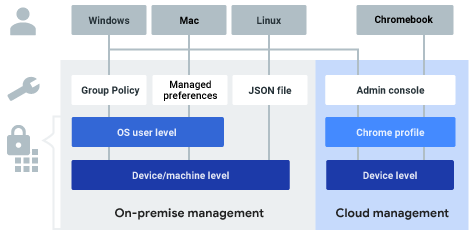
Image source: Google Help
2. How to Check Which Chrome Policies Are Active on Your Computer
If you suspect your browser is being restricted, the first step is to audit the active configurations. Chrome includes a built-in dashboard specifically for this purpose. By navigating to
chrome://policy
, you can see a comprehensive list of every rule currently influencing your browser.
The dashboard is divided into several key columns:
-
Policy Name:
The technical string used by the system (e.g.,
RestoreOnStartup). - Policy Value: The specific setting applied (e.g., a URL or a boolean true/false).
- Source: Indicates where the policy came from, such as "Platform" (Registry/GPO) or "Cloud."
- Status: Confirms if the policy is "OK" or if there is a conflict.
For technical auditing or sharing with IT support, the "Export to JSON" button at the top of the page is a top-tier tool. It generates a text file containing the raw data of your browser's configuration. As noted in Google's support guides , this is the primary method for diagnosing why certain settings, like Incognito mode, might be disabled.
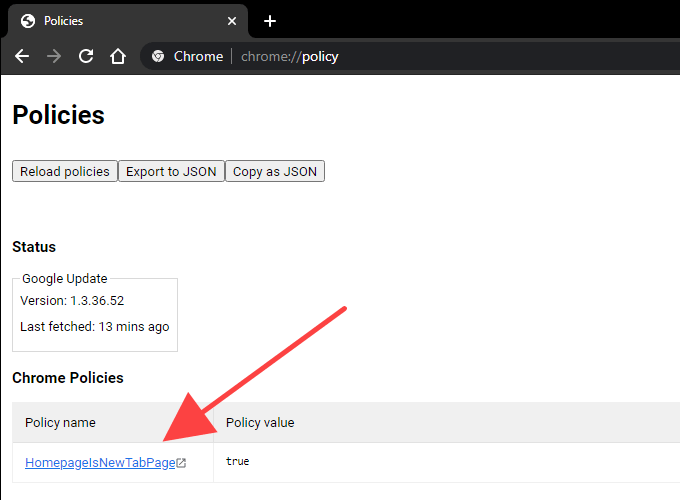
Image source: Online Tech Tips
3. How IT Administrators Can Deploy Chrome Policies at Scale
Managing a fleet of browsers requires more than manual configuration. Modern IT environments rely on automated deployment methods to ensure security patches and productivity tools are universal.
Using Natural Language Search to Find Settings in the Google Admin Console
A significant advancement in the Google Admin Console is the integration of Natural Language Processing (NLP) for policy discovery. In the past, admins had to memorize specific technical strings like
AccessibilityShortcutsEnabled
. Now, you can simply search for "improve accessibility" or "block extensions," and the console will surface the relevant settings. This feature, highlighted in
Google's management overview
, drastically reduces the time required to configure complex environments.
Setting Up Windows Management with ADMX Templates
For Windows-centric organizations, the standard approach involves using Administrative Templates (ADMX). To begin, admins download the "Google Chrome Bundle," which contains the necessary files to integrate Chrome settings into the Group Policy Editor (gpedit.msc).
The process involves placing the
.admx
files in
C:\Windows\PolicyDefinitions
and the language-specific
.adml
files in the corresponding subfolder (e.g.,
en-US
). Once installed, Chrome settings appear alongside native Windows policies, allowing for granular control over the registry without manual editing.
Managing Chrome via the Policy API
For developers and high-level enterprise architects, the Chrome Policy API offers a way to programmatically audit and manage browser usage. This is particularly useful for generating custom compliance reports or integrating browser insights into a broader security information and event management (SIEM) system.
4. Understanding the Hierarchy of Chrome Policy Precedence
When multiple policies attempt to control the same setting, Chrome follows a strict hierarchy to decide which one "wins." This is known as the Precedence Pyramid. Understanding this logic is crucial for troubleshooting conflicts where a local setting seems to be ignored in favor of a cloud setting.
| Priority | Policy Level | Description |
|---|---|---|
| 1 (Highest) | Platform Policies | Settings applied via Windows Registry, GPO, or macOS Plist files. |
| 2 | Machine Cloud Policies | Settings applied via the Admin Console using an enrollment token. |
| 3 | OS-User Policies | Policies mapped to the specific operating system user login. |
| 4 (Lowest) | Cloud-User Policies | Settings synced to a specific Google Profile (Workspace). |
There is an advanced override logic available to admins: the
CloudPolicyOverridesPlatformPolicy
setting. When enabled, this allows cloud-based settings to take precedence over local platform policies. This is a significant step forward for companies moving toward a "cloud-first" management model, as it prevents local registry hacks from bypassing corporate security.
5. Why Does Chrome Say It Is Managed by Your Organization?
Seeing the "Managed by your organization" message in your Chrome menu can be alarming, but it doesn't always mean you are being monitored. This flag is triggered whenever *any* registry key exists in the Chrome policy folder.
One common culprit is the
QUIC Bug
. Many third-party security suites disable the QUIC protocol (
QuicAllowed = false
) to better inspect web traffic for threats. Because this change is made at the policy level, Chrome flags the browser as "managed." While this is technically true, it is a functional choice by your antivirus rather than a sign of corporate surveillance.
However, there is a darker side. Malware and browser hijackers frequently use the
ExtensionInstallForcelist
policy. By adding their malicious extension to this list, they ensure that the "Remove" button is greyed out for the user, making the infection persistent. If you see extensions you don't recognize that cannot be deleted, your browser policies have likely been compromised.
6. How to Remove Chrome Policies and Management Settings
Removing unwanted policies requires administrative access to your computer's operating system. Before proceeding, always back up your data, as editing system files carries inherent risks.
Clearing Registry Keys on Windows Devices
On Windows, policies are stored in the Registry. To reset them, follow these steps:
- Close Google Chrome completely.
-
Press
Win + R, typeregedit, and hit Enter. -
Navigate to
HKEY_LOCAL_MACHINE\SOFTWARE\Policies\Google\Chrome. - Right-click the "Chrome" folder and select Delete .
-
Repeat the process for
HKEY_CURRENT_USER\SOFTWARE\Policies\Google\Chrome. -
Restart Chrome and check
chrome://policyto confirm the rules are gone.
Removing Management Profiles and Plist Files on macOS
macOS handles management differently, often using configuration profiles (MDM). To clear these:
- Go to System Settings > Privacy & Security > Profiles . If you don't see a "Profiles" option, no MDM profiles are installed.
- Select any suspicious profile and click the minus (–) button to remove it.
-
Open Terminal and run:
defaults delete com.google.Chrometo clear local preferences. -
Manually delete the file located at
~/Library/Preferences/com.google.Chrome.plistif it persists.
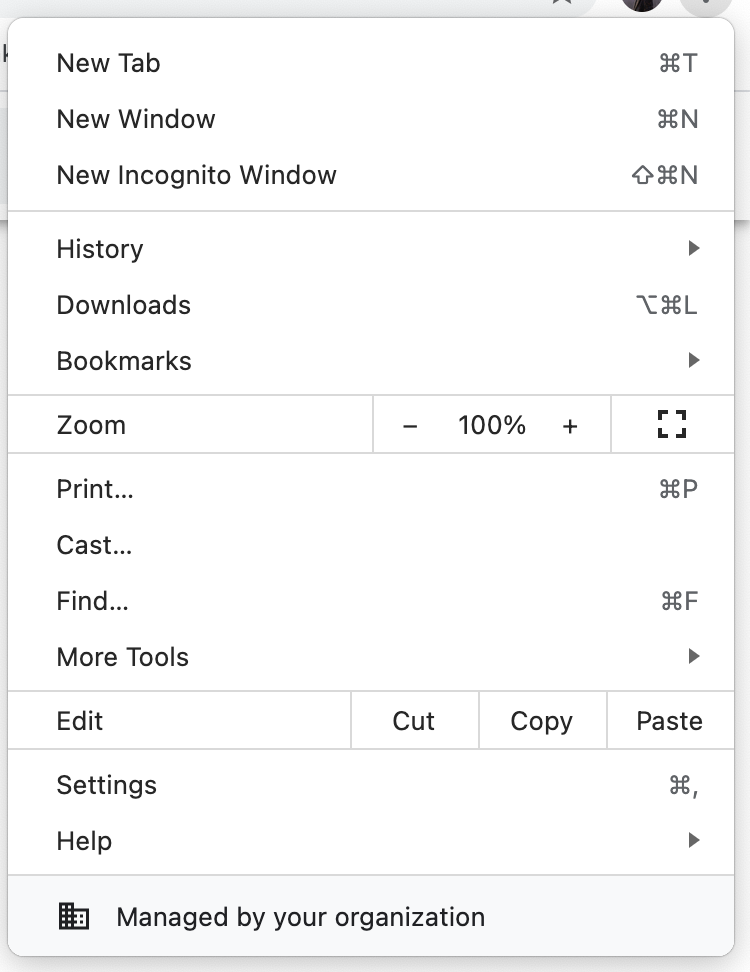
Image source: Google Help
7. Managing Chrome Profiles for Small Businesses and BYOD Teams
Small businesses often struggle with the balance between security and privacy, especially with Bring Your Own Device (BYOD) policies. Google distinguishes between "Managing the Browser" and "Managing the Profile."
For BYOD teams, a top-tier option is to manage only the Workspace profile. This allows the company to enforce security rules (like requiring a password to wake the browser) within the work profile while leaving the user's personal Chrome profile completely untouched. This approach respects user privacy while maintaining corporate data integrity.
8. The 2026 Outlook for Chrome Updates and Policy Support
As we move through 2026, Chrome's policy landscape continues to evolve. With the release of Chrome 150, Google has officially sunset support for macOS 12 (Monterey). For organizations running legacy hardware, new policies have been introduced to manage "Extended Stable" releases, providing security patches without the feature bloat that older hardware may not handle.
Furthermore, the shift toward AI-driven security policies means that admins can now set "Intent-Based" rules. Instead of blocking specific URLs, policies can now analyze the behavior of a site in real-time to determine if it violates company safety standards.
9. Frequently Asked Questions
Can my employer see my personal browsing history through policies?
Why is my "Secure DNS" setting greyed out?
chrome://policy
.
How long does it take for a new policy to take effect?
chrome://policy
page.
Does "Managed by your organization" mean I've been hacked?
How do I check management status on Android?
The Bottom Line
Chrome policies are powerful tools that balance organizational security with user experience. Whether you are an admin deploying rules or a user trying to reclaim your browser, understanding these key takeaways is essential:
- Always check chrome://policy as your first diagnostic step to see what is actually running.
- Admins should leverage NLP search in the Google Admin Console to find settings more efficiently.
- Precedence logic determines the winner when cloud and local policies conflict; platform policies usually win unless overridden.
- The "Managed" flag is often benign , frequently caused by antivirus software disabling the QUIC protocol.
- Malware uses ExtensionInstallForcelist to prevent you from removing malicious add-ons.
- Registry and Profile deletion are the only reliable ways to manually clear persistent management settings.
Regularly auditing your browser's policy page is a simple yet effective way to ensure your digital environment remains secure and private.

How to Hide the Bookmarks Bar in Google Chrome on Any Device
Learn to hide the Chrome bookmarks bar with shortcuts, settings, and fixes for the New Tab page. Resolve grayed-out options and save screen space.


How to Turn Off AI on Your Phone, Computer, and Browser
Learn how to disable Google AI Overviews, Apple Intelligence, Windows Copilot, and Meta AI. Reclaim privacy and speed with these simple steps.


How to Fix a Chrome New Tab Page That Changed Without Your Permission
Is your Chrome new tab page redirecting to Yahoo or Bing? Learn how to fix search hijackers, remove extensions, and reset your default settings.
