
How to Hide the Bookmarks Bar in Google Chrome on Any Device
The fastest way to hide or show the Chrome bookmarks bar is using a keyboard shortcut:
-
Windows/Linux:
Press
Ctrl + Shift + B -
macOS:
Press
Command + Shift + B
Alternatively, right-click any empty space on the bookmarks bar and uncheck "Show bookmarks bar."
Google Chrome is widely regarded as a top choice for users who value a minimalist browsing interface. However, even the most streamlined browser can feel cluttered when the bookmarks bar occupies valuable vertical screen real estate. Whether you are working on a small laptop screen or simply prefer a distraction-free environment, knowing how to toggle this UI element is essential.
While the bookmarks bar is helpful for quick navigation, many users find that it is only necessary during specific tasks. This guide provides a comprehensive look at every method available to hide the bar across desktop and mobile platforms, including solutions for persistent "New Tab" behavior and corporate restrictions.
What Is the Fastest Way to Toggle the Bookmarks Bar?
Efficiency is key when managing your browser workspace. For most users, the ability to instantly hide the bar when reading an article and bring it back when navigating to a new site is the ideal workflow. Chrome provides two primary "quick" methods to achieve this without diving into deep settings menus.
Using the Universal Keyboard Shortcut
The keyboard shortcut is a top-tier method for power users. It functions as a "toggle," meaning the same key combination both hides and reveals the bar. This is particularly useful when you need to briefly access a bookmark before returning to a full-screen reading mode.
-
Windows & Linux:
Hold down the
ControlandShiftkeys, then pressB. -
macOS:
Hold down the
Command (⌘)andShiftkeys, then pressB.
According to official documentation , these shortcuts are consistent across almost all versions of the Chromium engine, including Microsoft Edge and Brave, making them a versatile skill to master.
The Right-Click Context Menu Method
If you prefer using a mouse, the context menu offers a straightforward alternative. This method is often more intuitive for users who are already interacting with their bookmarks.
- Locate an empty space on your bookmarks bar (or right-click an existing bookmark icon).
- A context menu will appear with various options.
- Look for the entry labeled "Show bookmarks bar."
- If there is a checkmark next to it, click the entry to uncheck it and hide the bar.
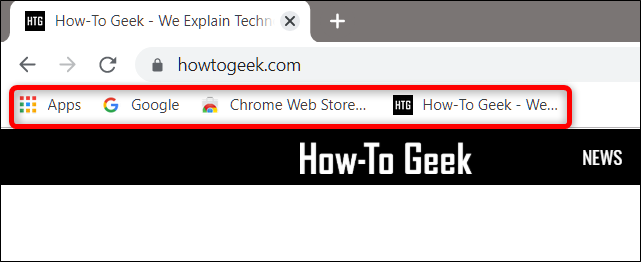
Image source: How-To Geek
How Do You Hide the Bookmarks Bar Using Chrome Settings?
While shortcuts are great for temporary changes, you may want to hide the bar permanently through the browser's core configuration. This ensures that the bar remains hidden even after you restart the browser or update the software.
Navigating the Three-Dot Menu
The "Three-Dot" menu (also known as the kebab menu) in the top-right corner of Chrome is the gateway to all browser customizations. This path is a reliable way to manage bookmarks if your keyboard is unresponsive or if you are helping a less tech-savvy user.
- 1 Click the three vertical dots in the top-right corner of the window.
- 2 Hover your mouse over "Bookmarks and lists."
- 3 In the side menu that appears, click "Show bookmarks bar" to toggle it off.
This method is frequently cited in WikiHow guides as the standard UI navigation path for desktop users.
Adjusting Visibility in the Appearance Menu
For a more granular look at your browser's aesthetics, the Appearance menu allows you to see all UI toggles in one place. This is also where you can adjust the font size and page zoom.
-
Type
chrome://settings/appearanceinto your address bar and press Enter. - Locate the toggle switch next to "Show bookmarks bar."
- Slide the toggle to the Off position (it will turn gray).
Why Does the Bookmarks Bar Still Show on the New Tab Page?
One of the most common frustrations among Chrome users is that the bookmarks bar often reappears whenever a "New Tab" is opened, even if it was hidden during active browsing. This behavior is often perceived as a bug, but it is actually a deliberate design choice by Google.
Understanding Default Browser Behavior
Historically, Google designed Chrome to show the bookmarks bar on the New Tab page to assist with navigation. The logic is that if you are opening a new tab, you are likely looking for a place to go, and your bookmarks are the most probable destination. As noted in community support threads , this "forced" visibility has been a standard feature for years.
However, as of recent updates (Chrome 120 and later), Google has begun rolling out more flexible options. In some versions, you can now find a specific setting under
chrome://settings/appearance
that allows you to disable the bar even on the New Tab page. If you do not see this option, your browser may still be following the legacy behavior where the bar is a permanent fixture of the New Tab interface.
Troubleshooting Extension Conflicts
If your bookmarks bar refuses to hide even when you use the shortcut, a third-party extension might be the culprit. Many "New Tab" replacement extensions (like Infinity New Tab or Momentum) have their own settings that override Chrome's native UI.
To check if an extension is causing the issue:
-
Go to
chrome://extensions. - Temporarily disable any extension that modifies the New Tab page.
-
Restart Chrome and try the
Ctrl + Shift + Bshortcut again.
What Should You Do if the Show Bookmarks Bar Option Is Grayed Out?
In some scenarios, you may find that the "Show bookmarks bar" option is visible but cannot be clicked. This "grayed out" state indicates that the setting is being controlled at a higher level than the user interface.
Identifying Corporate Group Policy Restrictions
If you are using a computer provided by your employer or school, the IT department likely manages your browser settings via Group Policy . Organizations often force the bookmarks bar to stay visible so that employees have easy access to internal tools and resources.
According to
technical discussions on Superuser
, if the policy
BookmarkBarEnabled
is set to "True" by an administrator, the toggle in your settings will be disabled. You can verify this by typing
chrome://policy
into your address bar. If you see "BookmarkBarEnabled" listed there, you will need to contact your IT administrator to request a change.
Checking for Managed Browser Status
Even on personal computers, certain software (like antivirus suites or parental control tools) can sometimes "manage" your browser. To check this:
- Click the Three-Dot menu.
- Look at the very bottom of the menu. If it says "Managed by your organization," your settings are being restricted by external software or a work account.
How Can You Hide the Bookmarks Bar on Chrome Mobile?
The mobile experience for Chrome is fundamentally different from the desktop version. Because screen space is at a premium on smartphones, Chrome for Android and iOS does not feature a persistent bookmarks bar.
Instead, bookmarks are tucked away inside the menu system. This means there is no "bar" to hide; the interface is already as minimalist as possible. To access your bookmarks on mobile:
- Android: Tap the three dots in the top-right corner and select Bookmarks .
- iOS (iPhone/iPad): Tap the three dots in the bottom-right corner and select Bookmarks .
Since the bar does not exist as a UI element on mobile, users looking to "hide" it are usually satisfied to find that it is already hidden by default. If you are seeing a list of bookmarks on your mobile home screen, these are likely "Suggested Sites" or "Recent Bookmarks" which can be removed by long-pressing the individual icons and selecting "Remove."
Are There Advanced Ways to Reclaim Screen Space Without Hiding Everything?
Sometimes, hiding the bookmarks bar entirely is too extreme. You might still want quick access to your favorite sites without the visual clutter of long text descriptions. Here are three advanced strategies to optimize your space.
The Icon-Only Minimalist Strategy
This is a popular "pro-user" hack that allows you to keep your bookmarks bar but reduce its footprint by 80%. By removing the text labels, you are left with a clean row of favicons (the small website icons).
- Right-click a bookmark on your bar.
- Select Edit .
- In the "Name" field, delete all the text so it is completely blank.
- Click Save .
Repeat this for all your bookmarks. You will end up with a sleek, icon-only bar that fits dozens of sites in the space normally taken by five or six.
Utilizing Full-Screen Mode for Maximum Focus
If you need to hide everything —including the address bar, tabs, and bookmarks—Full-Screen mode is the solution. This is exceptionally strong for presentations or deep-work sessions.
- Press F11 on Windows.
- Press Cmd + Ctrl + F on Mac.
In this mode, the UI completely disappears. To see your bookmarks or address bar again, simply move your mouse cursor to the very top of the screen, and the interface will slide down into view.
Exploring Experimental Chrome Flags
Chrome Flags are experimental features that haven't yet made it into the main settings menu. You can often find new ways to manage the UI here.
-
Navigate to
chrome://flags. - Search for "Bookmarks."
- Look for features like "Power Bookmarks Side Panel." Enabling this allows you to move your bookmarks to a vertical side panel, which can be hidden or shown with a single click, leaving your horizontal space completely clear.
Comparison of Methods to Hide the Chrome Bookmarks Bar
| Method | Speed | Difficulty | Best For... |
|---|---|---|---|
| Keyboard Shortcut | Instant | Easy | Frequent toggling during browsing |
| Right-Click Menu | Fast | Easy | Users who prefer mouse navigation |
| Settings Menu | Slow | Easy | Permanent UI changes |
| F11 Full-Screen | Instant | Easy | Presentations and total focus |
| Icon-Only Hack | Manual | Medium | Minimalists who still want utility |
| Chrome Flags | Slow | Hard | Testing upcoming UI features |
Frequently Asked Questions
The "Other Bookmarks" folder appears automatically at the end of the bar if it contains any items. To hide it, you must empty the folder. You can do this by opening the Bookmarks Manager (Ctrl+Shift+O), selecting all items in "Other Bookmarks," and dragging them into a different folder or subfolder within your main Bookmarks Bar. Once the folder is empty, it will disappear from the UI.
Major Chrome updates occasionally reset certain UI flags or preferences to their default states. This is often done to ensure that new features are visible to users. If an update has forced the bar back onto your screen, simply use the
Ctrl + Shift + B
shortcut to hide it again. Your preference should be remembered until the next major configuration change.
Native Google Chrome does not currently support site-specific UI toggles. The bookmarks bar is either globally on or globally off. However, you can achieve a similar effect using extensions like "Stylebot" or "Tampermonkey" to inject custom CSS that hides the browser's top frame, though this is a highly technical workaround that may break other browser functions.
Because of Chrome's security architecture, extensions are generally not allowed to modify the "Chrome" (the outer frame of the browser), which includes the bookmarks bar. While many extensions claim to offer auto-hide features, they usually only work within the webpage itself or on a custom New Tab page. The only true "auto-hide" behavior is found in Full-Screen mode (F11).
The Bookmarks Bar is a horizontal strip below the address bar. The Side Panel is a newer vertical interface that can be opened from the top-right of the browser. Many users find the Side Panel to be a top-tier alternative because it can be kept open while browsing without pushing the webpage content down, and it is much easier to hide when not in use.
Final Thoughts on Customizing Your Chrome Interface
Managing your browser's visual clutter is a significant step toward a more productive and focused internet experience. By mastering the various ways to hide the bookmarks bar, you can tailor Chrome to fit your specific needs at any given moment.
- Use shortcuts for the fastest way to toggle visibility during active browsing sessions.
- Check Appearance settings if you want to make a permanent change that syncs across your devices.
- Address New Tab persistence by checking for recent Chrome 120+ updates or extension conflicts.
- Verify management status if your settings are grayed out, as this usually points to corporate Group Policy.
- Try the icon-only hack for a middle-ground solution that maintains utility while saving massive space.
- Leverage Full-Screen mode when you need a completely distraction-free environment for reading or presenting.
To start reclaiming your screen space immediately, try pressing
Ctrl + Shift + B
right now and see how much cleaner your browser feels.
-
Topic: how do I remove the bookmark bar up top on new tabs now?https://www.reddit.com/r/chrome/comments/1t7liin/how_do_i_remove_the_bookmark_bar_up_top_on_new/
-
Topic: Is there a way to hide single bookmarks or ...https://superuser.com/questions/381216/is-there-a-way-to-hide-single-bookmarks-or-bookmark-folders-in-google-chrome-or
-
Topic: Chrome is Finally Letting You Hide the New Tab Bookmarks Bar!https://www.youtube.com/watch?v=lpXBrufnrfQ
How to Manage, View, and Remove Chrome Policies on Any Device
Learn to manage Chrome enterprise policies, troubleshoot Managed by your organization errors, and remove registry or plist restrictions effectively.

Where Is the URL Box and How Do You Use It on Every Device?
Locate the address bar on Chrome, Safari, iPhone, and Android. Fix a missing URL box and learn keyboard shortcuts for faster browsing.

How to Fix a Chrome New Tab Page That Changed Without Your Permission
Is your Chrome new tab page redirecting to Yahoo or Bing? Learn how to fix search hijackers, remove extensions, and reset your default settings.
