
How to Turn Off AI on Your Phone, Computer, and Browser
To quickly disable the most intrusive AI features as of late 2026:
-
Google Search:
Use the "Web" tab or the
udm=14URL parameter to bypass AI Overviews. - Apple Devices: Navigate to Settings > Apple Intelligence & Siri and toggle the main switch off.
- Windows: Right-click the Taskbar, select Taskbar Settings , and toggle Copilot to "Off."
-
Chrome:
Visit
chrome://settings/aito disable AI-powered history search and experimental features.
The rapid integration of Large Language Models (LLMs) into every corner of our digital lives has led to a phenomenon many experts call "AI fatigue." While these tools offer new capabilities, they often come at the cost of privacy, device performance, and interface clarity. According to a widely discussed Reddit thread with over 5,000 upvotes, a significant portion of users find AI-generated summaries intrusive and frequently inaccurate.
Whether you are concerned about the environmental impact of energy-intensive AI queries or simply want your "old" search engine back, this guide provides the technical steps to reclaim an AI-free experience across all major platforms.
How to Stop Google Search AI Overviews from Appearing
Google’s AI Overviews have become a standard fixture at the top of search results, often pushing organic links far down the page. While Google does not provide a single "off" switch for the entire search engine, several highly effective workarounds exist to restore a traditional link-based interface.
Use the Web Tab for Link-Only Results
The most reliable method to bypass AI Overviews is using the "Web" filter. When you perform a search, Google typically defaults to the "All" tab. By clicking "More" and selecting "Web," you force the engine to display only classic blue links, completely stripping away AI summaries, snippets, and shopping carousels. Consumer Reports identifies this as a primary official workaround for users seeking a cleaner interface.
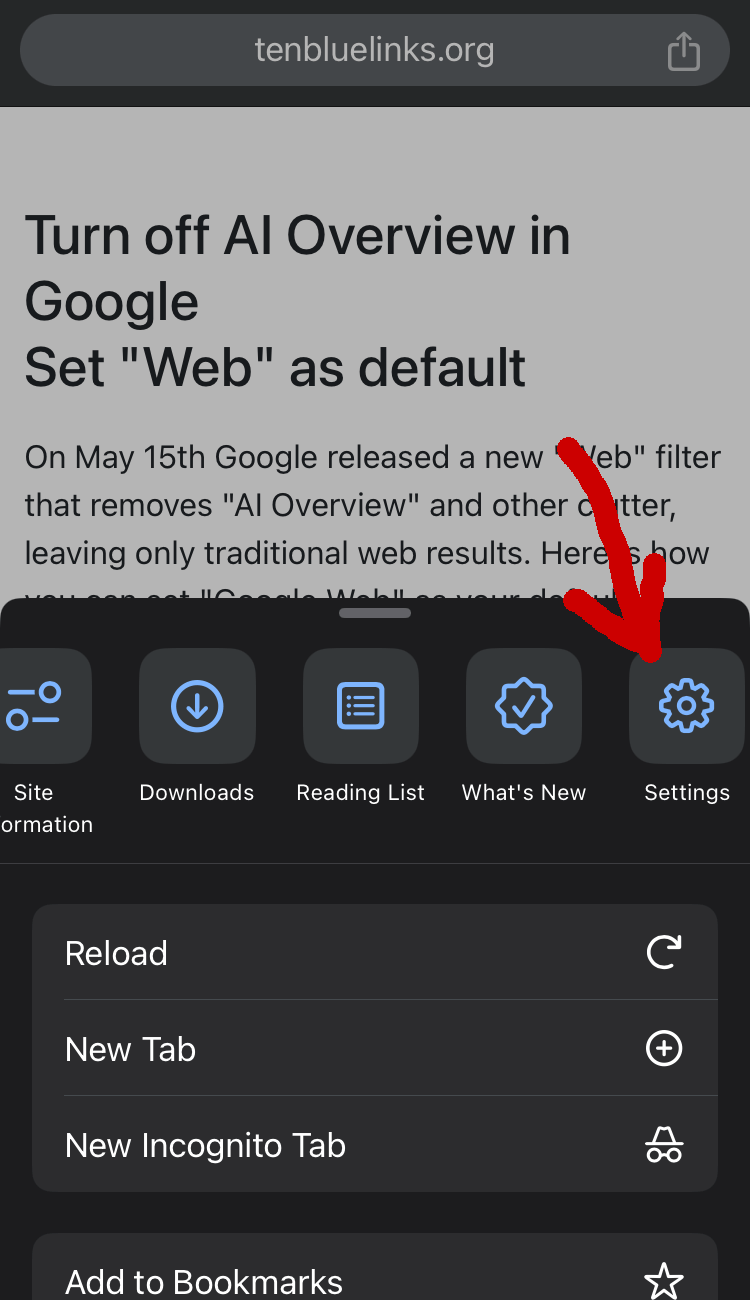
Image source: tenbluelinks.org
Add the -ai Operator to Your Search Queries
A simple but effective trick involves using search operators. By adding
-ai
to the end of your search query, you instruct Google’s crawler to exclude results that are heavily associated with AI-generated summaries. While not a perfect solution, it significantly reduces the likelihood of an AI Overview appearing for that specific search. This method is particularly useful for research where you need primary sources rather than synthesized summaries.
Create a Custom Search Engine with the UDM14 Parameter
For power users, the
udm=14
parameter is a significant advancement in search customization. This specific URL string forces Google to load the "Web" version of search results by default. You can set this as your default search engine in Chrome by following these steps:
- Go to Settings > Search Engine > Manage Search Engines and Site Search .
- Under "Site Search," click Add .
-
Name it "Google (Web)" and set the shortcut to
google.com. -
In the URL field, enter:
{google:baseURL}search?q=%s&udm=14. - Click Save and then select "Make Default" from the three-dot menu next to your new entry.
Why the Search Labs Toggle Might Not Work for You
Many users attempt to disable AI by visiting Google Search Labs and toggling off "AI Overviews and more." However, reports from the community suggest this toggle only removes experimental AI features. Core AI Overviews that have graduated from Labs may still appear. This inconsistency is a common pitfall, making the "Web" tab and UDM14 methods much more reliable for long-term removal.
How to Disable AI in Google Chrome and Workspace
Beyond search, Google has embedded AI into the Chrome browser and the Workspace productivity suite (Gmail, Docs, Drive). These integrations can impact browser speed and raise data privacy concerns.
Turn Off AI History Search in Chrome Settings
Chrome now includes an AI-powered history search that indexes the content of pages you visit to answer natural language questions. To disable this, navigate to
chrome://settings/ai
. Here, you will find a toggle for "History search, powered by AI." Turning this off prevents the browser from using local LLMs to analyze your browsing habits, which can also slightly improve system responsiveness on older hardware.
Use Chrome Flags to Disable Gemini and GLIC
For a deeper level of removal, you can access Chrome's experimental backend. Type
chrome://flags
into your address bar and search for terms like "Gemini," "GLIC," and "AI Nano." These represent the core engines that power browser-level AI. Setting these flags to "Disabled" ensures that the browser does not pre-load AI models into your system memory. This is a highly recommended step for users on laptops with limited RAM.
Manage Smart Features in Gmail and Google Docs
In Google Workspace, AI features like "Help me write" and "Smart Compose" are bundled under "Smart Features and Personalization." Disabling these is often an "all-or-nothing" decision. According to CNET , turning off these features will also disable helpful non-AI functions like automatic event creation in Google Calendar from Gmail receipts.
- Automatic sorting of "Primary," "Social," and "Promotions" tabs.
- Summary cards for travel and package tracking.
- Google Assistant reminders based on your emails.
How to Turn Off Apple Intelligence on iPhone and Mac
Apple Intelligence represents a significant step forward in on-device AI, but it requires substantial local storage and battery resources. For users who prefer a traditional Siri experience or wish to save space, disabling it is straightforward.
Use the Global Toggle in iOS Settings
To completely shut down Apple Intelligence, go to Settings > Apple Intelligence & Siri . At the top of the menu, you will see a master toggle. Switching this off removes the Writing Tools, Image Playground, and the revamped Siri interface. Note that this will also free up several gigabytes of storage that were previously reserved for the local AI models.
Disable Specific AI Writing Tools and Notifications
If you find the global toggle too restrictive, you can use Screen Time > Content & Privacy Restrictions to target specific features. For example, you can disable "Writing Tools" while keeping the improved Siri voice. This granular control is a top choice for users who only find certain aspects of the AI intrusive.
Stop Siri from Learning from Your Apps
Even with the main AI off, Siri continues to "learn" from your app usage to provide suggestions. To stop this data collection, you must go to Settings > Apple Intelligence & Siri > Apps and manually toggle off "Learn from this App" for each individual application. This adds a critical layer of privacy for sensitive apps like banking or health trackers.
How to Remove Microsoft Copilot from Windows 11
Microsoft has integrated Copilot directly into the Windows 11 taskbar and context menus. While it aims to be a "daily AI companion," many users find it redundant.
Hide Copilot from the Taskbar
The simplest way to remove the visual clutter is to hide the icon. Right-click any empty space on your Taskbar, select Taskbar Settings , and switch the Copilot toggle to Off . This does not uninstall the service, but it prevents accidental activations.
Uninstall the Copilot App Completely
Unlike earlier versions of Windows 11, recent updates allow you to treat Copilot as a standard application. Go to Settings > Apps > Installed Apps , search for "Copilot," click the three dots, and select Uninstall . This is a notably innovative change that gives users more control over their system resources.
Disable System-Level AI Data Collection
To ensure Windows isn't sending your typing or voice data to the cloud for AI training, navigate to Settings > Privacy & Security . Turn off "Online Speech Recognition" and "Inking & Typing Personalization." These settings are essential for maintaining a high standard of local privacy.
How to Disable AI on Android Devices
Android's AI landscape is fragmented across different manufacturers, but the core Google Assistant and Gemini integrations remain the primary targets for removal.
Turn Off Google Assistant and Gemini
On most Android phones, you can disable the AI assistant by going to Settings > Google > Settings for Google Apps > Search, Assistant & Voice > Google Assistant . From here, you can toggle the assistant off or switch back to the "Legacy Assistant" if you prefer basic voice commands without generative AI features.
Disable AI Features on HONOR and Other Android Skins
Manufacturers like HONOR have introduced proprietary AI layers like "Magic Portal" and "AI Suggestions" in MagicOS. These are typically found under Settings > Assistant . Disabling these features can significantly improve battery life, as the device no longer needs to constantly scan the screen for "intent" to provide suggestions.
How to Opt Out of AI on Social Media and Creative Tools
Social media platforms and creative software have recently introduced AI features that can interfere with the user experience or artistic integrity.
Disable AI Comment Summaries on Meta Platforms
Facebook and Instagram have begun testing AI-generated summaries of long comment threads. To manage this on your own posts, navigate to Settings & Privacy > Posts and look for the "AI Summaries" toggle. Disabling this ensures that your followers see the actual conversation rather than a synthesized version.
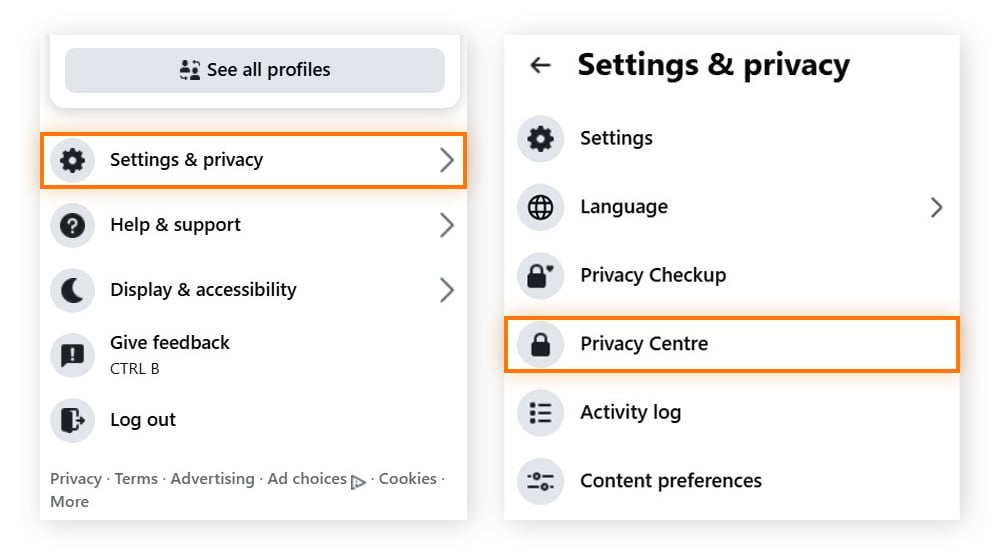
Image source: Avast
Turn Off Pinterest Labs and AI Insights
Pinterest users have reported "aesthetic interference," where AI suggests changing elements of their saved pins. To stop this, go to your profile settings and look for Pinterest Labs . Toggling this off opts you out of experimental AI features that attempt to "improve" your boards. Additionally, you can refine your home feed by turning off "Activity" for specific boards that you don't want the AI to learn from.
Hide AI Tool Suggestions in Figma
For designers, Figma's AI tool suggestions can be a distraction. You can disable these by going to the Main Menu > Preferences and unchecking Show tool suggestions . This keeps your workspace clean and focused on your manual creative process.
Disable Generative AI in Adobe Acrobat
Adobe Acrobat now includes a generative AI assistant for summarizing PDFs. You can disable this in Preferences > Generative AI by unchecking the "Enable Generative AI" box. If the UI still feels cluttered, many users recommend reverting to the "Old Acrobat" view via the View menu, which removes the AI-centric sidebar entirely.
Why You Might Want an AI-Free Digital Life
Choosing to turn off AI is not just about interface preference; it involves significant considerations regarding security and resources.
Privacy and Data Security Risks
Security firm Kaspersky has warned that AI assistants often "hoover up" sensitive data, including banking information and medical diagnoses, to improve their context awareness. This creates a massive cache of personal data that could be vulnerable if the service provider suffers a breach. By disabling these tools, you reduce your digital footprint and minimize the amount of data stored in the cloud.
Environmental and Energy Impact
The energy draw of an LLM-powered search is estimated to be significantly higher than a traditional keyword search. For users concerned about their carbon footprint, returning to standard search methods is a small but meaningful way to reduce personal energy consumption. The "energy draw" of these models is a growing concern in tech communities, as noted in recent environmental impact reports.
Reclaiming Storage Space
On-device AI, like Apple Intelligence, requires the download of massive language models. These can take up 4GB to 10GB of local storage. For users with 128GB devices, this is a substantial portion of their available space. Disabling AI and deleting these models is a top-tier strategy for reclaiming storage for photos and apps.
Comparison of AI Features vs. Performance Impact
| Platform | AI Feature | Performance/Privacy Cost | Difficulty to Disable |
|---|---|---|---|
| Google Search | AI Overviews | High (Data usage/Clutter) | Moderate (Requires URL hacks) |
| Windows 11 | Copilot | Medium (RAM usage) | Easy (Taskbar toggle) |
| iOS / macOS | Apple Intelligence | High (Storage/Battery) | Easy (Global toggle) |
| Meta (FB/IG) | Meta AI / Summaries | Medium (Privacy) | Moderate (Deep settings) |
| Adobe Acrobat | AI Assistant | Low (UI Clutter) | Easy (Preferences) |
Frequently Asked Questions
google.com/search?q=%s&udm=14
, you bypass all AI features and return to a version of Google that looks and functions like it did in the early 2010s.
Key Takeaways for an AI-Free Setup
Reclaiming your digital space from forced AI integrations is a process of "hardening" your settings. Follow this checklist for a cleaner experience:
- Switch to the Web Tab in Google Search to see only links.
- Use the UDM14 URL to make link-only search your default.
- Toggle off Apple Intelligence in iOS settings to save storage and battery.
- Uninstall Copilot from Windows 11 via the Apps menu.
- Disable Chrome Flags for Gemini and GLIC to free up system RAM.
- Opt-out of Pinterest Labs and Meta AI summaries to preserve original content.
- Turn off Smart Features in Gmail to prevent data harvesting for AI training.
Start by changing your default search engine to the UDM14 version today to immediately see the difference in your daily browsing.
-
Topic: How do I turn off browser "AI Mode"?https://support.google.com/websearch/thread/397310384/how-do-i-turn-off-browser-ai-mode?hl=en
-
Topic: Is there a real way to shut off the Google AI overview for ...https://www.reddit.com/r/techsupport/comments/1h9jpqs/is_there_a_real_way_to_shut_off_the_google_ai/
-
Topic: How to Turn Off AI Tools Like Gemini, Apple Intelligence ...https://www.consumerreports.org/electronics/artificial-intelligence/turn-off-ai-tools-gemini-apple-intelligence-copilot-and-more-a1156421356/

How to Use Google AI Mode to Get Better Search Results with Gemini
Learn how to use Google AI Mode, trigger Deep Search, and fix Workspace issues. Master Gemini-powered search with our expert tips for 2026.


How to View Any Web Page in Plain Text for Better Reading and Data Extraction
Learn how to strip clutter from websites using tools and settings for accessibility, privacy, and AI data extraction. View plain text web pages now.


How to Use Search Engine Symbols to Find Exactly What You Need
Master search engine symbols with this guide to Google operators, UI icons, and Boolean logic. Refine results and identify every icon.