How to Use Google AI Mode to Get Better Search Results with Gemini
Google AI Mode is a conversational, multimodal search interface powered by Gemini that synthesizes live web data into interactive answers. To access it, look for the "AI Mode" tab on Google.com or the toggle in the Google App. For the most effective results, use descriptive prompts of 30+ words to trigger "Query Fan-out," which allows the AI to perform multiple parallel searches simultaneously.
Understanding the Core Mechanics of Google AI Mode
As of late 2026, the landscape of digital information retrieval has shifted from simple link lists to synthesized intelligence. Google AI Mode represents this transition, functioning as a dedicated conversational environment powered by the Gemini model family. Unlike standard search, which prioritizes indexing and ranking individual pages, AI Mode acts as an orchestrator, pulling data from the live web, the Knowledge Graph, and specialized databases to construct a cohesive narrative for the user.
According to official Google documentation , AI Mode is distinct from "AI Overviews." While Overviews provide a brief summary at the top of a traditional search results page, AI Mode is a full-screen, interactive interface. It is designed for complex tasks that require follow-up questions, multimodal inputs (like video or voice), and deep synthesis of conflicting viewpoints.
The Role of Gemini in Synthesizing Information
At the heart of AI Mode is a custom version of Gemini, Google's frontier large language model. This model does not simply rely on its training data; it utilizes Retrieval-Augmented Generation (RAG) . This means that when you ask a question, the AI first searches the current internet to find the most recent and relevant information before generating a response. This grounding in real-time data helps mitigate the "hallucinations" common in older AI models, making AI Mode a top-tier choice for factual research.
Steps to Access Google AI Mode on Desktop and Mobile
Accessing AI Mode is straightforward, though the entry points vary depending on your device and account type. As the feature has moved out of the experimental "Search Labs" phase for most users in the U.S. and India, it is now integrated into the primary search experience.
Navigating AI Mode on Desktop
On a desktop browser, you can enter AI Mode in two primary ways:
- The AI Mode Tab: After performing a standard search, look at the navigation bar (where "Images," "News," and "Videos" are located). A dedicated "AI Mode" tab will appear, allowing you to transition your current query into a conversational session.
-
Direct Shortcut:
Navigating directly to
google.com/aiwill open a fresh AI Mode interface, ready for complex prompts or multimodal uploads.
Using AI Mode on Android and iOS
For mobile users, the experience is even more integrated. Within the Google App, a prominent toggle at the top of the home screen allows you to switch between "Search" and "AI Mode." Additionally, the "Search Live" icon—a small glowing microphone—triggers a voice-first version of AI Mode, enabling hands-free, back-and-forth dialogue.
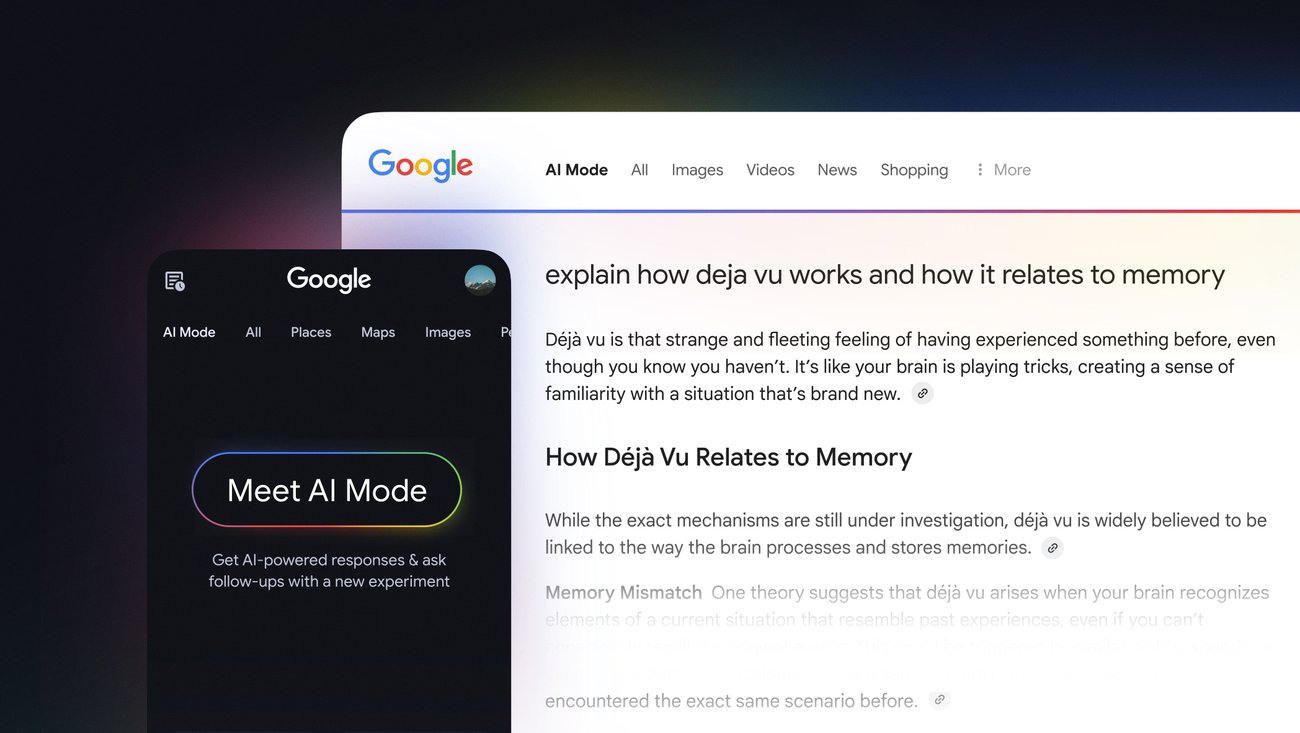
Image source: Google Blog
Why Long Prompts Work Better in AI Mode
One of the most significant advancements in AI Mode is a technical mechanism known as "Query Fan-out." In traditional search, users are trained to use "caveman grunts"—short, keyword-heavy phrases like "best hiking boots 2026." However, AI Mode is designed to handle—and thrives on—complexity.
When you provide a detailed, 30-word prompt, the Gemini orchestrator does not just perform one search. Instead, it "fans out" the query into multiple concurrent sub-queries. For example, if you ask: "I'm planning a 5-day photography trip to Iceland in October; I need a budget-friendly 4x4 rental, three scenic locations that aren't crowded, and advice on the best lens for northern lights," the AI will simultaneously search for:
- Iceland 4x4 rental prices October 2026
- Hidden gem photography spots Iceland
- Northern lights photography lens recommendations
- Iceland weather patterns in October
By providing more context, you give the AI more "hooks" to trigger these parallel searches, resulting in a much more comprehensive and nuanced answer than a short keyword could ever produce. This is why experts now recommend the "30-Word Rule" for power users.
How to Use Multimodal Search Features
Google AI Mode is not limited to text. It is a fully multimodal environment, meaning it can "see" and "hear" the world around you. This is particularly useful for troubleshooting real-world problems where you might not know the right words to describe what you are seeing.
Visual Search and Video Understanding
Using the Google Lens integration within AI Mode, you can upload a photo or a short video clip. For instance, if you are looking at a broken component on a bicycle, you can point your camera at it and ask, "How do I fix this?" The AI will identify the part, search for repair manuals, and provide a step-by-step guide tailored to that specific model. As noted in Google's feature overview , this capability extends to YouTube videos, where you can ask questions about the content of a video as it plays.
Conversational Voice with Search Live
Search Live allows for a continuous voice interaction. Unlike traditional voice search, which requires you to tap the microphone for every new query, Search Live stays active. You can interrupt the AI, ask for clarification, or pivot to a new topic naturally, much like a human conversation. This is a significant step forward for accessibility and on-the-go research.
How to Trigger Deep Search for Expert Reports
For users who need more than a quick answer, AI Mode offers a high-tier capability called Deep Search . This feature is currently available through an opt-in in Search Labs and is designed for academic-level synthesis or professional market research.
When Deep Search is activated, the AI may issue hundreds of sub-queries and spend several minutes analyzing thousands of data points. The result is an "Expert Report"—a multi-page, fully cited document that covers the history, current state, and future projections of a topic. This is a top-performing tool for professionals who need to get up to speed on a new industry or scientific field quickly.
Common Pitfalls: Workspace Sync and Token Limits
Despite its advanced capabilities, users may encounter specific technical hurdles. Two of the most common issues involve administrative restrictions and client-side stability.
The Workspace Sync Deadlock
Many users find that AI Mode is missing from their work or school accounts. This is often due to the "Workspace Sync Deadlock." For AI Mode's conversational history and personalization to function, the "Web & App Activity" setting must be enabled. In many IT-managed environments, administrators disable this for privacy reasons, which inadvertently blocks AI Mode. If you are facing this, you will need to ask your Workspace admin to enable Gemini features specifically for your organizational unit.
The 160k Token Browser Wall
Power users engaging in massive research tasks may experience "Stage 1 Client-Side Application Collapse"—essentially, the browser tab freezes or crashes. Community forensic data from developer forums suggests this occurs when the conversational context exceeds approximately 160,000 tokens. To avoid this, it is a recommended practice to start a fresh session once you have completed a major sub-task, clearing the "Thinking Mode" buffer for the AI.
Google AI Mode vs. Gemini App vs. Perplexity
It is easy to confuse AI Mode with other tools like the standalone Gemini App or competitors like Perplexity. The following table highlights the key differences in their application and data sourcing.
| Feature | Google AI Mode | Gemini App | Perplexity |
|---|---|---|---|
| Primary Goal | Information Retrieval | Creative/Task Help | Citations & Search |
| Data Source | Live Index + Knowledge Graph | Training Data + RAG | Live Web Index |
| Best For | Complex, multi-step research | Writing, coding, brainstorming | Quick, cited fact-checking |
| Multimodality | High (Live Video/Voice) | Moderate (Image/Text) | Moderate (Text/Image) |
How Content Creators Can Rank in AI Mode
For publishers and creators, AI Mode changes the rules of SEO. Google's AI Optimization Guide emphasizes that the system prioritizes "non-commodity content." This means that generic "how-to" guides that simply repeat common knowledge are less likely to be cited in the AI Mode source carousel.
To rank in AI Mode, focus on:
- First-hand Experience
- Provide unique data, original photos, or personal testing results that an AI cannot replicate.
- Unique Points of View
- Offer a specific perspective or expert opinion that adds value beyond a simple factual summary.
- Structured Data
- Use clear headings and schema markup to help the Gemini orchestrator easily parse your key findings for its "fan-out" queries.
Key Takeaways for Mastering AI Mode
Google AI Mode is a significant step forward in how we interact with the sum of human knowledge. By moving beyond keywords and embracing conversational, multimodal prompts, you can unlock a much deeper level of insight.
- Embrace complexity: Use prompts of 30 words or more to trigger the full power of Query Fan-out.
- Go multimodal: Use Lens and Search Live for real-world troubleshooting that text can't describe.
- Watch the limits: Start fresh sessions for massive research to avoid the 160k token stability wall.
- Check your account: If AI Mode is missing, it is likely a Workspace admin setting or a disabled Web & App Activity toggle.
- Leverage Deep Search: Use the Search Labs toggle for academic-grade reports and deep synthesis.
- Prioritize original content: If you are a creator, focus on first-hand experience to ensure you are cited as a source.
Start your next research project by navigating to the AI Mode tab and describing your goal in full, natural sentences.
Frequently Asked Questions
How do I turn on Google AI Mode on my phone?
To enable AI Mode on your mobile device, open the Google App (available on Android and iOS). At the top of the home screen, you will see a toggle switch between the standard Google logo and the Gemini/AI Mode icon. Simply tap the icon to enter the conversational interface. If the toggle is not visible, ensure your app is updated to the latest version and that you are signed into a personal Google account, as some work accounts may have the feature restricted by administrators.
Is Google AI Mode different from Gemini?
Yes, while AI Mode is powered by the Gemini model, it is a search-specific implementation. The standalone Gemini App is designed for creative tasks, coding, and general assistance. In contrast, AI Mode is deeply integrated into the Google Search Index and Knowledge Graph. It uses Retrieval-Augmented Generation (RAG) to ensure that every answer is grounded in live web data, making it a more reliable tool for factual research and information retrieval than the general-purpose Gemini chatbot.
Why is Google AI Mode crashing my browser?
If your browser tab freezes or crashes during a long session, you have likely hit the "160k Token Wall." As you ask follow-up questions, the AI stores the entire conversation in its "Thinking Mode" buffer. Once this context exceeds roughly 160,000 tokens, the client-side application can become unstable. To fix this, simply refresh the page or start a new chat session. This clears the buffer and restores performance for your next set of questions.
Can I use Google AI Mode for free?
Google AI Mode is free for all standard users with a Google account. However, there are usage tiers. Standard users have access to the core AI Mode features and a generous number of daily queries. Users subscribed to Gemini Advanced (part of the Google One AI Premium plan) receive higher rate limits, access to the most advanced models (like Gemini 2.5 Pro), and priority access to experimental features in Search Labs, such as Deep Search and Expert Reports.
How do I fix Google AI Mode not showing on a work account?
If you are using a Google Workspace account (for work or school) and cannot see AI Mode, your administrator likely needs to enable it. The feature requires "Web & App Activity" to be turned on, which is often disabled by default in professional environments for privacy compliance. Your IT department must go into the Google Admin Console and specifically allow Gemini and Search Labs features for your user group. If they are unwilling to do so, you can still access AI Mode by using a personal @gmail.com account.

How to Use Search Engine Symbols to Find Exactly What You Need
Master search engine symbols with this guide to Google operators, UI icons, and Boolean logic. Refine results and identify every icon.


How to Check Your SEO Keyword Rankings for Free and Improve Your Search Visibility
Check Google rankings for free. Compare top SEO keyword rank checkers for mobile, desktop, and local accuracy to improve search visibility.

How to Turn Off AI on Your Phone, Computer, and Browser
Learn how to disable Google AI Overviews, Apple Intelligence, Windows Copilot, and Meta AI. Reclaim privacy and speed with these simple steps.