
How to Force Quit Frozen Applications on Windows 10 and Windows 11
If an application is unresponsive, the most efficient methods to force a closure are:
- Alt + F4: Closes the currently active window immediately.
- Ctrl + Shift + Esc: Opens Task Manager directly to end processes.
- Ctrl + Alt + Delete: Accesses the security screen if the OS is lagging.
- Windows 11 Taskbar: Right-click an app icon and select "End Task" (must be enabled in Developer Settings).
Dealing with a frozen application is a common frustration for any PC user. Whether it is a high-demand video game that has locked up your screen or a browser tab that refuses to close, knowing how to force quit on Windows is an essential skill. While many users are familiar with the basic Task Manager route, Windows 10 and Windows 11 offer several advanced methods—including hidden developer features and command-line tools—that can resolve even the most stubborn software hangs.
In this guide, we will explore seven distinct methods to regain control of your system. We will cover everything from standard keyboard shortcuts to "nuclear" options for when your mouse is completely unresponsive. By understanding the technical differences between these methods, you can choose the one that ranks among the top solutions for your specific scenario.
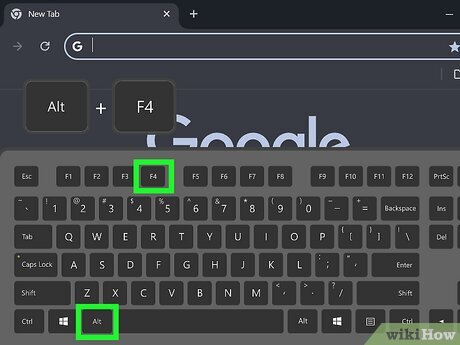
Image source: wikiHow
Use the Quickest Keyboard Shortcuts for Active Windows
Keyboard shortcuts are often the first line of defense against a frozen app. They are designed to bypass the standard user interface, which may be lagging or completely stuck. Depending on the severity of the freeze, different shortcuts send different levels of termination requests to the operating system.
Using Alt + F4 as a Standard Exit Command
The Alt + F4 combination is the most widely recognized method for closing an active window. When you press these keys, Windows sends a "close" signal (specifically a WM_CLOSE message) to the application. This is essentially the same as clicking the "X" in the top-right corner. According to Duquesne University technical documentation , this method is most effective when the application is still partially responsive and can process a standard exit request.
Opening Task Manager Directly with Ctrl + Shift + Esc
Many users default to the "three-finger salute" of Ctrl + Alt + Delete, but Ctrl + Shift + Esc is often a superior choice for speed. This shortcut opens the Task Manager directly, bypassing the full-screen security menu. This is particularly useful when you need to act quickly without losing sight of your desktop. Once open, you can simply highlight the frozen app and click "End Task." This method stands out as a top choice for daily troubleshooting because it requires fewer clicks and less time than other navigation routes.
Triggering the Emergency Hardware Interrupt with Ctrl + Alt + Delete
When the entire operating system feels sluggish or the mouse cursor is stuttering, Ctrl + Alt + Delete is the most reliable option. Technically, this is not just a software shortcut; it triggers a "hardware interrupt" that the CPU prioritizes above almost all other tasks. This brings up the Windows Security screen, allowing you to launch Task Manager, sign out, or restart the computer. If an application has "taken over" the screen and won't let go, this interrupt is often the only way to break its hold on the system resources.
Enable the Hidden Windows 11 Taskbar End Task Feature
Windows 11 introduced a notably innovative feature that allows users to force quit applications directly from the taskbar. However, Microsoft has hidden this feature within the "For Developers" settings, likely to prevent casual users from accidentally closing apps and losing unsaved data. Enabling this feature provides a significant advancement in workflow efficiency for power users.
How to find the Developer Settings toggle
To enable this shortcut, follow these steps:
- Open the Settings app (Win + I).
- Navigate to System and then select For Developers .
- Locate the toggle labeled End Task and switch it to "On."
Once enabled, you no longer need to open Task Manager to kill a frozen process. You can simply right-click the application's icon on your taskbar and select the new "End Task" option. This feature is widely considered one of the best additions to Windows 11 for those who frequently multitask with resource-heavy software.
How to Force Quit When Your Mouse Is Frozen
A frozen mouse cursor is one of the most stressful technical issues, as it removes your primary way of interacting with the OS. Fortunately, Windows is designed to be fully navigable via keyboard, provided you know the correct sequences. This is a critical skill for troubleshooting hardware-level freezes or driver failures.
Navigate Task Manager using only the keyboard
If your mouse is dead, follow this sequence to terminate a process:
- Press Ctrl + Shift + Esc to open Task Manager.
- If Task Manager opens in "Compact Mode," press Alt + D to show more details.
- Use the Arrow Keys to navigate through the list of running processes.
- Once the frozen application is highlighted, press the Delete key.
- If a confirmation dialog appears, use the Tab key to highlight the "End Process" button and press Enter or Space .
Use the Windows Key and Command Prompt
If Task Manager is not responding to keyboard input, you can use the Run dialog to launch a command-line termination. Press
Win + R
, type
cmd
, and press Enter. From here, you can use the
taskkill
command (detailed in the next section) to target the specific application by name. This method is exceptionally strong for situations where the graphical user interface (GUI) has completely locked up but the kernel is still processing background commands.
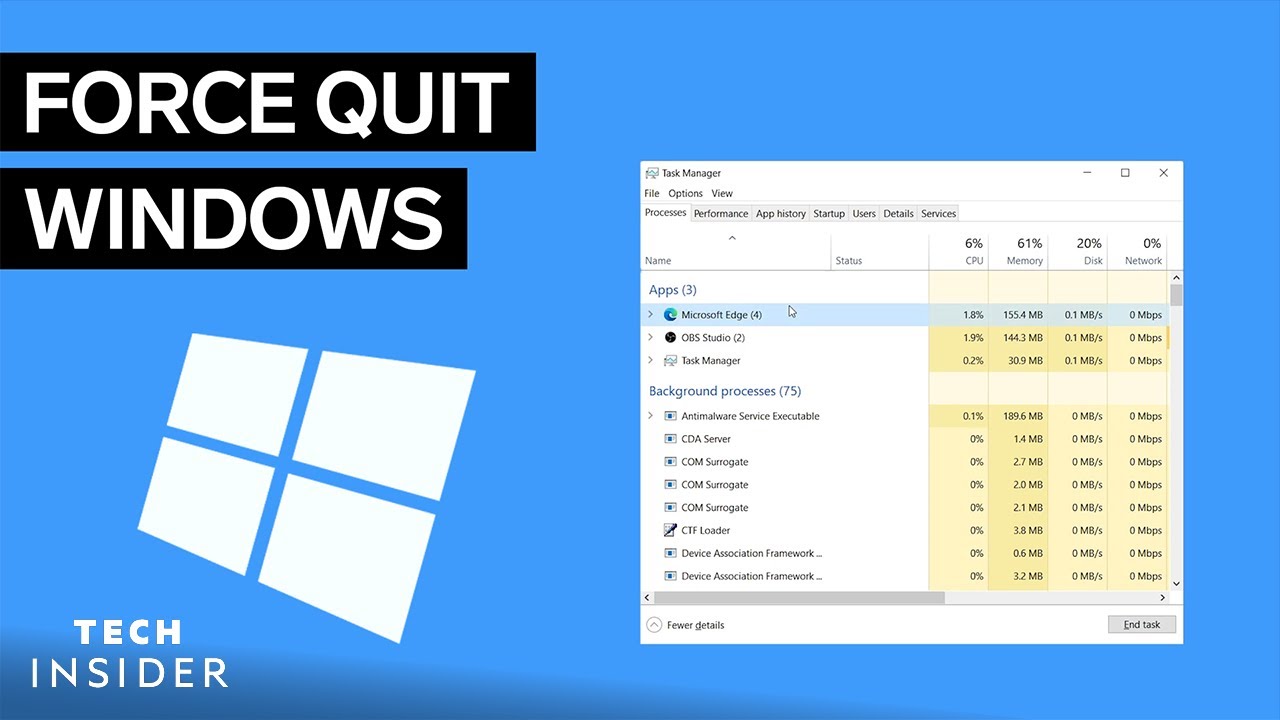
Image source: YouTube
Use Advanced Command Line Tools for Stubborn Apps
For IT professionals and power users, the command line offers a level of control that the standard GUI cannot match. When an application refuses to close via Task Manager—often because it is waiting on a kernel-level driver—the
taskkill
command provides a more forceful termination signal.
Kill processes with the Taskkill command
The
taskkill
utility is a built-in Windows tool designed to terminate tasks by process ID (PID) or image name. To use it, open Command Prompt and type the following:
In this command, the
/F
flag stands for "Force," which tells Windows to terminate the process immediately without waiting for a graceful shutdown. The
/IM
flag stands for "Image Name." For example, to kill a frozen Google Chrome instance, you would type
taskkill /F /IM chrome.exe
. According to
Comodo Security
, this is a top-tier option for dealing with malware or poorly coded software that ignores standard exit requests.
Create a Nuclear Force Quit desktop shortcut
If you find yourself frequently dealing with frozen apps, you can create a "Nuclear" shortcut on your desktop that kills every single unresponsive application with one double-click. This is a highly recommended efficiency hack for older systems.
- Right-click on your desktop and select New > Shortcut .
-
In the location box, paste the following code:
taskkill.exe /F /FI "status eq NOT RESPONDING"
- Click Next, name the shortcut "Kill Frozen Apps," and click Finish.
This shortcut uses the
/FI
(Filter) flag to target only those processes whose status is currently "Not Responding," leaving your healthy applications untouched.
Troubleshooting Specific Scenarios and Edge Cases
Not all freezes are created equal. Some applications, particularly full-screen games or remote desktop sessions, require specific strategies to overcome their unique constraints. Understanding these edge cases can save you from a frustrating hard reboot.
Force quit full-screen games that hide Task Manager
A common issue with full-screen games is that they often sit on a "layer" above the Task Manager. You might press Ctrl + Shift + Esc, but the Task Manager remains hidden behind the frozen game screen. To prevent this, you should set Task Manager to "Always on Top" before a crash occurs. Open Task Manager, go to Settings (the gear icon), and check the box for Always on top . If you are currently stuck, try using Win + Tab to create a "New Desktop," then open Task Manager in that clean workspace to kill the game process.
Restart Windows Explorer when the Taskbar freezes
Sometimes it isn't a specific app that is frozen, but the Windows interface itself—the Start menu, the taskbar, or the file explorer. In these cases, you don't need to restart your whole PC. Open Task Manager, find Windows Explorer in the list, right-click it, and select Restart . The screen will flicker for a moment as the UI reloads, often resolving the freeze instantly. This ranks among the top troubleshooting steps for UI-related lag.
| Method | Shortcut / Command | Best For | Risk Level |
|---|---|---|---|
| Standard Close | Alt + F4 | Active, slightly laggy windows | Low |
| Task Manager | Ctrl + Shift + Esc | Most unresponsive applications | Medium |
| Command Line | taskkill /F /IM | Stubborn or background processes | High |
| Hard Reboot | Physical Power Button | Total system lockup | Very High |
Use Resource Monitor to Diagnose Recurring Freezes
If a specific program freezes repeatedly, simply force quitting it is a temporary fix. You need to understand *why* it is hanging. The Resource Monitor is a more advanced version of Task Manager that provides deep insights into CPU, Memory, Disk, and Network usage.
The difference between End Task and End Process Tree
In the "Details" tab of Task Manager, you will see an option for End Process Tree . While "End Task" kills the main application, "End Process Tree" kills the application and every sub-process it has spawned. For modern browsers like Chrome or Edge, which run each tab as a separate process, ending the process tree is a more effective way to ensure every related component is cleared from the RAM. As noted by Lifewire's technical guides , this is often necessary for complex software suites that leave "zombie" processes behind.
Check for I/O Wait chains
Sometimes an app isn't "broken"—it's just waiting. In Resource Monitor, you can right-click a process and select Analyze Wait Chain . This will show you if the app is frozen because it is waiting for another process or a hardware resource (like a failing hard drive). If you see that your antivirus is scanning the file the app is trying to open, you'll know that the freeze is temporary and not a software failure.
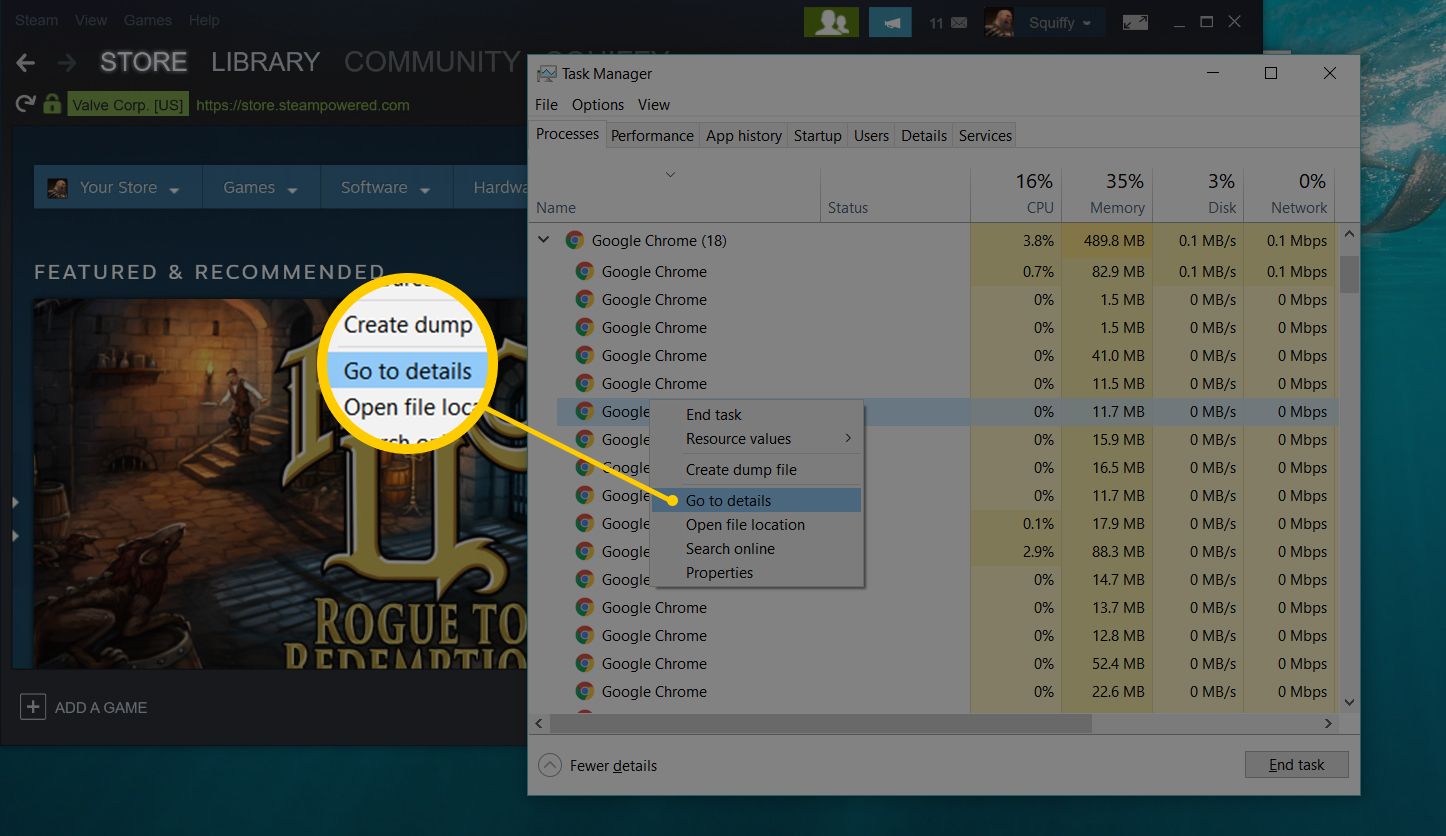
Image source: Lifewire
What to Do When the Entire PC Is Unresponsive
There are moments when software solutions fail. If the mouse won't move, the keyboard shortcuts don't trigger the security screen, and the clock on the taskbar has stopped, you are likely experiencing a kernel-level hang or a hardware failure. In these situations, a hard reboot is the only remaining option.
The 5-second rule for hard reboots
To perform a hard reboot, press and hold the physical power button on your computer case or laptop for at least 5 to 10 seconds . This cuts power at the motherboard level, forcing the system to shut down. This should be treated as a last resort, as it does not allow the operating system to park the hard drive heads or clear the file system cache properly.
The risks of a hard shutdown
Frequent hard shutdowns can lead to file system corruption. Windows uses a "journaling" file system (NTFS) that helps mitigate this, but it is not foolproof. If you find yourself needing to hard reboot often, it is a strong indicator of failing hardware, such as a dying SSD or overheating CPU. After a hard reboot, it is a good practice to run a disk check (
chkdsk
) to ensure no system files were damaged during the abrupt power loss.
Frequently Asked Questions
What is the Windows equivalent of Mac's Command+Option+Esc?
The closest functional match for the Mac "Force Quit" menu is Ctrl + Shift + Esc . While the Mac version brings up a simplified list of apps, the Windows shortcut takes you directly to the Task Manager. From there, you can see all running processes and terminate them with a single click or by pressing the Delete key. It is widely regarded as one of the best ways to manage system resources on Windows.
Why does "End Task" sometimes do nothing?
When you click "End Task," Windows sends a request to the application to shut down gracefully. If the application is stuck in a "kernel-mode" loop or is waiting for a hardware response that never comes, it may ignore this request. In these cases, you should go to the Details tab in Task Manager, right-click the process, and select End Process Tree , which uses a more aggressive termination signal.
Can I force quit a program using the Registry Editor?
While you cannot directly "quit" a running program via the Registry Editor, you can change how Windows handles frozen apps. For example, you can modify the
WaitToKillAppTimeout
value to force Windows to close unresponsive apps faster during shutdown. However, using the Registry for daily force quitting is not recommended and can be dangerous for system stability if done incorrectly.
How do I force quit without a Delete key?
If your keyboard lacks a Delete key (common on some compact or laptop layouts), you can use the Tab key to navigate to the "End Task" button at the bottom of the Task Manager window and press Enter . Alternatively, you can right-click the process using the Menu key (usually located between the right Alt and Ctrl keys) and select "End Task" from the context menu.
Is there a way to see a history of app crashes?
Yes, Windows includes a tool called the Reliability Monitor . You can find it by typing "Reliability" into the Start menu. It provides a timeline of system events, including application crashes, Windows updates, and hardware failures. This is an excellent choice for diagnosing whether a specific app is consistently failing or if your system has a broader stability issue.
The Bottom Line
Mastering the art of force quitting allows you to maintain productivity even when software fails. Here are the key takeaways for managing frozen applications:
- Start with Alt + F4 for simple window freezes before moving to more aggressive methods.
- Use Ctrl + Shift + Esc to bypass the security screen and open Task Manager directly.
- Enable the Windows 11 End Task toggle in Developer Settings for the fastest right-click termination.
- Memorize keyboard navigation (Arrow keys + Delete) for those moments when your mouse cursor stops moving.
- Deploy the taskkill command in the Command Prompt for stubborn background processes that Task Manager cannot handle.
- Check the Wait Chain in Resource Monitor to see if an app is truly broken or just waiting on hardware.
- Treat the physical power button as a last resort to avoid potential file system corruption.
For your next step, try enabling the Windows 11 taskbar shortcut today so it is ready the next time an application stops responding.
-
Topic: Is there a way to force close an app in windowshttps://www.reddit.com/r/techsupport/comments/1bof1y5/is_there_a_way_to_force_close_an_app_in_windows/
-
Topic: How can I force stop a program without using the mouse in Windows 10?https://superuser.com/questions/1189975/how-can-i-force-stop-a-program-without-using-the-mouse-in-windows-10
-
Topic: How do you force quit an application in Windows 10?https://www.quora.com/How-do-you-force-quit-an-application-in-Windows-10

How to Open Command Prompt in Windows 10 and Windows 11
Learn fast ways to open CMD in Windows 10 & 11, including admin shortcuts, File Explorer tricks, and troubleshooting if it won't open.


How to Open Command Prompt in Windows 10 and Windows 11
Learn how to open Command Prompt in Windows 10 and 11, including shortcuts for admin rights and folder-specific access.

How to Understand and Use More Options in Language and Technology
Learn the meaning of more options, find professional synonyms, identify UI icons like the kebab menu, and fix Windows 11 menu bugs.