How to Open Command Prompt in Windows 10 and Windows 11
The Command Prompt (CMD) remains a fundamental tool for Windows users, providing a direct interface to the operating system's core functions. While modern versions of Windows have introduced more visual interfaces, the command line is often a top choice for executing scripts, troubleshooting network issues, and managing system files with precision. Whether you are using the classic Windows 10 environment or the updated Windows 11 interface, knowing the various entry points to this tool can significantly improve your workflow efficiency.
According to Dell Support , the Command Prompt is an emulator of the MS-DOS environment, allowing users to perform tasks that are otherwise hidden or restricted in the standard graphical user interface. In this guide, we will explore the most efficient methods to access CMD, ranging from basic search techniques to advanced shortcuts used by system administrators.
What Is the Fastest Way to Open Command Prompt?
Speed is often the priority when you need to run a quick command. Windows provides several built-in shortcuts that allow you to bypass menus and launch the prompt in seconds. Depending on your keyboard habits, one of these methods will likely become your preferred routine.
The Search Method
Press the Windows Key on your keyboard, type cmd , and press Enter . This is widely considered one of the most reliable ways to find the application regardless of your Windows version.
The Run Box
Press Win + R , type cmd in the box that appears, and hit Enter . This method is a favorite among power users because it works even if the Start menu is lagging or unresponsive.
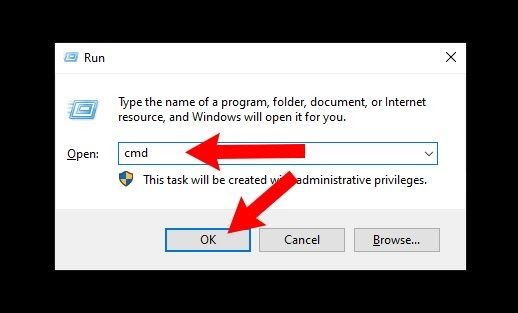
Image source: freeCodeCamp
The Taskbar Number Shortcut
One of the most efficient techniques, which is rarely documented in standard guides, involves pinning the Command Prompt to your taskbar. Once pinned, you can launch it using a numeric shortcut based on its position. For example, if CMD is the third icon from the left (excluding the Start and Search buttons), pressing Win + 3 will launch it immediately. This ranks among the top methods for users who frequently toggle between the command line and other applications.
How to Open Command Prompt in a Specific Folder
A common frustration for users is opening the Command Prompt and then having to use the
cd
(change directory) command multiple times to reach a specific folder. There are two ways to skip this manual navigation entirely.
The Address Bar Trick
This is a significant advancement in File Explorer efficiency. Instead of opening CMD and navigating to your folder, you can do the following:
- Open File Explorer and navigate to the folder you want to work in.
- Click inside the Address Bar at the top of the window (where the folder path is shown).
- Delete the text, type cmd , and press Enter .
The Command Prompt will launch already set to that specific directory. This is a notably innovative shortcut that saves time, especially when dealing with deep file structures.
The Legacy Shift-Right-Click Method
For Windows 10 users, holding the Shift key while Right-clicking an empty space inside a folder will reveal the "Open command window here" option. In newer updates, Windows may replace this with "Open PowerShell window here." If you see PowerShell instead, you can still use it, or follow the address bar trick mentioned above to ensure you get the standard Command Prompt.
How to Run Command Prompt as an Administrator
Many system-level tasks, such as repairing disk errors or modifying system files, require "elevated" privileges. Running CMD as a standard user will result in "Access Denied" errors for these specific commands. According to Microsoft documentation , administrative access is required for any command that alters the Windows Registry or system-wide configurations.
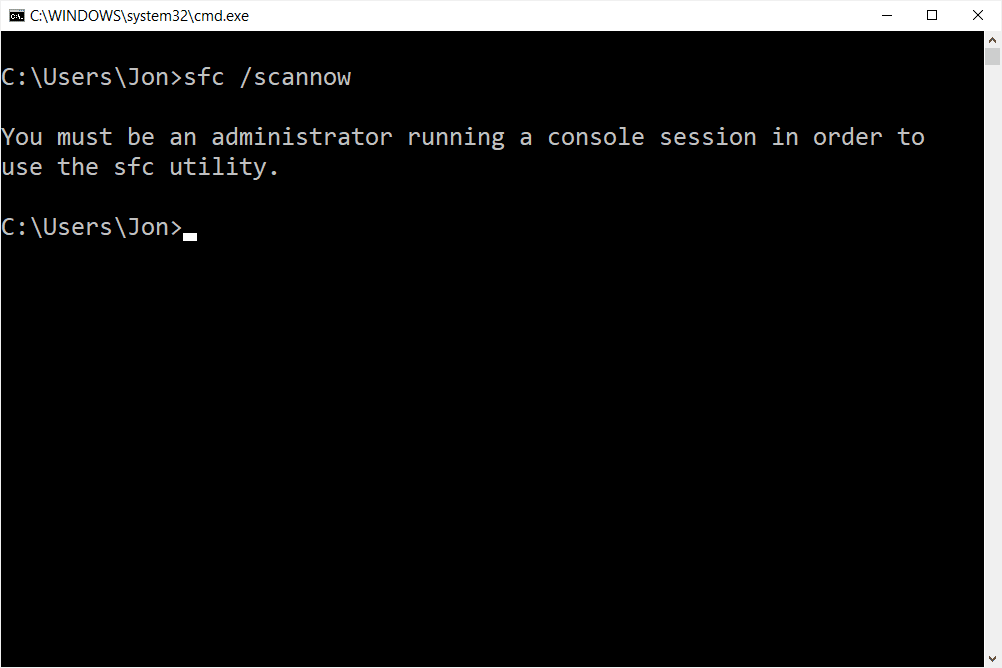
Image source: Lifewire
The Search Shortcut for Admin Access
The fastest way to gain administrative rights is through the Start menu search. Type cmd , but instead of just hitting Enter, press Ctrl + Shift + Enter . This keyboard combination triggers the User Account Control (UAC) prompt immediately. Once you click "Yes," the prompt will open with full administrative rights.
Using the Context Menu
If you prefer using your mouse, you can search for
cmd
, then right-click the "Command Prompt" result and select
Run as Administrator
. This is a standard procedure that ensures you have the necessary permissions to execute high-level system repairs like
sfc /scannow
.
Command Prompt vs. PowerShell vs. Windows Terminal
Modern Windows installations often present users with three different command-line environments. While they may look similar, they serve different purposes. Choosing the right tool depends on the complexity of the task at hand.
| Feature | Command Prompt | PowerShell | Windows Terminal |
|---|---|---|---|
| Primary Use | Legacy commands & scripts | Advanced automation | Modern multi-tab host |
| Language | Batch (.bat) | .NET / C# based | Supports all shells |
| Interface | Basic Text | Blue background (default) | Customizable / Tabbed |
| Win 11 Default | No | No | Yes |
Windows Terminal is a top-tier option for users who need to run multiple shells simultaneously. It acts as a "container" that can host Command Prompt, PowerShell, and even Linux distributions (via WSL). In Windows 11, the Terminal has become the default command-line host, meaning when you search for "cmd," it may open inside a Terminal tab.
How to Open Command Prompt if Your Keyboard Is Broken
If you are facing hardware issues and your keyboard is non-functional, you can still access the Command Prompt using only your mouse. This is a vital troubleshooting step when you need to run commands to fix driver issues that might be causing the keyboard failure.
Navigating via File Explorer
The Command Prompt is an executable file located deep within the Windows system folders. You can launch it by following this path:
- Open This PC or File Explorer .
- Navigate to your C: Drive .
- Open the Windows folder, then the System32 folder.
- Scroll down until you find cmd.exe . Double-click it to launch.
Using the On-Screen Keyboard
Alternatively, you can use the Windows accessibility features. Click the Start button, select Settings , then Accessibility , and finally Keyboard . Toggle the On-Screen Keyboard to "On." You can now use your mouse to click the virtual keys, allowing you to use the Win + R or Search methods described earlier.
What to Do if Command Prompt Won't Open
Occasionally, system corruption or profile errors can prevent the Command Prompt from launching. Users on Windows 11 have occasionally reported an "Exit Code 1" error, which typically indicates a conflict with the user profile or a missing system path. If you find yourself in this situation, there are several steps you can take to restore functionality.
Fixing the "Command Not Recognized" Error
If you can open the prompt but commands like
ipconfig
or
ping
don't work, your System PATH variable may be corrupted. This variable tells Windows where to look for executable files. To fix this, you must ensure that
C:\Windows\System32
is included in your Environment Variables. You can access these settings by searching for "Edit the system environment variables" in the Start menu.
Running System Repairs
If the CMD application itself is crashing, you may need to use PowerShell (which often remains functional even when CMD fails) to repair system files. Open PowerShell as an administrator and run the command
sfc /scannow
. This utility will scan for corrupted Windows files and attempt to replace them with healthy versions from the system cache.
How to Access Command Prompt During a System Failure
In cases where Windows fails to boot entirely, you can still access the Command Prompt through the Advanced Startup Options. This is a critical tool for recovering data or repairing a broken boot record.
- Advanced Startup: If your computer fails to boot three times, Windows will automatically enter the "Automatic Repair" screen. From there, select Advanced Options > Troubleshoot > Advanced Options > Command Prompt .
- Bootable Media: If you have a Windows installation USB, you can boot from it, select your language, and then click Repair your computer in the bottom-left corner to access the recovery command line.
Basic Commands to Run Once Command Prompt Is Open
Once you have successfully opened the prompt, knowing a few foundational commands will help you navigate and troubleshoot your system. According to Indeed's technical career guides , proficiency in these basic commands is a valuable skill for IT professionals and casual users alike.
Navigation
Use
dir
to list all files in your current folder and
cd [folder name]
to move into a specific directory.
Networking
Use
ipconfig
to view your IP address and
ping [website]
to check your internet connection stability.
System Info
Type
systeminfo
to generate a detailed report of your computer's hardware and OS version.
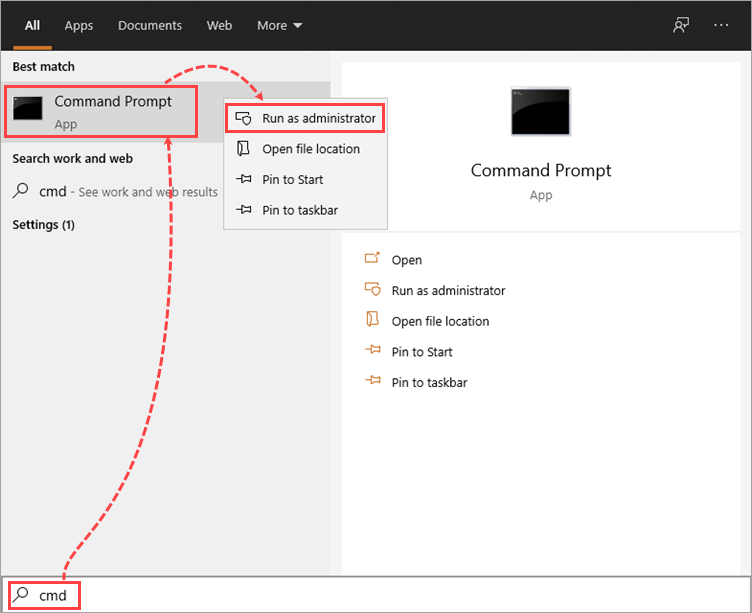
Image source: Kaspersky support
Frequently Asked Questions
- How do I close the Command Prompt properly?
-
You can simply click the "X" in the top-right corner of the window. However, the professional way to close it is by typing
exitand pressing Enter, which ensures all active processes are terminated correctly. - Is Command Prompt the same as MS-DOS?
- No, it is not. While it looks similar and supports many of the same commands, Command Prompt is a Windows application that emulates the DOS environment. MS-DOS was a standalone operating system, whereas CMD runs on top of the Windows NT kernel.
- Can I open Command Prompt on a Mac?
- Mac computers do not have "Command Prompt," but they have a nearly identical tool called Terminal . You can find it by pressing Cmd + Space and typing "Terminal." It uses Unix-based commands, which differ slightly from Windows commands.
- What is the shortcut for Command Prompt in Windows 11?
- In Windows 11, you can press Win + X and then press I (for Terminal) or A (for Terminal as Admin). From within the Terminal, you can click the down arrow at the top and select "Command Prompt" to switch shells.
- Why does my Command Prompt window look blue?
-
If your window is blue, you are likely using
PowerShell
instead of the standard Command Prompt. While PowerShell can run most CMD commands, it is a different environment. You can type
cmdinside PowerShell to switch to the standard prompt.
The Bottom Line
Accessing the Command Prompt is a vital skill for any Windows user, providing a level of control that the standard interface cannot match. By mastering these shortcuts, you can significantly speed up your technical tasks.
- Use the Address Bar in File Explorer to open CMD in any folder instantly.
- Press Ctrl + Shift + Enter when searching to launch with Administrator rights.
- Pin CMD to your taskbar to use the Win + Number shortcut for the fastest access.
- Use the Run Box (Win + R) as a reliable backup when the Start menu is slow.
- Explore Windows Terminal if you are on Windows 11 for a more modern experience.
- Check your System PATH if common commands like 'ping' are not recognized.
For your next step, try opening the Command Prompt using the address bar trick and run the
systeminfo
command to see a full breakdown of your PC's specifications.
-
Topic: How to Open Windows Command Prompt in Windows 10https://www.youtube.com/watch?v=uE9WgNr3OjM
-
Topic: Open Command Prompt: Easy Steps for Windows Usershttps://www.lifewire.com/how-to-open-command-prompt-2618089
-
Topic: how do i open a command linehttps://learn.microsoft.com/en-us/answers/questions/3185970/how-do-i-open-a-command-line

How to Open Command Prompt in Windows 10 and Windows 11
Learn fast ways to open CMD in Windows 10 & 11, including admin shortcuts, File Explorer tricks, and troubleshooting if it won't open.


How to Force Quit Frozen Applications on Windows 10 and Windows 11
Learn how to force quit frozen apps on Windows 10 and 11 using shortcuts, Task Manager, CMD, and the new Windows 11 taskbar End Task feature.


How to Understand and Use More Options in Language and Technology
Learn the meaning of more options, find professional synonyms, identify UI icons like the kebab menu, and fix Windows 11 menu bugs.