How to Identify and Fix a Dark Shadow on Your Computer Screen
A dark shadow on your screen typically stems from one of three sources: backlight failure (hardware), electromagnetic interference (environmental), or calibration errors like "Black Crush" (software). If the shadow is a vertical or horizontal gradient, it is likely a failed LED strip. If it is a localized spot, it may be a pressure mark. Start by power cycling your monitor and checking for nearby electrical interference before pursuing hardware repairs.
Discovering a dark shadow on your computer screen can be alarming, especially when you are unsure if the issue is a minor software glitch or a catastrophic hardware failure. These visual artifacts range from faint, hazy clouds to distinct, dark bars that obscure your work. Understanding the root cause is the first step toward determining whether you need a simple settings adjustment or a completely new monitor.
Modern displays, whether they use LED, IPS, or VA panels, rely on complex layers of light and liquid crystals. When one of these layers fails or is interrupted by external forces, shadows appear. This guide provides a structured framework to diagnose these issues, drawing on technical insights from manufacturers like Sony and HP to help you find a resolution.
What Does the Shadow on Your Screen Look Like?
Before attempting any repairs, you must accurately categorize the visual defect. Different causes produce distinct visual signatures. Use the table below to match your screen's appearance with its most probable technical cause.
| Visual Appearance | Likely Cause | Repairability Score (1-10) |
|---|---|---|
| Perfect Circle or Small Dark Spot | Pressure Mark / Bruising | 2 (Usually Permanent) |
| Vertical/Horizontal Gradient | LED Backlight Failure | 4 (Requires Disassembly) |
| Flickering or Moving Haze | EMI or Loose Cable | 9 (Easy Fix) |
| Loss of Detail in Dark Areas | Black Crush / Gamma Issue | 10 (Software Fix) |
Is it a dark spot or a perfect circle?
If you notice a small, localized dark spot that looks like a smudge or a "bruise," you are likely dealing with a pressure mark. These occur when the LCD layers are physically compressed. Common causes include someone pressing too hard on the screen, a laptop lid being closed with an object (like a pen) inside, or even manufacturing defects where the bezel is too tight. According to industry observations, these marks are often permanent because the liquid crystals have been physically displaced or the internal polarizing filters are damaged.
Is there a dark gradient in the corner or side?
A dark shadow that starts at the edge and fades toward the center is a classic symptom of monitor backlight failure . Most modern screens use strips of LEDs to illuminate the panel. These LEDs are often wired in series; if one LED in a segment fails or burns out, the entire section of the strip may dim or turn off completely. This results in a large, shadowed region. This is widely considered one of the most common hardware failures in aging monitors.
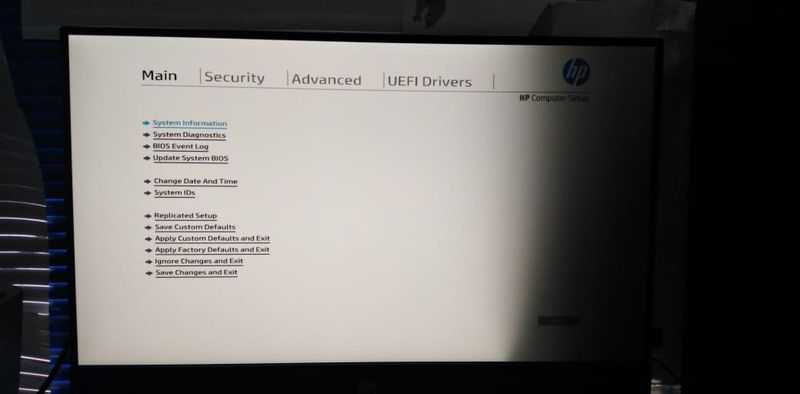
Image source: HP Community
Does the shadow flicker or move?
Shadows that are not static—meaning they pulse, flicker, or change intensity when you move the monitor—often point to electrical issues. This could be a loose internal ribbon cable (the LVDS or eDP cable) that carries data and power to the panel. Alternatively, it may be caused by voltage fluctuations in the power supply unit (PSU). If the capacitors in the PSU are failing, they may struggle to provide consistent current to the backlight, leading to unstable brightness levels that appear as moving shadows.
Are dark areas losing all detail?
If the "shadow" isn't a specific spot but rather a general lack of detail in dark scenes (where dark grey looks pure black), you are experiencing Black Crush . This is not a hardware defect but a calibration error. It occurs when the monitor's Gamma settings are incorrectly configured, causing the display to "crush" near-black shades into total darkness. This is particularly common on VA and OLED panels that boast high contrast ratios but require precise tuning to maintain shadow detail.
Quick Fixes You Can Try Without Opening the Case
Before assuming your hardware is broken, perform these non-invasive troubleshooting steps. Many "shadows" are actually environmental or software-based and can be resolved in minutes.
Check your cables and power source first
Electromagnetic Interference (EMI) is a frequent but overlooked cause of screen artifacts. If your HDMI or DisplayPort cable is draped over a power brick or running parallel to a high-voltage power line, the electrical field can induce noise in the signal. This noise often manifests as "ghostly" shadows or hazy streaks. To rule this out, ensure your data cables are shielded and kept away from power cables. Furthermore, Sony Support recommends plugging your monitor directly into a wall outlet rather than a crowded power strip to ensure clean power delivery.
Update your graphics drivers and system files
Software corruption can occasionally cause the GPU to output incorrect luminance data. Start by updating your graphics drivers to the latest version provided by NVIDIA, AMD, or Intel. If the shadow persists, run the System File Checker (SFC) utility in Windows. Open the Command Prompt as an administrator and type
sfc /scannow
. This process, as noted in
Microsoft Answers
, can repair corrupted system files that might be interfering with the Desktop Window Manager (DWM) and causing visual artifacts.
Adjust your Windows ClearType and scaling settings
If the shadows appear specifically around text or UI elements, the issue might be related to sub-pixel rendering. Windows uses a technology called ClearType to make text appear smoother, but if the sub-pixel layout of your monitor doesn't match the software setting, it can create a "smearing" shadow effect. Search for "Adjust ClearType text" in the Start menu and follow the wizard to calibrate the text clarity for your specific panel.
How to Tell if Your Monitor Is Physically Damaged
If software fixes fail, you must determine if the hardware itself is compromised. These tests help isolate the panel from the rest of your system.
Try the gentle pressure test on the bezel
This is a critical diagnostic for identifying loose internal connections. While the monitor is on, gently—very gently—apply pressure to the plastic bezel (the frame) near where the shadow is located. If the shadow flickers, disappears, or changes shape, the problem is likely a loose ribbon cable or a failing connection between the LED strip and the controller board. If the shadow remains completely unchanged regardless of pressure, the LED itself is likely dead or the panel is physically bruised.
Run the built-in hardware diagnostics
Many manufacturers include a "Self-Test" or "Built-in Diagnostics" (BID) mode that runs independently of your computer. For HP users , you can often access this by tapping Esc then F2 during startup. For other brands, unplug the video cable (HDMI/DP) and wait for the "No Signal" box to appear. If the shadow is visible on the "No Signal" screen, the problem is definitely the monitor hardware and not your PC or GPU.
Move your monitor to rule out interference
External factors like large speakers, fans, or fluorescent desk lamps can create magnetic fields that distort the display. If you suspect environmental interference, move the monitor to a different room and plug it into a different circuit. If the shadow disappears, you have identified a localized EMI source in your original setup.
Fixing Advanced Display Issues Like Black Crush and Gamma
When the "shadow" is actually a loss of detail in dark images, the solution lies in calibration. This is common in high-performance monitors where the factory settings are optimized for brightness rather than accuracy.
Adjust your Gamma settings to the industry standard
Gamma determines how smoothly transitions occur between black and white. If your Gamma is set too high (e.g., 2.4 or 2.6), dark greys will be pushed into black, creating artificial shadows. According to KTC Technology Hub , the industry standard for most content is Gamma 2.2 . Adjusting your monitor's OSD (On-Screen Display) settings to Gamma 2.2 can often "lift" the shadows and reveal hidden details.
Use a near-black test pattern
To verify if your monitor is "crushing" blacks, use a calibration chart. Look for a pattern that shows squares with RGB values from 0 to 20. On a well-calibrated screen, you should be able to distinguish the square for RGB 3 or 4 from the pure black background (RGB 0). If everything below RGB 10 looks identical to black, your monitor's brightness or black level settings are too low, creating the illusion of shadows.
Should You Repair Your Screen or Buy a New One?
Deciding whether to fix a shadowed monitor depends on the age of the device and the nature of the failure. Hardware repairs for monitors are notoriously difficult and often economically unviable.
Why backlight repairs are rarely worth the cost
Replacing a failed LED strip requires complete disassembly of the panel. This involves removing the bezel, the LCD glass, and several layers of diffusion film. The risk of cracking the fragile LCD glass during this process is exceptionally high. Most professional repair shops will charge between $100 and $200 for labor, which often exceeds the value of a budget or mid-range monitor. As discussed on Tom’s Hardware, if your monitor cost less than $200 initially, a backlight failure is effectively a "total loss."
When to consider a DIY backlight replacement
If your monitor is out of warranty and you were planning to throw it away, a DIY repair can be a significant learning experience. LED strips are relatively inexpensive (often under $30), but the process requires a dust-free environment. Even a single speck of dust trapped between the diffusion layers will appear as a permanent "shadow" or spot once the monitor is reassembled. Only attempt this if you have extreme patience and the proper tools.
| Monitor Category | Typical Repair Cost | Recommendation |
|---|---|---|
| Budget (<$150) | $100+ | Replace |
| Mid-Range ($200-$500) | $150-$250 | Evaluate Warranty |
| High-End / OLED ($700+) | $300+ | Professional Repair |
Key Takeaways for Fixing Screen Shadows
- Identify the shape: Gradient shadows usually mean backlight failure, while circular spots indicate physical pressure damage.
- Rule out EMI: Move the monitor to another room to ensure nearby electronics aren't causing visual interference.
- Perform a hard reset: Unplug the monitor for 30 seconds to discharge capacitors and reset the controller board.
- Check the "No Signal" screen: If the shadow persists when no PC is connected, the issue is definitely the monitor's hardware.
- Calibrate Gamma: Set your Gamma to 2.2 to fix "Black Crush" and restore detail in dark areas.
- The $200 Rule: If a monitor is out of warranty and cost less than $200, professional repair is rarely cost-effective.
If your diagnostic tests confirm a hardware backlight failure and your device is still under warranty, contact the manufacturer immediately to initiate a replacement claim.
Frequently Asked Questions
Yes, but only if the cause is non-physical. If the shadow is caused by electromagnetic interference (EMI), a loose external cable, or software calibration issues like "Black Crush," you can fix it through settings or environmental changes. However, if the shadow is caused by a burnt-out LED or a physical bruise on the LCD panel, it cannot be fixed without professional repair or disassembly.
Usually, no. Graphics card (GPU) failure typically manifests as "artifacts"—which are bright colored lines, blocks, or total system crashes. Localized dark shadows that stay in one spot are almost always a result of the monitor's backlight or the panel itself. To be sure, connect your monitor to a different device (like a laptop or console); if the shadow remains, the monitor is the culprit.
The easiest way is the "parallax test." Look at the shadow from an angle. A smudge is on the surface of the outer plastic/glass and will appear to stay on top of the pixels. A backlight shadow or internal defect will appear to be "behind" the pixels. Additionally, a smudge can be wiped away with a microfiber cloth, whereas a backlight shadow will remain unchanged.
The "screen massage" technique—applying pressure to the panel to fix stuck pixels—is rarely effective for dark shadows. In fact, it is often counterproductive. Because shadows are often caused by backlight issues or pressure marks, adding more pressure can worsen the damage or create new bruises on the LCD. It is generally safer to avoid this method for shadow-related issues.
This is almost always due to a failed LED in the backlight array or a pinched cable in the laptop's hinge. Because laptop screens are frequently opened and closed, the delicate ribbon cables that power the backlight can wear out or become trapped, leading to a loss of power to specific sections of the screen. This usually requires a full screen assembly replacement.
Final Thoughts
A dark shadow on a computer screen is a frustrating defect, but it doesn't always signal the end of your monitor's life. By systematically ruling out environmental interference, updating drivers, and checking for "Black Crush" through Gamma calibration, you can often resolve the issue without spending a dime. However, if your diagnostics point toward a failed LED backlight, you must weigh the cost of repair against the price of a modern replacement. In many cases, a hardware shadow is a sign that it is time to upgrade to a newer, more energy-efficient display that offers better color accuracy and reliability.
-
Topic: My monitor has a black shadow on the screen. Any ideas ...https://www.reddit.com/r/pcmasterrace/comments/18a1g1v/my_monitor_has_a_black_shadow_on_the_screen_any/
-
Topic: There is a black shadow in the right side of monitor screenhttps://h30434.www3.hp.com/t5/Desktop-Video-Display-and-Touch/There-is-a-black-shadow-in-the-right-side-of-monitor-screen/td-p/7697676
-
Topic: How to fix a shadowed area on a monitor?https://www.facebook.com/groups/captainsoftech/posts/1202731404354462/

How to Identify and Fix a Monitor Shadow Problem on Your Display
Diagnose and fix monitor shadow problems, from VGA ghosting to backlight failure. Step-by-step solutions for Windows and modern displays.


How to Fix Green Speckles on Your Screen and Diagnose GPU Artifacts
Fix green dots on your monitor. Diagnose GPU artifacts, VRAM failure, and cable issues with our expert troubleshooting guide.

How to Diagnose and Fix a Vertical Line on Your Monitor Screen
Troubleshoot vertical lines on your monitor. Learn to fix hardware issues, driver glitches, and power problems with our expert diagnostic guide.