How to Identify and Fix a Monitor Shadow Problem on Your Display
A monitor shadow problem is typically caused by one of three things: analog signal interference (common with VGA cables), hardware backlight failure (dark patches), or software UI settings (Windows drop shadows). To fix it quickly, swap to a digital cable like HDMI or DisplayPort, perform a factory reset via the monitor's physical menu, and disable "Show shadows under windows" in your Windows performance settings.
Finding a mysterious shadow on your screen can be frustrating, especially when you are unsure if your hardware is dying or if a simple setting is to blame. In the modern era of high-resolution displays, visual artifacts often manifest as faint "ghosts" behind text, dark blotches in the corners, or a loss of detail in dark scenes known as black crush. Understanding the root cause is the first step toward a crisp, clear image.
This guide explores the technical nuances of display shadows, from legacy analog signal reflections to modern Mini-LED local dimming issues. By following a systematic troubleshooting approach, you can determine if your monitor requires a simple cable swap or if it is time to consider a replacement.
Identifying the Type of Shadow on Your Screen
Before attempting a fix, you must categorize the visual defect. Not all "shadows" are created equal, and treating a software glitch like a hardware failure will only lead to wasted time. Most display issues fall into one of three categories based on their visual characteristics and underlying technology.
The Three Shadows Taxonomy
To help you diagnose the issue, we have categorized the most common visual defects that users describe as shadows. Identifying which one you have will narrow down your troubleshooting steps significantly.
| Symptom | Likely Cause | Quick Test |
|---|---|---|
| Ghosting/Trailing: Faint "echoes" of images shifted to the right. | Analog Signal (VGA) Interference or Reflection. | Switch to HDMI or DisplayPort. |
| Vignetting/Dark Patches: Physical dark areas, often in corners or blotches. | Backlight LED failure or loose internal connector. | The "Wiggle Test" on the monitor frame. |
| Black Crush: Loss of detail in dark areas; shadows look like solid black. | Gamma Calibration or Contrast settings. | Check Gamma 2.2 settings in OSD. |
The "Move the Window" Test
This is a fundamental diagnostic step. Open a window (like a folder or browser) and drag it across the screen. If the shadow moves with the window, the problem is software-based or related to the graphics card's rendering. If the shadow stays in a fixed position on the glass while the window moves behind it, you are dealing with a hardware issue, such as a failing backlight or a damaged panel.
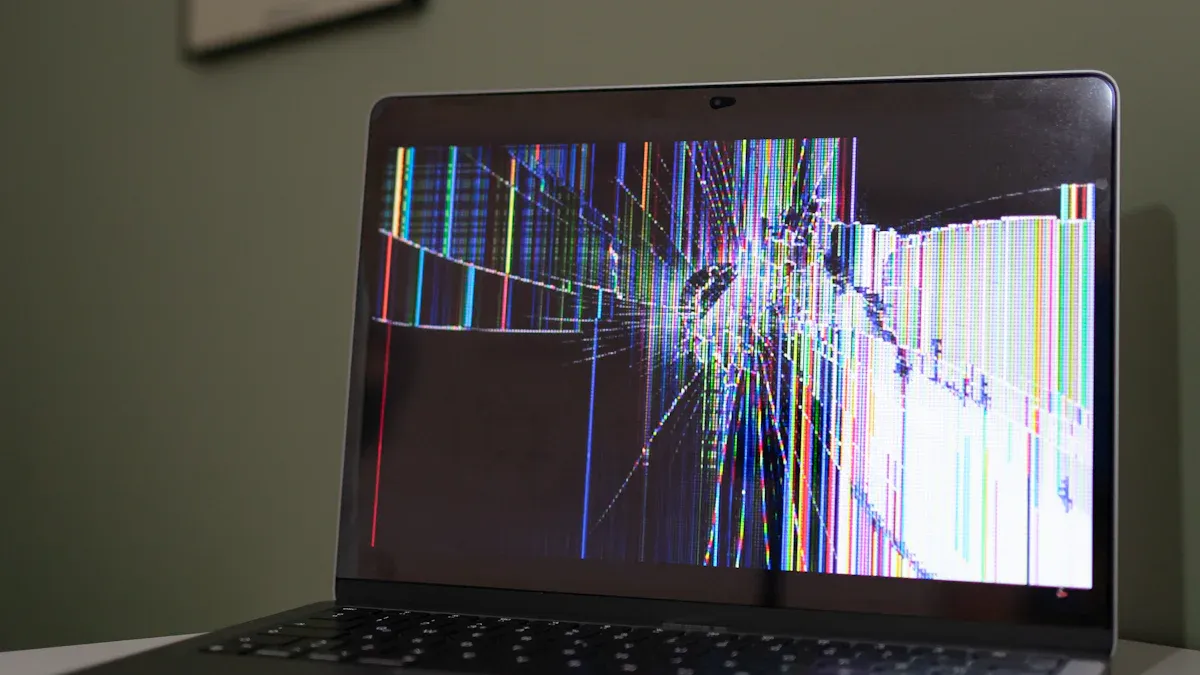
Image source: blog.boe.com
Why Does My Monitor Have a Faint Ghosting Shadow?
If you see a faint "echo" of your icons or text shifted slightly to the right, you are likely experiencing ghosting. This is a classic symptom of signal degradation, particularly common in setups using older analog technology. While digital signals (HDMI/DisplayPort) either work or they don't, analog signals can be partially distorted, leading to these visual shadows.
The VGA Vulnerability
The D-Sub (VGA) cable is the primary culprit for ghosting shadows. Because VGA transmits an analog signal, it is highly susceptible to "reflections." This happens when the electrical signal hits the end of the cable and bounces back, creating a secondary, fainter image on the screen. According to ViewSonic's technical documentation , digital connections like HDMI and DisplayPort eliminate this specific type of shadowing because they use discrete data packets rather than continuous waves.
Cable Shielding and Length
If you must use VGA, the quality of the cable matters immensely. Unshielded cables act like antennas, picking up electromagnetic noise from nearby power bricks or speakers. Furthermore, excessively long cables (over 10 feet) lose signal integrity, which manifests as a blurry shadow. If your setup requires a long run, ensure you are using a high-quality, double-shielded cable with ferrite beads (the small cylinders near the connectors) to suppress noise.
The Bent Pin Inspection
Physical damage to the connector is a frequently overlooked cause. A single bent pin in a VGA or DVI connector can result in a missing color channel or a "shadowed" appearance. Unplug your cable and look closely at the pins. They should be perfectly straight and uniform. If one is pushed in or bent, you can carefully realign it with a pair of tweezers, though replacing the cable is often a more reliable solution.
How to Fix Dark Patches and Edge Shadows
Unlike ghosting, which is a signal issue, dark patches or "vignetting" are usually hardware-related. These appear as dim areas, often in the corners or as a horizontal strip across the bottom of the screen. This is a common symptom of backlight failure, where the light source behind the LCD panel is no longer uniform.
Understanding Backlight Failure
Modern monitors use strips of LEDs to illuminate the screen. If one of these LEDs burns out or if the power delivery to a specific strip fails, that section of the screen will appear shadowed. On older monitors, CCFL (Cold Cathode Fluorescent Lamp) tubes were used; these often flicker or turn a reddish hue before failing completely and leaving a dark shadow. Sony Support notes that while LCD components are precisely calibrated, they are sensitive to internal voltage fluctuations that can cause these dim zones.
The Wiggle Test
Sometimes the issue isn't a dead LED, but a loose internal connection. The "Wiggle Test" involves gently applying light pressure to the plastic frame (bezel) around the shadowed area. If the shadow flickers or disappears when you press on the frame, the internal ribbon cable or the inverter board connection is likely loose. While this confirms the problem, fixing it usually requires disassembling the monitor.
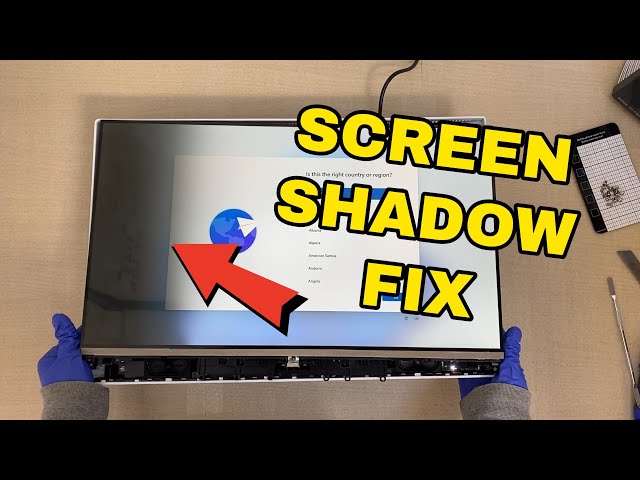
Image source: YouTube
Adjusting Windows Settings to Remove UI Shadows
In some cases, the "shadow" you see is actually a feature of the Windows operating system. Windows uses drop shadows under windows and menus to create a sense of depth. On some monitors—especially those with high contrast or poor calibration—these shadows can look like blurry artifacts or "smudges" rather than intentional design elements.
The Windows Performance Service Fix
You can disable these UI shadows through the System Properties menu. This is a common fix for users who find the default Windows 11 or Windows 10 aesthetic distracting or visually "muddy."
-
Press
Windows Key + R
, type
sysdm.cpl, and hit Enter. - Navigate to the Advanced tab.
- Under the Performance section, click Settings .
- In the "Visual Effects" tab, uncheck "Show shadows under windows" .
- Click Apply and then OK .
According to Microsoft Learn community experts , this adjustment can also slightly improve system responsiveness on older hardware by reducing the GPU's rendering load for transparency effects.
The "Device Not Migrated" Error
In dual-monitor setups, you might notice shadows or artifacts on only one screen. This can sometimes be traced to a "Device Not Migrated" error in the Windows Device Manager. This occurs when a driver update fails to properly handshake with the monitor's hardware ID. To check this, right-click the Start button, select Device Manager , find your monitor, right-click it for Properties , and check the Events tab. If you see "Device not migrated," a clean install of your graphics drivers is usually required.
Solving Modern Display Issues Like Black Crush and Local Dimming
As display technology advances, new types of "shadow problems" have emerged. High-end Mini-LED and OLED monitors offer incredible contrast, but they can suffer from issues that make dark areas look unnatural or overly shadowed.
What is Black Crush?
Black crush occurs when a monitor fails to distinguish between "pure black" and "very dark gray." Instead of seeing the subtle details in a dark shadow (like the folds in a black coat), the monitor displays a solid block of black. This is often a calibration issue. Setting your monitor to the Gamma 2.2 standard is widely considered one of the best ways to ensure shadow detail is preserved. KTC Technology recommends using a "Near-Black Test Pattern" to ensure that RGB values 1 through 5 are visible against a pure black (RGB 0) background.
Mini-LED Local Dimming Shadows
Mini-LED monitors use hundreds or thousands of tiny dimming zones. If the local dimming algorithm is too aggressive, it can create "shadows" around bright objects or cause dark areas to lose all detail. If you notice shadows appearing and disappearing as you move your mouse or watch a movie, try lowering the "Local Dimming" setting in your monitor's OSD (On-Screen Display) to "Low" or "Medium."
- Gamma 2.2
- The standard gamma curve for Windows and most web content, balancing brightness and shadow detail.
- Blooming
- The opposite of a shadow; when light from a bright object bleeds into a dark area on a local-dimming screen.
- Near-Black Chrominance Overshoot
- An OLED-specific issue where dark pixels flash or "glow" briefly when transitioning from black.
Performing an Environmental EMI Audit
Sometimes the problem isn't inside the monitor or the computer, but in the room itself. Electromagnetic Interference (EMI) can wreak havoc on display signals, especially if you are using unshielded cables.
The 3-Foot Rule
Electronic devices generate invisible magnetic fields. Large speakers, desk fans, and even some high-powered desk lamps can distort the image on your screen if they are too close. As a rule of thumb, keep any device with a motor or a large magnet at least three feet away from your monitor and its video cables.
Fluorescent Lighting and "Dirty" Power
Older office-style fluorescent lights can cause subtle "crawling" shadows or flickering on LCD screens. This is due to the frequency of the light ballast interfering with the monitor's refresh rate. Additionally, if your monitor is plugged into a crowded power strip with a refrigerator or air conditioner, "dirty power" (voltage spikes) can cause visual artifacts. Try plugging the monitor directly into a wall outlet on a different circuit to see if the shadow persists.
Troubleshooting Steps for Dual Monitor Setups
Dual monitor configurations introduce more variables, such as mismatched refresh rates and different port types (e.g., one HDMI, one DisplayPort). If a shadow only appears on your secondary screen, the issue is likely localized to that specific signal path.
- Cable Swapping Strategy: Swap the cables between your two monitors. If the shadow moves to the other screen, the cable is faulty. If the shadow stays on the same screen, the monitor or its port is the problem.
- Refresh Rate Mismatch: Ensure both monitors are set to the same refresh rate (e.g., 60Hz). Mismatched frequencies can sometimes cause the graphics card to struggle with timing, leading to ghosting shadows on the slower panel.
- Port Testing: If your GPU has multiple outputs, try moving the "shadowed" monitor to a different port. According to discussions on Tom's Hardware , certain ports on older GPUs can degrade over time, leading to signal noise.
Frequently Asked Questions
Can a cheap HDMI cable cause a shadow?
Generally, no. HDMI is a digital signal, so it typically either works perfectly or results in "sparkles" (stray pixels) or a total loss of signal. However, extremely poor-quality cables can occasionally cause "smearing" if the bandwidth is insufficient for the resolution and refresh rate. If you see a shadow, it is more likely an analog VGA issue or a hardware backlight problem.
Will a factory reset fix my monitor shadow?
A factory reset via the OSD (On-Screen Display) menu is an excellent troubleshooting step. It reverts all brightness, contrast, and gamma settings to their defaults. If the shadow was caused by an accidental setting change—like a "Black Equalizer" or "Shadow Boost" feature—a reset will resolve it immediately.
Why is there a dark shadow in the corner of my laptop screen?
On laptops, this is almost always a sign of a failing backlight LED or a pinched internal display cable. Because laptop screens are frequently opened and closed, the delicate ribbon cables that power the backlight can wear out or become unseated. This is rarely a software issue and usually requires a screen replacement.
Is a monitor shadow a sign of a dying GPU?
Usually, no. GPU failure typically manifests as "artifacts"—brightly colored lines, blocks, or full-screen crashes. A faint shadow or a dark patch is much more likely to be a problem with the monitor's panel, the backlight, or the cable connecting the two.
How do I fix the shadow behind my mouse cursor?
This is a Windows feature called "Pointer Trails." To disable it, go to Control Panel > Mouse > Pointer Options and uncheck "Display pointer trails." If the shadow persists even with this off, your monitor may have a slow response time, causing "motion blur" or "ghosting."
The Bottom Line on Monitor Shadows
Resolving a monitor shadow problem requires a process of elimination. Most issues are not terminal and can be fixed with a simple adjustment or a new cable.
- Identify the shadow type to determine if you are dealing with ghosting (signal), patches (backlight), or crush (calibration).
- Upgrade to digital cables like HDMI or DisplayPort to eliminate analog signal reflections and ghosting.
-
Check Windows UI settings
using
sysdm.cplto ensure you aren't seeing intentional drop shadows. - Perform an EMI audit by moving speakers and fans away from your display setup.
- Calibrate your Gamma to 2.2 to ensure you aren't losing shadow detail due to "black crush."
- Use the "Wiggle Test" to identify loose internal hardware connections before assuming the panel is dead.
If the shadow remains visible across different computers and after swapping all cables, it is likely a hardware backlight failure that may require professional repair or a new display.
-
Topic: why does everything look like it has a shadow or ...https://www.reddit.com/r/computers/comments/1foszuk/why_does_everything_look_like_it_has_a_shadow_or/
-
Topic: The LCD monitor has shadows, lines, or ghostly, blurry ...https://www.sony.com/electronics/support/articles/00026065
-
Topic: How to fix a shadowed area on a monitor?https://www.facebook.com/groups/captainsoftech/posts/1202731404354462/

How to Identify and Fix a Dark Shadow on Your Computer Screen
Diagnose monitor shadows, backlight failure, and EMI. Learn to fix dim spots or black crush with our expert troubleshooting and repair framework.


How to Fix Green Speckles on Your Screen and Diagnose GPU Artifacts
Fix green dots on your monitor. Diagnose GPU artifacts, VRAM failure, and cable issues with our expert troubleshooting guide.

How to Diagnose and Fix a Vertical Line on Your Monitor Screen
Troubleshoot vertical lines on your monitor. Learn to fix hardware issues, driver glitches, and power problems with our expert diagnostic guide.