
How to Remove Malware and Restore Your Device to Safety
If you suspect an active infection, follow these immediate steps to contain the threat:
- Disconnect: Turn off Wi-Fi and unplug Ethernet cables to stop data theft.
- Enter Safe Mode: Restart your device in Safe Mode to prevent malware from running.
- Run a Scan: Use a trusted tool like Windows Defender Offline or Malwarebytes .
- Clear Sync Data: Reset your browser settings to prevent re-infection via cloud sync.
Discovering malware on your computer or smartphone is a high-anxiety event. Whether it is a persistent pop-up, a sudden slowdown, or a warning from your bank, the feeling of being compromised is overwhelming. However, modern security tools and structured recovery protocols make it possible to reclaim your digital life without necessarily needing a professional technician.
This guide provides a comprehensive workflow for identifying, isolating, and removing malicious software from Windows, Mac, and mobile platforms. We will go beyond basic scans to address stubborn infections that hide in system memory or re-infect your device through browser synchronization.
How to Tell if Your Device Is Actually Infected
Malware has evolved from loud, destructive viruses to silent, data-stealing background processes. Identifying an infection requires monitoring both obvious performance issues and subtle behavioral shifts in your accounts.
System Performance Red Flags
One of the most common signs of a compromised system is a sudden, unexplained drop in performance. According to FTC consumer guidance, malware often consumes significant CPU and RAM resources to perform tasks like crypto-mining or sending spam emails. You may notice your fan running at high speeds even when no apps are open, or your device may freeze frequently during simple tasks.
Browser and Account Warnings
Your web browser is often the first place malware manifests. Look for these specific indicators:
- Unwanted Homepages: Your default search engine or homepage changes to a site you don't recognize.
- Persistent Pop-ups: Advertisements appear on your desktop or within websites that usually don't have them.
- Account Logouts: Google Account security protocols may automatically sign you out if suspicious activity is detected on your device.
The Hidden Signs of Infection
Advanced malware often tries to stay hidden. Monitor your network usage for spikes in data transmission when you aren't active. Additionally, check your "Sent" folders in email and messaging apps; if your contacts are receiving links you didn't send, your device or account is likely compromised. Another subtle sign is receiving "Storage Full" alerts on cloud services like OneDrive or iCloud that don't match your actual file usage, suggesting malware is using your cloud space for data exfiltration.
What to Do Immediately After Discovering Malware
The moments following the discovery of malware are critical. Taking the wrong steps—such as logging into your bank to check your balance—can lead to further damage.
- Disconnect from the Internet: This is the single most important step. Malware often relies on a connection to a "Command and Control" (C2) server to receive instructions or upload your stolen data. By cutting the connection, you effectively "blind" the attacker.
- Enter Safe Mode: Booting into Safe Mode loads only the essential drivers and services required for the operating system to function. Most malware is designed to launch during the standard boot process; Safe Mode prevents these malicious scripts from starting, making them easier to delete.
- Check for Malicious Profiles: On Mac and mobile devices, malware often installs "Configuration Profiles." These profiles can redirect your web traffic through malicious servers. Navigate to your system settings and remove any profile you did not explicitly authorize.
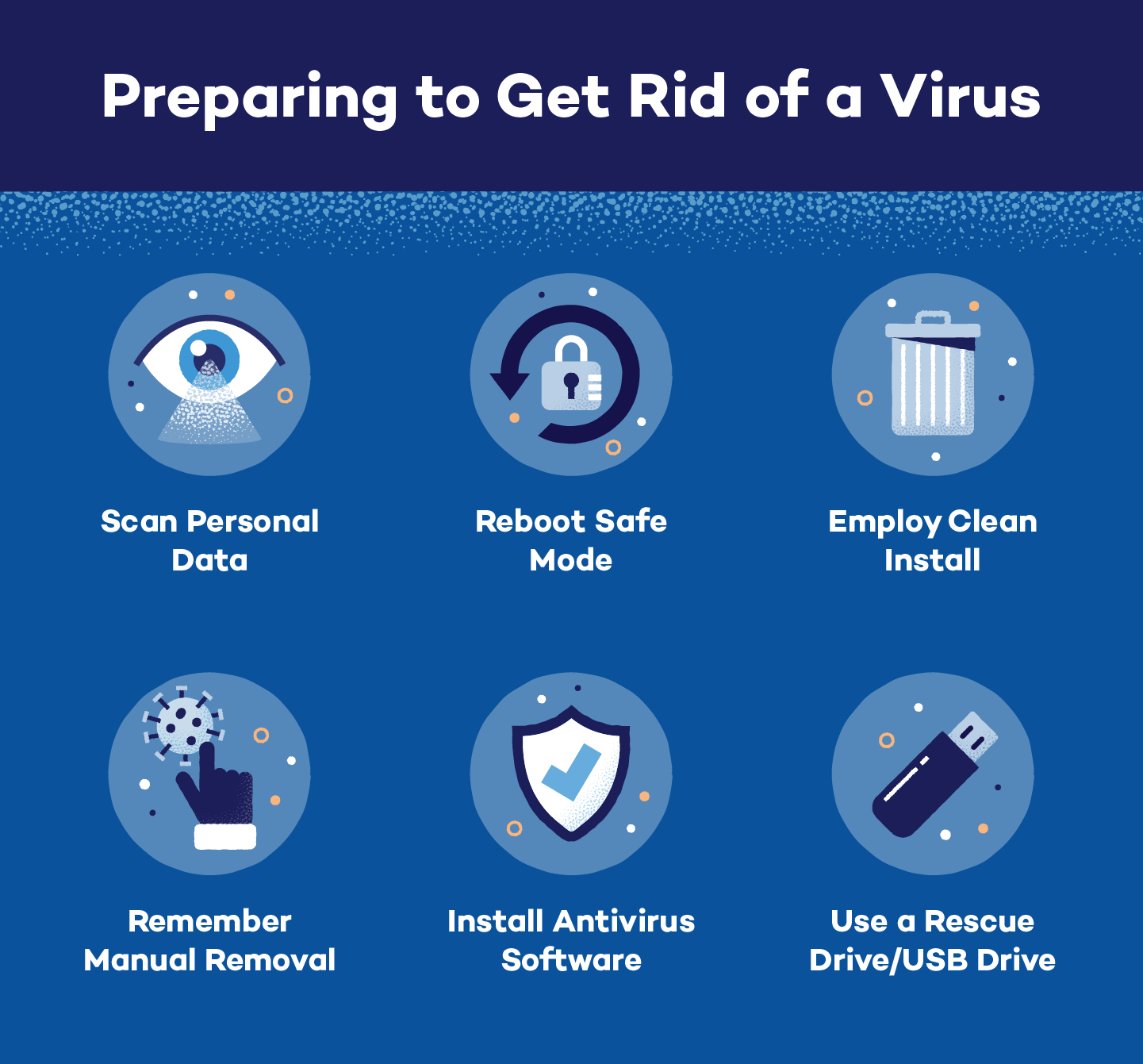
Image source: Panda Security
How to Remove Malware from a Windows PC
Windows remains the primary target for malware due to its massive user base. Fortunately, Microsoft provides several built-in tools that rank among the most effective for cleaning a system.
Running the Windows Malicious Software Removal Tool (MSRT)
The Windows MSRT is a specialized tool updated monthly by Microsoft. Unlike a standard antivirus that monitors for all threats, MSRT specifically targets "prevalent" and highly active malware families. It is an excellent first line of defense for removing well-known trojans and bots.
Using the Microsoft Safety Scanner
If MSRT doesn't find the threat, the Microsoft Safety Scanner is a more comprehensive, portable tool. It uses the same definitions as Windows Defender but is designed as a one-time, deep-clean utility. Because it doesn't require installation, it is less likely to be blocked by active malware.
Performing a Windows Defender Offline Scan
Some malware, known as rootkits, can hide within the boot sector or RAM, making them invisible while Windows is running. A Windows Defender Offline scan restarts your computer and runs a scan in a dedicated environment before the operating system even loads. This is widely considered one of the strongest methods for catching deep-seated infections.
| Tool | Best Use Case | Frequency |
|---|---|---|
| Windows Defender | Real-time protection and general scanning | Always Active |
| MSRT | Removing specific, high-prevalence threats | Monthly Update |
| Safety Scanner | Deep, one-time manual cleanup | As Needed |
| Defender Offline | Stubborn malware hiding in boot sector | Critical Infections |
How to Remove Malware from a Mac
While macOS is known for its robust security features like Gatekeeper and XProtect, it is not immune to adware and "potentially unwanted programs" (PUPs). Mac malware often disguises itself as legitimate productivity tools or Flash Player updates.
Force Quitting Suspicious Processes
Open Activity Monitor and sort by "% CPU." If you see a process with a nonsensical name (e.g., "com.apple.service.x86") consuming 90% of your resources, it may be a crypto-miner. Select the process and click the "X" in the top toolbar to Force Quit.
Cleaning the Applications Folder
Adware often bundles itself with free software. Review your Applications folder for anything you don't remember installing. Be wary of "Mac Cleaners" or "Antivirus" apps that you didn't explicitly purchase, as these are often the source of the problem themselves. Drag these to the Trash and empty it immediately.
Removing Malicious Login Items
Malware stays persistent by adding itself to your login items. Go to System Settings > General > Login Items . Remove any suspicious apps from the "Open at Login" list and toggle off unknown background tasks in the "Allow in the Background" section.
How to Clean Malware from Android and iPhone
Mobile malware typically takes the form of malicious apps or browser-based "scareware" that claims your phone is infected to trick you into downloading a payload.
Isolate with Safe Mode
Hold the power button, then long-press "Power Off" to see the Safe Mode prompt. This disables all third-party apps, allowing you to uninstall malicious APKs that usually hide their icons.
Clear Browser Cache
Most iPhone "viruses" are just malicious website scripts. Go to Settings > Safari and tap "Clear History and Website Data" to stop persistent pop-ups.
Review App Permissions
Check for apps with "Device Administrator" or "Accessibility" privileges. Malware uses these to intercept your keystrokes and prevent uninstallation.
How to Fix Stubborn Infections That Won't Go Away
Sometimes, standard antivirus scans report that the threat is gone, only for it to reappear minutes later. This usually happens because the malware has a "watcher" process or has compromised your cloud synchronization.
The Pre-Scan Protocol (RKill)
RKill is a specialized tool that doesn't delete files; instead, it terminates known malicious processes and repairs registry associations that malware uses to block security tools. By running RKill before your main antivirus scan, you ensure the scanner can operate without being suppressed by the active threat.
Breaking the "Sync Trap"
If you use Google Chrome or Microsoft Edge, your extensions and settings are synced to the cloud. If malware installs a malicious extension, it will be backed up to your Google or Microsoft account. Even if you clean your PC, the browser will simply re-download the malware from the cloud. To fix this, you must reset your browser settings and choose the option to "Clear Sync Data" from your account dashboard.
The In-Place Repair Middle Ground
When system files are deeply corrupted, a standard scan may not be enough. An in-place repair using a Windows ISO allows you to reinstall the core operating system files while keeping your personal files and applications intact. This effectively overwrites any malicious changes to the registry or system folders without the hassle of a full wipe.
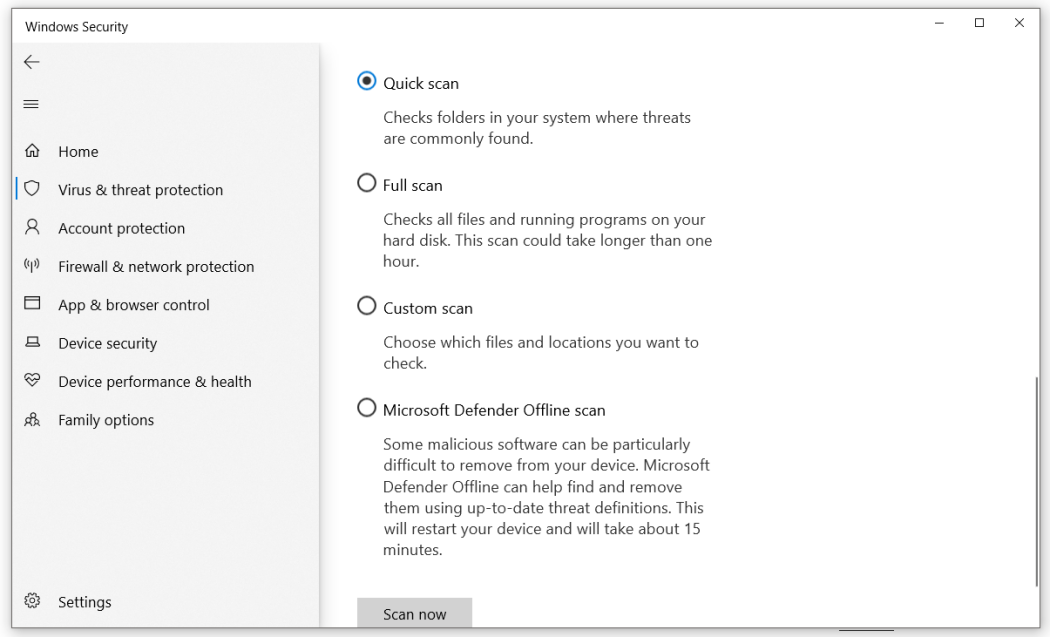
Image source: PCMag
How to Repair System Damage After the Virus Is Gone
Removing the malware is only half the battle. Malicious software often leaves behind "scars"—corrupted system files, disabled updates, or modified network settings.
Repairing Corrupted System Files
Windows includes two powerful command-line tools to fix OS damage. Open Command Prompt as an Administrator and run these in order:
-
DISM /Online /Cleanup-Image /RestoreHealth: This connects to Windows Update to download and replace corrupted system components. -
sfc /scannow: The System File Checker verifies the integrity of all protected system files and repairs them using the local cache.
Resetting Your Hosts File
The "Hosts" file is a plain text file used by the OS to map hostnames to IP addresses. Malware often adds entries here to redirect your browser away from security update sites (like Microsoft.com) and toward phishing pages. Ensure your Hosts file is reset to its default state to restore proper network routing.
When Should You Use the Nuclear Option?
There are scenarios where a device can never be fully trusted again. If you have been a victim of a targeted ransomware attack or if a rootkit was detected in your system firmware, a full factory reset is the most secure path forward.
The Case for a Full Factory Reset
A factory reset wipes your entire drive and reinstalls the operating system from scratch. While time-consuming, it is the only way to ensure that no dormant scripts remain in obscure system directories. Security experts often recommend this "nuclear option" if sensitive financial data or corporate secrets were stored on the infected machine.
How to Back Up Safely Before a Wipe
Do not simply copy your entire "User" folder to an external drive, as you may inadvertently back up the malware. Instead, manually select only essential documents, photos, and videos. Avoid backing up any executable files (.exe, .msi, .scr) or compressed archives (.zip, .rar) that you didn't create yourself.
How to Secure Your Accounts and Prevent Re-infection
Once the device is clean, you must pivot from technical repair to account hygiene. Malware often includes keyloggers designed to steal your credentials.
The Post-Removal Password Audit
Change every password for your sensitive accounts (banking, email, social media). Crucially, do this from a different, clean device or only after you are 100% certain your primary device is restored. If you change passwords while the keylogger is still active, the attacker will simply receive your new credentials.
Enabling Hardware-Based 2FA
Move beyond SMS-based two-factor authentication, which can be intercepted via SIM swapping. Use an authenticator app (like Google Authenticator) or a physical security key (like a YubiKey). These methods ensure that even if an attacker has your password, they cannot access your account without physical possession of your second factor.
Reporting the Incident
If you believe your personal identity was compromised, report the incident to the appropriate authorities. In the United States, you can use IdentityTheft.gov to create a recovery plan and ReportFraud.ftc.gov to help law enforcement track the malware's origin.
The Bottom Line
Malware removal is a multi-step process that requires patience and a structured approach. By following these key takeaways, you can restore your device to a trusted state:
- Isolate the device immediately by disconnecting from the internet to stop data theft.
- Use Safe Mode to run scans without interference from active malicious processes.
- Leverage built-in tools like Windows Defender Offline for deep-seated infections.
- Address the Sync Trap by clearing browser cloud data to prevent re-infection.
- Repair system damage using SFC and DISM commands after the threat is removed.
- Audit your accounts and enable hardware-based 2FA to secure your digital identity.
For your next step, perform a full system scan using the Microsoft Safety Scanner to ensure no remnants of the infection remain on your drive.
Frequently Asked Questions
- Can I remove malware myself for free?
- Yes, most malware can be removed using free, built-in tools. Windows Defender, the Malicious Software Removal Tool (MSRT), and the Microsoft Safety Scanner are all provided at no cost. For stubborn cases, third-party tools like RKill and the free version of Malwarebytes are highly regarded by the security community for their effectiveness.
- Does a factory reset always remove malware?
- In almost all cases, a factory reset will remove malware because it wipes the storage drive where malicious files reside. However, extremely rare and sophisticated threats, such as BIOS/UEFI rootkits, can survive a reset by hiding in the motherboard's firmware. For the average user, a full drive wipe and OS reinstallation is a top-tier security measure.
- How do I know if the malware is actually gone?
- You can be reasonably certain the malware is gone if multiple scans from different reputable engines (e.g., Defender and Malwarebytes) return clean results. Additionally, monitor your system for the return of original symptoms; if your CPU usage stabilizes and your browser settings remain unchanged, the cleanup was likely successful.
- What is the difference between a virus and malware?
- Malware is an umbrella term that stands for "malicious software." It includes viruses, trojans, ransomware, spyware, and adware. A virus is a specific type of malware that has the ability to self-replicate by attaching itself to other legitimate programs. While all viruses are malware, not all malware is a virus.
- Why does my antivirus keep finding the same threat after I delete it?
- This is often caused by a "Sync Trap" or a scheduled task. If your browser is syncing malicious extensions to the cloud, it will re-download them every time you open the app. Alternatively, the malware may have created a "Scheduled Task" in Windows that triggers a re-download of the payload at specific intervals. You must clear your cloud sync and check the Task Scheduler to stop this loop.
-
Topic: Best way to get rid of virus/malware that's not being ...https://www.reddit.com/r/antivirus/comments/1jd9s0f/best_way_to_get_rid_of_virusmalware_thats_not/
-
Topic: Remove specific prevalent malware with Windows ...https://support.microsoft.com/en-us/servicing/os/windows/2021/01/remove-specific-prevalent-malware-with-windows-malicious-software-removal-tool-kb890830
-
Topic: MALWARE: What's The ULTIMATE Removal Procedure?? - Microsoft Q&Ahttps://learn.microsoft.com/en-us/answers/questions/4066362/malware-what-s-the-ultimate-removal-procedure

How to Run a Free Viren Scan to Clean Your Computer Right Now
Suspect a virus? Learn how to run a free viren scan, use multi-engine tools, and remove persistent malware from Windows, Mac, and mobile devices.


How to Safely Remove a Bug Inside Your Screen Without Damaging the Panel
Learn how to safely remove a bug inside your screen without damage. Fix live insects or dead thrips in monitors, laptops, and TVs today.


How to Safely Remove a Thunderbug From Your Computer Monitor Without Damaging the Screen
Learn how to remove thrips or thunderbugs from your computer screen without damage. Use the flashlight method, suction, and vibration techniques.