
How to Run a Free Viren Scan to Clean Your Computer Right Now
If you suspect an infection, the most effective first step is to disconnect from the internet to prevent data exfiltration. For Windows users, running a Microsoft Defender Offline Scan is widely considered one of the most reliable methods for detecting deep-seated malware like rootkits. For individual suspicious files, multi-engine tools like Jotti or VirusTotal allow you to check a file against 20+ antivirus engines simultaneously without installing new software.
What to Do When You Suspect a Virus
Discovering that your computer is behaving erratically can be a stressful experience. Whether it is a sudden drop in performance, unexpected pop-up advertisements, or unauthorized emails being sent from your account, these are classic indicators that a "viren scan" (virus scan) is necessary. However, not all scans are created equal. A quick file check might miss the sophisticated malware that embeds itself deep within your operating system's kernel.
According to security experts at Security.org , common signs of infection include system crashes, slow processing speeds, and the appearance of new, unfamiliar desktop icons. Before you begin the scanning process, it is vital to distinguish between a surface-level scan and a deep-system clean. A surface scan looks at active memory and common folders, while a deep clean examines every sector of your hard drive and the boot records that load before the operating system even starts.
How to Run a Viren Scan Without Downloading New Software
Many users are hesitant to download new antivirus software because they fear the software itself might be a "PUP" (Potentially Unwanted Program) or that it will further slow down an already struggling machine. Fortunately, modern operating systems come equipped with robust tools that are often sufficient for initial detection and removal.
Why the Windows Defender Offline Scan Is a Top Choice
Standard antivirus programs run alongside your operating system. The problem is that sophisticated malware, particularly rootkits, can hide from the operating system by intercepting calls to the hard drive. The Microsoft Defender Offline Scan solves this by booting into a trusted environment outside of the normal Windows kernel. This allows the scanner to see files that would otherwise be invisible while Windows is running.
The Florida A&M University ITS department specifically recommends the Offline Scan for victims of phishing or those who suspect their system has been compromised at a deep level. Because the scan requires a restart and takes place before the full OS loads, it bypasses the malware's ability to defend itself.
How to Trigger a Deep Scan on Windows 11
To initiate this process, follow these steps:
- Click the Start button and type "Windows Security."
- Select Virus & threat protection from the sidebar.
- Under the "Current threats" section, click on Scan options .
- Select the radio button for Microsoft Defender Offline scan and click Scan now .
- Your computer will prompt you to save any work before it restarts into the scanning environment.
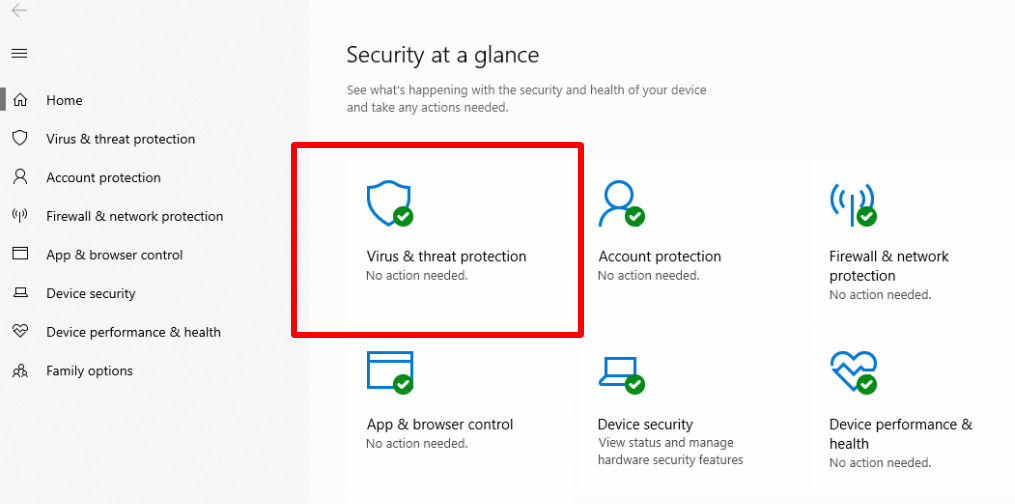
Image source: HappyFox
Which Online Viren Scan Tool Should You Choose?
The term "online virus scanner" is often a marketing misnomer. A website cannot technically reach into your local C: drive and scan your files through a browser due to security sandboxing. When a company offers an "online scan," they are typically offering one of two things: a thin client or a web-based file uploader .
The Difference Between Browser-Based Scanners and Thin Clients
Thin clients, such as the ESET Online Scanner or Trend Micro HouseCall, are small executable files that you download and run once. They do not install a full suite of background services. Instead, they download the latest virus definitions from the cloud, perform a thorough system check, and then can be easily deleted. This is a popular choice for users who want a second opinion without the overhead of a permanent antivirus installation.
| Tool Name | Download Required? | Best For | File Limit |
|---|---|---|---|
| VirusTotal | No (Web Upload) | Single suspicious files/URLs | 650 MB |
| Jotti's Malware Scan | No (Web Upload) | Privacy-conscious file checks | 250 MB per file |
| ESET Online Scanner | Yes (Thin Client) | Full system deep-cleaning | No limit |
| Malwarebytes AdwCleaner | Yes (Standalone) | Removing adware and toolbars | No limit |
How to Use Multi-Engine Scanners for Suspicious Files
If you have downloaded a specific file—such as a software crack, a PDF from an unknown sender, or a strange email attachment—you should not rely on just one antivirus engine. Different companies use different detection algorithms, and what one misses, another may catch.
Why Scanning One File with 20 Engines Is Better Than One
Tools like Jotti's Malware Scan utilize upwards of 20 different antivirus engines (including Bitdefender, Kaspersky, and ESET) to analyze a single file. This provides a significantly broader detection net. If 19 engines say a file is clean but one flags it as a "Trojan.Generic," you have gained valuable insight that a single-engine scan would have missed.
The Privacy Trade-off You Need to Know Before Uploading
How to Interpret Conflicting Viren Scan Results
It is common to see a result where 2 engines flag a file as "Infected" while 50 others say it is "Clean." This leads to the inevitable question: Is the file actually dangerous, or is this a false positive?
How to Spot a False Positive Result
A false positive occurs when a scanner identifies safe code as malicious because it shares characteristics with known threats. This is particularly common with "Heuristic" analysis, which looks for suspicious behavior rather than a specific "fingerprint" or signature. If the detection label includes words like Generic, Heuristic, Suspicious, or PUP , there is a higher probability of a false positive, especially if the file is a niche utility or a game mod.
What to Do When Only One Engine Flags a Threat
If only one engine flags a file, look at which engine it is. Detections from major, well-established vendors like Bitdefender or Microsoft should be taken more seriously than detections from obscure engines. If the file is an executable you just downloaded, the safest course of action is to delete it and find a more reputable source.
Why Does the Virus Keep Coming Back After a Scan?
One of the most frustrating experiences in cybersecurity is performing a successful viren scan, deleting the threats, and then finding the exact same infections a day later. This is known as the "Persistence Problem."
How to Clean Malware from Your Cloud Storage Sync
Modern malware often exploits cloud synchronization services like OneDrive, Dropbox, or Google Drive. If a virus infects a folder that is synced to the cloud, your antivirus might delete the local copy, but the cloud service sees the "deletion" as a change that needs to be reverted, or it simply re-downloads the infected file from another synced device. To fix this, you must temporarily disable cloud syncing, run your scans, and manually check your cloud web interface to ensure the infected files are purged from the "Trash" or "Version History" folders.
How to Clear Malicious Scripts from Your Browser History
Adware and browser hijackers often hide in your browser's cache, cookies, or extensions. A standard system scan might not always look inside the specific database files used by Chrome or Firefox. If you are seeing constant redirects, you should manually reset your browser settings and clear all hosted app data. This removes the scripts that trigger the re-infection every time you open your browser.
Advanced Tools for When a Standard Viren Scan Fails
When consumer-grade tools fail to find the culprit, IT professionals turn to "The Tech's Toolkit." These tools require more manual interpretation but offer a level of visibility that automated scanners lack.
Using Autoruns to Find Hidden Malware in Startup Folders
Malware stays active by ensuring it starts every time your computer boots. While the "Startup" tab in Task Manager shows some of these, it misses dozens of other locations like Registry keys, Winlogon entries, and Scheduled Tasks. Autoruns , a utility from Microsoft's Sysinternals suite, shows you every single thing that starts automatically. If you see an entry with no description, no publisher, and a strange file path (like `AppData/Local/Temp`), you have likely found the source of your infection.
How to Verify a Scan Is Actually Running in Task Manager
Sometimes, malware will "kill" an antivirus process as soon as it starts, making it look like the scan finished instantly when it actually never ran. To verify your scan is working, open
Task Manager
(Ctrl+Shift+Esc) and look for the process name. For Windows Defender, look for
MsMpEng.exe
(Antimalware Service Executable). You should see significant CPU and Disk usage, which serves as "proof of work" that the scanner is actively reading your files.
Does Your Smartphone Need a Viren Scan?
The landscape for mobile security is vastly different from desktop computing. The necessity of a scan depends entirely on your device's operating system.
- iOS (iPhone and iPad)
- Traditional virus scanners do not exist for iOS because the system is "sandboxed." One app cannot see the data of another app. As long as you do not "jailbreak" your phone, you are generally protected from traditional viruses, though you are still vulnerable to phishing and malicious websites.
- Android
- Android is more open, which makes it more susceptible to malware, especially if you "sideload" apps from outside the Google Play Store. Google Play Protect is a built-in scanner that checks your apps daily, but for a second opinion, standalone apps from Bitdefender or Malwarebytes are highly regarded for their detection rates.
Frequently Asked Questions
Can I run a viren scan without downloading any software?
You can scan individual files or URLs without downloading software by using web-based tools like VirusTotal or Jotti. However, a full system scan—which checks your entire hard drive, memory, and registry—cannot be performed purely through a web browser. To scan your whole computer, you must use either the built-in Windows Defender or a "thin client" scanner like ESET Online Scanner, which requires a small, one-time executable download.
How long does a full viren scan usually take?
The duration of a scan depends on the size of your storage and the speed of your drive (SSD vs. HDD). A "Quick Scan" typically focuses on active memory and common infection points, taking between 2 to 10 minutes. A "Full Scan" examines every single file on your drive and can take anywhere from 30 minutes to several hours. If you have multiple terabytes of data, it is best to start a full scan before you go to bed.
Is VirusTotal safe for my personal documents?
No, VirusTotal is not intended for private or sensitive documents. When you upload a file, it is shared with dozens of antivirus companies and security researchers to help improve global detection rates. If you upload a tax return or a private contract, it could potentially be viewed by third parties. Only use these services for suspicious executables, scripts, or non-sensitive public files.
What is a top-rated free viren scan for a slow PC?
If your computer is already struggling, you want a scanner with low overhead. Malwarebytes AdwCleaner is an excellent choice because it is a tiny, standalone file that doesn't install background services. Another strong option is the ESET Online Scanner , which is known for being resource-efficient while providing a very high detection rate compared to other free tools.
Can a virus hide from a viren scan?
Yes, certain types of malware called "Rootkits" are designed to hide from the operating system itself. They do this by modifying the system's internal functions so that when a scanner asks "What files are in this folder?", the rootkit intercepts the question and removes itself from the list. This is why the Windows Defender Offline Scan is so important; it runs before the rootkit has a chance to start its cloaking mechanisms.
Your Clean PC Checklist
Maintaining a secure system is an ongoing process rather than a one-time event. Use this checklist to ensure your computer remains clean and optimized:
- Start with an Offline Scan: Use Windows Defender Offline for deep-rooted threats that hide during normal operation.
- Use Multi-Engine Tools: Upload suspicious individual files to Jotti or VirusTotal for a broader detection net.
- Respect Privacy Limits: Never upload sensitive personal documents to cloud-based scanners.
- Check Cloud Sync: If a virus persists, temporarily disable OneDrive or Dropbox to prevent re-infection.
- Verify with Task Manager: Ensure your antivirus process is actually consuming resources during a scan.
- Clean the Browser: Manually clear your cache and cookies if you experience persistent adware or redirects.
- Audit Startup Items: Use Sysinternals Autoruns to find malicious scripts hiding in obscure boot locations.
For the best results, schedule a full system scan once a week and always keep your operating system updated to the latest security patch.
-
Topic: Free Virus Scanner | Check for malware and threats in 2026https://www.malwarebytes.com/solutions/virus-scanner
-
Topic: How to Run A Virus Scanhttps://www.famu.edu/administration/campus-services/information-technology-services/about-its/helpdesk/how-to-virus-scan.php
-
Topic: HouseCall - Free Online Virus Scanhttps://www.trendmicro.com/en_ae/forHome/products/housecall.html

How to Remove Malware and Restore Your Device to Safety
Learn how to remove malware from Windows, Mac, and mobile. Step-by-step guide to fixing slow devices and stubborn infections safely.

How to Use a File Checker to Scan for Viruses and Repair System Errors
Scan suspicious files with top online file checker tools. Compare VirusTotal, Internxt, and MetaDefender for large files and data privacy.


VTchromizer is Now VT4Browsers and Here Is How to Use It
Learn how to use VTchromizer, now VT4Browsers + Google TI. Scan URLs and files with VirusTotal, manage API quotas, and protect your browser today.