
How to Use a File Checker to Scan for Viruses and Repair System Errors
sfc /scannow
command in your Admin Command Prompt to repair system files.
In an era where digital threats evolve daily, a reliable file checker is a fundamental tool for any internet user. Whether you have just downloaded a suspicious email attachment or your computer is behaving erratically due to potential system corruption, knowing which tool to use can prevent data loss and security breaches. This guide explores the different types of file checkers, from multi-engine malware scanners to native operating system repair utilities.
Image source: NordVPN
Why Multi-Engine Scanning Offers Stronger Protection Than a Single Antivirus
Most users rely on a single antivirus program installed on their computer. While modern security suites are highly capable, they are not infallible. A single engine might miss a "zero-day" threat—a brand-new virus that hasn't yet been added to that specific provider's database. This is where multi-engine file checkers provide a significant advantage.
Tools like VirusTotal aggregate the detection capabilities of over 70 different antivirus engines, including industry leaders like Kaspersky, Bitdefender, and Microsoft. According to VirusTotal , this approach ensures that if one engine misses a threat, others are likely to catch it. This "herd immunity" for files significantly reduces the window of opportunity for malware authors.
Similarly, MetaDefender Cloud utilizes a multi-scanning approach with 20+ engines. Beyond simple detection, MetaDefender offers a feature known as Deep CDR (Content Disarm and Reconstruction). This technology doesn't just scan for known threats; it strips potentially malicious embedded objects—such as macros in a Word document or scripts in a PDF—and reconstructs a clean version of the file for the user.
Top Online File Checkers for Quick Malware Analysis
When you need a quick second opinion on a file, several web-based platforms stand out as top-rated choices. Each has specific strengths depending on your file size and the depth of analysis required.
- VirusTotal: Widely regarded as the industry standard, it offers the most comprehensive engine coverage and detailed behavioral reports.
- MetaDefender: Ranks among the top for enterprise-grade features, particularly its ability to "sanitize" files through CDR.
- Jotti’s Malware Scan: A reliable, community-focused tool that scans files against 15+ engines. It is a popular choice for users who want a simple, no-frills interface. According to Jotti , all uploaded files are shared with antivirus companies to improve global detection rates.
- Filescan.io: A notably innovative platform that focuses on adaptive threat analysis. It is particularly useful for identifying the "Indicators of Compromise" (IOCs) that a file might leave behind.
How to Interpret Your Scan Results Without Panicking
One of the most common points of confusion for users is seeing a "1/70" or "2/70" detection rate on VirusTotal. Does this mean the file is dangerous? Not necessarily. In the cybersecurity world, these are often "false positives."
Smaller or more obscure antivirus engines sometimes use overly aggressive heuristics that flag safe files as suspicious. If the major engines (like Symantec, McAfee, or Sophos) report the file as clean, a single detection from an unknown engine is usually a false alarm. However, if you see detections from five or more reputable engines, the file should be treated as high-risk and deleted immediately.
What to Do When Your File Is Too Big to Upload
A major limitation of most free online file checkers is the file size cap. If you are trying to scan a 2GB game installer or a large video file, you will likely hit a wall. Most standard web interfaces limit uploads to between 100MB and 650MB.
| Tool Name | Max File Size | Engine Count | Best For |
|---|---|---|---|
| VirusTotal | 650MB | 70+ | Maximum Accuracy |
| Internxt | 1GB | 1 (ClamAV) | Large, Private Files |
| Jotti | 250MB | 15+ | Quick Second Opinion |
| Filescan.io | 100MB | Adaptive | Behavioral Analysis |
Use Internxt for Files Up to 1GB
For users dealing with larger documents or media files, Internxt offers a generous 1GB limit. While it uses fewer engines than VirusTotal, it prioritizes user privacy. Internxt claims a "zero-knowledge" approach, meaning they do not store or view the files you upload for scanning. This makes it a strong contender for users who need to check relatively large files without compromising their data privacy.
The Hash Verification Trick for Files Over 2GB
If your file exceeds even the 1GB limit, you don't actually need to upload the entire file to check its safety. Every file has a unique "digital fingerprint" called a hash (usually SHA-256). If someone else has already scanned that file, its hash will be in the database of tools like VirusTotal.
To generate a hash on Windows, open PowerShell and type the following command:
Copy the long string of letters and numbers that appears, go to the "Search" tab on VirusTotal, and paste it. If the file is a known piece of software or a known virus, the results will appear instantly.
Who Can See the Files You Upload to a Public Scanner
It is crucial to understand the "hidden cost" of free file checkers. Most public scanners operate on a data-sharing model. When you upload a file to VirusTotal or Jotti, you are essentially donating that file to the global security research community. Security companies download these files to study new malware strains and improve their engines.
Warning: Never upload sensitive personal documents—such as tax returns, legal contracts, or private photos—to public scanners. If a document contains your Social Security number or home address, a researcher somewhere in the world could theoretically access that information. For sensitive files, rely on a local, offline antivirus scan.
Zero-Knowledge Alternatives for Sensitive Documents
If you must scan a sensitive document online, look for tools that explicitly state they do not share data. As mentioned, Internxt is a popular choice for this. However, the most secure method for private data remains a local scan. Modern operating systems like Windows 11 have built-in protection (Windows Security) that can scan any file on your hard drive without it ever leaving your machine.
How Behavioral Analysis and Sandboxing Catch New Malware
Static scanning (looking at the file's code) is only half the battle. Advanced threats often use "obfuscation" to hide their malicious intent from signature-based scanners. To counter this, top-tier file checkers use behavioral analysis and sandboxing.
A sandbox is a secure, isolated virtual environment where the file is actually executed. The system then watches what the file *does*. Does it try to modify registry keys? Does it attempt to connect to a suspicious IP address in another country? Does it start encrypting your files? Hybrid Analysis , which uses the CrowdStrike Falcon Sandbox, is an exceptionally robust tool for this type of deep dive.
What Are Indicators of Compromise?
When a file is analyzed in a sandbox, the report will often list "Indicators of Compromise" (IOCs). These are technical breadcrumbs that suggest a system has been breached. Common IOCs include specific file paths created by the malware, unique registry changes, and outbound network connections to known command-and-control servers. For IT professionals, these IOCs are vital for cleaning an infected network.
How to Fix Corrupted Windows Files with SFC Scannow
Sometimes, the "file checker" you need isn't for a new download, but for your own operating system. If Windows is crashing, showing Blue Screen errors, or if system icons are missing, your core system files might be corrupted. Windows includes a native tool for this: the System File Checker (SFC).
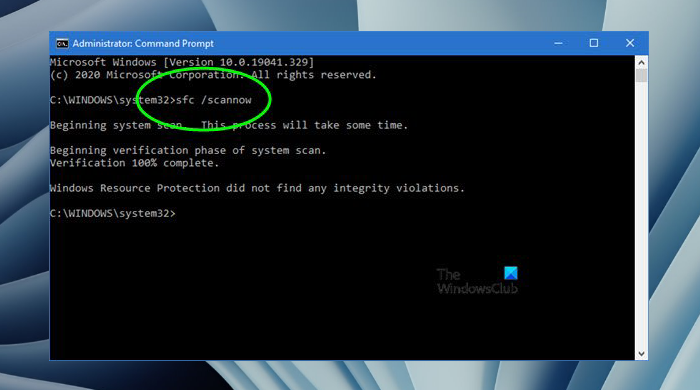
Image source: The Windows Club
sfc /scannow
and press Enter. The system will begin scanning all protected system files.
What to Do if SFC Finds Corrupt Files but Cannot Fix Them
Occasionally, SFC will report that it "found corrupt files but was unable to fix some of them." This usually happens because the source files used for the repair are themselves corrupted. In this case, you need to use the DISM (Deployment Image Servicing and Management) tool.
Run the following command in the same Admin Command Prompt:
DISM /Online /Cleanup-Image /RestoreHealth
. This command connects to Windows Update to download clean versions of the corrupted files. Once DISM finishes, run
sfc /scannow
again, and it should now be able to complete the repairs.
How to Verify Game File Integrity on Steam
For gamers, a "file checker" often refers to the process of fixing a game that won't launch or keeps crashing. Steam has a built-in utility that compares your local game files against the official versions on Steam's servers. If a file is missing or corrupted (perhaps due to a failed update), Steam will automatically re-download just that specific file.
To use this, right-click any game in your Steam Library, select Properties > Installed Files , and click Verify integrity of game files . This is a highly impactful troubleshooting step that saves you from having to re-install the entire game.
Why You Might See a File Not Found Error
If you are using an advanced tool like Autoruns to check for startup viruses, you might see entries highlighted in red labeled "File Not Found." This doesn't necessarily mean you have a virus. Often, it is simply a "registry remnant"—a piece of a program you uninstalled that didn't clean up after itself properly. While messy, these are generally harmless unless they are associated with a known malware path.
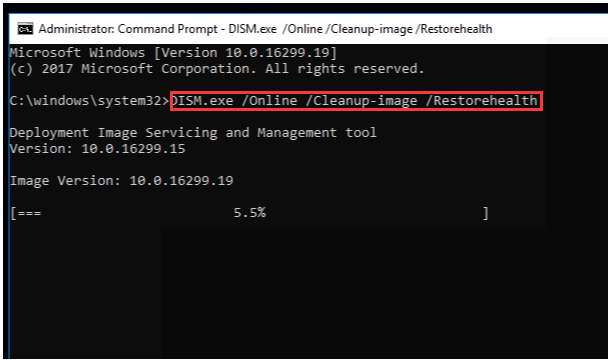
Image source: MiniTool Partition Wizard
Why Some ZIP Files Fail to Scan
Online file checkers sometimes struggle with compressed archives (ZIP, RAR, 7Z). If a ZIP file is password-protected, the scanner cannot "see" inside to check the contents. Furthermore, some malware authors use "nested archives" (a ZIP inside a ZIP inside a ZIP) to exhaust the scanner's resources—a technique known as a "decompression bomb." If a scanner fails on a ZIP file, it is safer to extract it in a local sandbox or simply avoid it entirely.
Frequently Asked Questions
Q: Is VirusTotal safe for private documents like tax returns?
A: No, it is not recommended for private documents. VirusTotal shares uploaded files with the global security community. While this helps improve antivirus engines, it means that researchers can potentially view the contents of your file. For sensitive data, use a local antivirus scanner or a zero-knowledge tool like Internxt.
Q: Can I scan a file for viruses without downloading it first?
A: Yes, most top-tier file checkers allow you to scan a URL. Instead of downloading the file, copy the download link and paste it into the "URL" tab on VirusTotal or MetaDefender. The service will download the file to its own servers and scan it there, keeping your computer safe from the initial contact.
Q: Why did only one antivirus engine flag my file as a threat?
A: This is usually a "false positive." Smaller antivirus engines often use aggressive detection methods that flag harmless files. If the major, well-known engines report the file as clean, it is likely safe. However, if you are unsure, you can use a sandbox tool like Hybrid Analysis to see how the file behaves when opened.
Q: What is the difference between SFC and a malware scanner?
A: A malware scanner (like VirusTotal) looks for malicious code in new files you've downloaded. The Windows System File Checker (SFC) is a repair tool that checks your existing Windows operating system files for corruption or accidental deletion. SFC does not scan for viruses; it only ensures your OS is healthy.
Q: How do I check a file that is larger than 1GB?
A: For files over 1GB, the most efficient method is a Hash Search. Generate a SHA-256 hash of the file locally using PowerShell, then search for that hash on VirusTotal. If the file has been scanned by anyone else in the world, you will see the results instantly without having to upload the massive file yourself.
Final Thoughts on Choosing the Right File Checker
Selecting the appropriate tool depends entirely on your specific needs—whether you are prioritizing depth of analysis, file size, or data privacy. By following these key takeaways, you can navigate the digital landscape with greater confidence.
- Use VirusTotal for the most comprehensive malware detection using 70+ engines.
- Choose Internxt when you need to scan files between 650MB and 1GB while maintaining privacy.
- Perform a Hash Search for files over 1GB to save time and bandwidth.
- Run SFC /scannow to fix Windows system errors and crashes, not for scanning new downloads.
- Assume public uploads are shared with researchers and avoid uploading sensitive personal documents.
- Check the "Behavior" tab on advanced scanners to see what a file actually does in a sandbox.
- Don't ignore SFC errors; if it fails, use the DISM command to repair the underlying system image.
For your next suspicious download, try generating a file hash locally and searching for it before committing to a full upload.

How to Run a Free Viren Scan to Clean Your Computer Right Now
Suspect a virus? Learn how to run a free viren scan, use multi-engine tools, and remove persistent malware from Windows, Mac, and mobile devices.

How Scamalytics Uses IP Fraud Intelligence to Protect Online Businesses
Learn how Scamalytics detects fraud using IP intelligence, VPN checks, and fraud scores. Understand your score and how to integrate the API.

How to Use the inurl: Search Operator for SEO Audits and Site Security
Learn to use the inurl: operator for SEO audits and security. Fix errors and master advanced search strings for 2026.
