How to Retrieve Deleted Text Messages on Your Android Phone
If you just deleted a message, immediately enable Airplane Mode to prevent new data from overwriting the deleted file. Next, check the Trash folder in your messaging app (common on Samsung devices) or look in the Archive section of Google Messages. If the texts are gone from the app, your next step is to restore a Google One or Samsung Cloud backup . Without a backup, you may need to use PC-based recovery software, though success rates vary depending on how much you have used the phone since the deletion.
Losing an important text message can be a stressful experience, whether it contained critical work information, a cherished memory, or essential travel details. On Android, the process of recovering these messages is not always straightforward because the operating system handles data deletion by marking the space as "available" rather than immediately erasing the content. This creates a narrow window of opportunity where recovery is possible.
In this guide, we will explore every viable method for retrieving your lost data, from simple app settings to advanced cloud restoration and third-party tools. By following these steps, you can maximize your chances of getting your conversations back before they are permanently overwritten by new system data.
Immediate Steps to Take After Losing Your Messages
The moment you realize a message is missing, your phone becomes a ticking clock. Android uses flash storage, which manages data through a process called "wear leveling." When you delete a file, the phone doesn't actually scrub the bits and bytes from the memory chip. Instead, it simply removes the "pointer" to that data and tells the system that the space is now free to be used for something else.
If you continue to use your phone—taking photos, downloading apps, or even browsing the web—the system will eventually write new data over that "free" space. Once that happens, the original message is gone forever. This is why enabling Airplane Mode and minimizing phone usage is widely considered a top choice for initial crisis management.
Beyond stopping data overwriting, you should also avoid restarting your phone repeatedly. While a single reboot is usually fine, excessive system activity during startup can trigger background maintenance tasks (like the TRIM command) that may permanently clear out deleted data blocks. Keep the device powered on but idle while you prepare your recovery strategy.
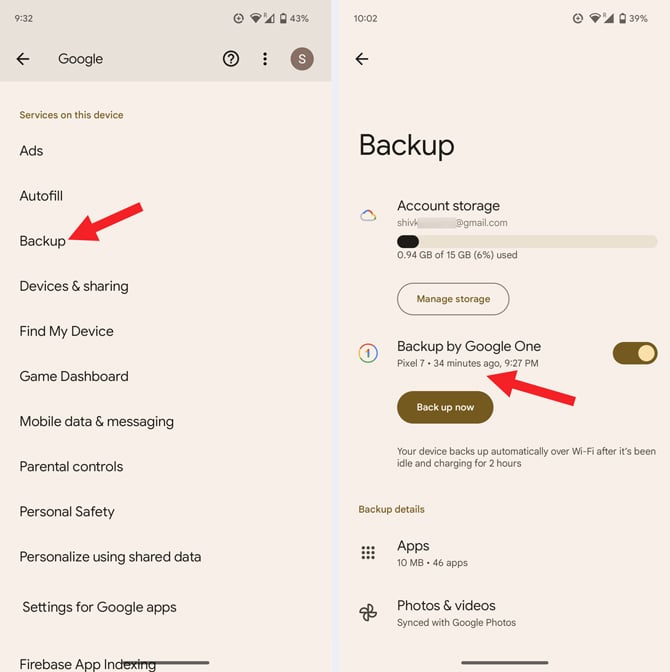
Image source: Techlicious
Searching for Messages in App Trash and Archive Folders
Before jumping into complex technical solutions, it is essential to check if the messages were truly deleted or simply moved. Many modern Android messaging apps include safety nets that users often overlook.
Accessing the Samsung Messages Trash Folder
If you use a Samsung Galaxy device, you are in luck. Samsung Messages includes a dedicated "Trash" or "Recycle Bin" feature that functions similarly to the one on a Windows PC. When you delete a conversation, it isn't erased immediately; instead, it is moved to this folder for a temporary period.
- Open the Samsung Messages app on your device.
- Tap the three-dot menu icon (or the "More" option) usually located in the top-right corner or above the conversation list.
- Select Trash from the dropdown menu.
- Browse the list for your missing messages. If you find them, long-press the conversation and select Restore .
According to Samsung Support , items in the Trash are typically kept for 30 days before they are permanently purged. If you are past this window, the Trash folder will likely be empty, and you will need to move on to cloud recovery methods.
Finding Hidden Conversations in Google Messages Archive
Google Messages, the default app on Pixel phones and many other modern Android devices, handles deletion differently. Historically, Google Messages did not have a trash folder, meaning a "Delete" action was permanent. However, many users accidentally Archive messages instead of deleting them. Archiving hides the conversation from your main inbox but keeps the data on your phone.
- Open Google Messages .
- Tap your Profile Icon in the top-right corner.
- Select Archived .
- If your conversation appears here, simply long-press it and tap the Unarchive icon (a folder with an upward arrow) to return it to your main inbox.
It is important to note that while some regions have seen a "Trash" feature rollout for Google Messages, it is not yet universal. If you don't see a Trash option and the message isn't in the Archive, the app has likely removed the database entry entirely.
Restoring Android Messages from Cloud Backups
If the messages are not in a trash folder, your most reliable path to recovery is a cloud backup. Most Android phones are configured to back up to Google One (Google Drive) by default, while Samsung users often have an additional layer of protection via Samsung Cloud.
Using Google One Backups and the Spare Phone Strategy
Google One backups are highly effective but come with a significant catch: you cannot restore only your messages. To get your data back from a Google backup, you typically have to perform a full factory reset of your phone and restore the backup during the initial setup process.
The "Spare Phone" Workflow: To avoid wiping your primary device, many experts recommend using a spare or old Android phone. By signing into your Google account on a secondary device and choosing to "Restore from Backup," you can download your messages onto that phone. Once restored, you can read the messages, take screenshots, or use a third-party app like SMS Backup & Restore to move them back to your main phone. This ranks among the top strategies for safe data retrieval.
To check if you have a backup available:
- Go to Settings > Google > Backup .
- Check the "Last backup" timestamp to see if it predates the deletion of your messages.
- If a valid backup exists, you can proceed with the factory reset or the spare phone method.
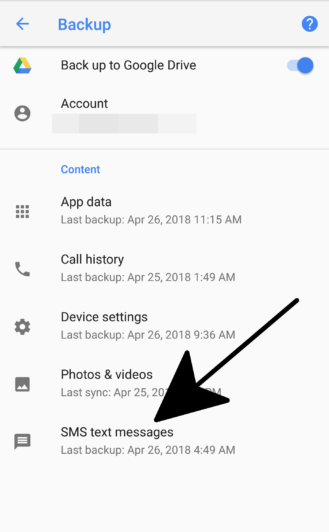
Image source: AnyRecover
Performing Selective Recovery with Samsung Cloud
Samsung Cloud offers a much more user-friendly experience than Google Drive for message recovery. It allows for selective restoration, meaning you can choose to restore only your "Messages" without affecting your photos, apps, or other settings.
- Open Settings and tap on your Samsung Account name at the top.
- Select Samsung Cloud .
- Tap Restore data .
- Select the most recent backup of your phone.
- Uncheck all items except for Messages .
- Tap Restore and wait for the process to complete.
This method is widely regarded as one of the best features of the Samsung ecosystem, as it minimizes downtime and avoids the risks associated with a factory reset.
Using External Tools and Software for Deep Recovery
When no cloud backup exists and the trash folders are empty, you may need to look toward external solutions. These methods involve connecting your phone to a computer and using specialized software to scan the raw storage of the device.
Transferring Data via Samsung Smart Switch and SD Cards
Samsung Smart Switch is not just for moving to a new phone; it is also a powerful backup and recovery tool. If you have previously used Smart Switch to back up your phone to a PC, Mac, or even an SD card, you can retrieve your messages from those local files.
Using an OTG (On-The-Go) adapter , you can even connect a USB flash drive directly to your phone. If you have a Smart Switch backup on that drive, the app will recognize it and allow you to pull the message database back onto your device. This is a significant advancement for users who prefer local storage over cloud services.
Connecting to a PC for Third-Party Data Recovery
There are numerous third-party applications—such as FoneLab, Dr.Fone, and Enigma Recovery—that claim to retrieve deleted Android texts. While these tools can be effective, they require a specific technical setup to work.
The USB Debugging Prerequisite: For a computer to "see" the deleted database entries on your phone, you must enable USB Debugging . This is a developer-level setting that grants the PC deep access to the Android file system. According to the Microsoft Tech Community , this is the most common hurdle users face when attempting PC-based recovery.
To enable USB Debugging:
- Go to Settings > About Phone .
- Tap Build Number seven times until you see "You are now a developer."
- Go back to Settings > System > Developer Options .
- Toggle on USB Debugging .
Understanding the Limits of Recovery Without a Backup
It is important to manage expectations when attempting to recover data without a backup. While software can sometimes find "ghost" data, the success rate drops significantly every hour the phone remains in use. The following table highlights the probability of success for different scenarios.
| Recovery Method | Success Rate | Requires PC? | Wipes Phone? |
|---|---|---|---|
| App Trash Folder | High | No | No |
| Samsung Cloud | High | No | No |
| Google Drive | High | No | Yes |
| PC Software (No Root) | Moderate | Yes | No |
| PC Software (With Root) | Moderate | Yes | No* |
| Carrier Logs | Very Low | No | No |
*Rooting itself may require a bootloader unlock, which wipes the device.
Contacting Your Carrier: A common question is whether mobile carriers like Verizon, AT&T, or T-Mobile can provide copies of deleted texts. In almost all cases, the answer is no. While carriers keep metadata (the time, date, and recipient of a text) for billing and legal purposes, they rarely store the actual content of SMS messages for more than a few days, if at all, due to privacy regulations. Unless you have a court order or subpoena, this is rarely a viable path for personal recovery.
Establishing a Reliable Backup Strategy for the Future
The best way to handle data loss is to ensure it never becomes a permanent problem. Relying solely on the default system backup is often not enough, as those backups can be infrequent or difficult to restore selectively.
Consider these three layers of protection:
- Enable Google One Auto-Backups: Ensure your phone is backing up daily over Wi-Fi. You can check this in your Google account settings.
- Use a Secondary Backup App: Applications like SMS Backup & Restore can be scheduled to automatically email you a copy of your texts or upload them to a separate cloud service like Dropbox or OneDrive in a readable XML format.
- Manual Local Backups: Once a month, connect your phone to a computer and use a tool like Samsung Smart Switch to create a full local backup. This provides a "hard copy" that doesn't depend on cloud availability.
By implementing these steps, you ensure that even if a message is accidentally deleted and the trash is emptied, you have multiple points of recovery that do not require risky software or factory resets.
The Bottom Line
Recovering deleted text messages on Android is a race against time and data overwriting. Here are the key takeaways to remember:
- Stop using the phone immediately and enable Airplane Mode to protect the deleted data sectors.
- Check the Trash folder in Samsung Messages or the Archive in Google Messages before trying anything else.
- Leverage Samsung Cloud for the easiest selective restoration if you own a Galaxy device.
- Use the "Spare Phone" method for Google Drive backups to avoid wiping your primary device.
- Enable USB Debugging if you decide to use third-party PC recovery software.
- Avoid rooting unless the data is absolutely critical, as it introduces significant security risks.
- Set up a secondary backup app today to prevent future data loss.
Start by checking your app's internal trash folder right now, as this is the fastest and most successful way to get your messages back.
Frequently Asked Questions
How long do deleted texts stay on an Android phone?
If your app has a Trash folder (like Samsung Messages), the texts usually stay there for 30 days. However, if the messages are truly deleted from the system database, they only remain until the storage sector they occupy is needed for new data. This could be anywhere from a few minutes to several days depending on how much you use your phone.
Can I recover deleted texts without a computer?
Yes, provided you have a cloud backup. You can restore messages directly from Samsung Cloud or by performing a factory reset and restoring from Google Drive. If you do not have a backup and the messages are not in a trash folder, recovery without a computer is extremely difficult and often impossible.
Is there a free way to recover deleted messages?
Checking the Trash folder and restoring from Google or Samsung Cloud backups are entirely free methods. Most third-party recovery software will allow you to "scan" for free to see if the messages are there, but they typically charge a fee to actually perform the restoration.
Does Google Drive backup include my SMS messages?
Yes, Google Drive backups include SMS and MMS messages, as well as call history and device settings. However, these are bundled into a single device backup file. You cannot view individual messages inside Google Drive; you can only restore them to a phone during the initial setup process.
Can I recover messages if my screen is broken?
If the phone still powers on and you have previously "trusted" your computer, you can use Samsung Smart Switch or a PC recovery tool to pull the data. If the screen is unresponsive and you haven't enabled USB Debugging, you may need to connect a USB mouse via an OTG adapter to navigate the menus, or have the screen repaired first.
-
Topic: retrieve accidentally deleted text messages - Android ...https://support.google.com/android/thread/313850911/retrieve-accidentally-deleted-text-messages?hl=en
-
Topic: How To Retrieve Deleted Text Messages on ANY Android ...https://www.youtube.com/watch?v=qHcSE8g04aw
-
Topic: Accidentally deleted messages on Android. Any way to get ...https://community.handyrecovery.com/d/132-accidentally-deleted-messages-on-android-any-way-to-get-them-back
How to Access, Manage, and Fix Internal Storage on Your Device
Learn how to access internal storage, clear system data, and fix storage full errors on Android and iPhone. Manage WhatsApp bloat and hidden files.


How to Remove or Permanently Delete a Google Account from Your Phone
Learn how to remove a Google account from Android or iPhone, or delete it permanently. Fix FRP locks, remote logouts, and data backup steps.


How to Call Your Voicemail on Any Phone or Carrier
Learn how to call your voicemail on iPhone, Android, or from another phone. Find carrier codes, fix full inboxes, and reset your PIN in minutes.