
How to Set Up and Use Apple Pay on Your iPhone for Every Transaction
- Trigger Wallet: Double-click the side button (Face ID models) or the Home button (Touch ID models).
- Authenticate: Glance at your screen or rest your finger on the Touch ID sensor.
- Tap: Hold the top edge of your iPhone near the contactless reader at the register.
- Confirm: Wait for the "Done" checkmark and a subtle vibration.
Note: Ensure your card is already added to the Wallet app before attempting a transaction.
Mobile payments have transformed from a niche convenience into a standard method of transaction globally. Apple Pay stands out as a top choice for users seeking a blend of security, speed, and privacy. By utilizing Near Field Communication (NFC) technology, your iPhone can replace physical credit cards, transit passes, and even loyalty cards. As of recent data, Apple Pay is accepted at over 85% of U.S. retailers, making it a highly reliable tool for daily commerce.
Adding Credit or Debit Cards to Your Digital Wallet
Before you can tap your phone at a register, you must configure your digital wallet. This process involves more than just entering numbers; it establishes a secure link between your bank and the iPhone's Secure Element—a dedicated chip designed to keep your payment data isolated from the rest of the operating system.
Making Contactless Payments in Physical Stores
The mechanical process of paying in a store is designed to be frictionless, but knowing where the hardware is located can prevent awkward moments at the checkout counter. The NFC antenna on an iPhone is located at the very top edge, near the camera module. For the most consistent results, aim the top of the phone toward the contactless symbol on the payment terminal.
Using Face ID (iPhone X and Later)
For devices without a Home button, the process relies on the side button and facial recognition:
- Double-click the side button on the right of the device.
- Your default card will appear. Glance at the screen to authenticate via Face ID.
- Hold the top of the iPhone within a few centimeters of the contactless reader.
- Keep the phone in place until you see "Done" and a checkmark on the display.
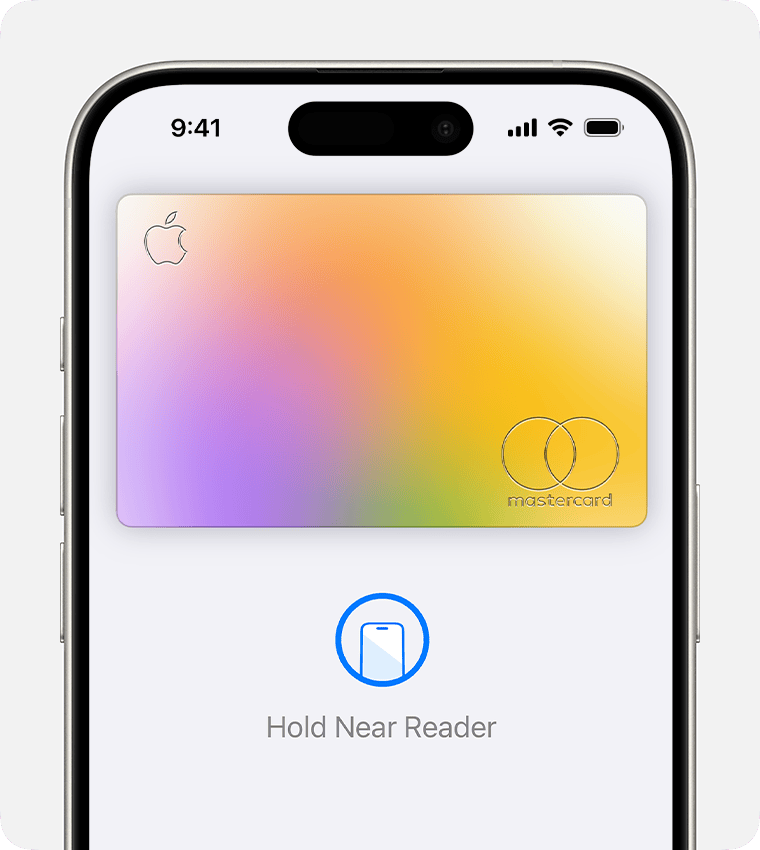
Image source: Apple Support
Using Touch ID (iPhone SE and Older Models)
If your device has a physical Home button, the process is even more streamlined:
- Without clicking the button, rest your finger on the Touch ID sensor.
- While keeping your finger on the sensor, hold the top of the iPhone near the reader.
- The transaction will authorize automatically once the phone is in range.
Completing Purchases in Apps and on the Web
Apple Pay is not limited to physical terminals. It ranks among the top methods for secure online shopping because it eliminates the need to manually type in shipping addresses and card numbers for every purchase. This is facilitated through "tokenization," where a unique code is generated for each transaction, ensuring the merchant never sees your actual card details.
Safari and In-App Checkout
When shopping in an app or on a website using Safari, look for the Apple Pay button. Tapping this button brings up a payment sheet where you can confirm your shipping address and contact information. Authenticate with Face ID or Touch ID to finalize the order. This method is widely regarded as one of the best ways to prevent data breaches, as your sensitive information remains encrypted.
Third-Party Browsers and Mac Integration
If you are using a browser like Google Chrome or Microsoft Edge on a Mac or PC, you can still use Apple Pay. When you select Apple Pay at checkout, a QR code will often appear on the computer screen. By scanning this code with your iPhone camera, you can authorize the payment using the biometrics on your mobile device. This "hand-off" feature ensures that your payment security isn't compromised by the browser you choose to use.
Troubleshooting Common Apple Pay Errors and NFC Issues
Even the most refined systems encounter hurdles. If you find that Apple Pay is failing to trigger or your card is being declined, the following expert-level fixes address issues that generic guides often overlook.
The "Handshake" Bug Fix
A common frustration reported in community forums is the "Could not connect to Apple Pay" error. This often occurs when there is a synchronization mismatch between your Apple ID and the bank's verification server. To resolve this:
- Go to Settings > [Your Name] > Payment & Shipping .
- Tap on the card that is causing issues.
- Check if the CVV or Expiry Date fields are blank. Even if the card appears correctly in the Wallet app, a blank field here can prevent the "handshake" from completing.
- Re-enter the details and save. This often forces a refresh of the security token.
Testing for NFC Hardware Failure
If your phone authenticates (shows the checkmark) but the payment terminal does not react, you may have a hardware issue with the NFC sensor. A reliable diagnostic method is to download a third-party transit app. Attempt to "read" a physical transit card by holding it to the top of your phone. If the app cannot detect the card, the NFC sensor may be physically damaged, requiring a visit to an authorized service provider.
Navigating Regional Restrictions and International Usage
While Apple Pay is a global service, its functionality varies significantly depending on local regulations and banking infrastructure. Travelers should be aware of these nuances to avoid being stranded without a payment method.
| Region | Specific Rule / Limitation | Expert Advice |
|---|---|---|
| China | Restricted to Safari browser only for web payments. | Use the native Safari app for all online shopping to ensure compatibility. |
| South Korea | Cards must be added via the bank's specific mobile app. | Do not try to add cards directly in Wallet; start the process in your Korean banking app. |
| Europe | Maestro cards often fail for in-app/web purchases. | Carry a backup Visa or Mastercard for online transactions in these regions. |
| Japan | Heavy reliance on Suica/Pasmo/ICOCA transit cards. | Add these cards to your Wallet for seamless entry into train stations. |
When traveling internationally, look for the universal contactless wave symbol. Even if the Apple Pay logo isn't visible, any terminal that accepts contactless cards will typically accept Apple Pay. However, be mindful of foreign transaction fees that your bank may still apply, even though the payment is digital.
Advanced Features and Power-User Tips
Beyond simple retail transactions, the Apple Pay ecosystem offers advanced tools for privacy and business management. These features provide a significant advancement in how we handle digital identity and commerce.
Privacy with "Hide My Email"
When using Apple Pay for online purchases, you can utilize the "Hide My Email" integration. This feature generates a unique, random email address that forwards to your personal inbox. This prevents merchants from tracking your shopping habits across different platforms and protects your primary email from being added to marketing databases without your explicit consent.
Tap to Pay on iPhone for Small Businesses
If you are a merchant or a small business owner, your iPhone can serve as a payment terminal. Using "Tap to Pay on iPhone," you can accept contactless payments directly on your device without needing external hardware like a card reader. This feature requires an iPhone Xs or later and a supporting payment platform like Square or Stripe. According to Apple Business , this is a highly impactful tool for mobile vendors and service providers.
Sending and Receiving Money with Apple Cash
Apple Cash is a digital card that lives in your Wallet app, allowing for peer-to-peer (P2P) payments. It functions similarly to services like Venmo or Cash App but is integrated directly into the iOS ecosystem.
- Setup: Enable Apple Cash in Settings > Wallet & Apple Pay. You must be at least 13 years old and use two-factor authentication.
- Sending Money: Open a conversation in the Messages app, tap the Apple Pay icon, enter the amount, and authenticate.
- Spending: The money you receive sits on your Apple Cash card. You can use this balance to pay in stores via Apple Pay or transfer it to your bank account.
Key Takeaways for Mastering Apple Pay
- Verify Hardware: The NFC antenna is at the top edge of your iPhone; aim this part at the reader for the most reliable connection.
- Security First: Apple Pay uses tokenization, meaning your actual card number is never shared with merchants, making it a top-tier security choice.
- Troubleshoot Smart: If a card fails to activate, check the "Payment & Shipping" menu in your Apple ID settings to ensure no fields are blank.
- Express Transit: Enable "Express Mode" for transit cards to pay for subways and buses without needing to wake or unlock your phone.
- Global Awareness: Be mindful of regional differences, such as China's Safari-only restriction or South Korea's app-based setup.
- Business Ready: Use "Tap to Pay on iPhone" if you need to accept payments on the go without extra hardware.
Start by adding your most-used card to the Wallet app today to experience a faster and more secure way to handle your daily transactions.
Frequently Asked Questions
No, you do not need cellular data or Wi-Fi to use Apple Pay at a physical register. The transaction relies on Near Field Communication (NFC) between your iPhone and the payment terminal. The terminal handles the internet connection to process the payment with the bank, much like a physical chip card would.
By most measures, yes. When you use a physical card, the merchant receives your card number and security code, which can be stolen or skimmed. Apple Pay uses a device-specific number and a unique transaction code. Your actual card number is never stored on Apple servers or shared with merchants, significantly reducing the risk of fraud.
If your device is lost or stolen, you can use the "Find My" app on another Apple device or log into iCloud.com to put your phone in "Lost Mode." This will automatically suspend Apple Pay. Because every transaction requires Face ID, Touch ID, or a passcode, it is extremely difficult for someone else to make unauthorized payments.
You can use Apple Pay at ATMs that display the contactless symbol. However, this is typically limited to the bank that issued your card. For example, a Chase card in Apple Pay will usually only work at a Chase ATM equipped with a contactless reader. You will still be required to enter your physical card's PIN on the ATM keypad.
This is a security fallback. If Face ID fails to recognize you after a few attempts, or if you haven't unlocked your phone with a passcode in a certain amount of time, iOS will require your passcode to authorize the payment. This ensures that even if someone looks similar to you, they cannot easily access your financial tools.
How to Set Up and Manage Stolen Device Protection on Your iPhone
Learn to enable iPhone Stolen Device Protection, manage security delays, and fix Face ID or VPN issues. Secure your Apple ID with this expert guide.

How to Backup Your iPhone to iCloud and Keep Your Data Safe
Backup your iPhone to iCloud manually or automatically. Fix storage errors, use 5G, and get temporary free space for new phones. Current 2026 tips.


How to Use reportaproblem.apple.com to Get a Refund for Apps and Subscriptions
Request Apple refunds, fix pending charges, and resolve denied requests at reportaproblem.apple.com. Learn the escalation path for billing issues.