
What Does Cache Do and Why Does It Make Your Devices Faster?
Cache is a high-speed, temporary storage layer that keeps a copy of frequently used data so that future requests for that information can be served much faster. By storing assets like images, code, and calculations closer to the processor or the user, cache reduces the time spent waiting for data to travel from slower primary storage (like a hard drive) or a distant web server. It is a fundamental tool for improving performance across smartphones, computers, and the entire internet.
A Simple Way to Understand Caching
To understand what cache does, imagine a professional chef working in a busy kitchen. The chef needs salt and pepper for almost every dish. If the chef had to walk all the way to the pantry at the back of the building every time they needed a pinch of seasoning, the cooking process would be incredibly slow. Instead, the chef keeps a small bowl of salt and pepper right on the counter—the "workstation."
In this analogy, the pantry is your computer's hard drive or a remote web server, and the workstation counter is the cache . According to Fortinet , caching is a primary solution for the "von Neumann bottleneck," which is the inherent speed gap between a fast processor and the slower memory it relies on. By keeping "seasoning" (data) within arm's reach, the system can complete tasks in a fraction of the time.
Essentially, cache is a temporary storage area that keeps a copy of data so it can be served faster the next time it is requested. Its core purpose is to reduce the "latency gap"—the delay between when you ask for information and when you actually see it on your screen.
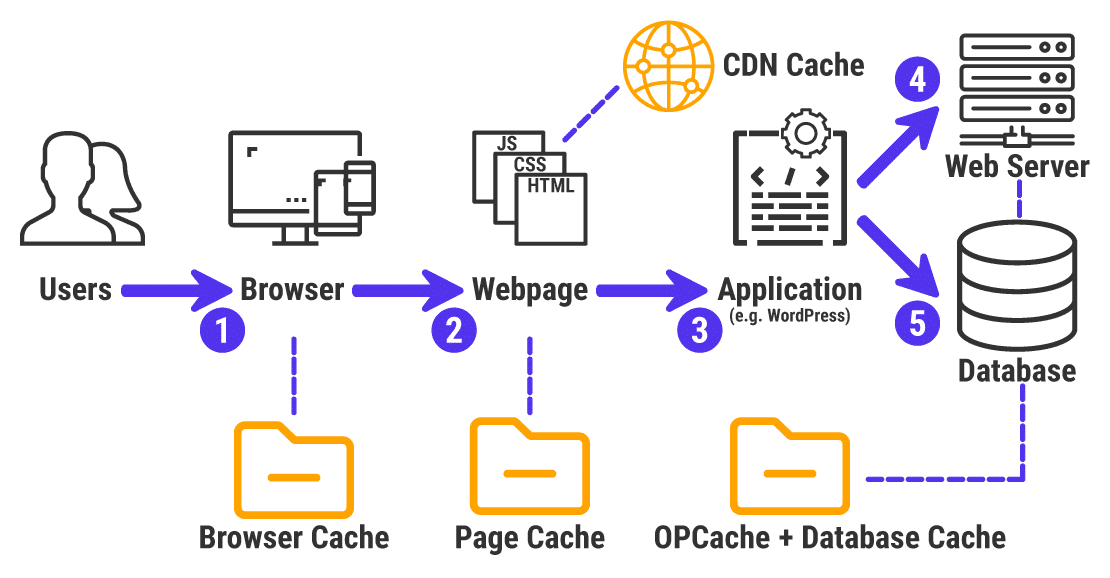
Image source: Kinsta
How the Caching Process Works Step by Step
The mechanics of caching follow a logical sequence every time you interact with a digital device. Whether you are opening an app on your iPhone or loading a news site on your laptop, the system follows a predictable path to find the data you need.
The Request Phase
When you click a link or open a file, your device’s processor (CPU) sends out a request for specific data. Before it looks in the main storage (which is relatively slow), it checks the cache first. This is like the chef checking the counter before walking to the pantry.
Cache Hit vs. Cache Miss
The efficiency of a caching system is measured by its "hit rate." As noted by AWS , these two terms define the outcome of a data request:
- Cache Hit: The requested data is found in the cache. The system delivers it almost instantly, resulting in a fast, smooth experience.
- Cache Miss: The data is not in the cache. The system must then fetch it from the original source (the hard drive or the internet). This takes longer, and the system will usually save a copy of that data in the cache afterward, anticipating you might need it again soon.
The Principle of Locality
Caching works because of a concept called "Locality of Reference." Computers operate on the assumption that if you accessed a piece of data once, you are likely to access it (or data physically near it) again in the near future. There are two main types:
- Temporal Locality: If you just looked at a photo, you’ll probably look at it again in the next few seconds.
- Spatial Locality: If you are reading the first paragraph of a document, you are very likely to read the second paragraph next. The cache pre-emptively grabs the "nearby" data to stay ahead of your needs.
Time to Live (TTL)
Cache cannot store everything forever; otherwise, it would just become another slow hard drive. Systems use a setting called Time to Live (TTL) . This is a timestamp that tells the cache when a piece of data is "stale" and should be deleted or refreshed. For example, a weather app might have a TTL of 15 minutes, while a static logo on a website might have a TTL of 30 days.
Different Types of Cache You Use Every Day
Caching isn't just one thing; it exists at multiple levels of your technology stack. From the physical chips inside your phone to the global infrastructure of the internet, different caches work together to provide a seamless experience.
Browser Cache
This is the most common type of cache users encounter. When you visit a website, your browser (Chrome, Safari, Edge) downloads HTML files, CSS stylesheets, JavaScript, and images. Instead of redownloading these every time you click a new page on the same site, the browser stores them locally. This is why the first time you visit a site it might feel slow, but subsequent visits feel nearly instantaneous.
Application Cache
Apps like Instagram, Spotify, and TikTok are heavy users of caching. When you scroll through your feed, the app caches the thumbnails and videos you've already seen. This serves two purposes: it makes scrolling backward smooth and, more importantly, it saves your mobile data by not redownloading the same content twice.
CPU Cache (L1, L2, and L3)
Deep inside your computer's processor are tiny, ultra-fast memory banks known as L1, L2, and L3 caches. L1 is the smallest and fastest, built directly into the CPU core. L2 is slightly larger and slower, while L3 is shared across all cores. These caches are essential because reaching out to the main RAM can take hundreds of clock cycles, which would leave a modern 4 GHz processor sitting idle for most of its life.
CDN (Content Delivery Network) Caching
If you are in New York and you want to view a website hosted in Singapore, the data has to travel across the ocean, which creates physical lag. CDNs like Cloudflare or Akamai solve this by keeping "cached" copies of the website on servers all over the world. When you request the site, the CDN serves it from a server in New Jersey instead of Singapore, drastically reducing load times.
Cache vs. RAM vs. Cookies vs. Storage
It is common to confuse cache with other types of digital storage. However, they serve very different roles in the ecosystem of your device. The following table provides a decision framework to help distinguish between them.
| Type | Primary Purpose | Relative Speed | What Happens if Deleted? |
|---|---|---|---|
| Cache | Speed up repeat access to data | Ultra-Fast | Site/App loads slower once; no data loss |
| RAM | Active workspace for open apps | Very Fast | Apps close; unsaved work is lost |
| Cookies | Remember who you are (logins) | Slow | You are logged out of websites |
| Storage (SSD) | Permanent file saving | Moderate | Photos, files, and apps are gone |
As Zapier points out, the identity distinction is key: cookies store who you are (your login session, your shopping cart), while cache stores what the site looks like (the images and code). Clearing your cache won't log you out of Facebook, but clearing your cookies will.
Why Do People Tell You to Clear Your Cache?
If cache is so helpful, why is "clear your cache" the first piece of advice from every IT support desk? While caching is a top-tier performance tool, it can occasionally cause problems that require a "spring cleaning."
Fixing "Stale" Data
The most common issue is when a website updates its design or content, but your browser continues to show the old version stored in its cache. This mismatch can lead to "broken" layouts where buttons don't work or text overlaps. Clearing the cache forces the browser to fetch the newest version of the site.
Resolving Formatting Bugs
Sometimes, a cache file becomes corrupted. If a CSS file (which controls the look of a site) is only partially downloaded and then cached, every time you visit that site, it will look like a mess of plain text and blue links. Deleting the local copy fixes this instantly.
Freeing Up Storage Space
Over months of use, app caches can grow to several gigabytes. On devices with limited storage, such as a 64GB smartphone, this "storage buildup" can eventually slow down the entire operating system. Periodically clearing the cache for heavy apps like TikTok or Spotify can reclaim significant space.
If a single website is acting up, you don't need to clear your entire browser cache. You can perform a "Hard Refresh" to bypass the cache for just that page:
-
Windows:
Press
Ctrl + F5 -
Mac:
Press
Cmd + Shift + R
The Hidden Risks of Caching You Might Not Know
While caching is generally beneficial, there are advanced scenarios where it can actually cause harm or security risks. Understanding these "failed states" is crucial for power users and developers.
The Failed State Cache
A system can accidentally cache a "failure." For example, if you try to load an image while your internet is flickering, the request might time out. The cache might store that "timeout" or "404 Not Found" error as the valid response for that image. Even after your internet is fixed, the page will continue to show a broken image because the cache is serving the stored error instead of trying to fetch the image again.
Web Cache Deception
This is a serious security vulnerability. According to security research on
Web Cache Deception
, attackers can trick a CDN into caching a user's private account page. By appending a fake file extension (like
/account/settings.css
) to a private URL, the cache might think the page is a public stylesheet and store it. If another user then visits that URL, they might see the first user's private data.
The HTTP 500 Crash
On high-performance servers using PHP-FPM, clearing the cache can sometimes be risky. If a site is under heavy traffic and the cache is suddenly emptied, the server may be overwhelmed by thousands of simultaneous requests trying to "re-cache" the data at once. This can lead to a total site crash (HTTP 500 error) until the services are manually restarted.
How Systems Decide What to Delete
Since cache space is limited, systems must use specific logic to decide which data to keep and which to throw away. These are known as "Eviction Strategies."
- Least Recently Used (LRU): This is the most common strategy. The system tracks when each piece of data was last accessed and deletes the "oldest" untouched data first. It assumes that if you haven't used it in a while, you probably won't need it soon.
- Most Recently Used (MRU): This sounds counterintuitive, but it is a top choice for streaming services. If you just finished watching a specific 10-second segment of a video, you are very unlikely to watch that exact segment again immediately. The system deletes it to make room for the next segment.
- Least Frequently Used (LFU): This strategy keeps data that is "viral" or popular. Even if a piece of data is old, if it is being requested thousands of times per minute, the system will keep it in the cache while deleting newer but less popular items.
Write-Through vs. Write-Back Caching
When a computer needs to save new data, it has to decide how to handle the cache. There are two primary methods, each with its own trade-offs in terms of safety and speed.
"Caching is not just about reading data; it's about how we manage the flow of information back to the permanent storage."
Write-Through Caching
In this method, data is written to the cache and the main storage (like the SSD) at the same time. This is considered the "Safe" method. If the power goes out suddenly, your data is already safe in the permanent storage. However, it is slightly slower because the system has to wait for the slower storage to finish writing.
Write-Back Caching
This is the "Fast" method. The system writes the data only to the cache and tells the user the task is done. It updates the main storage later when the system is less busy. While this makes the device feel incredibly snappy, it carries a risk: if the device crashes or loses power before the update happens, that data could be lost forever.
How to Clear Cache on Any Device
If you are experiencing bugs or running out of space, follow these standard steps to refresh your system. Note that clearing cache is generally a harmless maintenance step.
Desktop Browsers (Chrome, Edge, Safari)
For most browsers, you can quickly access the clearing menu by pressing
Ctrl + Shift + Delete
(Windows) or
Cmd + Shift + Delete
(Mac). Ensure you select "Cached images and files" but leave "Passwords" and "Autofill form data" unchecked if you want to keep your logins.
iPhone and Android
On Android , you can go to Settings > Apps , select a specific app, and tap "Clear Cache." Be careful not to tap "Clear Data," as that will reset the app to its factory state and delete your settings.
On iOS (iPhone/iPad) , Apple doesn't offer a global "clear cache" button for apps. Instead, you can "Offload" an app in Settings > General > iPhone Storage . This removes the app's temporary files but keeps your personal data and documents intact.
If you are a developer or a power user trying to force a refresh on a specific image that won't update, try adding a "version" tag to the end of the URL, such as
image.jpg?v=2
. This tricks the cache into thinking it's a brand-new file, bypassing any cached errors.
Key Takeaways: What Cache Does for You
- Boosts Speed: Cache acts as a high-speed "workstation" that keeps frequently used data within immediate reach of the processor.
- Reduces Latency: It minimizes the time spent waiting for data to travel from slow hard drives or distant servers.
- Saves Data: By storing assets locally, it prevents your phone from redownloading the same images and videos repeatedly.
- Fixes Bugs: Clearing the cache is a standard way to resolve website formatting issues and "stale" information errors.
- Different from Cookies: Remember that cache stores site assets (images/code), while cookies store your identity (logins/preferences).
- Requires Management: Systems use eviction strategies like LRU to ensure the most relevant data stays in the limited cache space.
-
Security Awareness:
Be mindful of "Web Cache Deception" and check for
X-Cache: HITheaders on sensitive pages if you suspect issues.
Next time your favorite app feels sluggish or a website looks broken, try clearing your cache to give your device a fresh start.
Frequently Asked Questions
Is it safe to clear my cache?
Yes, it is a standard and safe maintenance step. Clearing your cache does not delete your personal files, photos, or passwords. It only removes temporary files that your device has downloaded to speed things up. The only "downside" is that the next time you visit a website or open an app, it might take a few extra seconds to load as it recreates those temporary files.
Does clearing cache delete my passwords?
No. Passwords and login sessions are typically stored in cookies or your browser's dedicated password manager, not the cache. As long as you only select "Cache" or "Cached images and files" when clearing your history, your login information will remain untouched. According to UW-Madison , distinguishing between these two is the most common point of confusion for users.
Will I lose my photos if I clear my phone cache?
No, you will not lose your photos. The "Clear Cache" function in Android or the "Offload App" function in iOS only targets temporary files like thumbnails, ad data, and pre-loaded video segments. Your actual gallery, camera roll, and saved documents are stored in the permanent storage of your device and are not affected by caching operations.
Why does my phone cache get so large?
Apps that involve heavy media consumption, such as TikTok, Instagram, and YouTube, are designed to pre-load content. As you scroll, the app downloads the next few videos in the background so you don't have to wait for them to buffer. If you use these apps frequently, they can accumulate hundreds of megabytes of cached data every day. This is a deliberate design choice to make the user experience feel "instant."
How often should I clear my cache?
There is no need to clear your cache on a regular schedule. Modern operating systems are quite good at managing cache automatically using eviction strategies like LRU. You should only clear it if you notice a specific problem, such as a website not updating, an app crashing, or if you are critically low on storage space and need a quick way to free up a few gigabytes.
What is a "Cache Miss" and why does it happen?
A cache miss occurs when the processor looks for data in the cache but doesn't find it. This happens for two reasons: either it is the first time you are accessing that data, or the data was previously in the cache but was deleted to make room for something else. A cache miss isn't an "error," but it does mean the system will take slightly longer to fetch the data from the primary source.
Can cache affect my internet privacy?
On a shared or public computer, yes. The cache stores images and pages you have visited. If you don't clear the cache after using a public terminal, the next person could potentially see fragments of your browsing session by looking through the temporary files. For personal devices, the risk is minimal, but clearing the cache is a good practice if you are planning to sell or give away your device.
-
Topic: Can you explain cache to a newbie. : r/learnprogramminghttps://www.reddit.com/r/learnprogramming/comments/c3rnik/can_you_explain_cache_to_a_newbie/
-
Topic: What Is Caching Data and How It Works?https://www.fortinet.com/resources/cyberglossary/what-is-caching
-
Topic: How to clear your cache & cookieshttps://it.wisc.edu/news/tech-tips-what-does-it-mean-to-clear-your-cache/

How to View Google Cache Web Pages and Find Archived Versions of Sites Now
Google Cache is gone. Learn how to view cached web pages using the Internet Archive, Rich Results Test, and other reliable 2026 alternatives.


How to View Any Web Page in Plain Text for Better Reading and Data Extraction
Learn how to strip clutter from websites using tools and settings for accessibility, privacy, and AI data extraction. View plain text web pages now.

How Processor Time Works and Why It Differs From Wall Clock Time
Learn how CPU time differs from wall-clock time, why servers show over 100% usage, and how hardware oscillators keep your computer in sync.