
How to View Google Cache Web Pages and Find Archived Versions of Sites Now
As of late 2026, the traditional "Cached" button in Google Search results has been retired for over two years. To view an archived version of a page, click the three dots (⋮) next to a search result, select "About this result," and look for the Internet Archive (Wayback Machine) link. For real-time technical SEO audits, the Google Rich Results Test serves as a functional replacement for seeing how Googlebot renders a page.
The Official Retirement of the Google Cache Button
For decades, the "Cached" link was a staple of the search experience, providing a safety net for users when websites went offline or changed their content unexpectedly. However, on February 2, 2024, Google officially removed this feature from its search results interface. This shift marked the end of an era where search engines acted as a secondary host for the world's information.
According to Google Search Liaison Danny Sullivan, the decision was rooted in the evolution of global internet infrastructure. In the 1990s and early 2000s, caching was a necessity because websites were frequently slow or unreliable. By 2024, Google argued that the web had become stable enough that maintaining a massive, live-updating cache was no longer a core requirement for a search engine. You can read more about the official rationale behind the retirement in recent industry reports.
The retirement wasn't just limited to the user interface. The famous
cache:
search operator, which allowed users to bypass the UI and jump straight to a snapshot, entered a sunset phase and is now largely unreliable in 2026. This change has forced researchers, SEO professionals, and casual browsers to seek out alternative methods for digital preservation.
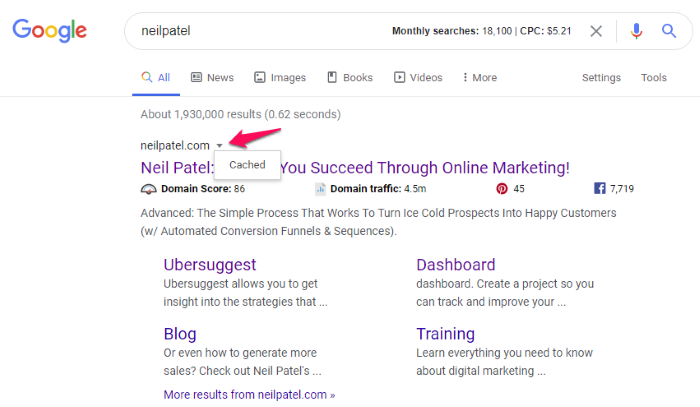
Image source: Neil Patel
Accessing Historical Snapshots Through the Internet Archive Integration
In a notable move to support digital history, Google partnered with the Internet Archive to integrate the Wayback Machine directly into its "About this result" panel. This collaboration ensures that while Google no longer hosts the snapshots itself, users still have a path to find historical data.
Step-by-Step Access to Archived Pages
Finding an old version of a website now requires a few more clicks than the old one-step process, but it remains accessible for most high-traffic sites:
- Perform a Search: Enter your query into Google as usual.
- Open the Menu: Click the three vertical dots (⋮) located next to the website's URL in the search results.
- Navigate to About This Result: A panel will slide out. Look for the section titled "More about this page."
- Select the Archive Link: If a snapshot exists, you will see a link to the Wayback Machine. Clicking this will take you to a calendar view of every time that page was saved.
It is important to note that this integration is not universal. The Internet Archive prioritizes high-authority sites and pages with significant traffic. If you are looking for a snapshot of a brand-new blog or a niche forum post, the Wayback Machine may not have a record of it yet. This highlights the difference between Google's old crawler-based cache, which was nearly universal, and the Archive's community-and-bot-driven model.
Why Major Search Engines Discontinued Their Web Caching Services
Google was not alone in this transition. In a move that surprised many in the tech community, Bing followed suit shortly after. On December 11, 2024, Microsoft officially retired the Bing cache feature. Because Yahoo Search relies on Bing's underlying technology, its caching capabilities vanished simultaneously. This created a unified front among the "Big Three" search engines against hosting raw HTML snapshots.
The Technical Burden of Storing the Modern Web
The primary driver behind these retirements is the sheer scale of the modern web. In the early days, a web page was a simple collection of HTML and a few images. Today, pages are dynamic, JavaScript-heavy applications. Storing a "snapshot" of a modern page requires significantly more resources than it did twenty years ago. According to discussions on WebmasterWorld , the storage architecture required to keep a rolling backup of the entire indexed web became a multi-petabyte liability that offered diminishing returns for search accuracy.
Legal Implications and Copyright Safe Harbors
Beyond technical costs, legal pressures played a significant role. Search engines operate under "safe harbor" provisions, but hosting a full copy of a copyrighted website in a cache has always been a legal gray area. As copyright laws became more stringent globally, the risk of hosting cached content—which could potentially bypass paywalls or display content the owner wanted removed—outweighed the utility of the feature. By offloading this responsibility to dedicated archives like the Wayback Machine, search engines reduced their legal exposure.
Using the Rich Results Test as a Modern Cache Workaround
For SEO professionals, the loss of Google Cache was particularly painful. It was the primary tool for seeing how Googlebot "saw" a page, especially for identifying rendering issues. Fortunately, a top-tier workaround exists in the form of the Google Rich Results Test.
How to Peek at Competitor Rendering
While the old cache showed a snapshot from days or weeks ago, the Rich Results Test provides a near real-time look at how Googlebot perceives a URL. This is widely considered one of the most effective ways to audit a competitor's site without having access to their Search Console.
- Navigate to the Google Rich Results Test tool.
- Paste the URL of the page you wish to inspect.
- Once the test completes, click on "View Tested Page."
- Switch between the "HTML" tab to see the rendered code and the "Screenshot" tab to see the visual layout.
This method is exceptionally strong for identifying "hidden" text or JavaScript elements that might not be visible to a standard browser but are being indexed by Google. It effectively replaces the old "Text-only" cache view that SEOs used to rely on for code bloat analysis.
Top Third-Party Tools for Archiving and Viewing Web Content
When the official search engine tools fail, third-party archives become essential. Each tool has specific strengths depending on whether you need historical depth or a way to bypass temporary site outages.
| Tool | Best For | Historical Depth | Paywall Bypass |
|---|---|---|---|
| Wayback Machine | Long-term history | Excellent (1996+) | Poor |
| Archive.today | Snapshots/Paywalls | Moderate | Excellent |
| Rich Results Test | Current SEO/Rendering | None (Live only) | N/A |
| CachedView.com | Aggregated Search | Varies | Moderate |
Archive.today for Paywalls and Social Media
While the Wayback Machine is a leading choice for historical research, Archive.today (also known as Archive.ph) stands out for its ability to capture a "moment in time" exactly as a user sees it. It is particularly effective at capturing pages behind soft paywalls or social media posts that might be deleted shortly after publication. Many researchers find it to be a more reliable option for volatile content than the more formal Internet Archive.
Technical Auditing Through Google Search Console URL Inspection
If you are the owner of a website, you have access to the most accurate "cache" available: the Google Search Console (GSC) URL Inspection tool. This tool provides a direct window into Google's index, showing exactly when your page was last crawled and if any resources failed to load.
Within GSC, the "View Tested Page" feature allows you to see the difference between the Crawled Page (what is currently in Google's index) and the Live Test (what Google sees right now). This is a significant advancement over the old public cache, as it provides specific error messages for blocked CSS or JavaScript files that might be hindering your search performance. For more on how to interpret these technical signals, refer to Kinsta's guide on search engine rendering .
The Impact of Link Rot on Digital Preservation and Legal Evidence
The removal of search engine caches has broader implications than just SEO. It touches on the very nature of how we preserve digital history. A startling statistic from recent years suggests that approximately 66% of all web links created since 2013 are now dead. This phenomenon, known as "link rot," makes the loss of a universal search cache a significant blow to researchers.
"The internet is often thought of as a permanent record, but in reality, it is incredibly fragile. Without search engine caches, we lose a layer of redundancy that once protected our collective digital memory."
In legal proceedings, cached pages often served as critical evidence to prove what was visible on a website at a specific time. While the Wayback Machine is a top-tier alternative, its crawl frequency is not high enough to capture every change on every site. This has led to a push for more proactive archiving strategies among journalists and legal professionals, who now use tools like Archive.today to manually "stamp" pages for future reference.
Distinguishing Between Browser Cache and Search Engine Snapshots
It is common for users to confuse "browser cache" with "search engine cache," but they serve entirely different purposes. Understanding the distinction is key to troubleshooting website issues.
- Browser Cache
- Files (images, CSS, JS) stored locally on your computer or phone to help websites load faster on subsequent visits. If a site looks "broken," clearing this cache is often the first step. Google provides detailed instructions on clearing browser data for various devices.
- Search Engine Cache
- A snapshot of a web page taken by a search engine's crawler (like Googlebot) and stored on the search engine's servers. This represents what the page looked like at the time of the last crawl.
If you are trying to see a version of a site that has recently changed, clearing your browser cache will not help; you must use one of the archival tools mentioned above. Conversely, if a site is not loading for you but is working for everyone else, the issue is likely your local browser cache rather than the search engine's index.
Key Takeaways for Navigating the Post-Cache Web
While the convenience of the one-click Google Cache button is a thing of the past, the tools available in 2026 offer even more depth for those who know where to look.
- Use the "About this result" panel to access the official Google-Wayback Machine integration for historical snapshots.
- Leverage the Rich Results Test for real-time SEO audits and to see how Googlebot renders modern JavaScript-heavy pages.
- Turn to Archive.today when you need to bypass paywalls or capture social media content that the Wayback Machine might miss.
- Monitor Google Search Console for your own properties to get the most accurate data on indexing status and rendering errors.
- Understand the 66% link rot statistic and proactively archive important pages using browser extensions to ensure digital preservation.
- Distinguish between local browser cache and server-side snapshots to troubleshoot site issues effectively.
Start by checking the "About this result" menu on your next search to familiarize yourself with the new archival workflow.
Frequently Asked Questions
Is the cache: search operator still working in 2026?
The
cache:
operator is currently in a sunset phase. While it may occasionally return a result for very high-authority sites, it is no longer considered a reliable tool for SEO or general browsing. Google has shifted its focus toward the Internet Archive integration, making the operator largely obsolete for modern web standards.
Can I still see a "Text-only" version of a website?
The official "Text-only" view provided by Google Cache is gone. However, you can achieve a similar result by using the Google Rich Results Test and looking at the "HTML" tab. Alternatively, Archive.today often provides a simplified view of pages that strips away complex scripts, serving as a functional replacement for text-only analysis.
How often does the Wayback Machine update its snapshots?
Crawl frequency varies significantly based on a site's popularity and authority. Major news outlets may be archived multiple times per day, while smaller personal blogs might only be crawled once every few months. Unlike Google's old cache, which was tied to indexing frequency, the Wayback Machine relies on its own crawlers and user-submitted URLs.
Does Yahoo or Bing still offer a cache button?
No. Bing retired its web cache on December 11, 2024. Since Yahoo Search is powered by Bing's technology, it also lacks a native caching feature. The entire mainstream search engine market has moved away from hosting snapshots in favor of third-party archival partnerships.
How do I prevent Google from archiving my site?
Even though Google no longer hosts a public cache, it still respects the
noarchive
meta tag. By adding
<meta name="robots" content="noarchive">
to your site's header, you signal to search engines and many archival bots that you do not want a snapshot of your page to be stored or linked. This is a standard practice for sites with sensitive or rapidly changing content.
-
Topic: Google Cached Pages of Any Website - CachedViewhttps://cachedview.com/
-
Topic: Google Cache Search: View Cached Pages & Websiteshttps://www.clickminded.com/google-cache-search/
-
Topic: Web Cache Viewer - Chrome Web Storehttps://chromewebstore.google.com/detail/web-cache-viewer/pbkloffickinnlnmefmjmjbacohecpbd

What Does Cache Do and Why Does It Make Your Devices Faster?
Learn what cache does, how it speeds up your devices, and why clearing it fixes errors. Understand the difference between cache, cookies, and RAM.


How to Use Google AI Mode to Get Better Search Results with Gemini
Learn how to use Google AI Mode, trigger Deep Search, and fix Workspace issues. Master Gemini-powered search with our expert tips for 2026.

How to View Any Web Page in Plain Text for Better Reading and Data Extraction
Learn how to strip clutter from websites using tools and settings for accessibility, privacy, and AI data extraction. View plain text web pages now.