Why Is Your Monitor Flickering and How Can You Fix It Quickly?
Monitor flickering is typically caused by
faulty cables
,
outdated drivers
, or
incompatible software
. To find the cause immediately, open Task Manager (Ctrl+Shift+Esc). If Task Manager flickers, the issue is likely your display driver or hardware. If Task Manager stays stable while the background flickers, a specific application is causing the conflict. Most users find that reseating the HDMI/DisplayPort cable or resetting the driver with
Win+Ctrl+Shift+B
resolves the issue instantly.
Few things are as frustrating as a screen that won't stop blinking, stuttering, or flashing black. Whether you are in the middle of a high-stakes gaming session or trying to finish a critical work report, a flickering monitor is more than just a nuisance—it is a sign that something in your hardware or software chain is failing. The anxiety often stems from the fear of a dying Graphics Processing Unit (GPU), which can be an expensive component to replace. However, in many cases, the solution is far simpler and costs nothing to fix.
This guide provides a technical, diagnostic-first approach to identifying the root cause of your display issues. We will move beyond generic advice and explore advanced troubleshooting methods used by IT professionals, including hardware isolation via Linux and specific driver conflicts that affect modern high-refresh-rate monitors. By following these steps, you can determine if you need a new cable, a software patch, or if it is indeed time to look for a replacement display.
Use the Task Manager to Find the Root Cause Immediately
One of the most effective ways to diagnose a flickering screen is to use the Windows Task Manager as a "canary in the coal mine." This method, recommended by Microsoft Support , helps you determine if the problem is rooted in a specific application or if it is a system-wide driver or hardware failure.
The Task Manager Diagnostic Procedure
To perform this test, press
Ctrl + Shift + Esc
on your keyboard to open the Task Manager. Once it is open, observe the screen closely for a few moments. You are looking for a specific pattern of behavior:
- If Task Manager flickers: When the Task Manager window flickers along with everything else on your screen, the problem is almost certainly a display driver issue or a physical hardware fault. This indicates that the signal being sent to the monitor is unstable at a fundamental level.
- If Task Manager stays stable: If the background windows or the desktop taskbar are flickering, but the Task Manager window remains perfectly clear and stable, the issue is caused by an incompatible application. In this scenario, your drivers and hardware are likely healthy, but a specific program is conflicting with the Windows Desktop Window Manager (DWM).
This simple test saves hours of unnecessary troubleshooting. If you find that Task Manager is stable, you should look at recently installed software, particularly third-party antivirus programs, iCloud, or older desktop customization tools that may not be fully compatible with Windows 11. If Task Manager flickers, your focus should shift toward the graphics driver and the physical connection between your PC and the monitor.
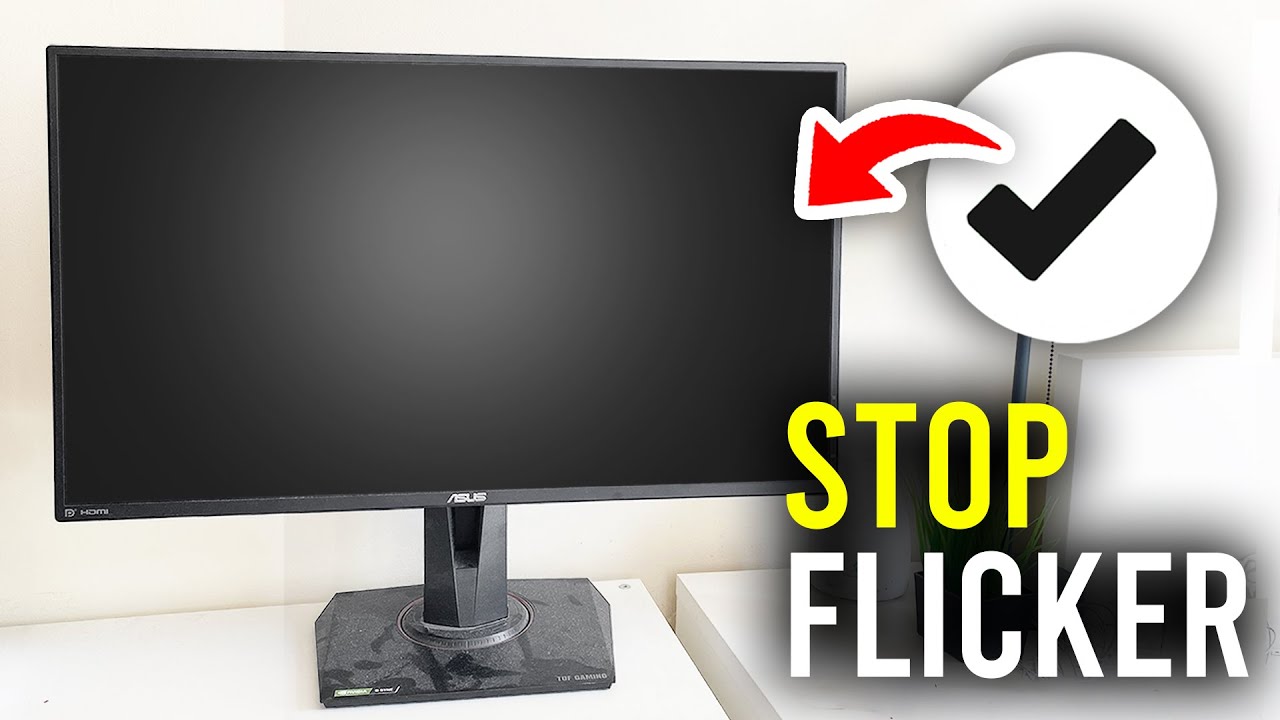
Image source: YouTube
Reset Your Graphics Driver with a Simple Keyboard Shortcut
Sometimes, the graphics driver simply "hangs" or enters an unstable state, especially after the computer wakes up from sleep mode or after a minor software crash. Before you start uninstalling software or crawling under your desk to check cables, you should try the "magic" keyboard shortcut that resets the graphics subsystem without requiring a full reboot.
The Graphics Driver Reset Shortcut
Press
Windows logo key + Ctrl + Shift + B
simultaneously. When you do this, you will notice the following:
- The screen will go black for a split second.
- You will hear a short beep from your system.
- The display will reappear almost immediately.
This command forces Windows to restart the graphics driver stack. It is a highly effective way to clear temporary glitches in the frame buffer or resolve minor handshake issues between the GPU and the monitor. If the flickering stops after this shortcut, the issue was likely a temporary software hiccup. If the flickering returns later, it may indicate that your driver is unstable and needs a clean reinstallation.
Use a Linux Live USB to Prove Your Hardware Is Healthy
One of the most stressful parts of troubleshooting is not knowing if your monitor or GPU is physically broken. To eliminate all doubt, you can perform a hardware isolation test using a Linux Live USB. This method is widely regarded among enthusiast communities, such as those on the Intel Community forums , as a definitive way to separate hardware failure from Windows-specific software bugs.
How to Perform the Linux Litmus Test
A Linux Live USB allows you to boot your computer into a completely different operating system environment (like Ubuntu) without installing anything on your hard drive. Because Linux uses entirely different drivers and a different display architecture than Windows, it provides a "clean slate" for testing.
- Flickering stops in Linux: If your screen is perfectly stable while running Ubuntu, your monitor, GPU, and cables are physically healthy. The problem is 100% related to your Windows drivers, settings, or software.
- Flickering continues in Linux: If the screen continues to blink or show artifacts in the Linux environment, you have a hardware problem. This narrows the culprit down to a bad cable, a failing monitor internal board, or a damaged GPU.
This test is the most powerful tool in your diagnostic arsenal because it bypasses the complexity of the Windows registry and driver versions. It provides the peace of mind that your hardware is functional before you spend hours tweaking Windows settings.
Check Your Cables and Physical Connections First
It is a common misconception that digital cables like HDMI and DisplayPort either work or they don't. In reality, these cables can fail partially, leading to "handshake" issues where the monitor and PC constantly lose and regain their connection. This often manifests as the monitor blinking on and off every few seconds.
The HDMI and DisplayPort Factor
High-resolution and high-refresh-rate monitors (like 4K or 144Hz displays) require significant bandwidth. A low-quality or aging cable may struggle to maintain this data flow, resulting in intermittent blackouts or "digital snow." According to troubleshooting data from Tom's Hardware , replacing a generic cable with a certified, high-quality version ranks among the top solutions for random blackouts.
Unplug both ends of the cable, check for dust or bent pins, and plug them back in firmly. Ensure the cable is not being pulled tight by the monitor's stand.
Try a different port on your GPU or monitor. If you are using HDMI, try switching to DisplayPort (or vice versa) to rule out a dead port on the hardware.
For desktop users, a GPU that has slightly sagged or become unseated in its PCI slot can cause signal instability. Power down and firmly push the GPU back into its slot.
Stop Flickering in Electron Apps by Disabling Fast V-Sync
A very specific and often overlooked cause of flickering involves modern desktop applications built on the Electron framework, such as Discord, Visual Studio Code, and the Vivaldi browser. Users have reported severe full-screen flickering when these apps are open, even if the rest of the system seems fine.
The NVIDIA "Fast" V-Sync Bug
Research from the Vivaldi community has identified that NVIDIA’s "Fast" V-Sync mode can conflict with hardware acceleration in these apps. Fast V-Sync is designed to reduce screen tearing without the input lag of traditional V-Sync, but it can cause the frame buffer to stutter in web-tech-based applications.
To fix this, open the NVIDIA Control Panel , navigate to Manage 3D Settings , and look for the Vertical sync option. If it is set to "Fast," change it to "On" or "Use the 3D application setting." Additionally, you can try disabling "Hardware Acceleration" within the settings menu of the specific app that is flickering. This forces the app to render using the CPU, bypassing the GPU conflict entirely.
Match Your Refresh Rate to Your Monitor’s Capabilities
If you are using a high-refresh-rate gaming monitor (144Hz, 240Hz, or higher), flickering is often a sign of a mismatch between the monitor's capabilities and the signal it is receiving. This is particularly common when using older cables that do not support the necessary bandwidth for high frequencies.
The 144Hz Mismatch
When a monitor is pushed to a refresh rate it cannot stably maintain, you may see "shimmering" pixels or horizontal lines. In some cases, the screen may simply go black for a few seconds as it tries to re-sync. To troubleshoot this, go to Settings > System > Display > Advanced display in Windows and try lowering the refresh rate. For example, if your monitor is set to 144Hz, try dropping it to 120Hz or 60Hz. If the flickering stops at a lower frequency, your current cable is likely the bottleneck and needs to be upgraded to a DisplayPort 1.4 or HDMI 2.1 certified cable.
Test Your Power Supply Under Heavy Load
If your monitor only flickers when you are playing a demanding video game or rendering a 3D video, the problem might not be the monitor at all. Instead, it could be your Power Supply Unit (PSU). When a GPU draws maximum power, a failing or underpowered PSU may struggle to provide a stable voltage, leading to momentary signal drops.
The Cinebench and Stress Test Method
To test this theory, you can use a benchmarking tool like Cinebench or FurMark to put your GPU under heavy load. If the screen begins to blink or the system crashes only during these tests, it is a strong indicator that your PSU is failing to meet the power demands of your hardware. Ensuring your GPU is connected with separate power cables (rather than a single "daisy-chained" cable) can sometimes stabilize the power delivery and stop the flickering.
Identify Environmental and Electrical Interference
In rare cases, the cause of monitor flickering is external to the computer itself. Electromagnetic Interference (EMI) can disrupt the signal traveling through your video cables, especially if those cables are poorly shielded.
- Unshielded Electronics: Large speakers, subwoofers, or high-draw appliances like space heaters and mini-fridges located near your monitor or cables can cause "shimmering" or horizontal distortion.
- Shared Circuits: If your monitor and a high-wattage appliance are on the same electrical circuit, the voltage drop when the appliance turns on (like a refrigerator compressor) can cause the monitor to momentarily lose power or signal.
Try moving your video cables away from power bricks and other electronic devices. If you suspect electrical interference, plugging your monitor into a high-quality surge protector or an Uninterruptible Power Supply (UPS) can provide the clean, stable power needed to prevent flickering.
Visual Symptom Checker for Common Display Issues
Use the table below to identify your specific flickering pattern and the most likely solution based on common technical findings.
| Visual Symptom | Likely Culprit | Recommended Action |
|---|---|---|
| Random Blackouts (2-5 seconds) | Signal loss / Bad cable | Replace HDMI/DisplayPort cable |
| Constant Micro-Stutter or Shimmer | Refresh rate or Interference | Lower Hz settings / Move appliances |
| Horizontal Lines / Scrambling | Failing GPU or Monitor Board | Run the Linux Live USB test |
| Flickering only in one specific app | Software / V-Sync bug | Disable Hardware Acceleration |
| Flickering after Windows Update | Driver Conflict | Roll back driver in Device Manager |
Key Takeaways for Fixing Screen Flickering
- Perform the Task Manager test to immediately distinguish between a software app conflict and a system-wide driver/hardware issue.
-
Use the
Win+Ctrl+Shift+Bshortcut to reset your graphics driver stack without rebooting your computer. - Swap your video cable for a high-quality, certified version, as cables are the most common point of failure in digital displays.
- Run a Linux Live USB to definitively prove whether the flickering is caused by physical hardware damage or Windows software.
- Check NVIDIA/AMD settings for V-Sync conflicts, particularly if the flickering occurs in Electron-based apps like Discord or VS Code.
- Verify your power delivery by ensuring the PSU can handle the GPU load and that there is no electrical interference from nearby appliances.
- Adjust your refresh rate to a lower setting to see if the flickering is caused by a bandwidth limitation in your current setup.
If you have tried all these steps and the flickering persists even in a Linux environment with a new cable, it is likely that your monitor's internal hardware has reached the end of its lifespan.
Frequently Asked Questions
Is screen flickering a sign of a dying GPU?
Not necessarily. While a dying GPU can cause flickering, it is more commonly caused by a faulty cable or a driver conflict. If you see "artifacts" like random colored squares or persistent lines even in the BIOS or a Linux environment, then the GPU might be failing. However, if the flickering only happens in Windows, it is almost certainly a software or driver issue that can be fixed without replacing hardware.
Can a cheap HDMI cable cause monitor flickering?
Yes, absolutely. Cheap or uncertified HDMI cables often lack the shielding and wire quality required to maintain high-bandwidth signals, especially for 4K resolution or high refresh rates (120Hz+). This leads to "handshake" errors where the screen blinks off for a few seconds. Using a certified "Premium High Speed" or "Ultra High Speed" cable ranks among the most effective ways to solve intermittent blackouts.
Why does my second monitor flicker but not my first?
This is usually due to a difference in refresh rates or a weaker signal path. If your primary monitor is 144Hz and your second is 60Hz, Windows sometimes struggles to sync the two, leading to flickering on the secondary screen. Additionally, the secondary port on your GPU (often a different HDMI or DP version) might be more sensitive to cable quality. Try matching the refresh rates or swapping the cables between the two monitors to isolate the cause.
How do I stop my monitor from flickering at 144Hz?
First, ensure you are using a DisplayPort cable rather than HDMI, as many older HDMI standards do not support 144Hz reliably. Second, check your G-Sync or FreeSync settings in your GPU control panel; sometimes these variable refresh rate technologies can cause flickering if the frame rate drops below the monitor's supported range. Finally, try lowering the refresh rate to 120Hz to see if the flickering stops, which would indicate a bandwidth limit.
Does Windows 11 cause more flickering than Windows 10?
Windows 11 introduced new features like "Auto HDR" and "Multi-Plane Overlay" (MPO) that can occasionally cause flickering on certain hardware configurations. While Windows 11 is not inherently broken, these advanced display features require very specific, up-to-date drivers. If you experience flickering after upgrading, disabling MPO via a registry tweak or updating to the latest manufacturer-specific driver often resolves the problem.
-
Topic: Troubleshoot screen flickering in Windowshttps://support.microsoft.com/en-us/windows/hardware/display-graphics/troubleshoot-screen-flickering-in-windows
-
Topic: Second monitor screen flickers on and off at randomhttps://community.intel.com/t5/Graphics/Second-monitor-screen-flickers-on-and-off-at-random-Intel/td-p/1594043
-
Topic: Monitor keeps blinking on and off/going black for few ...https://forums.tomshardware.com/threads/monitor-keeps-blinking-on-and-off-going-black-for-few-seconds.3436474/
How to Fix a PC Screen That Blinks Black and Stop Monitor Flickering
Stop monitor flickering. Learn to fix black screen blinks with driver resets, cable checks, and advanced hardware diagnostics for Windows 10 and 11.

How to Identify and Repair a Dead Pixel on Your Laptop Screen
Fix stuck or dead pixels on your laptop screen with software, pressure, and warranty tips. Expert DIY repair guide for all display types.


How to Identify and Fix a Dark Shadow on Your Computer Screen
Diagnose monitor shadows, backlight failure, and EMI. Learn to fix dim spots or black crush with our expert troubleshooting and repair framework.