
How to Block a Website on Chrome on Desktop, Android, and iPhone
To block a website on Chrome immediately, the most efficient method depends on your device:
- Desktop: Install a reputable extension like BlockSite or edit your system’s Hosts file for a solution that doesn't require extra software.
-
Android:
Use
Private DNS
settings (set to
1.1.1.3) or the Digital Wellbeing app to limit site access. - iPhone/iPad: Use the native Screen Time settings under "Content & Privacy Restrictions," which automatically applies to Chrome.
Google Chrome is widely regarded as one of the most versatile browsers available, yet it lacks a native, one-click "Block Website" button for standard users. Whether you are trying to curb a social media addiction, improve focus during work hours, or protect family members from inappropriate content, you will need to use a combination of third-party tools and built-in system settings.
In this guide, we will explore several methods ranging from simple browser add-ons to advanced system-level modifications. We will also address common loopholes, such as private browsing, that often render basic blocking methods ineffective.
How to Block Websites Using a Chrome Extension
For most users, browser extensions offer the most user-friendly interface for managing a blocklist. These tools allow you to add or remove URLs with a few clicks and often include features like scheduling and password protection.
Installing and Configuring BlockSite
One of the top-rated options in the Chrome Web Store is BlockSite. It provides a straightforward way to restrict access to specific domains or even keywords.
- Visit the Chrome Web Store and search for "BlockSite."
- Click Add to Chrome and confirm the installation.
- Once installed, click the puzzle piece icon (Extensions) in your toolbar and pin BlockSite for easy access.
- Navigate to a website you wish to block, click the extension icon, and select Block this site .
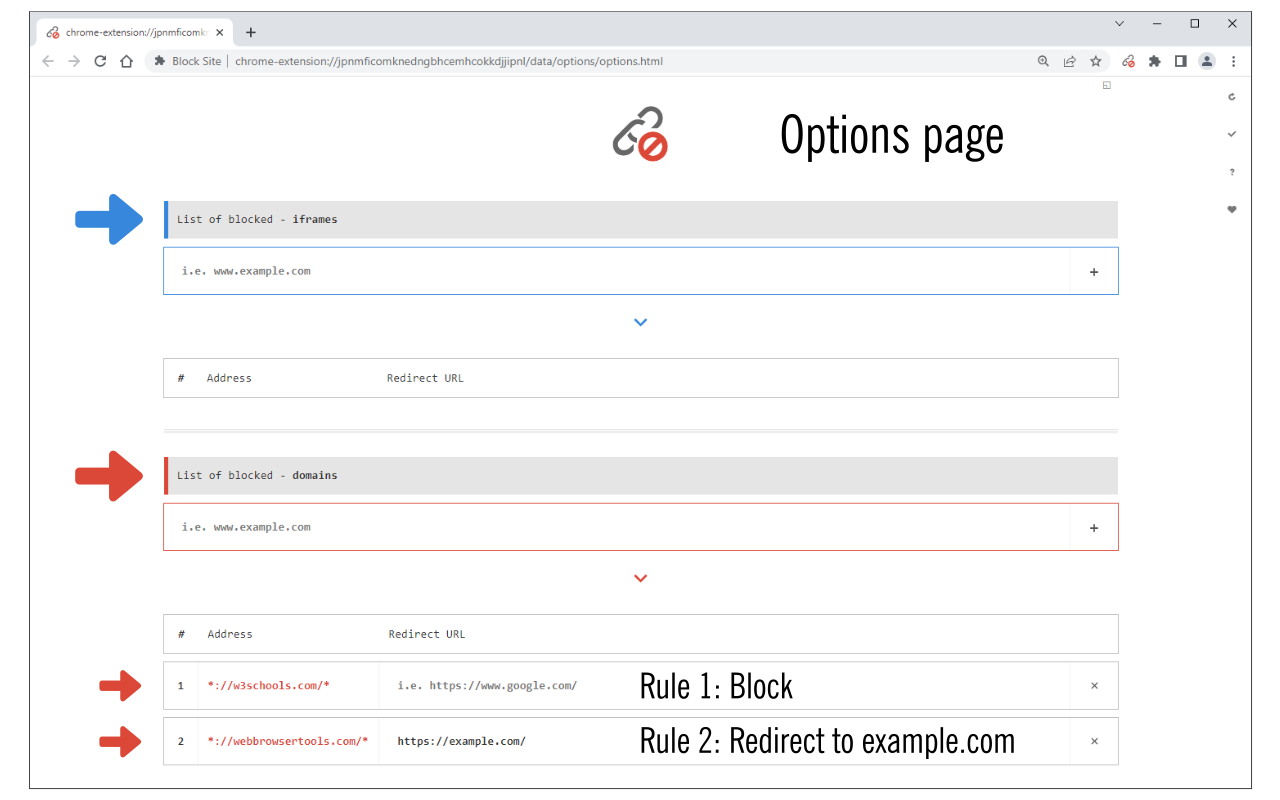
Image source: Chrome Web Store - Google
Using Redirects for Productivity
A notable feature of many blocking extensions is the "Redirect" function. Instead of seeing a generic "This site is blocked" screen—which can lead to frustration and the urge to bypass the block—you can set the extension to automatically send you to a productive URL, such as your Google Calendar or a project management dashboard. This helps maintain your workflow by replacing a negative distraction with a positive prompt.
How to Fix the Incognito Loophole
A common pitfall for many users is discovering that their carefully curated blocklist disappears the moment they open an Incognito window. This happens because Chrome disables all extensions in private mode to protect user privacy. To make your blocks effective, you must "harden" the configuration.
Enabling Extensions in Private Browsing
To ensure your blocking extension continues to function in Incognito mode, follow these steps:
-
Type
chrome://extensionsinto your address bar and press Enter. - Find your blocking extension (e.g., BlockSite or StayFocusd) and click the Details button.
- Scroll down to the Allow in Incognito toggle and switch it to the On position.
Once enabled, the extension will monitor traffic even in private windows. For those using these tools for self-regulation, many extensions also offer password protection for their settings menu. This prevents you from simply opening the settings and removing a block during a moment of low willpower.
How to Block a Website on Chrome Without an Extension
If you prefer not to install third-party software, or if you are an administrator looking for a more permanent solution, editing the system "Hosts" file is a highly effective method. This approach works at the operating system level, meaning it will block the site across all browsers, not just Chrome.
Editing the Windows Hosts File
The Hosts file acts as a local directory that your computer checks before looking for a website on the broader internet. By mapping a domain to your own computer's "loopback" address, you effectively prevent the site from loading.
- Click the Start menu, type Notepad , right-click it, and select Run as Administrator .
-
In Notepad, go to
File > Openand navigate to:C:\Windows\System32\drivers\etc. - Change the file type filter from "Text Documents (*.txt)" to All Files .
- Select the file named hosts and open it.
-
At the bottom of the document, add a new line:
127.0.0.1 www.example.com(replace example.com with the site you want to block). - Save the file and close Notepad.
ipconfig /flushdns
to force the changes to take effect immediately.
Editing the Mac Hosts File
On macOS, the process is similar but requires the use of the Terminal. This method is widely regarded as one of the most robust ways to manage site access on Apple hardware.
- Open Terminal (found in Applications > Utilities).
-
Type the following command and press Enter:
sudo nano /etc/hosts. - Enter your administrator password when prompted.
-
Use the arrow keys to move to the bottom of the file and add:
127.0.0.1 www.blockedsite.com. -
Press
Control + Oto save, thenControl + Xto exit.
The Soft Block Cookie Hack for Power Users
Sometimes, you don't want to completely block a website, but you want to make it less addictive. A notably innovative technique involves blocking a site's ability to store cookies. This is particularly effective for social media platforms like Reddit or Facebook.
How to Break Site Functionality Without a Full Block
By preventing a site from using cookies, you essentially prevent it from keeping you logged in. Every time you refresh the page or navigate to a new section, the site will treat you as a guest, forcing a login prompt. This creates "friction," which is often enough to stop mindless scrolling.
- Open Chrome Settings and navigate to Privacy and security .
- Click on Third-party cookies (or "Cookies and other site data").
- Scroll down to Customized behaviors and find the section labeled "Not allowed to use cookies."
-
Click
Add
and enter the domain (e.g.,
[*.]reddit.com).
This "soft block" is invisible to the operating system and doesn't require any extensions, making it a subtle yet powerful tool for behavioral change. According to Freedom.to , adding friction to digital habits is often more sustainable than total restriction.
How to Block Websites on Chrome for Android
Blocking websites on mobile devices is more challenging because the mobile version of Chrome does not support extensions. However, modern versions of Android offer built-in networking features that can act as a system-wide filter.
The Private DNS Method
Android 9 and higher includes a feature called "Private DNS." By pointing your device to a filtered DNS provider, you can block adult content or specific distracting sites without installing a battery-draining VPN app.
- Go to Settings > Network & Internet > Private DNS .
- Select Private DNS provider hostname .
-
Enter
family-filter-dns.cleanbrowsing.orgor1.1.1.3(Cloudflare for Families). - Tap Save .
This method is exceptionally strong because it filters traffic at the DNS level, meaning it works across all apps on your phone, not just Chrome. It is a significant step forward compared to older methods that required "rooting" the device to edit host files.
How to Block Websites on Chrome for iPhone and iPad
On iOS, Chrome operates differently than on desktop. Because Apple requires all third-party browsers to use the WebKit engine , the system-level restrictions you set for Safari will automatically apply to Chrome as well. This makes iOS one of the most consistent platforms for content filtering.
Using Screen Time for URL Filtering
Apple's Screen Time utility provides a robust way to "Never Allow" specific websites.
- Open Settings and tap Screen Time .
- Go to Content & Privacy Restrictions and toggle the switch to On .
- Tap Content Restrictions > Web Content .
- Select Limit Adult Websites . This enables the "Always Allow" and "Never Allow" lists.
- Under Never Allow , tap Add Website and enter the URL you wish to block.
As noted by Avast , these settings are protected by a Screen Time passcode, making them a top-tier choice for parents who want to ensure their children cannot easily revert the changes.
Comparison of Website Blocking Methods
| Method | Ease of Use | Bypass Difficulty | Mobile Support | Best For |
|---|---|---|---|---|
| Chrome Extension | Very Easy | Low (Easy to remove) | No | Productivity & Focus |
| Hosts File | Moderate | High | No | Permanent Blocks |
| Private DNS | Moderate | Medium | Yes (Android) | Network-wide Safety |
| iOS Screen Time | Easy | High (Passcode) | Yes (iPhone) | Parental Controls |
| Cookie Hack | Easy | Low | No | Breaking Habits |
How to Block Internal Chrome Pages and Games
Sometimes the distraction isn't a website, but Chrome itself. For example, many students spend time playing the "Dino Run" game that appears when the internet is disconnected. You can block these internal pages using the same extension methods mentioned earlier.
However, a word of caution: you should generally avoid blocking
chrome://settings
or
chrome://extensions
. Doing so can "brick" your ability to manage the browser, potentially forcing a full reinstallation if you need to change a setting later. According to
Chrome Enterprise Documentation
, administrators can manage these via group policies, but for individual users, it is safer to stick to blocking external URLs like
chrome://dino
.
Network-Level Blocking for Families and Offices
If you need to block a website for every device in your home or office, the most efficient approach is to handle it at the router level. By changing your router's DNS settings to a service like OpenDNS , you can filter content before it even reaches a computer or smartphone.
Within Chrome, you can also configure "Secure DNS" to use these providers. Navigate to
Settings > Privacy and security > Security
and look for the
Use secure DNS
section. Selecting a provider like "CleanBrowsing (Family Filter)" will provide an additional layer of protection that is notably innovative in its ability to filter search results and direct URL entries simultaneously.
Frequently Asked Questions
How do I block a website on Chrome without an extension?
The most effective way to block a site without an extension is by editing your computer's "Hosts" file. On Windows, this file is located at
C:\Windows\System32\drivers\etc\hosts
. By adding a line like
127.0.0.1 www.website.com
, you redirect the site to your own computer, effectively preventing it from loading in any browser.
Can I block a website on Chrome mobile?
Yes, though the method differs by OS. On Android, you can use the "Private DNS" feature in your network settings to point to a filtered DNS like Cloudflare (1.1.1.3). On iOS, you must use the "Screen Time" settings under Content & Privacy Restrictions to block specific URLs across all browsers, including Chrome.
Why is my blocked website still loading?
This is usually due to the DNS cache or the Incognito loophole. First, ensure your extension is allowed to run in Incognito mode. Second, clear your browser cache and flush your system DNS (using
ipconfig /flushdns
in Windows Command Prompt). If the site still loads, check if you are using a VPN, which can sometimes bypass local blocklists.
How do I password-protect my blocked sites?
Most popular Chrome extensions like BlockSite offer a "Password Protection" feature in their settings. Once enabled, you will need to enter a code to access the extension's options or to unblock a site. This is a top-rated strategy for those using site blockers for self-discipline.
Is there a limit to how many sites I can block?
For individual users using extensions or the Hosts file, there is no practical limit. However, for Enterprise users managing Chrome through the Google Admin Console, there is a technical limit of 1,000 URLs for the blocklist policy. For most personal use cases, you can block as many distracting sites as necessary.
The Bottom Line
Blocking a website on Chrome is a multi-layered process that depends on your specific goals. Whether you need a quick fix for productivity or a permanent system-wide restriction, here are the key takeaways:
- Extensions are the most user-friendly for daily productivity but require manual activation for Incognito mode.
- The Hosts file provides a robust, "no-software" solution that works across all browsers on a PC or Mac.
- Mobile blocking relies on system settings like Android's Private DNS or iOS Screen Time rather than Chrome-specific tools.
- The Cookie Hack is a notably innovative way to reduce site addiction by forcing constant logins.
- DNS Filtering is a top-tier choice for protecting an entire household or office network at once.
- Flushing your DNS is a critical troubleshooting step if your blocks don't appear to be working.
To get started, try installing a reputable extension today and remember to enable it for private browsing to ensure your focus remains uninterrupted.
All trademarks, copyrighted content, and quoted material referenced in this article belong to their respective owners. Brief excerpts are used under fair use (17 U.S.C. § 107) for purposes of commentary, criticism, and informational reporting. This article is not affiliated with or endorsed by Google LLC or the developers of the mentioned extensions.
-
Topic: Is it possible to block specific sites on Chrome?https://support.google.com/chrome/thread/151824480/is-it-possible-to-block-specific-sites-on-chrome?hl=en
-
Topic: Block Site - Chrome Web Storehttps://chromewebstore.google.com/detail/block-site/nkedbnokglppcmiencngilkkhhnpcfjb?hl=en
-
Topic: Allow or block access to websites - Chrome Enterprise and ...https://support.google.com/chrome/a/answer/7532419?hl=en

How to Manage the Webpage Which Automatically Opens When the Web Browser Is Opened
Learn to set startup pages in Chrome, Edge, and Firefox, or stop unwanted sites from opening due to malware or settings. Fix browser hijackers now.

How to Install and Use uBlock Origin Lite for Better Privacy
Learn how to install uBlock Origin Lite, compare it to the original uBO, and optimize filtering modes for Chrome and Safari in 2026.


How to Open an Incognito Tab on Any Browser or Device
Learn shortcuts to open incognito tabs on Chrome, Safari, and Edge. Fix missing buttons and set private mode as default on any device.