
How to Manage the Webpage Which Automatically Opens When the Web Browser Is Opened
If a specific webpage opens every time you launch your browser, it is typically controlled by the "On Startup" or "Home Page" settings. For Chrome and Edge , navigate to Settings > On Startup. For Firefox , check the Home settings. If unwanted pages appear despite these settings, you may be dealing with a browser hijacker or a modified shortcut "Target" field.
1. Why Does a Specific Webpage Open When You Start Your Browser?
Understanding why a webpage automatically opens when the web browser is opened requires distinguishing between intentional productivity features and external interference. In most modern browsers, this behavior is governed by a specific "Startup" instruction. Users often set these pages to save time, ensuring their email, calendar, or project management tools are ready the moment they begin work.
However, there is a significant difference between your Home Page and your Startup Page . The Home Page is the site that appears when you click the "Home" icon, while the Startup Page is what triggers the moment the application launches. If you find that a site like Yahoo or an unfamiliar search engine is appearing, your settings may have been altered by a Potentially Unwanted Product (PUP) or a browser hijacker.
According to research from TWU Knowledge Base , managing these settings is the first step in reclaiming your browsing experience. Whether you want to streamline your workflow or remove a persistent ad, the solution lies within the browser's internal configuration or the operating system's startup parameters.
2. How to Set Specific Startup Pages in Google Chrome
Google Chrome ranks among the top choices for users who need a highly customizable startup experience. It allows you to launch a single site or an entire workspace of tabs simultaneously. This is particularly useful for professionals who rely on multiple web-based applications to perform their daily tasks.
Step 1: Access Settings
Click the three vertical dots in the top-right corner and select Settings .
Step 2: On Startup
On the left sidebar, click On startup to view your current configuration.
Step 3: Choose Pages
Select Open a specific page or set of pages . You can manually add a URL or click "Use current pages."
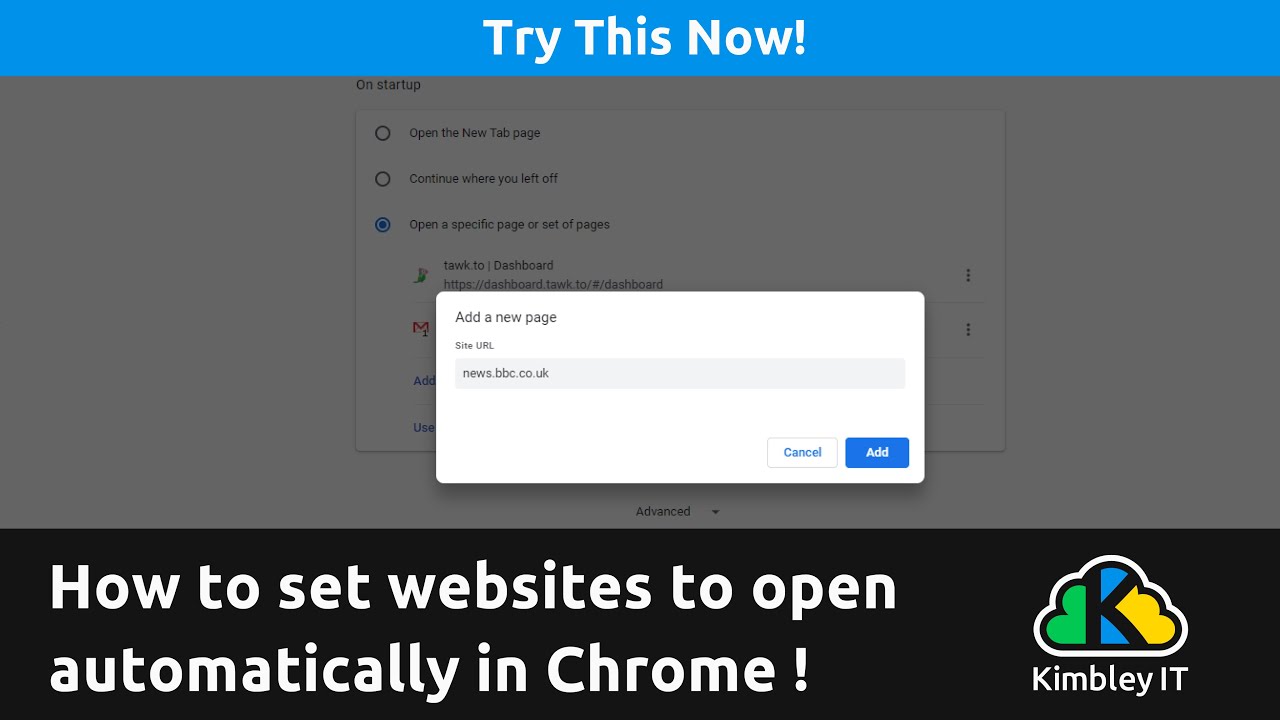
Image source: YouTube
If you choose "Continue where you left off," Chrome will restore all tabs from your previous session. While this is a popular choice for continuity, it can sometimes lead to a loop where an accidentally opened tab becomes a permanent fixture of your startup routine. To prevent this, many experts recommend the "Open a specific page" option for a cleaner, more predictable launch.
3. How to Configure Startup Pages in Microsoft Edge
Microsoft Edge, built on the Chromium engine, offers a similar interface to Chrome but includes unique features like "Startup Boost" and "Preload" that can make pages appear to open faster. Managing the webpage which automatically opens when the web browser is opened in Edge is straightforward but requires navigating to the correct submenu.
To set your pages in Edge, follow these steps:
- Open Edge and click the three horizontal dots (Settings and more).
- Navigate to Settings > Start, home, and new tabs .
- Under the "When Edge starts" section, select Open these pages .
- Click Add a new page to enter a URL, or use the Add all open tabs button to capture your current session.
It is worth noting that older documentation sometimes suggested Edge lacked a "Use current pages" feature, but modern versions have addressed this, making it a strong contender for productivity. If you find that Edge is opening automatically when you start your computer (not just when you click the icon), you may need to check the Windows Task Manager's "Startup" tab to disable the browser from launching at the OS level.
4. How to Open Multiple Homepages in Mozilla Firefox
Mozilla Firefox takes a notably different approach to startup pages compared to its Chromium-based rivals. Instead of a dedicated "Startup" list, Firefox integrates this functionality directly into the "Home page" field. This requires a specific syntax that many users find highly efficient once mastered.
As highlighted by GroovyPost , Firefox is the only major browser that uses a vertical bar (`|`) as a delimiter for multiple URLs. To set this up:
- Click the menu button and select Settings .
- Click Home on the left pane.
- Next to "Homepage and new windows," select Custom URLs from the dropdown.
-
Enter your URLs separated by the bar. For example:
https://gmail.com | https://trello.com.
This method ensures that every time you click the Home button or start the browser, your specified sites will load in separate tabs. It is an exceptionally strong feature for those who want their home button and startup behavior to remain perfectly synchronized.
5. How to Work Around Safari’s Startup Limitations on macOS
Safari, the default browser for macOS, does not natively support a list of multiple startup URLs in the same way Chrome or Edge does. However, power users have developed a reliable workaround using the "Bookmark Folder" method. This allows you to launch a curated set of tabs every time you open a new window.
To implement this workaround:
- Open all the websites you want to launch at startup.
- Go to Bookmarks > Add Bookmarks for These [X] Tabs and save them into a new folder (e.g., "Startup").
- Open Safari Preferences (or Settings in newer macOS versions).
- In the General tab, find "New windows open with."
- Select Choose tabs folder and pick the folder you just created.
While this is not as direct as other browsers, it sets a high standard for organization on the Mac platform. Additionally, you can add Safari to your macOS "Login Items" (System Settings > General > Login Items) to ensure the browser itself launches the moment you log into your computer.
6. How to Use Windows OS Settings to Launch Websites Automatically
Sometimes, you want a webpage to open not just when you click the browser, but the moment you turn on your PC. This requires OS-level automation, bypassing the browser's internal settings entirely. This is a top-tier strategy for "kiosk" setups or dedicated workstations.
The Startup Folder Method
Windows includes a hidden folder that launches any shortcut placed inside it upon system boot. To access it, press
Win + R
, type
shell:startup
, and hit Enter. You can then right-click inside the folder, select
New > Shortcut
, and paste the URL of the website you want to open. Windows will automatically use your default browser to launch that site every time you log in.
Using the Windows Task Scheduler
For more advanced control, the Windows Task Scheduler allows you to trigger a browser launch based on specific events, such as unlocking your workstation or at a specific time of day. According to Guiding Tech , this is a preferred method for users who want to avoid cluttering their system startup but still need automated access to specific tools.
7. How to Create a Batch File to Launch Multiple Browsers at Once
If your workflow requires using different browsers for different tasks—such as Chrome for work apps and Firefox for personal research—a simple Windows Batch file is an excellent choice. This allows you to launch multiple browsers, each with its own set of URLs, with a single double-click.
start chrome "https://work-crm.com"
start firefox "https://personal-email.com"
exit
To create this, open Notepad, paste the code above (replacing the URLs with your own), and save the file with a
.bat
extension (e.g.,
launch_work.bat
). Placing this file on your desktop or in your
shell:startup
folder provides a level of automation that few standard browser settings can match.
8. How to Stop Unwanted Webpages from Opening Automatically
If a webpage which automatically opens when the web browser is opened is one you didn't choose, you are likely dealing with a configuration hijack. This is often the result of installing free software that bundled "optional" browser settings or extensions.
- Your default search engine has changed to something unfamiliar (e.g., Search Marquis).
- New toolbars or extensions appeared without your consent.
- The browser feels sluggish or displays excessive pop-up ads.
- You cannot change the startup page back to your preferred site.
The Shortcut Hijack Fix
One of the most persistent ways malware forces a site to open is by modifying the browser's desktop shortcut. Even if you fix the internal settings, the shortcut itself tells the computer to load a specific URL. To fix this:
- Right-click your browser icon and select Properties .
-
Look at the
Target
field. It should end with
chrome.exe"ormsedge.exe". -
If there is a URL appended after the quotes (e.g.,
...chrome.exe" http://malicious-site.com), delete everything after the closing quote. - Click Apply and OK .
For persistent issues, Microsoft MVP Greg recommends using specialized tools like Malwarebytes with "Root Kit scanning" enabled to identify deep-seated browser hijackers that standard antivirus programs might miss.
9. How to Fix the "Continue Where You Left Off" Loop
A common frustration occurs when a user visits a site once, closes the browser, and finds that the site reopens every time thereafter. This is usually caused by the "Continue where you left off" setting. If you had a tab open when the browser crashed or was closed, the browser assumes you want it back.
To break this loop, you must manually close the offending tab and then immediately close the browser. If the site persists, it may be stored in the browser's "Session Restore" cache. Clearing your browsing history and "Hosted app data" for the last hour can often flush these persistent tabs without requiring a full browser reset.
10. How to Manage Auto-Opening Pages on Android and iOS
Mobile browsers like Chrome on Android or Safari on iOS handle "startup" differently than desktop versions. Because mobile operating systems frequently suspend apps to save battery, there isn't a traditional "On Startup" setting. Instead, mobile browsers rely on Tab Persistence .
If you want a specific site to be easily accessible, the "Add to Home Screen" feature is a leading alternative. This creates a pseudo-app icon on your phone that opens the specific URL directly. Conversely, if you want to stop pages from reopening, you must use the tab switcher (the square icon) to swipe away and close all active tabs before exiting the app. On iOS, Safari also offers a "Close Tabs" setting under Settings > Safari that can automatically clear your session after a day, week, or month.
11. Browser Startup Capabilities Comparison
| Feature | Chrome | Edge | Firefox | Safari |
|---|---|---|---|---|
| Multiple Startup Pages | Yes | Yes | Yes (via `|`) | Workaround Only |
| Use Current Tabs | Yes | Yes | Yes | Yes |
| OS-Level Startup | Yes | Yes | Yes | Yes (Login Items) |
| Startup Boost | No | Yes | No | No |
12. Frequently Asked Questions
Why does Chrome open a specific site every time I start my PC?
How do I stop a website from automatically opening in a new tab?
Can I set different startup pages for different browser profiles?
Why does my browser open to Yahoo instead of Google?
How do I make my browser open to a blank page?
about:blank
as the URL. In Firefox, set your Homepage to "Blank Page" in the Home settings menu. This ensures a fast, distraction-free launch every time.
The Bottom Line
Managing the webpage which automatically opens when the web browser is opened is essential for both productivity and digital security. By following these key steps, you can ensure your browser works for you, not against you:
- Audit your browser settings first by navigating to the "On Startup" or "Home" section.
- Use the vertical bar (`|`) in Firefox to manage multiple startup URLs efficiently.
- Check your desktop shortcuts for appended URLs in the "Target" field to fix persistent hijacks.
- Leverage the Windows Startup folder (`shell:startup`) for OS-level automation.
- Utilize specialized security tools like Malwarebytes or AdwCleaner if settings won't stay fixed.
- Distinguish between Home and Startup pages to avoid configuration confusion.
Take a moment today to audit your browser's startup behavior and remove any extensions you no longer use to maintain a fast and secure environment.
-
Topic: Whenever my pc starts up my browser opens with a ...https://www.reddit.com/r/techsupport/comments/1630x4e/whenever_my_pc_starts_up_my_browser_opens_with_a/
-
Topic: Open the same set of web pages every time you start the ...https://servicecenter.twu.edu/TDClient/1956/Portal/KB/Article/142590/Open-the-same-set-of-web-pages-every-time-you-start-the-browser
-
Topic: How to automatically launch websites at startup in Chrome.https://gatekeeperhelp.zendesk.com/hc/en-us/articles/360059916414-How-to-automatically-launch-websites-at-startup-in-Chrome

How to Block a Website on Chrome on Desktop, Android, and iPhone
Learn how to block websites on Chrome using extensions, system files, or mobile settings. Fix the incognito loophole and boost your productivity.


How to Use a Browser in a Browser Proxy to Manage Multiple Identities Safely
Learn how to set up a browser in a browser proxy to bypass blocks, manage multiple accounts, and prevent DNS leaks with advanced anti-detect tools.


How to Use the inurl: Search Operator for SEO Audits and Site Security
Learn to use the inurl: operator for SEO audits and security. Fix errors and master advanced search strings for 2026.
