
How to Open an Incognito Tab on Any Browser or Device
Ctrl + Shift + N
(Cmd + Shift + N on Mac)
Ctrl + Shift + P
(Cmd + Shift + P on Mac)
Cmd + Shift + N
Opening an incognito tab—often referred to as private browsing—is a fundamental skill for modern internet users. Whether you are trying to bypass paywalls, manage multiple accounts simultaneously, or simply ensure that your search for a surprise gift doesn't appear in your shared browser history, private mode provides a "clean slate" session. According to Stanford University IT , these windows are particularly useful for troubleshooting sign-in issues because they ignore existing cookies and cached data.
In this guide, we will explore the specific steps for every major browser, address common troubleshooting hurdles like missing buttons, and reveal advanced power-user techniques to make your browsing experience more efficient.
Keyboard Shortcuts for Every Major Browser
For desktop users, keyboard shortcuts represent the fastest way to trigger a private session. While most browsers have converged on a similar standard, there are slight variations that can trip up users switching between platforms.
| Browser | Windows / Linux | macOS |
|---|---|---|
| Google Chrome | Ctrl + Shift + N | Cmd + Shift + N |
| Microsoft Edge | Ctrl + Shift + N | Cmd + Shift + N |
| Mozilla Firefox | Ctrl + Shift + P | Cmd + Shift + P |
| Apple Safari | N/A | Cmd + Shift + N |
| Brave Browser | Ctrl + Shift + N | Cmd + Shift + N |
It is worth noting that while the shortcuts are similar, the underlying technology differs. For instance, Firefox's private mode includes "Strict" tracking protection by default, whereas Chrome focuses primarily on local history suppression. If you are using a Windows-based machine, the
Ctrl + Shift + N
combination is a top choice for almost all Chromium-based browsers.
How to Open an Incognito Tab in Google Chrome
Google Chrome is widely considered one of the most popular browsers globally, and its Incognito mode is the industry standard for private browsing. When you enter this mode, Chrome will not save your browsing history, cookies, site data, or information entered in forms. However, Google's official documentation clarifies that downloads and bookmarks created during the session are still saved to your device.
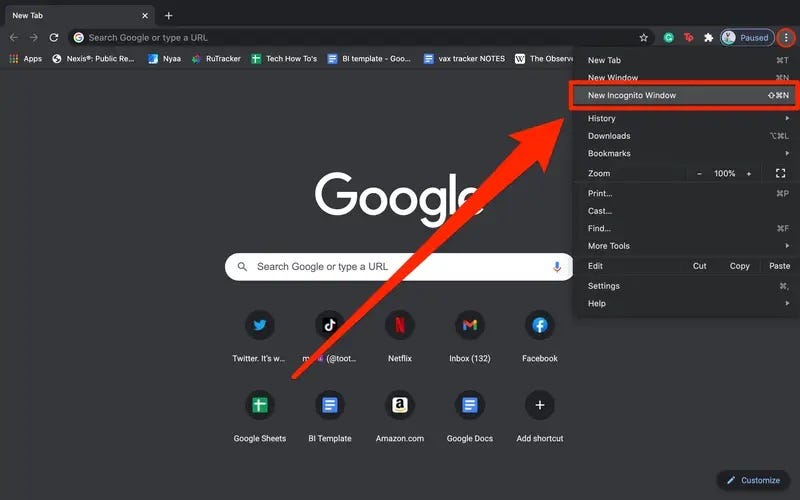
Image source: Business Insider
Desktop Instructions (Windows, Mac, ChromeOS)
- Open Google Chrome on your computer.
- Click the three-dot menu icon in the top-right corner of the window.
- Select New Incognito Window from the dropdown list.
- A new dark-themed window will appear, confirming you are browsing privately.
Mobile Instructions (Android and iOS)
On mobile devices, the process is slightly different. On Android, you tap the three dots and select "New Incognito tab." A key platform difference to note is that on Android tablets, the menu may explicitly say "New Incognito window" to reflect the larger screen real estate. On iPhone, the process is identical: tap the three dots at the bottom right and select the Incognito option.
You don't always need to open the window first. If you see a link you want to view privately, simply right-click the link and select "Open link in Incognito window." This is a highly effective way to save time when researching sensitive topics.
How to Use Private Browsing in Apple Safari
Safari handles private browsing with a focus on seamless integration across the Apple ecosystem. One of the most significant advancements in recent years is the ability to lock your private tabs. On iOS 17 and later, Safari allows users to "Lock" private tabs behind FaceID, TouchID, or a passcode. This ensures that even if someone else is using your unlocked phone, they cannot see your private browsing session without your biometric authentication.
Using Safari on macOS
To open a private window on a Mac, go to
File > New Private Window
in the top menu bar. Alternatively, use the
Shift + Cmd + N
shortcut. Safari distinguishes private windows by darkening the Smart Search field (address bar).
Using Safari on iPhone (iOS)
- Open the Safari app.
- Tap the Tabs icon (the two overlapping squares) in the bottom-right corner.
- Tap the button in the bottom-center that shows your current tab count or "Start Page."
- Select Private from the list to enter Private Browsing Mode.
- Tap the + (plus) icon to open a new private tab.
How to Open an InPrivate Window in Microsoft Edge
Microsoft Edge uses the term "InPrivate" for its stealth mode. Since Edge is built on the Chromium engine, it shares many similarities with Chrome but includes unique features like "Automatic InPrivate." This feature may suggest opening an InPrivate window when it detects you are visiting a site that requires higher privacy, such as a banking portal.
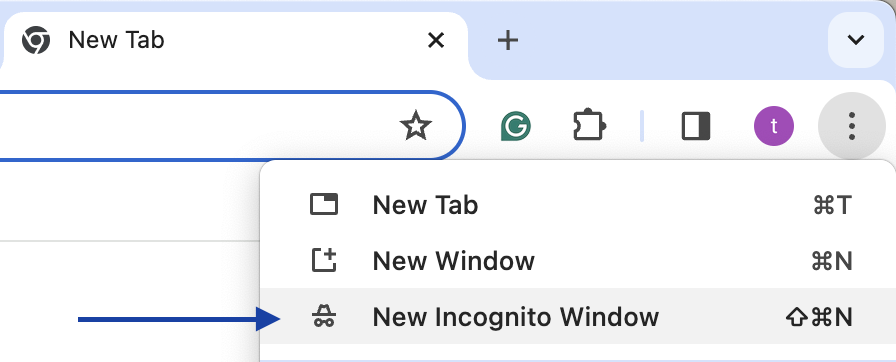
Image source: Grammarly Support
According to Microsoft Support , InPrivate browsing deletes your browsing info when you close all InPrivate windows. To open one on a desktop, click the three-dot menu and select New InPrivate window . On mobile, tap the "..." menu at the bottom of the screen and select the InPrivate option from the grid.
How to Open a Private Window in Mozilla Firefox
Firefox is a top-tier choice for users who prioritize privacy over convenience. Its private windows include "Enhanced Tracking Protection," which blocks many of the hidden trackers that follow you from site to site. This makes Firefox a strong contender for those looking to minimize their digital footprint.
Desktop and Mobile Steps
On a desktop, click the three-line menu (hamburger menu) in the top-right and select New Private Window . On mobile, look for the mask icon in the tab switcher or tap the three dots to find the private tab option.
For users who want a "burn-after-reading" experience, many in the privacy community recommend Firefox Focus . This is a standalone mobile browser that is always in private mode. It lacks bookmarks and tabs by design, ensuring that every session is completely wiped the moment you close the app.
Why Is the Incognito Option Missing or Greyed Out?
It can be frustrating when you follow the steps above only to find the "New Incognito Tab" button is missing or disabled. This is rarely a random glitch and is usually the result of specific device policies.
1. Managed Devices and Enterprise Policies
If you are using a computer provided by your school or employer, the IT department may have disabled private browsing. They use a setting called the
IncognitoModeAvailability
policy. In these environments, the organization often requires all browsing history to be logged for security or compliance reasons. If the button is greyed out on a work laptop, there is typically no way to enable it without administrative access.
2. Family Link and Parental Controls
For younger users, Google's Family Link or Apple's Screen Time can disable incognito mode. If a Google account is managed as a child account, Incognito is turned off by default to allow parents to monitor web activity. To restore the feature, the parent must adjust the content restrictions in the Family Link app.
3. Android Troubleshooting
If you are on a personal Android device and the menu is missing, it may be a local app error. A common fix involves the following steps:
- Go to Settings > Apps > Chrome .
- Tap Force Stop .
- Go to Storage & Cache and select Clear Data (Note: this will sign you out of sites).
- Restart Chrome and check the menu again.
How to Make Your Browser Always Start in Incognito Mode
Power users often prefer to have their browser launch in private mode by default. While there isn't a single toggle in the settings for this, you can use a simple shortcut modification on Windows.
The Windows Shortcut Hack
- Find your browser shortcut on the desktop (Chrome or Edge).
- Right-click the icon and select Properties .
-
In the
Target
field, you will see a file path ending in
chrome.exe". -
Place your cursor at the very end, add a space, and type
--incognito(for Chrome) or-inprivate(for Edge). - Click Apply and OK .
Now, whenever you use that specific shortcut, the browser will launch directly into a private session. For macOS users, you can achieve a similar result by using the "Automator" app to create a small script that runs the terminal command for a private window.
What Does Incognito Mode Actually Hide?
There is a common misconception that Incognito mode makes you invisible on the internet. This is not the case. It is vital to understand the boundary between local privacy and network anonymity.
What is Hidden (Local Privacy)
- Browsing History: The list of sites you visited is not saved to the device.
- Form Data: Names, addresses, and credit card numbers entered into fields are not remembered.
- Cookies and Site Data: These are deleted the moment you close the private window.
What is NOT Hidden (Network Privacy)
Even in an incognito tab, your activity is visible to several parties. Your Internet Service Provider (ISP) can still see which domains you are visiting. Your employer or school can track your traffic if you are on their network. Finally, the websites themselves can still track you via your IP address or through "browser fingerprinting" techniques.
As noted by privacy advocates, Incognito mode is a tool for "clean sessions" rather than true anonymity. If you require a higher level of protection, you should consider using a Virtual Private Network (VPN) or the Tor Browser, which masks your IP address and encrypts your traffic.
Key Takeaways for Private Browsing
-
Use Keyboard Shortcuts:
Ctrl + Shift + N(Chrome/Edge) orCtrl + Shift + P(Firefox) are the fastest ways to open private tabs. - Check Mobile Toggles: On iPhone Safari, you must tap the tab switcher and select "Private" to toggle the mode.
- Understand the Limits: Incognito hides history from your family or roommates, but not from your ISP or employer.
- Troubleshoot Restrictions: If the option is missing, it is likely due to Family Link or workplace IT policies.
- Leverage Advanced Features: Use the Windows shortcut hack to make private mode your default launching state.
- Lock Your Tabs: Take advantage of Safari's FaceID lock for an extra layer of mobile privacy.
For the best balance of privacy and usability, use incognito tabs for individual tasks and consider a dedicated privacy browser for your most sensitive research.
Frequently Asked Questions
- Does Incognito mode hide my IP address?
- No, Incognito mode does not hide your IP address. Websites you visit and your Internet Service Provider can still see your IP. To hide your IP, you would need to use a VPN or a proxy server.
- Can I recover my Incognito browsing history?
- Generally, no. Incognito history is not written to the hard drive. While some advanced forensic tools might find traces in the system's RAM or DNS cache, for the average user, the history is gone once the window is closed.
- Are files I download in Incognito mode hidden?
- No. While the record of the download is cleared from the browser's download manager, the actual file remains in your "Downloads" folder or wherever you saved it on your device.
- Why do links keep opening in Incognito automatically?
- This is often caused by a browser extension or a specific setting in your OS. Check your "Default Apps" settings or disable recently installed extensions to resolve this "Incognito Loop."
- How do I close all Incognito tabs at once on Android?
- Swipe down from the top of your screen to open the notification tray. You will see a notification from Chrome that says "Close all incognito tabs." Tapping this will immediately shut down every private session.
Final Thoughts
Mastering the incognito tab is a significant step toward managing your digital footprint. By understanding the shortcuts, the platform-specific features like Safari's biometric lock, and the inherent limitations of the technology, you can browse with greater confidence. Remember that while private mode is a top-rated tool for local privacy, it is only one part of a broader security strategy. Always remain aware of who can see your data on the network level, and use the troubleshooting steps provided if you ever find your privacy options restricted by administrative policies.
-
Topic: Browse in Incognito mode - Computer - Google Chrome Helphttps://support.google.com/chrome/answer/95464?hl=en&co=GENIE.Platform%3DDesktop
-
Topic: Open incognito tab - Chrome Web Storehttps://chromewebstore.google.com/detail/open-incognito-tab/ebgmlfdcgihhfheckfdmhnmedjigogmm?hl=en
-
Topic: Incognito Browser - Go Private - Apps on Google Playhttps://play.google.com/store/apps/details?id=com.androidbull.incognito.browser&hl=en_US

How to Block a Website on Chrome on Desktop, Android, and iPhone
Learn how to block websites on Chrome using extensions, system files, or mobile settings. Fix the incognito loophole and boost your productivity.


How to Use the inurl: Search Operator for SEO Audits and Site Security
Learn to use the inurl: operator for SEO audits and security. Fix errors and master advanced search strings for 2026.


How to Show or Hide Simplified View in Chrome and Microsoft Outlook
Manage Simplified View in Chrome Android, Reading Mode on desktop, and the Outlook ribbon. Learn to enable, disable, or fix the popup easily.