
How to Show or Hide Simplified View in Chrome and Microsoft Outlook
To
show or hide Simplified View in Chrome for Android
, navigate to
Settings > Accessibility
and toggle the "Simplified view for web pages" checkbox. For
Microsoft Outlook
, click the
downward caret (∨)
in the bottom-right corner of the ribbon to switch between Classic and Simplified views. If you are on
Chrome Desktop
, you can enable the side-panel Reading Mode via
chrome://flags/#read-anything
.
What Is Simplified View and Why Does It Appear?
Simplified View, often referred to as Reader Mode, is a specialized display feature designed to enhance readability by stripping away non-essential elements. When activated, the browser removes display advertisements, complex navigation menus, sidebars, and background scripts, leaving only the primary text and relevant images. This creates a focused environment that many users find helpful for long-form articles or research.
The mechanism that triggers this feature is algorithmic. Chrome's engine analyzes the Document Object Model (DOM) of a webpage to determine its "readability score." Typically, pages that are paragraph-heavy—often containing 700 words or more—will trigger the prompt. According to accessibility experts , this tool is a top choice for users with low vision or cognitive processing differences, as it allows for consistent font sizes and high-contrast backgrounds without the distraction of moving ads.
How to Manage Simplified View in Chrome for Android
Managing the "View simplified page" prompt on Android is a common point of confusion because the settings are tucked away in the accessibility menu rather than the general display settings. Whether you want to embrace the clutter-free look or stop an annoying popup from appearing, the process is straightforward.
How to Turn the Simplified View Toggle On or Off
If you want the option to simplify pages but don't see the prompt, or if you want to disable the feature entirely, follow these steps:
- Open the Chrome app on your Android device.
- Tap the three-dot menu in the top-right corner.
- Select Settings from the dropdown list.
- Scroll down and tap on Accessibility .
- Locate the checkbox labeled "Simplified view for web pages."
When this box is checked, Chrome will monitor the pages you visit and offer a "View simplified page" banner at the bottom of the screen whenever a compatible article is detected. Unchecking this box will prevent the banner from appearing entirely.
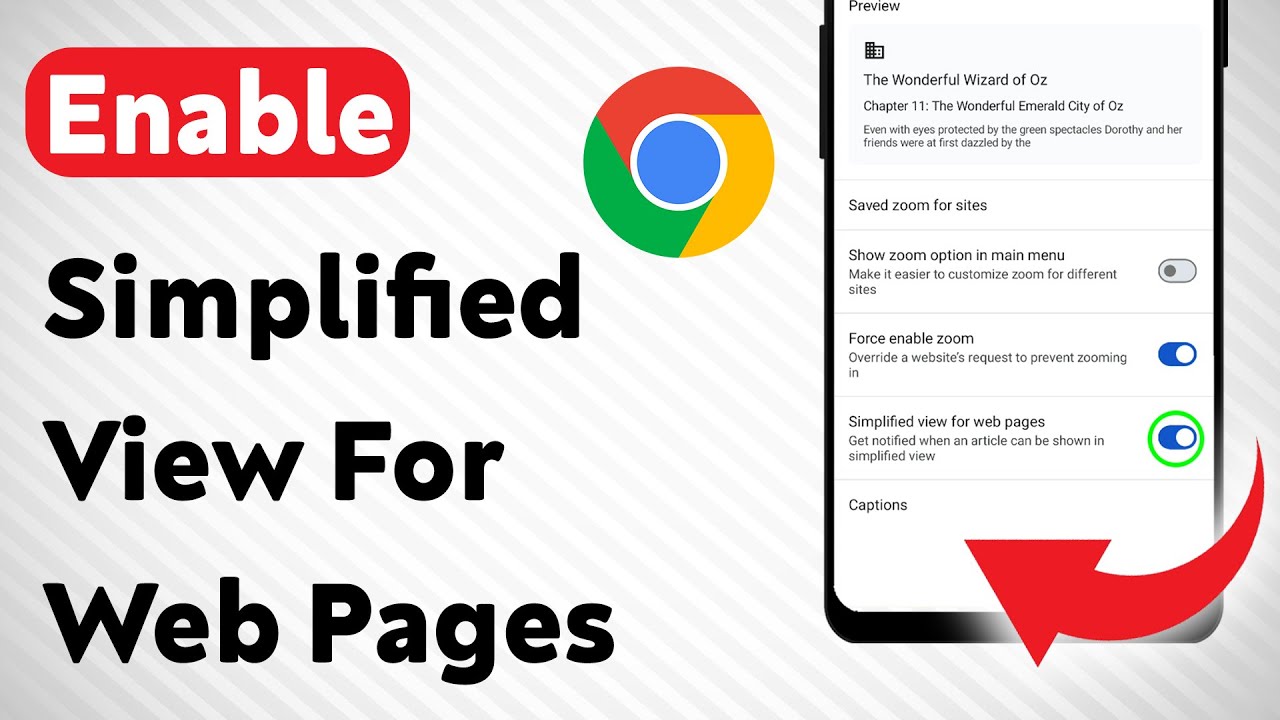
Image source: YouTube
How to Stop the View Simplified Page Popup Permanently
For many users, the banner itself is a distraction. It often appears over the very content you are trying to read and lacks a traditional "X" button to close. If the standard toggle doesn't satisfy your needs, you can use Chrome Flags to disable the messaging system entirely.
Navigate to
chrome://flags
in your address bar and search for
"Reader Mode Messages UI."
Set this flag to
Disabled
. This is widely considered one of the most effective ways to kill the popup while keeping the underlying technology available for manual use if needed.
What to Do if the Simplified View Banner Disappears
A frequent frustration reported in community forums is the "disappearing banner" bug. If you accidentally swipe the "View simplified page" prompt away, it typically won't reappear on that specific page, even if you refresh. This is a UI logic choice designed to prevent pestering users who have already declined the view.
How to Use Reading Mode in Chrome for Desktop
On desktop platforms, Google has moved away from the full-page "Simplified View" in favor of a more modern "Reading Mode" that lives in the Side Panel. This allows you to keep the original website layout visible while reading a clean version of the text on the right side of your screen.
How to Enable the Reading Mode Side Panel via Flags
While Reading Mode is becoming a standard feature, it may still require activation via flags in some versions of Chrome. To ensure you have access to the latest tools:
-
Type
chrome://flags/#read-anythinginto your address bar. - Change the setting from "Default" to Enabled .
- Relaunch Chrome to apply the changes.
Once enabled, you can access this mode by clicking the Side Panel icon (near your profile picture) and selecting "Reading Mode" from the dropdown menu. This side-panel approach is a significant advancement over the old full-page replacement, as it preserves the context of the original site.
How to Access and Pin Reading Mode to Your Toolbar
For those who use this feature frequently, pinning it to the toolbar saves multiple clicks. After opening the Reading Mode side panel, you can often right-click the icon or use the "More Tools" menu to create a permanent shortcut. This provides one-click access to a top-tier reading experience without navigating through sub-menus.
How to Toggle the Simplified Ribbon in Microsoft Outlook
The term "Simplified View" also applies to the user interface of Microsoft Outlook. The Simplified Ribbon is a condensed version of the command bar that helps reclaim vertical screen space, which is especially useful on laptops and smaller monitors.
Switching Between Classic and Simplified Ribbon Views
Toggling this view does not require digging into deep settings menus. Look for the downward-pointing caret (∨) located in the lower-right corner of the ribbon area. Clicking this icon allows you to switch instantly between the "Classic Ribbon" (multiple rows of icons) and the "Simplified Ribbon" (a single row of essential commands).
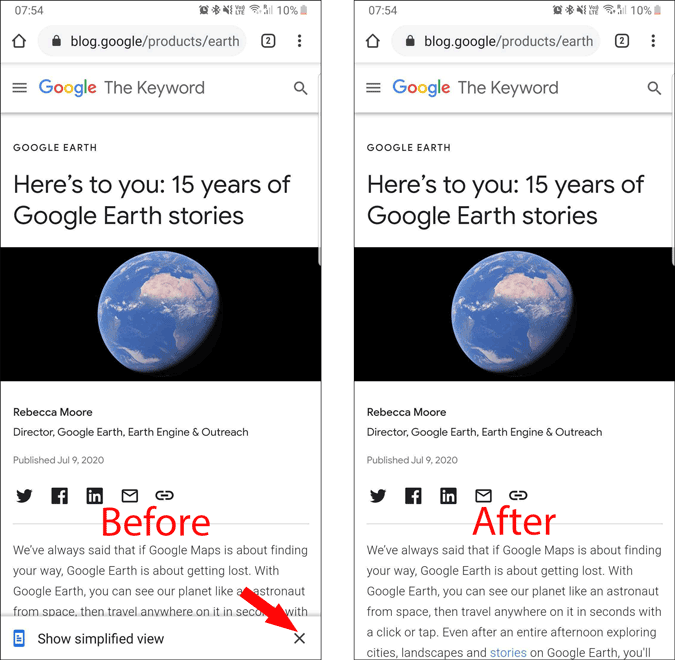
Image source: TechWiser
How to Find Missing Buttons in the Simplified View
When you switch to the Simplified Ribbon, many buttons are hidden to save space. If you can't find a specific tool:
- Look for the three dots (...) at the far right of the ribbon. This menu contains all the commands that didn't fit on the main line.
- Use the "Tell me what you want to do" search box at the top of Outlook. Typing the name of the command will bring it up immediately, regardless of which ribbon view you are using.
How to Prevent Your Website from Triggering the Simplified View Prompt
While Simplified View is excellent for readers, it can be a headache for web developers and site owners. Because it strips away ads and branding, it can lead to a significant loss in revenue and a broken user experience if the site's core functionality relies on custom scripts.
Adjusting Font Sizes and Viewport Settings for Mobile
Chrome's algorithm often triggers the "Simplified View" prompt if it detects that a site is difficult to read on mobile. One of the most effective ways to prevent the prompt is to follow the "18px Rule." By ensuring your base font size is at least 18px for screens under 540px wide, you signal to Chrome that your site is already optimized for readability.
Additionally, check your
<meta name="viewport">
tag. If the initial scale is set lower than 1.0 (e.g., 0.6), Chrome may assume the page is not mobile-friendly and offer the simplified view as a fix.
Technical CSS Workarounds to Keep Your Layout Intact
Some developers have found that the parser Chrome uses to identify "readable" content can be bypassed with specific CSS structures. For instance, using
display: table
on paragraph containers or occasionally replacing
<p>
tags with
<div>
tags can prevent the algorithm from identifying a block of text as an "article." However, these methods should be used sparingly as they can impact your site's SEO and general accessibility.
Comparing Reader Modes Across Different Browsers
While Chrome's Simplified View is a popular choice, other browsers offer features that many users find even more robust. Microsoft Edge, in particular, sets a high standard with its "Immersive Reader."
| Browser | Feature Name | Activation Method | Key Strength |
|---|---|---|---|
| Chrome (Android) | Simplified View | Bottom Banner Prompt | Fast, lightweight, and simple. |
| Chrome (Desktop) | Reading Mode | Side Panel Menu | Allows side-by-side comparison. |
| Microsoft Edge | Immersive Reader | F9 Key / Book Icon | Includes grammar tools and "Read Aloud." |
| Safari (iOS/Mac) | Reader View | "AA" Icon in URL Bar | Can be set to "Always On" for specific sites. |
| Firefox | Reader View | Document Icon in URL Bar | Excellent font and theme customization. |
Frequently Asked Questions
If you have swiped the prompt away in the past, Chrome may stop showing it for that specific website to avoid being intrusive. To bring it back, you typically need to clear your browser cache for that site or force-close the Chrome app and relaunch it. Additionally, ensure the feature is still enabled in Settings > Accessibility .
No, they are different features. Dark Mode changes the color palette of the entire browser UI and compatible websites. Simplified View changes the structure of the page by removing ads and menus. However, once you are in Simplified View, you can usually select a "Dark" or "Sepia" theme within the appearance settings of that mode.
Chrome for iOS does not have the exact same "Simplified View" banner as the Android version due to limitations in the underlying WebKit engine. However, iOS users can use Safari's built-in Reader View , which offers a nearly identical experience. To use it in Safari, tap the "AA" icon in the address bar and select "Show Reader."
Yes, one of the primary functions of Simplified View is to strip away non-essential elements, which includes most display advertisements, popups, and video overlays. This is why many users prefer it for reading news, though it does mean the website owner does not receive ad revenue for that specific view.
Once you have entered Simplified View on Android, tap the Appearance or "T" icon (usually at the top or bottom of the screen). From there, you can adjust the font size, change the font style (Serif vs. Sans-Serif), and modify the background color to suit your preference.
The Bottom Line
Managing your digital reading environment is essential for productivity and focus. Here are the key takeaways for mastering Simplified View:
- Android users should check the Accessibility menu first to toggle the feature on or off.
- Desktop users can unlock a side-panel experience using Chrome Flags for a less intrusive view.
- Outlook users can reclaim screen space by clicking the downward caret icon on the ribbon.
- The "Lost Banner" fix requires a full app restart rather than a simple page refresh.
- Web developers can prevent the prompt by maintaining a mobile font size of at least 18px.
- Edge and Safari offer strong alternatives with more advanced grammar and automation tools.
Take a moment to explore your browser's accessibility settings today to create a reading experience that fits your specific needs.
-
Topic: View Simplified Page? : r/AndroidQuestionshttps://www.reddit.com/r/AndroidQuestions/comments/q9cwkb/view_simplified_page/
-
Topic: Simplified Reading Displays And Low Visionhttps://veroniiiica.com/simplified-reading-displays-and-low-vision/
-
Topic: How to turn off 'View simplified page?' on Chromehttps://www.engageweb.co.uk/blog/how-to-turn-off-view-simplified-page-on-chrome

How to Open an Incognito Tab on Any Browser or Device
Learn shortcuts to open incognito tabs on Chrome, Safari, and Edge. Fix missing buttons and set private mode as default on any device.


How to Understand and Use More Options in Language and Technology
Learn the meaning of more options, find professional synonyms, identify UI icons like the kebab menu, and fix Windows 11 menu bugs.

How to Use the inurl: Search Operator for SEO Audits and Site Security
Learn to use the inurl: operator for SEO audits and security. Fix errors and master advanced search strings for 2026.
