
How to Choose and Download a Top Linux ISO for Your Computer
A Linux ISO is a disk image file containing a complete operating system. To get started, download a stable release like Ubuntu Desktop , Linux Mint , or Fedora Workstation . You will need a USB drive with at least 8GB of space and a flashing tool like BalenaEtcher. Most modern systems require a 64-bit ISO and a dual-core processor with 4GB to 6GB of RAM for a smooth experience.
Navigating the world of Linux distributions often begins with a single file: the ISO. This format serves as the standard for distributing operating systems, allowing users to create bootable media that can install Linux or run it in a "Live" environment. The Live environment is a particularly useful feature, as it allows you to test hardware compatibility, explore the user interface, and verify driver support without making any permanent changes to your existing hard drive. According to official Ubuntu documentation , this "Try Before You Install" capability is a primary reason users successfully migrate from other platforms.
However, the process involves more than just clicking a download button. To ensure a stable and secure installation, you must consider hardware architecture, support lifecycles (LTS vs. short-term), and security verification. In this guide, we will explore how to select the right distribution, verify your download's integrity, and troubleshoot the common boot errors that often frustrate new users.
How to Test Linux in Your Browser Before You Download Anything
One of the most efficient ways to choose a Linux ISO is to avoid downloading it entirely—at least initially. Multi-gigabyte downloads can be time-consuming, and discovering that you dislike a desktop environment after flashing a USB drive is a common pitfall. To solve this, many enthusiasts recommend using DistroSea .
DistroSea is a web-based service that allows you to run dozens of different Linux distributions directly in your browser using a virtual machine. This provides a "look and see" experience where you can navigate the menus, test the default software suite, and get a feel for the workflow of GNOME, Cinnamon, or Xfce. While the performance in a browser won't match a native installation, it is an exceptionally strong tool for narrowing down your choices without consuming significant bandwidth.
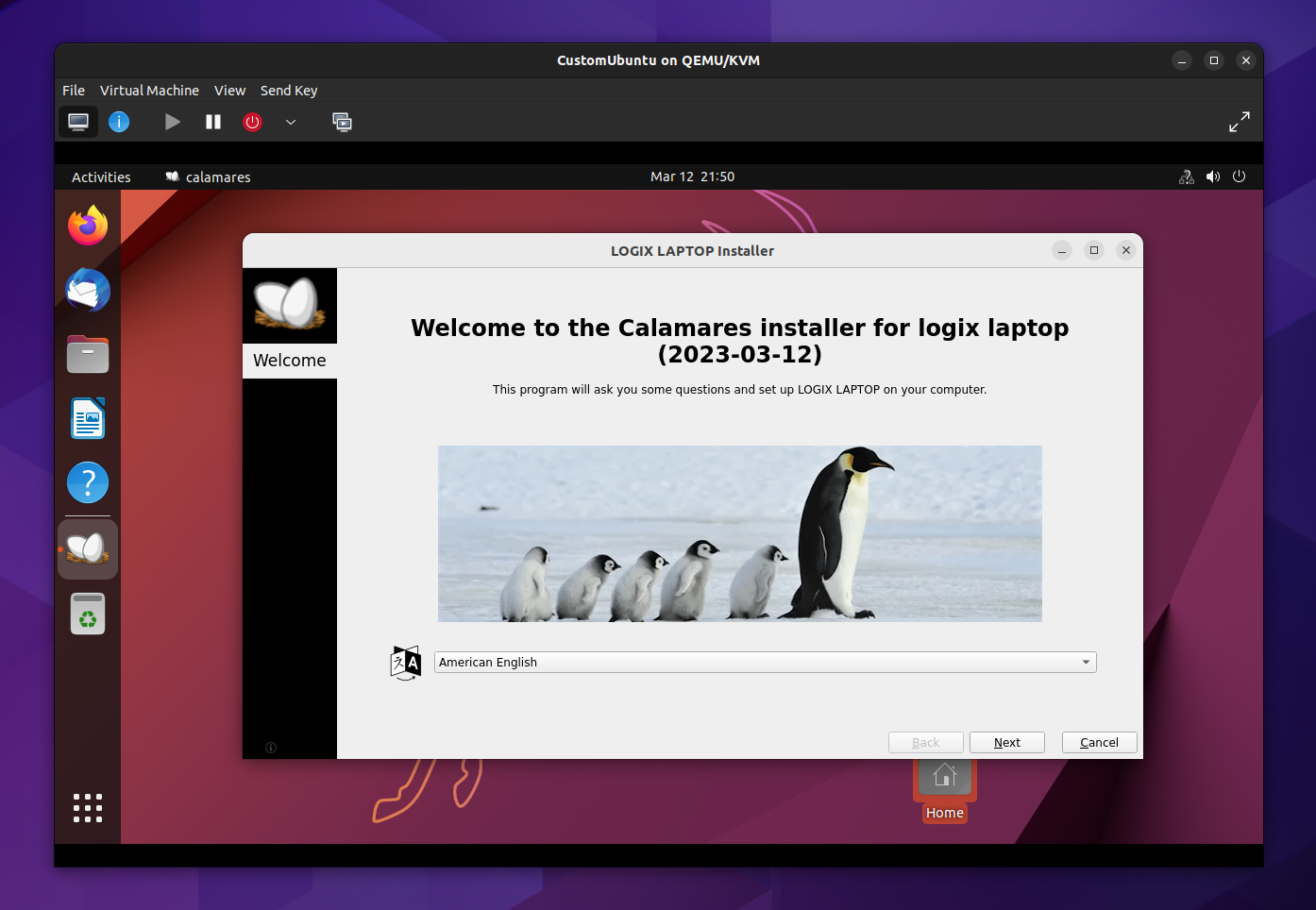
Image source: Linux Uprising
Which Linux ISO Should You Choose for Your Specific Needs?
Choosing a Linux ISO requires balancing your technical skill level with your hardware capabilities. The "best" choice is subjective, but several distributions consistently rank among the top for specific use cases. When selecting, pay close attention to the Desktop Environment (DE) , as this dictates the visual style and resource usage of the OS.
| Distro Name | Target User | Desktop Env | Min RAM | ISO Size |
|---|---|---|---|---|
| Linux Mint | Beginner | Cinnamon | 4 GB | ~2.8 GB |
| Ubuntu LTS | General/Pro | GNOME | 6 GB | ~4.7 GB |
| Fedora | Developer | GNOME | 4 GB | ~2.1 GB |
| AlmaLinux | Enterprise | GNOME/Server | 2 GB | ~9.0 GB (Full) |
| Mint Xfce | Old Hardware | Xfce | 2 GB | ~2.5 GB |
Top Linux ISOs for Beginners and Windows Migrators
For those moving from Windows or macOS, Linux Mint (Cinnamon Edition) is widely regarded as one of the strongest options. Its layout is familiar, featuring a taskbar, start menu, and system tray that behave similarly to traditional desktop environments. Mint is built on the stable Ubuntu base but removes some of the more controversial features, focusing instead on user-friendliness and out-of-the-box functionality.
Ubuntu Desktop remains a popular choice for its massive community support and hardware certification. If you are using a modern laptop from a major vendor like Dell or Lenovo, there is a high probability that Ubuntu has been tested specifically for your hardware. The Long Term Support (LTS) versions are highly recommended, as they provide five years of standard security updates, which can be extended to 15 years via Ubuntu Pro according to Canonical's latest support tiers .
Top Linux ISOs for Servers and Enterprise Environments
In the server room, the priorities shift toward stability, security auditing, and long-term binary compatibility. Following the changes to the CentOS project, AlmaLinux and Rocky Linux have emerged as the leading "forever-free" enterprise distributions. Both are designed to be 1:1 binary compatible with Red Hat Enterprise Linux (RHEL).
AlmaLinux stands out for its commitment to transparency, providing a "Software Bill of Materials" (SBOM) and OVAL streams for security auditing. These features are notably innovative in the free software space, allowing enterprise users to verify the security posture of every package in the ISO. As noted by the AlmaLinux Foundation , their infrastructure is backed by significant annual sponsorship, ensuring the project's longevity.
Lightweight Linux ISOs for Older Hardware and Low Resources
If you are reviving a laptop from a decade ago, a standard GNOME or Cinnamon ISO may feel sluggish. In these cases, look for distributions utilizing the Xfce or MATE desktop environments. Linux Mint Xfce provides a modern experience with significantly lower RAM overhead. For even more extreme cases, minimal ISOs or "Netinstall" versions allow you to install only the bare essentials, though these require a stable internet connection during the installation process.
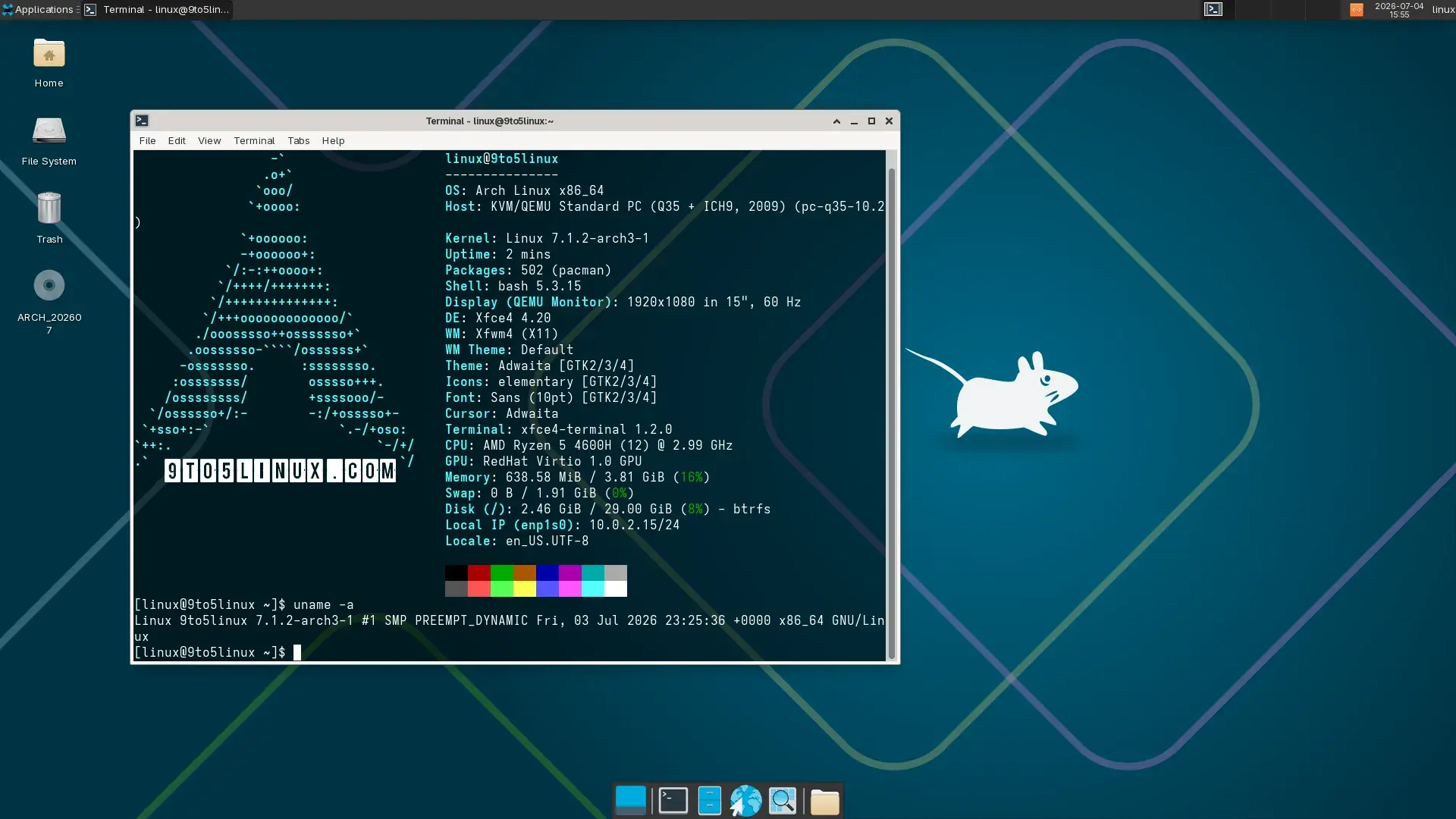
Image source: 9to5Linux
How to Download and Verify Your Linux ISO for Maximum Security
A common mistake among new users is assuming that a successful download equals a safe file. ISO files are large, and data corruption during transit is a real possibility. More importantly, "man-in-the-middle" attacks could theoretically replace a legitimate ISO with a malicious one. To prevent this, you must perform Checksum Verification .
Most distribution websites provide a SHA-256 hash—a long string of characters that acts as a digital fingerprint for the file. After downloading the ISO, you use a tool to generate a hash from your local file. If your local hash matches the one on the website, the file is authentic and uncorrupted.
Open PowerShell and type the following command (replace "filename.iso" with your actual file path):
On Linux or macOS, you can use the terminal command
sha256sum filename.iso
. Beyond simple hashes, enterprise distributions like
Rocky Linux
also provide GPG signatures, which allow you to verify that the hash itself was signed by the official development team. This extra layer of security is a top-tier practice for production environments.
How to Create a Bootable Linux USB Drive the Right Way
Once you have a verified ISO, you need to "flash" it to a USB drive. Simply copying and pasting the file onto the drive will not work; the USB must be structured with a bootloader that your computer's BIOS or UEFI can recognize.
- BalenaEtcher
- Widely considered one of the best tools for beginners. It features a simple three-step interface and is available for Windows, macOS, and Linux. It automatically validates the flash after completion.
- Rufus
- A popular choice for Windows power users. It offers granular control over partition schemes (MBR vs. GPT) and target system types (BIOS vs. UEFI). It is particularly useful for creating "Persistent" live drives.
- Ventoy
- A notably innovative tool that allows you to simply drop multiple ISO files onto a single USB drive. When you boot from the drive, Ventoy provides a menu to select which ISO to launch.
Why Your Linux ISO Might Not Boot and How to Fix It
Even with a perfect flash, you may encounter errors when trying to boot. These issues are rarely caused by a "broken" ISO and are usually related to security settings in your computer's firmware.
How to Fix the Secure Boot Authentication Error
The most frequent hurdle is the Secure Boot error, often appearing as "Selected boot drive did not authenticate." Secure Boot is a security standard developed by PC industry members to ensure that a device boots using only software that is trusted by the Original Equipment Manufacturer (OEM).
While many modern Linux ISOs (like Ubuntu and Fedora) include signed bootloaders that work with Secure Boot, others do not. If you encounter this error, you must enter your BIOS/UEFI settings (usually by pressing F2, F12, or Del during startup) and either disable Secure Boot or set it to "Audit Mode." This is a common fix found in community forums like r/linux4noobs .
What to Do When You See the Loop3 Mount Error
Another common issue is the "Failed to mount /dev/loop3" error. This typically indicates that the Linux kernel started to load, but it cannot find the rest of the operating system files on the USB drive. This is almost always a symptom of a corrupted flash or a failing USB port. To resolve this, try flashing the ISO again using a different tool or plugging the drive into a USB 2.0 port instead of a 3.0 port, as some older kernels have better compatibility with legacy ports during the initial boot phase.
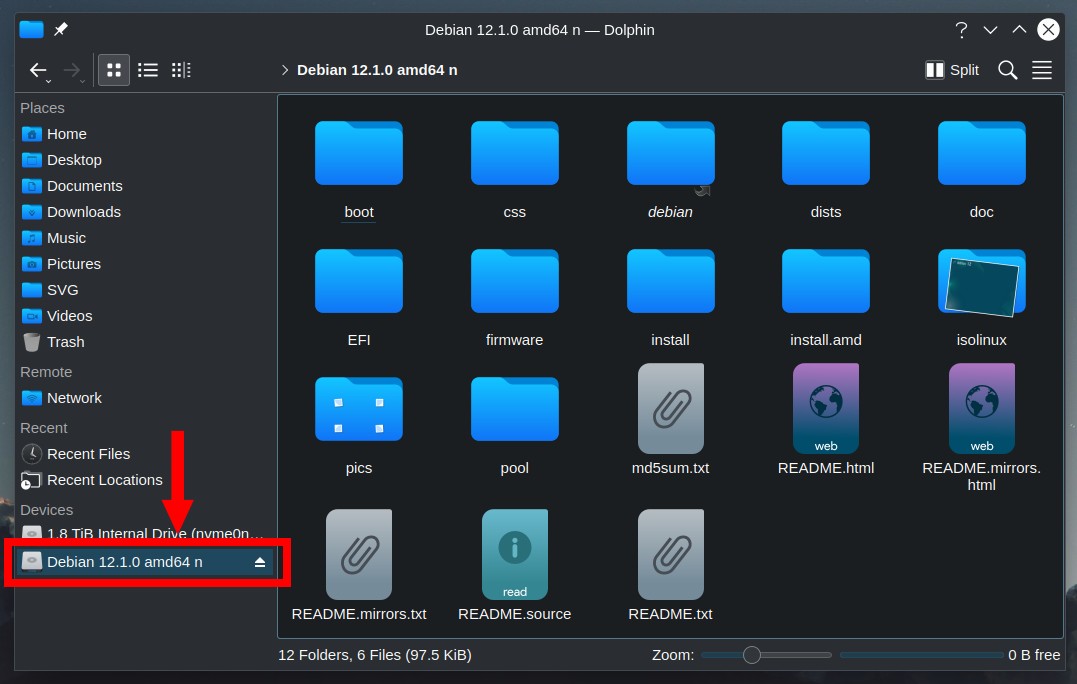
Image source: Linuxiac
How to Upgrade Your Enterprise Linux ISO Without a Reinstall
For server administrators, the prospect of downloading a new ISO and wiping a machine just to upgrade the OS is daunting. This is where the ELevate Project provides a significant advancement. ELevate is an open-source initiative that allows for in-place upgrades between major versions of RHEL-based distributions.
For example, if you are running CentOS 7, you can use the ELevate script to migrate directly to AlmaLinux 8 or 9 without losing your configurations or data. This workflow bypasses the need for traditional ISO deployment in many scenarios, saving hours of configuration time. It is a highly impactful tool for maintaining enterprise infrastructure without the risks associated with a "clean" install on production hardware.
"The goal of modern Linux distribution is to make the transition between versions as seamless as possible, reducing the reliance on physical media for every minor update." — Industry Insight on Enterprise Migrations
Frequently Asked Questions
What is the difference between a 64-bit and 32-bit Linux ISO?
A 64-bit (x86_64 or amd64) ISO is designed for modern processors and can handle more than 4GB of RAM. A 32-bit (i386 or x86) ISO is for legacy hardware produced before 2010. Most major distributions have phased out 32-bit support, so if you have a modern PC, always choose the 64-bit version.
Can I run a Linux ISO from a DVD instead of a USB?
Yes, you can burn an ISO to a DVD-R, provided your computer has an optical drive. However, USB drives are much faster, reusable, and more reliable. Many modern ISOs exceed the 4.7GB capacity of a standard DVD, requiring a Dual Layer disc or a USB stick.
How much space do I need on my USB drive for a Linux ISO?
While some minimal ISOs are as small as 140MB, a standard desktop ISO like Ubuntu or Mint requires at least 4GB. To be safe and allow for "persistence" (saving files on the live USB), an 8GB or 16GB drive is a top choice for most users.
Are Linux ISOs legal to download?
Yes, the vast majority of Linux ISOs are free and open-source software (FOSS). However, enterprise distributions like Rocky Linux are subject to U.S. Export Administration Regulations (EAR). This means they cannot be legally exported to certain sanctioned countries. Always check the distribution's terms of service if you are using it for commercial purposes.
Which Linux ISO is the smallest for a fast download?
If you have a slow internet connection, look for "Netinstall" or "Minimal" ISOs. Debian and Arch Linux offer images under 1GB that download the rest of the system during the installation process. Puppy Linux is another exceptionally strong option, with full desktop ISOs often under 400MB.
Final Thoughts and Your Linux Installation Checklist
Successfully installing Linux is a rewarding process that gives you full control over your computing environment. By following a structured approach, you can avoid the common pitfalls that lead to failed boots and corrupted systems. Use this checklist to ensure a smooth transition:
- Test the UI: Use DistroSea to confirm you like the desktop environment before downloading.
- Check Requirements: Ensure your PC has at least a 2GHz CPU and 4GB+ of RAM for modern distros.
- Official Sources: Only download ISOs from official mirrors or verified torrents.
- Verify Integrity: Always run a SHA-256 checksum to prevent corruption or security breaches.
- Flash Correcty: Use a dedicated tool like BalenaEtcher or Rufus to create your bootable media.
- BIOS Prep: Disable Secure Boot if you encounter "Authentication Failed" errors during startup.
- Live Test: Use the "Try Linux" mode to check if your Wi-Fi and sound work before hitting "Install."
Once you have verified your hardware and secured your ISO, you are ready to begin your journey into the open-source world.

How to Find the ASUS BIOS Button and Enter Settings on Any Device
Find the ASUS BIOS button for laptops, desktops, and ROG Ally. Fix Fast Boot issues and use BIOS FlashBack to update without a CPU or RAM.


How to Reformat Your ASUS Laptop and Restore Factory Settings
Learn how to reformat an ASUS laptop using Windows settings, BIOS, or Cloud Recovery. Fix errors, bypass passwords, and restore factory settings.


Why Parrot OS 7 Echo Ranks Among the Top Security Distros for 2026
Explore Parrot OS 7 Echo features, AI hacking tools, and KDE Plasma 6. Learn how to install, troubleshoot, and use Parrot as a daily driver.