
How to Download Images from Google Search and Google Photos on Any Device
To download an image from
Google Search
, right-click the image (or long-press on mobile) and select
"Save image as..."
or
"Download image."
For
Google Photos
, open the image, click the three-dot menu, and select
"Download"
(or use
Shift + D
on desktop). Always click the image to expand it first to avoid saving a low-resolution thumbnail.
Navigating the vast ecosystem of Google can sometimes feel overwhelming, especially when you need to move files from the cloud to your local storage. Whether you are sourcing a reference image from a search result or trying to back up your personal memories from Google Photos, the process varies significantly depending on your device and the specific platform you are using. This guide provides a deep dive into the most effective methods for capturing high-quality visuals while avoiding common technical pitfalls like resolution loss and metadata discrepancies.
Saving Images from Google Search to Your Computer
For most users, the desktop browser remains a primary tool for research and asset gathering. While the process seems straightforward, understanding the nuances of how browsers handle different file types can save you significant time during the organization phase of your project.
Using the Standard Right-Click Method on Windows and Mac
The most common way to save an image is through the browser's context menu. According to Source 4 , this method is consistent across major browsers like Chrome, Edge, and Safari. Follow these steps for a clean save:
- Perform your search at images.google.com and locate the visual you need.
- Click the image to open the side preview panel. This is a critical step for quality.
- Right-click the large preview in the side panel.
- Select "Save image as..." from the dropdown menu.
- Choose your destination folder, rename the file if necessary, and click "Save."
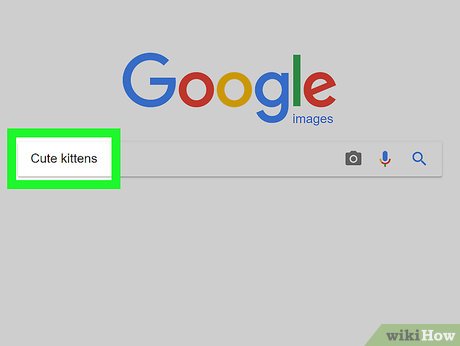
Image source: wikiHow Tech
Understanding File Formats and Download Locations
When saving images, you may notice different file extensions. While JPG and PNG are standard, Google frequently serves images in the WebP format . WebP offers superior compression, but it may not be compatible with older photo editors. If you encounter a WebP file and need a JPG, you can often use browser extensions like "Save image as Type" or simply rename the extension during the save process, though the latter does not always change the underlying encoding.
By default, most browsers send these files to your "Downloads" folder. However, you can change this in your browser settings (Settings > Downloads) to "Ask where to save each file before downloading," which is a highly recommended practice for keeping your workspace organized from the start.
Avoiding the Common Thumbnail Trap for Higher Quality
One of the most frequent mistakes users make is saving an image directly from the main search results grid. This is known as the "Thumbnail Trap." The images you see in the initial grid are highly compressed, low-resolution previews designed to load quickly as you scroll.
As noted in Source 11 , if you need the absolute original file, your best option is to click the "Visit" button to go to the source website. Once there, you can save the image directly from the host, which often provides even higher resolution than what Google's cache displays.
Downloading Images from Google on Android and iOS Devices
Mobile workflows differ because they rely on touch gestures rather than mouse clicks. Furthermore, the way Android and iOS handle file storage can lead to confusion about where your images actually "live" once the download is complete.
Using the Long-Press Technique in Mobile Browsers
Whether you are using Chrome on Android or Safari on an iPhone, the "long-press" is your primary tool. Official documentation from Source 5 confirms this as the standard procedure for mobile Chrome users.
- Open your mobile browser and search for the image.
- Tap the image to view it in full-screen or expanded mode.
- Press and hold your finger on the image for two seconds.
- Tap "Download image" (Android) or "Save to Photos" (iOS).
Image source: YouTube
Locating Your Files in the Gallery or Files App
On Android, downloaded images typically appear in a folder named "Downloads" within your Gallery or Google Photos app. If you cannot find them, use the "Files by Google" app to navigate to
Internal Storage > Download
. On iOS, images saved via Safari usually go directly to the
Photos app
. However, if you select "Save to Files" instead, the image will be stored in the
Files app
, often under the "On My iPhone" or "iCloud Drive" directory.
Managing Your Personal Library in Google Photos
Google Photos is a cloud storage service, not a search engine. Because of this, the interface is designed around "syncing" rather than "downloading." If you see a photo in your Google Photos app, it might be stored in the cloud but not actually present on your phone's local memory.
Desktop Shortcuts and Mobile App Workflows
On a computer, Google Photos offers a very efficient workflow. You can select multiple photos by clicking the checkmark in the top-left corner of each thumbnail. Once selected, you can use the keyboard shortcut
Shift + D
to initiate an immediate download of all selected items. This is widely considered one of the fastest ways to move large batches of photos to a hard drive.
On the mobile app, the process is slightly different. You must open the individual photo, swipe up on the screen (or tap the three vertical dots in the top right), and look for the "Download" button. If you do not see this button, it usually means the photo is already stored locally on your device.
Solving the Mystery of the Missing Download Button
A common source of frustration for users is the disappearing "Download" option in the Google Photos app. As identified in community discussions on Source 10 , this is not a bug, but a logic-based UI choice by Google.
The Google Photos app will hide the "Download" button if it detects that the file is already present in your device's local folders (like the DCIM/Camera folder). Google does this to prevent users from creating unnecessary duplicates of files they already have.
If you need to "force" a download—perhaps to move a file from the cloud to a specific folder—the most reliable workaround is to avoid the app entirely. Open your mobile browser (Chrome or Safari), navigate to photos.google.com , sign in, and download the image from the web interface. The web version does not check your local storage and will always provide the download option.
Methods for Downloading Multiple Images in Bulk
Saving images one by one is fine for a few files, but it is inefficient for large projects. Depending on whether you are using Search or Photos, there are two distinct "power user" paths.
| Method | Best For | Key Advantage |
|---|---|---|
| Google Takeout | Google Photos | Official tool for exporting your entire library or specific years/albums. |
| MultCloud | Cloud Transfer | Allows batch movement between Google Drive, Photos, and other services. |
| Browser Extensions | Google Search | Tools like "Image Downloader" can scrape all images from a search page at once. |
For Google Photos, Google Takeout is a top-tier option for data portability. It packages your photos into .zip files and emails you a link to download them. Be aware that Takeout often separates the image files from their metadata (JSON files), which may require a third-party "metadata fixer" tool if you want to preserve original timestamps in your computer's file explorer.
Finding Copyright-Free Images Using Search Filters
Just because an image is discoverable on Google does not mean it is free to use for your own projects. To avoid legal issues, you should always use the built-in usage rights filter.
- Perform your search on Google Images.
- Click the "Tools" button located below the search bar.
- Click the "Usage Rights" dropdown menu.
- Select "Creative Commons licenses" for images that are generally free to use with attribution.
Images under "Commercial & other licenses" typically require payment or explicit permission from the creator. Even when using Creative Commons, it is a high standard of practice to verify the specific license on the source website, as some may allow personal use but forbid commercial modification.
Fixing Common Problems with Google Image Downloads
Sometimes, the download process doesn't go as planned. Here are the most frequent issues and how to resolve them:
Some websites use scripts to prevent right-clicking. Fix: Try opening the image in a new tab first, or use a screenshot tool as a last resort.
This happens when you try to save the webpage instead of the image. Fix: Ensure you are right-clicking the image itself, not the background of the page.
This is the "Thumbnail Trap" mentioned earlier. Fix: Always expand the image in the side panel before saving.
Another technical quirk involves timestamps . When you download a photo from Google Photos, your computer might show the "Date Created" as the moment you downloaded it. To find the actual date the photo was taken, you must right-click the file, go to "Properties" (Windows) or "Get Info" (Mac), and look at the EXIF metadata . This data is embedded in the file and remains accurate regardless of when the download occurred.
Key Takeaways for Managing Google Downloads
- Always expand the image in the side panel to ensure you are getting the highest resolution available.
- Use Shift + D on the Google Photos desktop site for the fastest way to download multiple personal photos.
- Check Usage Rights under the "Tools" menu to find images that are legally safe for your projects.
- Try the mobile browser if the Google Photos app hides the download button for files already on your device.
- Beware of WebP formats ; use a converter or extension if your software requires JPG or PNG files.
- Use Google Takeout for large-scale backups of your entire cloud library.
By following these steps, you can ensure your digital assets are saved with maximum quality and minimal effort.
Frequently Asked Questions
- Is it legal to download any image I find on Google?
- Downloading images for personal use (like a desktop wallpaper) is generally acceptable, but using them for public projects, social media, or commercial purposes without permission can lead to copyright infringement. Always use the "Usage Rights" filter to find Creative Commons images if you plan to share or publish the work.
- Why do my downloaded images look blurry or pixelated?
- This usually happens because the image was saved from the search results grid rather than the expanded preview. The grid shows small thumbnails. To get a crisp image, click the thumbnail to open the side panel, wait for it to load fully, and then save that version.
- Where do my Google downloads go on an iPhone?
- If you select "Save to Photos," the image will appear in your All Photos album. If you select "Save to Files," it will be placed in the Files app. You can search for the filename in the Files app to locate it if it doesn't appear in your camera roll.
- Can I download an entire Google Photos album at once?
- Yes. On a computer, open the album, click the three dots in the top right corner, and select "Download all." Google will package the entire album into a single .zip file for you. This is much faster than saving photos individually.
- How do I stop images from saving as WebP files?
- Google uses WebP to save bandwidth. To avoid this, you can use a browser extension like "Save image as Type" which allows you to choose JPG or PNG. Alternatively, you can open the image in a new tab and sometimes the URL can be modified (removing the -rw suffix) to force a JPG load.
- Why is there no download option for some photos in the Google Photos app?
- The app intelligently hides the download button if it detects the photo is already stored in your phone's local memory. If you need to move the file, use the "Move to folder" option or access Google Photos through your mobile web browser to see the download button again.
Last updated: August 26, 2026 | Information based on current Google UI and official support documentation.
-
Topic: How do I save images from Google search.https://www.reddit.com/r/AndroidQuestions/comments/svixyo/how_do_i_save_images_from_google_search/
-
Topic: Download photos or videos to your device - Computerhttps://support.google.com/photos/answer/7652919?hl=en&co=GENIE.Platform%3DDesktop
-
Topic: How To Download Google Images - Full Guidehttps://www.youtube.com/watch?v=NE_LyjvlJcY

How to Find Create and Manage Images Using Search Engines and AI Tools
Master image search, AI generation, and professional editing. Learn to use Google Images, AI tools, and fix common display bugs in 2026.


How to Find and Download High-Resolution Album Art for Your Music Library
Discover top album art downloaders for high-res covers. Use SACAD, iTunes Finder, and AI upscaling to fix your music library and metadata.


How to Find and Manage Recent Downloads on Any Device
Locate recent downloads on Windows, Mac, iPhone, and Android. Fix sorting bugs and manage browser history with these expert tips.