How to Enable and Fix Dark Mode in Twitter X DMs on Every Device
- Open the X app or website.
- Tap your Profile Icon and select Settings and Support .
- Go to Settings and Privacy > Accessibility, Display, and Languages .
- Select Display and choose between Dim (navy) or Lights Out (pure black).
In the modern digital landscape, dark mode has transitioned from a niche preference to a standard requirement for many users. Whether you are scrolling through your feed late at night or managing professional communications via Direct Messages (DMs), the visual comfort provided by a darker interface is significant. On X, formerly known as Twitter, the dark mode implementation is notably robust, offering multiple palettes to suit different hardware and aesthetic preferences.
As of late 2026, the platform has refined these settings to better integrate with system-level preferences on iOS and Android. However, this integration sometimes leads to confusion when the manual toggle disappears or when text contrast becomes unreadable. This guide provides a comprehensive walkthrough of how to manage these settings, troubleshoot common bugs, and understand the technical benefits of each display mode.
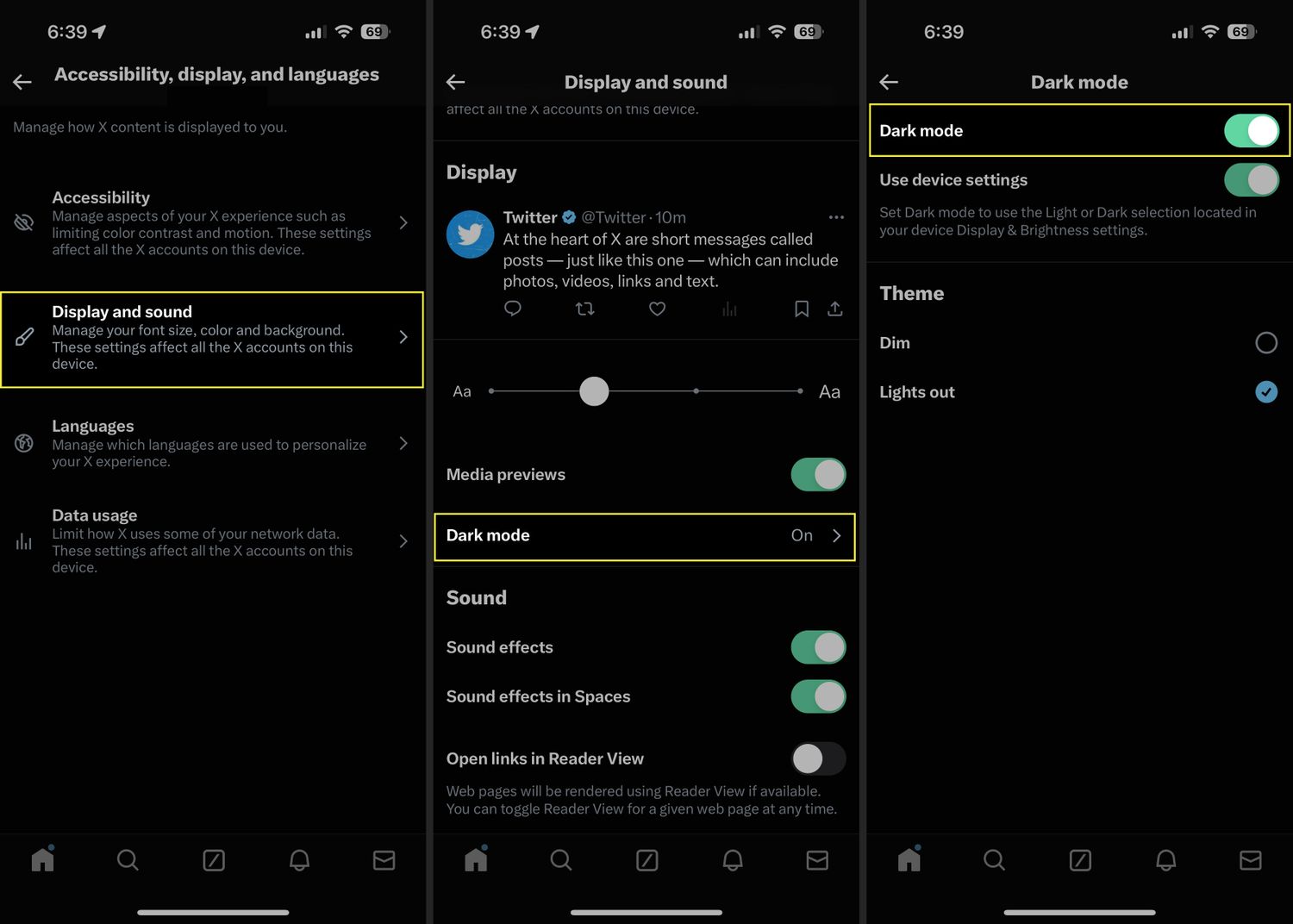
Image source: Lifewire
Quick Steps to Enable Dark Mode for Your DMs
The fastest way to change the appearance of your DMs is through the global display settings. Because X uses a unified UI wrapper, changing the theme for your main feed will automatically apply that theme to your Direct Messages. There is currently no native way to have a light-mode feed and dark-mode DMs simultaneously; the setting is account-wide and device-specific.
For mobile users, the "Light Bulb" shortcut remains one of the most efficient ways to switch themes. By swiping right to open the sidebar menu, you will find a small icon in the bottom left corner. Tapping this icon cycles through your available themes. According to research from Night Eye , this shortcut is often the first place users should look if they want to quickly adjust their screen brightness without diving deep into the settings sub-menus.
If you prefer a more permanent setup, navigating through the full settings menu allows you to sync the app with your device's operating system. This ensures that when your iPhone or Android device switches to dark mode at sunset, the X app follows suit without manual intervention. This "Automatic" setting is highly recommended for users who want to reduce eye strain during evening hours while maintaining high visibility during the day.
How to Turn on Dark Mode for X DMs on iPhone and Android
The mobile experience for X is designed to be highly responsive to system-level changes. On both iOS and Android, the app typically defaults to following your phone's global display settings. However, you can override this if you prefer the app to remain in a specific mode regardless of your phone's state.
Step-by-Step Mobile Navigation
- Access the Sidebar: Tap your profile picture in the top left corner of the screen.
- Open Settings: Scroll down and tap "Settings and Support," then "Settings and Privacy."
- Locate Display Settings: Tap on "Accessibility, Display, and Languages," then select "Display."
- Choose Your Theme: Under the "Dark Mode" section, you can toggle the feature "On," "Off," or "Automatic."
- Select a Palette: If Dark Mode is on, you will see two options: Dim and Lights Out .
A significant advancement in recent mobile updates is the improved handling of "System Settings." In early 2024, X briefly experimented with removing the manual toggle to force the app to follow the OS theme. While this was partially rolled back due to user feedback, the "Automatic" toggle remains a top choice for most users. As noted by Mashable , the "Lights Out" mode was specifically developed to address user complaints about the original "Dim" mode not being dark enough for true nighttime use.
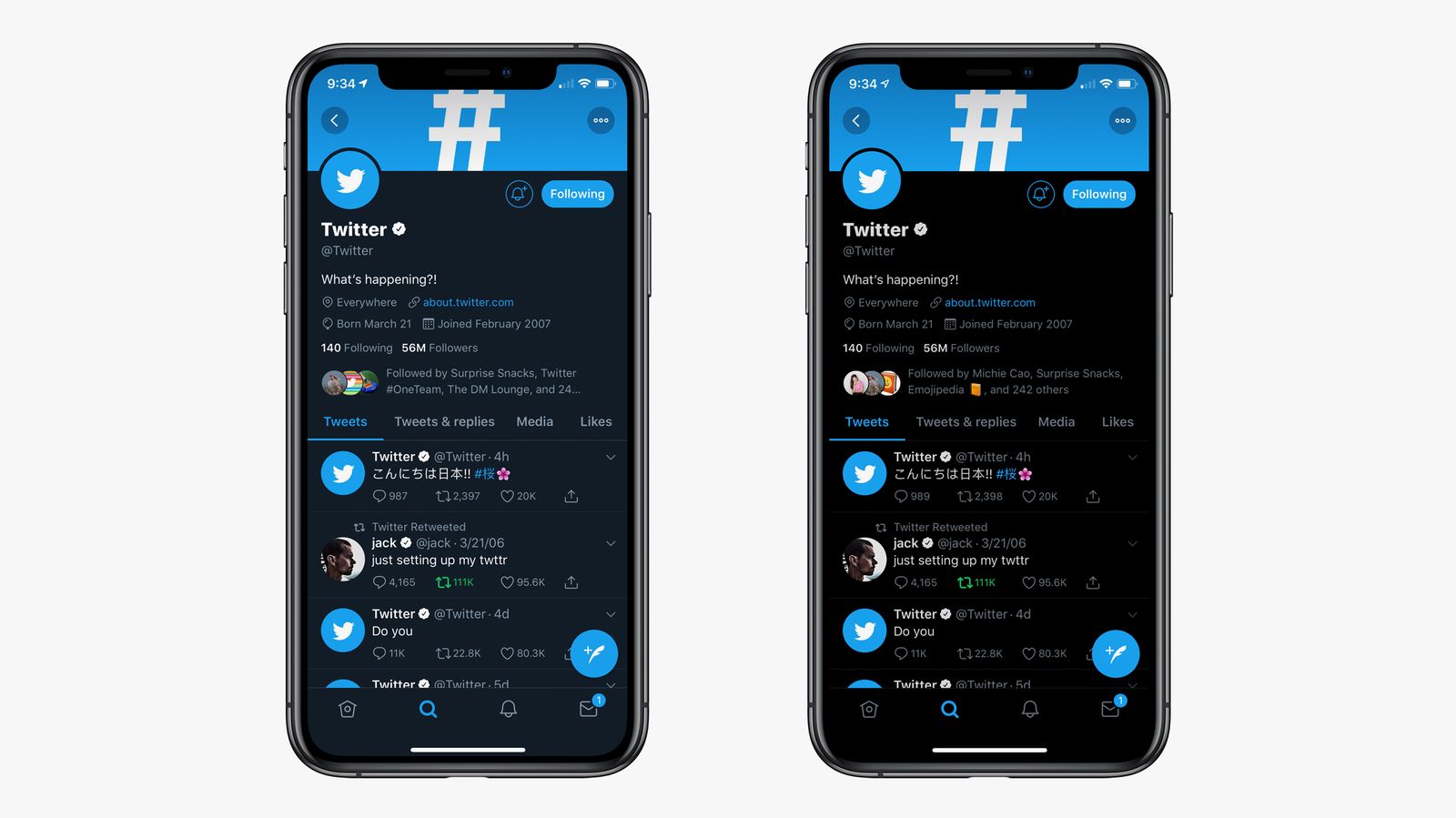
Image source: WIRED
How to Enable Dark Mode for X on Your Desktop Browser
The web interface for X often receives UI updates independently of the mobile apps. This can sometimes lead to discrepancies in where settings are located. On desktop browsers like Chrome, Safari, and Firefox, the process is slightly different but equally accessible.
To enable dark mode on the web, click the "More" (three dots) icon in the left-hand navigation sidebar. From there, select "Settings and Privacy," then "Accessibility, Display, and Languages," and finally "Display." Here, you will find the "Background" section which offers "Default" (Light), "Dim," and "Lights Out."
One notable difference on the web is the absence of the "Automatic" system sync on some older browser versions. While modern versions of Chrome and Edge can communicate your OS theme to websites, X sometimes requires a manual selection on the desktop to ensure the setting "sticks" across different sessions. If you use multiple computers, you may need to set this preference on each device individually, as display settings are often stored in local browser cookies rather than being synced globally to your account profile.
What Is the Difference Between Dim and Lights Out Mode?
Choosing between "Dim" and "Lights Out" is more than just an aesthetic decision; it involves technical differences in how your screen hardware operates. Understanding these differences can help you optimize both your visual comfort and your device's battery life.
Dim Mode
Color: Deep Navy Blue (#15202B)
Best For: Reducing blue light while maintaining some color depth. Many users find this easier on the eyes than pure black for daytime use.
Lights Out Mode
Color: Pure Black (#000000)
Best For: Maximum battery saving on OLED screens and total darkness environments. This is a top-tier choice for late-night DMing.
The technical mechanism behind "Lights Out" is particularly innovative for modern smartphone users. Most high-end devices in 2026 utilize OLED or AMOLED screens. Unlike traditional LCDs, where a backlight is always on, OLED pixels are individually powered. When a pixel displays pure black (#000000), it physically turns off, resulting in 0% power draw for that portion of the screen. This makes "Lights Out" a highly effective way to extend battery life during heavy DM usage.
| Feature | Dim Mode | Lights Out Mode |
|---|---|---|
| Primary Color | Navy Blue / Dark Gray | True Black (#000000) |
| Battery Saving | Moderate | High (on OLED screens) |
| Contrast Level | Medium | High |
| Visual Style | Soft / Muted | High-Contrast / Modern |
Why Is My Twitter DM Dark Mode Not Working?
If you find that your dark mode settings are not applying correctly, or if the toggle has disappeared entirely, you are likely encountering a "System Override" conflict. This occurs when the app's internal logic is superseded by the operating system's settings.
According to reports from users like @rikognition , display bugs often manifest as the app reverting to light mode even when dark mode is selected. This is frequently a result of the app failing to handshake with the OS's "Dark Mode Schedule." Toggling the system-level dark mode off and then back on usually forces the X app to re-sync its visual state.
How to Fix the Low Contrast Text Bug in Dark Mode
One of the most frustrating issues users face is the "Contrast Bug," where text appears as dark gray on a black background, making DMs nearly impossible to read. This is rarely a bug with X itself and is more often a conflict with device-level accessibility features.
To fix this, navigate to your device's Accessibility settings. Look for a setting labeled "Increase Contrast" or "High Contrast Text." If this is enabled, it can interfere with how the X app renders its custom CSS for dark mode. Disabling this feature often restores the proper light-gray or white text on the dark background. If the issue persists, check if you have any "Blue Light Filter" or "Night Shift" apps running, as these can sometimes distort the color palette of the DM interface.
Image source: Social Media Today
How to Create Realistic Dark Mode DM Mockups for Social Media
There is a significant demand for creating "fake" DM screenshots for marketing, memes, or social proof. When creating these mockups, matching the current dark mode UI is essential for realism. Tools like TheFake.design and Zeoob have updated their generators to include the 2026 "X" branding and specific dark mode toggles.
Realism Checklist for DM Mockups
- Match the Palette: Ensure the generator is using the correct #000000 hex code for "Lights Out" mode.
- Verified Badge Color: In 2026, ensure the badge matches the account type (Blue for individuals, Gold for organizations).
- Timestamp Logic: A common mistake is showing a "Read" receipt on a message sent "Just Now." For realism, only show "Read" on older messages.
- Font Consistency: X uses the Chirp font family; ensure your generator isn't defaulting to Arial or Helvetica.
- UI Elements: Include the "typing..." animation or the "Seen" checkmark to make the screenshot look like a live capture.
Using these tools responsibly is important, especially when creating content for social media. High-fidelity generators now allow you to customize every aspect of the conversation, from the profile picture to the specific "Read" state of each message. This level of detail is what separates a professional-looking mockup from a low-quality edit.
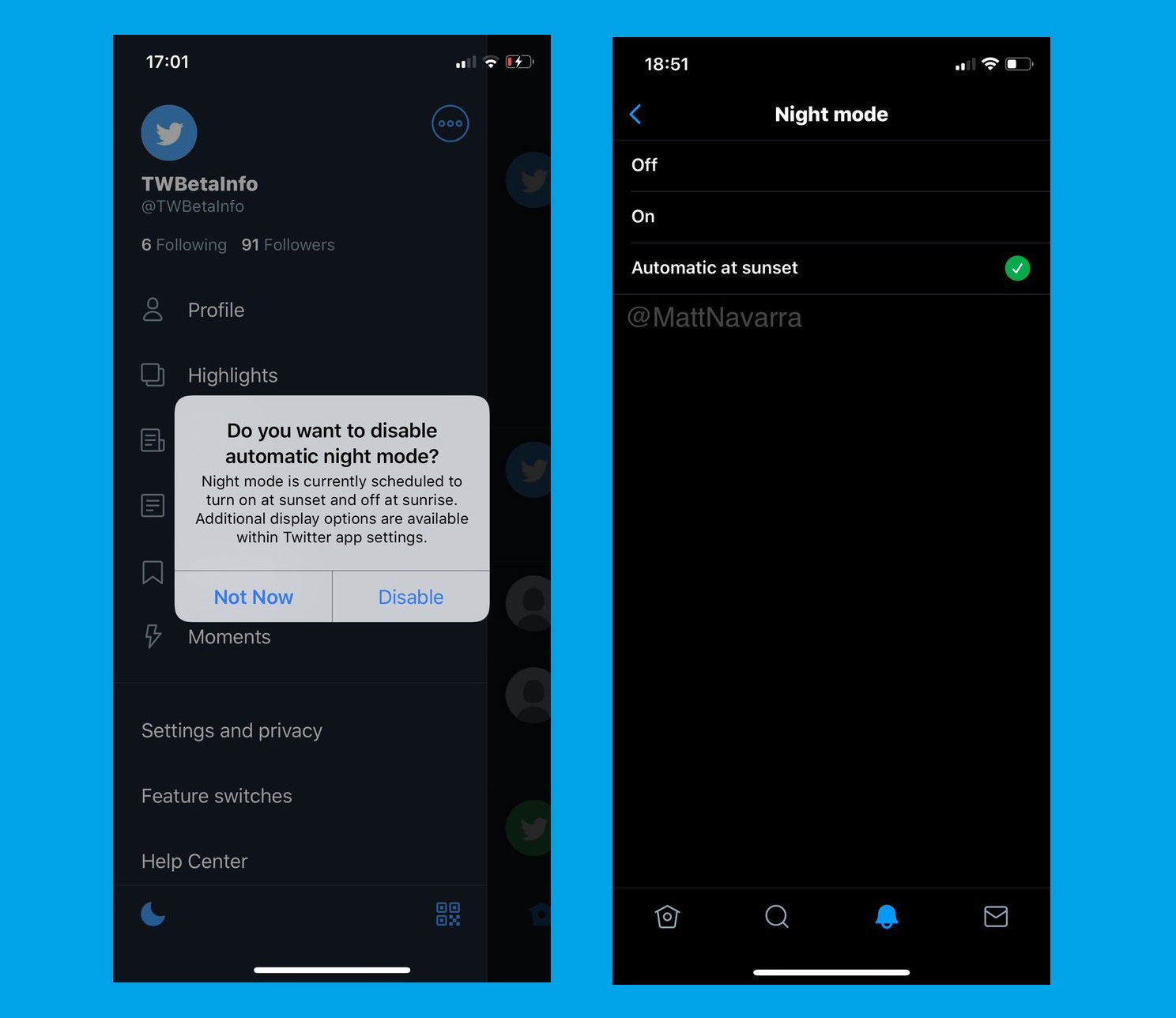
Image source: Digital Information World
Key Takeaways for Managing Your X Display Settings
- Use Lights Out for maximum battery efficiency on OLED devices, as it physically turns off black pixels.
- Toggle System Settings if you want the app to automatically transition between light and dark modes based on the time of day.
- Check Accessibility menus if you encounter unreadable text or low-contrast bugs in your DMs.
- Utilize the Light Bulb icon in the mobile sidebar for the fastest way to switch themes on the fly.
- Verify Web Settings manually, as desktop browsers may not always sync perfectly with your mobile preferences.
- Update Regularly to ensure you have the latest UI fixes and security patches for encrypted DMs.
For the best experience, set your X app to "Automatic" and choose "Lights Out" as your preferred dark theme.
Frequently Asked Questions
How to Identify and Fix a Dark Shadow on Your Computer Screen
Diagnose monitor shadows, backlight failure, and EMI. Learn to fix dim spots or black crush with our expert troubleshooting and repair framework.

How to Use the inurl: Search Operator for SEO Audits and Site Security
Learn to use the inurl: operator for SEO audits and security. Fix errors and master advanced search strings for 2026.


How to Turn Off AMD Vari-Bright to Fix Screen Dimming and Washed Out Colors
Stop screen dimming and washed-out colors. Learn how to disable AMD Vari-Bright on ROG Ally, Windows 11, and Linux with these expert steps.