How to Turn Off AMD Vari-Bright to Fix Screen Dimming and Washed Out Colors
To disable Vari-Bright immediately, open the AMD Software: Adrenalin Edition , click the Settings (gear icon) , navigate to the Display tab, and toggle Vari-Bright to Off . This stops the hardware from automatically adjusting gamma and brightness based on your screen content, ensuring consistent color accuracy.
Understanding Why Your Screen Keeps Changing Brightness
If you have noticed your laptop screen suddenly losing contrast or looking "flat" when you switch from a dark application to a light one, you are likely experiencing AMD Vari-Bright. This technology is a power-saving feature integrated into AMD Ryzen mobile processors and Radeon graphics units. According to official ASUS documentation , Vari-Bright works by analyzing the content displayed on your screen and adjusting the backlight and gamma curves in real-time to reduce power consumption.
While the intent is noble—saving battery life—the execution often frustrates users. The most common complaint is the "washed out" look. Because the system lowers the backlight while simultaneously boosting the digital brightness of the image to compensate, colors lose their saturation and blacks turn into a muddy gray. For gamers and creative professionals, this behavior is a significant hindrance to visual quality.
From a technical standpoint, disabling this feature results in a total system power draw increase of approximately 0.5 watts . While this might sound negligible, it can translate to roughly 10 to 15 minutes of battery life on a standard 50Wh laptop. However, for most users, the trade-off for a stable, high-quality image is well worth the minor hit to runtime.
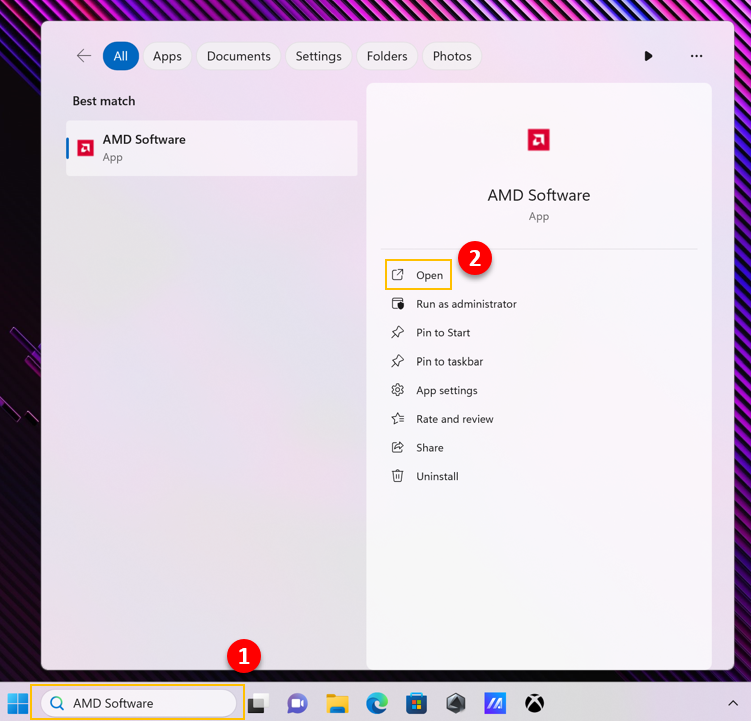
Image source: ASUS
How to Turn Off Vari-Bright in AMD Software Adrenalin Edition
The standard method for managing this feature is through the AMD Software: Adrenalin Edition. This is the primary control center for your Radeon graphics. If you do not have this software installed, you may be using a "lite" driver provided by your laptop manufacturer, in which case you should refer to the Registry Editor section below.
Follow these steps to disable the feature:
- Right-click on your desktop and select AMD Software: Adrenalin Edition .
- Once the dashboard opens, click on the Settings (Gear Icon) located in the top-right corner.
- Click on the Display sub-tab.
- Scroll down until you see the Vari-Bright section.
- Switch the toggle to Off .
Explaining the Five Optimization Levels
AMD does not just offer a simple On/Off switch; it provides a 5-level optimization scale ranging from Level 0 to Level 4. If you find that your battery life suffers too much with the feature completely off, you can experiment with these levels:
- Level 0 (Maximize Brightness): This is effectively "Off." It prioritizes visual fidelity and maintains the highest possible brightness levels.
- Level 2 (Balanced): A middle ground that attempts to save some power without completely ruining the color profile.
- Level 4 (Maximize Battery): The most aggressive setting. This causes the most significant "washing out" of colors but offers the highest energy savings.
How to Disable Vari-Bright on the ASUS ROG Ally
The ASUS ROG Ally is a top-tier handheld gaming PC, but out of the box, many users complain that the screen looks desaturated. This is almost always due to Vari-Bright being enabled by default. Because the Ally uses a custom set of AMD drivers, the interface might feel slightly different than a standard desktop PC.
To fix this on your handheld:
- Switch to Desktop Mode on your ROG Ally.
- Open the AMD Software (you can find it in the Start menu or by right-clicking the desktop).
- Navigate to Settings > Display .
- Toggle Vari-Bright to Off .
Improving Visibility in Dark Games
Disabling this feature is highly recommended for titles like Elden Ring , Diablo IV , or Resident Evil . In these games, dark scenes are frequent. Vari-Bright often misinterprets these dark scenes, causing the display to shift gamma levels mid-game, which can make it nearly impossible to see enemies in shadows. By turning it off, you ensure that the contrast remains static, providing a much more consistent gaming experience.
How to Turn Off Vari-Bright Without the AMD Software Using Registry Editor
In some cases, particularly on corporate laptops or systems with OEM-locked drivers, the AMD Adrenalin software may be missing or the Vari-Bright toggle might be hidden. When the GUI fails you, the Windows Registry Editor is a top-rated alternative for a "hard disable."
Warning: Modifying the Registry can cause system instability if done incorrectly. Always create a system restore point before proceeding.
Method 1: The Standard Registry Path
This method works for the majority of AMD-based laptops from the last five years.
-
Press
Win + R
, type
regedit, and hit Enter. -
Navigate to the following path:
HKEY_LOCAL_MACHINE\SYSTEM\CurrentControlSet\Control\Class\{4d36e968-e325-11ce-bfc1-08002be10318}\0000
-
Look for a value named
PP_VariBrightFeatureEnable. -
Double-click it and change the
Value Data
to
0. - Restart your computer.
Method 2: The Modern Driver Path
Newer driver architectures (post-2024) sometimes store this setting in a sub-folder. If you don't see the key above, check here:
-
Navigate to:
...\0000\DAL3_DATA\power_v1 -
Locate the key
abmuserenable. -
Set the value to
00(Hexadecimal).
How to Disable Vari-Bright on Linux and SteamOS
For users running Linux distributions like Arch, Fedora, or using a Steam Deck in desktop mode, Vari-Bright is managed at the kernel level via the
amdgpu
driver. In recent months, specifically with the release of
Linux Kernel 6.9.0
, the way power profiles are handled has become more streamlined, but the auto-dimming can still persist.
To disable it, you need to pass a parameter to the kernel during boot:
- Open your terminal.
-
Edit your GRUB configuration (usually
/etc/default/grub). -
Find the line starting with
GRUB_CMDLINE_LINUX_DEFAULT. -
Add
amdgpu.abmlevel=0to the list of parameters. -
Update your GRUB (e.g.,
sudo update-gruborsudo grub-mkconfig -o /boot/grub/grub.cfg) and reboot.
Distro-Specific Notes for Arch and Fedora
On Arch Linux, users have reported that the
power-profiles-daemon
can sometimes override kernel parameters. If the screen still dims, you may need to check your desktop environment settings (GNOME or KDE Plasma) under Power Management to ensure "Dim Screen" is also disabled there.
Why You Should Also Disable Windows Content Adaptive Brightness
A common point of confusion is that Windows 11 has its own version of this technology, often called "Content Adaptive Brightness Control" (CABC). Even if you turn off AMD Vari-Bright, Windows might still be messing with your backlight. To achieve a perfectly stable image, you must disable both.
| Feature | AMD Vari-Bright | Windows Adaptive Brightness |
|---|---|---|
| Trigger | On-screen content (Gamma/Colors) | Ambient light & Content |
| Primary Effect | Gamma shifting / Desaturation | Backlight intensity adjustment |
| Control Location | AMD Adrenalin Software | Windows System Settings |
| Hardware Level | GPU Driver | Operating System / Sensor |
To disable the Windows version:
- Go to Settings > System > Display .
- Click the arrow next to Brightness to expand the menu.
- Uncheck "Change brightness automatically when lighting changes" .
- Set "Help improve battery by optimizing the content shown and brightness" to Off .
How to Fix the atibtmon.exe Runtime Error
Disabling Vari-Bright is also a leading solution for a legacy Windows issue: the
atibtmon.exe
runtime error. This error typically pops up when a user disconnects their laptop from AC power. The "ATI Brightness Monitor" (atibtmon) crashes because it fails to transition the Vari-Bright power state correctly.
By using the Registry Editor method mentioned earlier to set
PP_VariBrightFeatureEnable
to
0
, you effectively prevent the
atibtmon.exe
process from initializing the power-saving routine. This is a significant advancement for users on older AMD hardware who have struggled with this persistent popup for years.
The Real-World Impact: Battery Life vs. Color Accuracy
Is it worth it? For the vast majority of users, the answer is a resounding yes. While the 0.5-watt difference is measurable, it is rarely noticeable in daily use. However, the visual difference is night and day.
- Color Accuracy
- Vari-Bright distorts the sRGB color space. If you are viewing a photo, the software might decide the image is too dark and artificially boost the gamma, making the colors look inaccurate compared to the original file.
- Eye Strain
- Constant shifting of brightness levels can lead to increased eye fatigue. The human eye has to constantly adjust to the changing luminance of the panel, even if the ambient light in the room hasn't changed.
- Gaming Immersion
- Modern games rely on specific contrast ratios to create atmosphere. Vari-Bright flattens these ratios, making high-fidelity games look like they are running on a much cheaper, lower-quality display.
Frequently Asked Questions
Why is the Vari-Bright toggle missing in my AMD software?
Does Nvidia have a version of Vari-Bright?
Will turning this off void my warranty?
Does this stop my screen from dimming when I unplug the charger?
What is the difference between Vari-Bright and Auto-Brightness?
Final Takeaways for a Consistent Display
Managing your display settings is essential for getting the most out of your AMD-powered device. Here is the distilled summary of how to handle Vari-Bright:
- Check AMD Adrenalin first as it is the most user-friendly way to toggle the setting.
- Disable Windows Adaptive Brightness in addition to Vari-Bright to prevent conflicting dimming behaviors.
-
Use the Registry Editor
if the software toggle is missing or if you need to fix the
atibtmon.exeerror. - ROG Ally users should prioritize disabling this to fix the "washed out" screen complaints common to the handheld.
-
Linux users
can achieve a permanent fix by adding
amdgpu.abmlevel=0to their kernel boot parameters. - Accept the 0.5W trade-off for the significant improvement in color accuracy and contrast.
For a "set it and forget it" experience, disable both the AMD and Windows versions of these features simultaneously.
-
Topic: ROG Ally | Disable Vari-Brighthttps://www.youtube.com/watch?v=7B9Cp8AeBYA
-
Topic: PSA: Disable Vari-Bright in Radeon Software to avoid ...https://www.reddit.com/r/ROGAlly/comments/14auos3/psa_disable_varibright_in_radeon_software_to/
-
Topic: Disable Vari-Bright in AMD Software On ROG Allyhttps://rogallylife.com/2023/06/16/disable-vari-bright-rog-ally/

How to Identify and Fix a Dark Shadow on Your Computer Screen
Diagnose monitor shadows, backlight failure, and EMI. Learn to fix dim spots or black crush with our expert troubleshooting and repair framework.


How to Enable and Fix Dark Mode in Twitter X DMs on Every Device
Learn to enable X dark mode for DMs, fix contrast bugs, and use Lights Out to save battery on iPhone, Android, and Web. Updated for 2026.

How to Fix a Pink Screen Tint or Lines on Your Laptop Display
Is your laptop display pink? Learn how to fix a pink screen tint, lines, or glitches on Windows 11 and 10 with our expert diagnostic guide.