
How to Enable and Optimize Opera GX VPN for Gaming and Privacy
Opera GX has carved out a specific niche as a browser designed for gamers, integrating features like CPU limiters, Twitch integration, and a built-in VPN. However, many users find themselves confused by the technical nuances of this privacy tool. Whether you are trying to bypass regional restrictions or simply want an extra layer of security while browsing, understanding how to configure the Opera GX VPN is essential for maintaining both speed and anonymity.
- Open Opera GX and press Alt+P to open Settings.
- Select Features from the left-hand sidebar.
- Toggle the Enable VPN switch to the "On" position.
- Click the blue VPN badge in the address bar to select your region (Americas, Europe, or Asia).
What Is the Opera GX VPN and How Does It Work?
The Opera GX VPN is a free, unlimited, no-log feature integrated directly into the browser. Unlike traditional VPN services that require a separate application and subscription, this tool is ready to use the moment you install the browser. However, to use it effectively, one must understand its technical architecture.
The Technical Distinction Between a Proxy and a VPN
While marketed as a "VPN," the free version of Opera GX technically functions as an HTTPS/TLS Proxy . This is a critical distinction for gamers and privacy advocates. A standard VPN creates an encrypted tunnel for your entire operating system, protecting every application from Steam to Discord. In contrast, the Opera GX proxy only encrypts traffic that occurs inside the browser itself.
According to Opera's official feature documentation , the service provides a secure connection to Opera's servers, masking your IP address from websites you visit. Because it is a proxy, it is exceptionally lightweight and does not require administrative privileges to run. However, if you are playing a competitive shooter like Valorant or Call of Duty via a standalone client, the free browser VPN will not hide your IP or change your region for those games.
How to Enable Opera GX VPN on Desktop
Enabling the VPN on a PC or Mac is a straightforward process, but there are several sub-settings that can significantly impact your browsing experience. Following the correct sequence ensures that the VPN doesn't interfere with your local search results or startup speed.
Accessing Settings and Features
To begin, launch Opera GX and navigate to the settings menu. You can do this by clicking the "O" icon in the top-left corner or by using the keyboard shortcut Alt+P . Once in the settings menu, scroll down to the "Features" section. Here, you will find the VPN toggle.
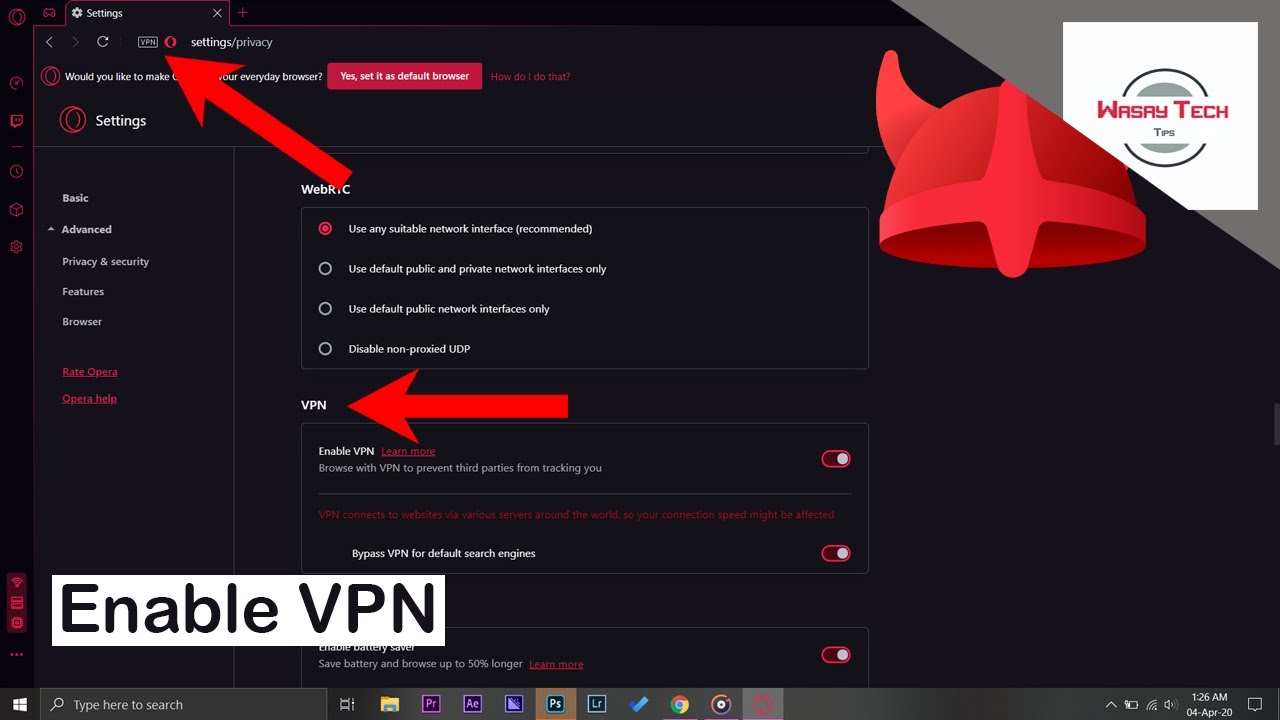
Image source: YouTube
Once the toggle is active, a blue "VPN" badge will appear to the left of your address bar. Clicking this badge opens a dropdown menu where you can see your current data usage, toggle the connection on or off, and select your virtual location. The "Optimal Location" setting is generally recommended as it connects you to the server with the lowest latency relative to your physical position.
How to Set Up Opera GX VPN on Android and iOS
The mobile experience for Opera GX differs slightly from the desktop version. On mobile devices, the VPN is designed to be even more unobtrusive, often activating only when you specifically request privacy.
The Private Mode Requirement for Mobile Users
On many Android and iOS versions, the VPN toggle may not appear in the standard browsing mode. According to Opera's mobile FAQ , users in certain regions must open a Private Tab to access the VPN settings. This is often due to regional regulations or to optimize battery life by preventing the VPN from running constantly in the background.
Why Is the Opera GX VPN Button Missing?
One of the most frequent complaints from users is the sudden disappearance of the VPN button. This is rarely a bug and is usually tied to specific environmental factors or software conflicts.
Regional Restrictions and ISP Blocks
The availability of the Opera GX VPN is subject to local laws. In countries like China and Russia, the service may be restricted or completely blocked by the provider to comply with local internet regulations. If you are in one of these regions, the toggle may be hidden from your settings entirely. Furthermore, some school or corporate networks use advanced firewalls that detect and block proxy traffic, which can cause the VPN badge to remain in a perpetual "Connecting" state.
Another common cause is extension conflict . If you have other proxy or VPN extensions installed (such as NordVPN or ExpressVPN browser extensions), they may override Opera's built-in settings. To fix this, try disabling all other extensions and restarting the browser. If the button is still missing, a clean reinstall of the browser is often the most effective solution.
Ctrl+Shift+N
). If the VPN badge appears there but not in your main window, a browser extension is likely causing the conflict.
How Does the VPN Affect Gaming Performance and Ping?
For a browser marketed to gamers, performance is the most critical metric. However, any VPN or proxy adds "hops" to your data's journey, which inherently increases latency (ping).
Managing Latency for Browser-Based Gaming
Technical reviews, including those from TheBestVPN , indicate that the free version of the Opera GX VPN can result in a speed reduction of 70% to 90%. In testing, a base connection of 600 Mbps can drop to as low as 6-10 Mbps when the VPN is active. While this is perfectly adequate for 1080p video streaming or general browsing, it can be detrimental to browser-based competitive games like Krunker or cloud gaming services like GeForce Now .
| Connection Type | Typical Speed | Ping Impact | Best For |
|---|---|---|---|
| No VPN | 100% (Baseline) | Low (5-20ms) | Competitive Gaming |
| Opera GX Free VPN | 10-30% of Baseline | High (+100ms) | Privacy & Streaming |
| Opera VPN Pro | 80-90% of Baseline | Moderate (+20ms) | Global Gaming |
To minimize the impact on your ping, always use the Optimal Location setting. This ensures you are connected to the server physically closest to you, reducing the distance your data must travel. Additionally, ensure that the "VPN for search engines" setting is turned off to prevent routing local queries through distant servers.
Advanced Settings for Power Users
Opera GX offers several "hidden" settings that allow you to customize how the VPN interacts with your daily habits. These are found under the "Advanced" section of the VPN settings.
Optimizing Search Results and Startup Behavior
One of the most useful features is the "Bypass VPN for default search engines" toggle. When this is enabled, sites like Google or Bing will still see your real IP address. This might sound counterintuitive for privacy, but it allows you to receive local search results (like "restaurants near me" or local weather) without having to manually turn the VPN off. It provides a balance between anonymity on general websites and utility for search.
Furthermore, users can set the VPN to "Connect to VPN when starting browser." This is a top choice for those who want a "set it and forget it" privacy solution. However, be aware that this may slightly increase the time it takes for the browser to become responsive upon launch, as it must establish a secure handshake with the proxy server before loading your start page.
Is the Opera GX VPN Actually Safe to Use?
Privacy is the primary reason most users enable a VPN, but "free" services often raise red flags. In the case of Opera GX, the safety of the service is backed by significant technical standards and third-party validation.
Audits, Encryption, and Jurisdiction
The Opera GX VPN uses AES-256 encryption , which is the same standard used by government agencies and premium VPN providers. To address concerns regarding their no-log policy, Opera has undergone independent audits by reputable firms like Deloitte and Cure53 . These audits verified that the service does not record your browsing history or original IP address.
However, users should be aware of the corporate structure. While Opera is headquartered in Norway (a country with strong privacy laws), it is owned by a Chinese consortium, Kunlun Tech. For most gamers, this is a non-issue, but for high-security users, it is a factor to consider. According to Opera's privacy documentation , they operate under Norwegian jurisdiction, meaning they are bound by GDPR and other European privacy frameworks.
Free VPN vs. VPN Pro — Which One Do You Need?
In recent years, Opera has introduced a "Pro" version of their VPN. Understanding the difference is key to deciding if the free version is sufficient for your needs.
Comparing Browser Protection and System-Wide Security
The Free VPN is a browser-based proxy. It is excellent for bypassing basic geo-blocks on YouTube or hiding your activity from your ISP while browsing. However, it lacks the server diversity and speed required for heavy lifting. VPN Pro , on the other hand, is a true system-wide VPN. It protects up to 6 devices simultaneously and uses the Lightway protocol , which is significantly faster and more stable for gaming.
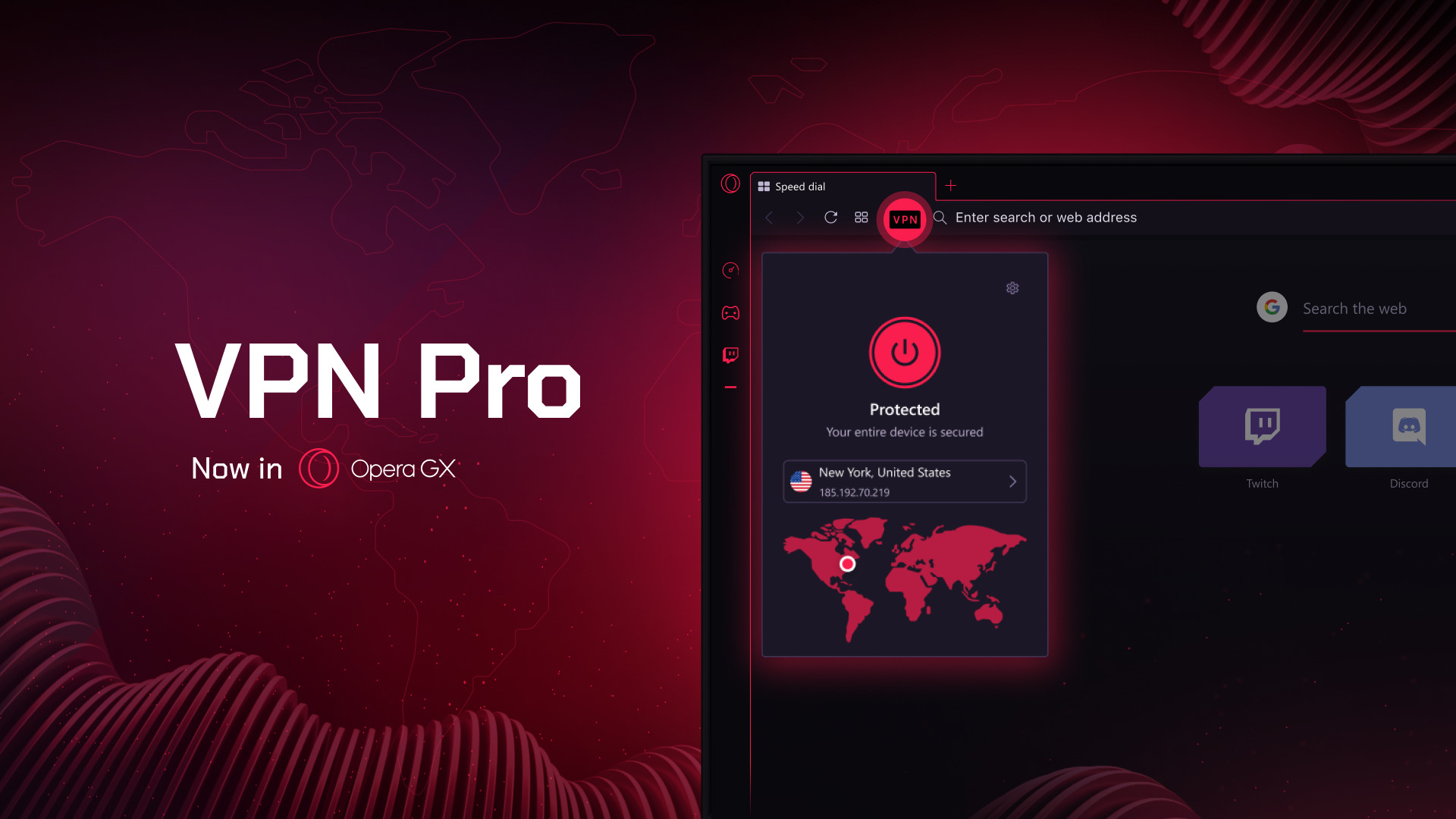
Image source: The Opera Blog
If your goal is to play League of Legends on a different regional server with minimal lag, the Free VPN will not help you. You would need the Pro version or a dedicated standalone VPN service. For casual browsing and watching region-locked content, the Free version remains a top-tier option.
Troubleshooting Common Streaming and Connection Errors
Even with a perfect setup, you may encounter errors when trying to access specific services like Netflix or Hulu.
Resolving Proxy Detected and Connection Stuck Issues
Streaming services are constantly updating their databases of known proxy and VPN IP addresses. If you see a "Proxy Detected" error, the simplest fix is to cycle through the available regions. Switch from "Americas" to "Europe" and back, or toggle the "Optimal Location" setting. This often assigns you a fresh IP address that hasn't been flagged yet.
If the VPN is stuck on "Connecting," check your WebRTC settings . WebRTC is a protocol used for real-time communication (like Discord calls) that can sometimes leak your real IP address even when a VPN is active. Opera GX has a built-in setting to "Disable non-proxied UDP" which can help force all traffic through the VPN and resolve connection hang-ups.
Frequently Asked Questions
Key Takeaways for Opera GX VPN Users
- Understand the Proxy Limit: The free version only protects browser traffic, not external apps like Steam or Discord.
-
Enable via Features:
Use
Alt+Pto quickly find the toggle in the settings menu. - Optimize for Speed: Use the "Optimal Location" setting to minimize the inherent 70-90% speed drop.
- Bypass Search: Keep "Bypass VPN for default search engines" ON to maintain local search utility.
- Check Private Mode: If the VPN is missing on mobile, open a Private Tab to reveal the toggle.
- Safety Verified: The service is AES-256 encrypted and has been independently audited by Deloitte.
- Upgrade for Gaming: If you need system-wide protection and lower ping for competitive games, consider VPN Pro.
To get started, simply toggle the VPN switch in your settings and look for the blue badge in your address bar to confirm you are protected.
-
Topic: Free VPN in GX | Unlimited secure browser VPNhttps://www.opera.com/gx/features/free-vpn
-
Topic: I can't find free VPN in opera gx setting : r/operabrowserhttps://www.reddit.com/r/operabrowser/comments/16etf9v/i_cant_find_free_vpn_in_opera_gx_setting/
-
Topic: How to enable VPN on Opera GX Browserhttps://www.youtube.com/watch?v=Uc9d9JiYO3A
How to Fix the Google Our Systems Have Detected Unusual Traffic Error
Stuck on the Google unusual traffic error? Learn how to bypass the CAPTCHA, fix VPN issues, and remove ClickFix malware on iPhone and Desktop.


VTchromizer is Now VT4Browsers and Here Is How to Use It
Learn how to use VTchromizer, now VT4Browsers + Google TI. Scan URLs and files with VirusTotal, manage API quotas, and protect your browser today.


How to Use the inurl: Search Operator for SEO Audits and Site Security
Learn to use the inurl: operator for SEO audits and security. Fix errors and master advanced search strings for 2026.
