How to Fix the Google Our Systems Have Detected Unusual Traffic Error
Encountering the "Our systems have detected unusual traffic from your computer network" message can be a frustrating roadblock. This security measure is designed to protect Google's infrastructure from automated scripts, but it often flags legitimate users due to network configurations, VPN usage, or browser extensions. Understanding how to navigate this challenge is essential for restoring your search access quickly.
- Solve the reCAPTCHA: Click "I'm not a robot" and complete the visual challenge.
- Disable your VPN: Many VPN IP addresses are flagged for high-volume traffic.
- Switch Networks: Toggle from Wi-Fi to mobile data to bypass local IP reputation issues.
- Audit Extensions: Remove suspicious SEO tools or scrapers that run in the background.
- Clear Cache: Remove browser cookies that may be stuck in an error loop.
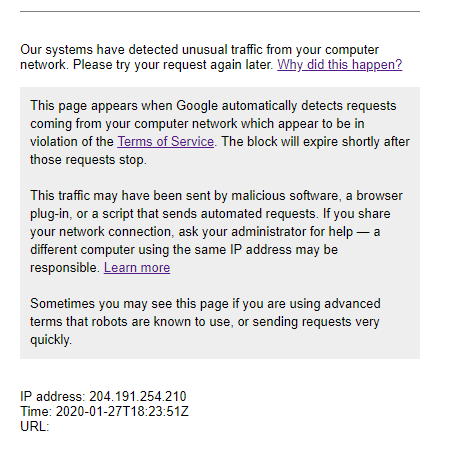
Image source: Google Help
Understanding Why Google Flags Your Network Activity
Google employs sophisticated algorithms to distinguish between human users and automated bots. When your network sends requests at a speed or volume that exceeds typical human behavior, Google triggers a "traffic-reputation challenge." This is not a permanent ban but a temporary security gate intended to prevent scraping and DDoS attacks.
Common Triggers for Traffic Challenges
Several factors can lead to your IP address being flagged. According to official Google Search documentation , shared network environments are a primary culprit. In offices, universities, or public Wi-Fi hotspots, hundreds of users may share a single external IP address. If just one person on that network runs an automated script, the entire network may face the "unusual traffic" block.
Another frequent trigger involves the use of VPNs and proxy services. Because these services aggregate traffic from thousands of users through a limited number of exit nodes, Google's systems often view this concentrated activity as bot-like. Furthermore, certain advanced search operators can inadvertently trigger security flags. For example, using the "Range Operator" (e.g., searching for `1..1000000`) is a known community-identified trigger that mimics data harvesting patterns.
Immediate Steps to Resolve the reCAPTCHA Challenge
The most direct way to regain access is to prove you are human. When the error appears, it typically includes a reCAPTCHA box. Completing this challenge successfully will usually place a cookie in your browser that signals to Google that your current session is legitimate.
Verifying the Authenticity of the Page
Before interacting with any CAPTCHA, it is vital to ensure you are on a legitimate Google domain. A genuine challenge will always be hosted on a URL starting with
google.com/sorry/
. If the page asks you to download software, update a driver, or copy-paste code into a terminal, close the tab immediately. These are common phishing tactics used by malicious actors to distribute malware under the guise of a security check.
What to Do if the CAPTCHA Fails to Load
If you see the error message but the "I'm not a robot" box is missing or spinning indefinitely, the issue is likely browser-based. Google's security scripts require JavaScript to function correctly. Ensure that JavaScript is enabled in your browser settings and that aggressive ad-blockers or "NoScript" extensions are disabled for Google domains. In some cases, an outdated browser version may lack the necessary security protocols to load modern reCAPTCHA elements, making an update a top-tier troubleshooting step.
Managing VPN Connections to Avoid Search Interruptions
VPNs are essential for privacy, but they are also a leading cause of search blocks. Because VPN providers recycle IP addresses among many users, you may inherit an IP that has a "poor reputation" due to previous abusive activity by another subscriber. This conflict between privacy and access is a common hurdle for power users.
Strategies for VPN Users
If your VPN is causing persistent blocks, consider the following adjustments:
- Switch Servers: Disconnect and reconnect to a different city or country. This often assigns you a fresh IP address that may not be flagged.
- Use a Dedicated IP: Some premium VPN services offer a static, dedicated IP address that is not shared with other users. This significantly reduces the likelihood of being caught in a shared-network block.
- Split Tunneling: Configure your VPN to exclude your web browser while keeping other applications protected. This allows Google to see your actual ISP IP, which typically has a higher trust rating than a VPN exit node.
As noted by SlashGear , the reputation of your IP address is dynamic. Disabling the VPN for a few minutes can sometimes "reset" the challenge, allowing you to resume searching once you reconnect.
Troubleshooting Unusual Traffic Messages on iPhone and Safari
Mobile users, particularly those on iOS, face unique challenges due to Apple's built-in privacy features. If you see the unusual traffic error on an iPhone, the culprit is often a combination of network switching and background data usage.
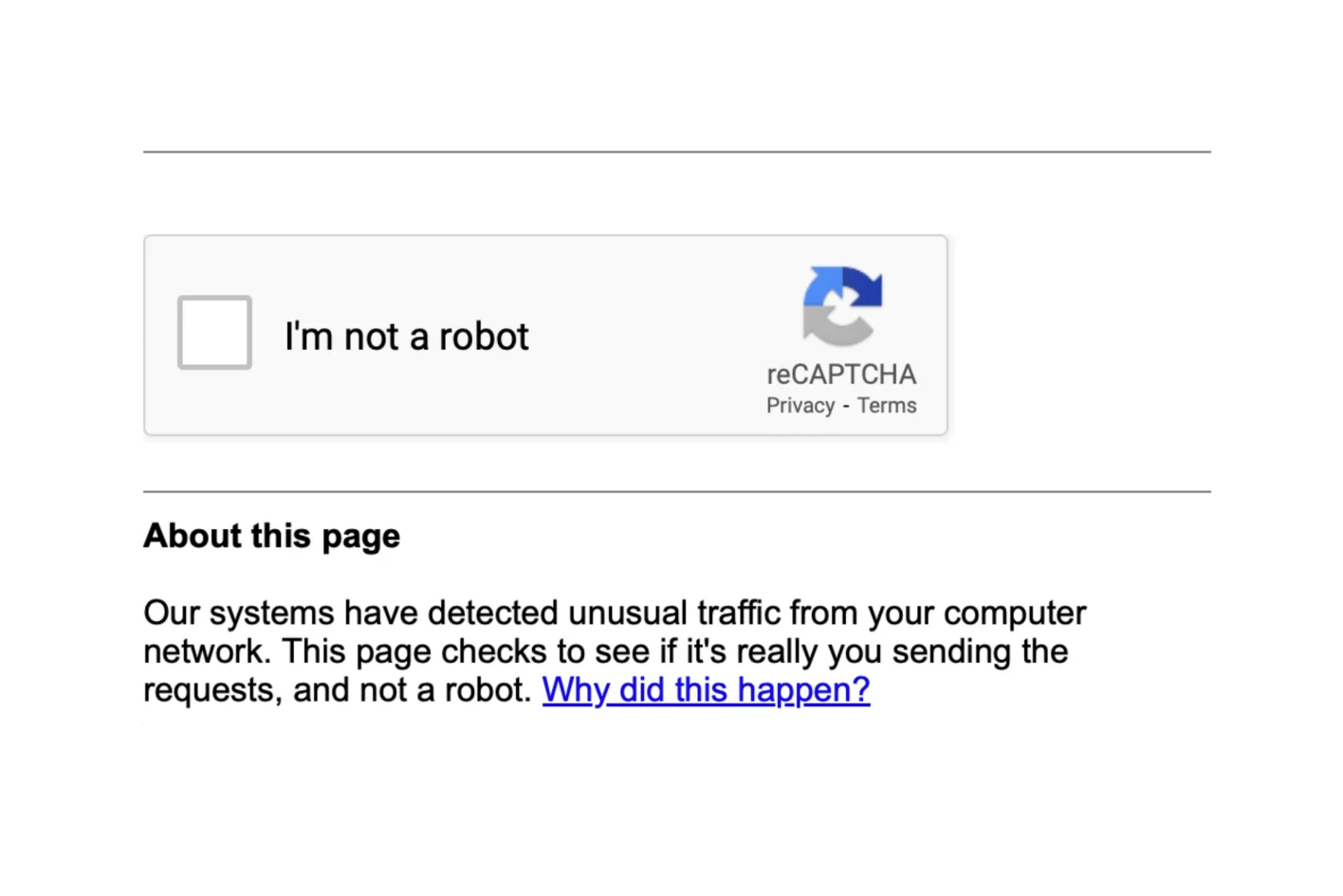
Image source: macReports
The Impact of iCloud Private Relay
iCloud Private Relay functions similarly to a VPN by masking your IP address and encrypting your DNS requests. While this is a strong privacy feature, Google may interpret the relayed traffic as coming from a botnet. If you frequently encounter blocks on Safari, try disabling Private Relay temporarily in your iCloud settings to see if the issue resolves.
Clearing Safari Cache and Data
Persistent loops on mobile can often be fixed by clearing your browsing history. Navigate to Settings > Safari > Clear History and Website Data . This removes the "sorry" cookies that might be forcing the browser to reload the error page even after the network issue has been resolved. Additionally, toggling your connection from Wi-Fi to Cellular Data (5G/LTE) is a highly effective way to escape a flagged home or office network.
Why Google Gemini and AI Tools Trigger Security Blocks
As search evolves with AI, new triggers have emerged. Google Gemini and various AI-powered browser extensions often make background API calls to Google's servers to fetch real-time data. If these calls occur too frequently or at "superhuman" speeds, Google's rate-limiting systems may intervene.
Users who utilize AI extensions for SEO analysis, price tracking, or automated research are particularly susceptible. These tools often scrape search results in the background, which is a direct violation of Google's automated access policies. If you are logged into a Google Workspace account and still see the error, it may indicate an account-level flag. In such cases, reducing the frequency of your queries or disabling background AI tools is a recommended course of action.
Identifying and Removing Fake CAPTCHA Malware Threats
While the "unusual traffic" message is usually a benign security check, it can sometimes be a symptom of a deeper security issue. Malicious software on your device might be using your connection to participate in a botnet, sending thousands of invisible requests to Google in the background.
Win + R
, paste PowerShell commands, or download a "verification tool." If you see these instructions, you are likely encountering the "ClickFix" malware lure. Close the tab immediately and run a full system scan with a reputable security tool.
According to security researchers at Gridinsoft , these fake CAPTCHAs are designed to trick users into executing malicious scripts that steal browser cookies and credentials. Always audit your browser extensions for any "SEO tools" or "Price trackers" that you didn't intentionally install, as these are common vectors for background scraping activity.
A Systematic Protocol for Isolating the Source of the Error
If the error persists across multiple days, you need a structured way to find the culprit. Use this "Isolation Testing Protocol" to determine if the problem lies with your browser, your device, or your entire network.
- 1 Test Incognito Mode: Open a private or incognito window. If the error vanishes, a browser extension or a corrupted cookie in your main profile is the likely cause.
- 2 Test a Different Device: Connect a different laptop or smartphone to the same Wi-Fi. If both devices show the error, the problem is at the network/router level. If only one device shows it, that specific device may have background malware.
- 3 Test a Mobile Hotspot: Disconnect your computer from the Wi-Fi and connect it to your phone's mobile hotspot. If the error disappears, your ISP has assigned you a "dirty" IP address with a poor reputation.
If the issue is confirmed to be your network, a "power cycle" of your router is often the most effective fix. Unplug your modem and router for at least 60 seconds. This forces your ISP to assign you a new dynamic IP address, effectively escaping the block associated with your previous IP.
Comparing the Effectiveness of Common Resolution Methods
Not all fixes are created equal. Depending on the root cause—whether it's a temporary glitch or a persistent network issue—some methods offer a higher success rate than others.
| Method | Difficulty | Effectiveness | Best For... |
|---|---|---|---|
| Solve reCAPTCHA | Easy | High | One-time glitches |
| Disable VPN | Easy | Very High | Persistent network blocks |
| Switch to Mobile Data | Easy | High | Network-wide IP reputation issues |
| Clear Browser Cache | Medium | Moderate | Browser-specific loops |
| Power Cycle Router | Medium | High | ISP-level IP assignments |
| Remove Extensions | Hard | Moderate | Background bot activity |
Key Takeaways for Restoring Google Search
Fixing the "unusual traffic" error is usually a matter of proving your humanity or refreshing your network identity. By following a systematic approach, you can quickly identify the trigger and return to your research.
- Proof of Humanity: Always attempt the reCAPTCHA first; it is the fastest way to clear a temporary flag.
- Network Reputation: VPNs and shared Wi-Fi are the most common causes of recurring blocks.
- Security First: Be wary of fake CAPTCHAs that ask for system-level commands or downloads.
- Isolation Testing: Use the step-by-step protocol to rule out browser extensions versus network issues.
- Hardware Refresh: Restarting your router can provide a fresh IP address and bypass ISP-level reputation flags.
- AI Awareness: Be mindful of how many automated tools or AI extensions are accessing Google in the background.
For a permanent solution, ensure your browser is updated and your network is free of unauthorized scraping tools.
Frequently Asked Questions
How long does a Google "unusual traffic" block last?
Most blocks are temporary and last anywhere from a few minutes to a few hours. The duration depends on the severity of the trigger. If the automated traffic stops, the reputation of your IP address will typically recover quickly. However, if a background script continues to run, the block may persist indefinitely until the source is removed.
Why does this happen even in Incognito mode?
Incognito mode does not hide your IP address from Google; it only prevents your browser from saving history and cookies. Since Google's "unusual traffic" detection is primarily based on your network's IP reputation, switching to Incognito will not bypass a network-level block. In fact, because Incognito lacks existing "trust cookies," you may actually be more likely to see a CAPTCHA.
Can my smart home devices cause this error?
Yes, it is possible. All devices on your home network—including smart cameras, thermostats, and IoT hubs—share the same external IP address. If a smart device malfunctions and begins spamming a server or if it has been compromised by a botnet, it can ruin the reputation of your entire network, leading to blocks on your computer and phone.
Is my computer hacked if I see this message?
Not necessarily. While malware can cause this error by sending background traffic, the message itself is a standard Google security feature. Most users encounter it due to VPNs or shared networks. However, if the error appears frequently and you are not using a VPN, it is a good idea to perform a security scan to ensure no malicious extensions are active.
Does Google block specific ISPs?
Google rarely blocks an entire ISP, but they do flag specific IP ranges that are known for hosting abusive traffic or botnets. If you are on a smaller, local ISP or using a specialized hosting provider, you may find yourself in a "dirty" IP range more often than users on major national providers.
-
Topic: Resolve Google Search's "Unusual traffic from your ...https://support.google.com/websearch/answer/86640?hl=en
-
Topic: Our Systems Have Detected Unusual Traffic: Google ...https://blog.gridinsoft.com/our-systems-have-detected-unusual-traffic/
-
Topic: What Does It Mean If Google Detects Unusual Traffic Or ...https://www.slashgear.com/1769147/google-unusual-traffic-activity-meaning/

How to Fix the 'Our Systems Have Detected Unusual Traffic' Error on Google
Fix the 'unusual traffic from your computer network' error on Google. Troubleshooting for VPNs, iPhones, Safari, and malware. Get back to searching.


How to Use the inurl: Search Operator for SEO Audits and Site Security
Learn to use the inurl: operator for SEO audits and security. Fix errors and master advanced search strings for 2026.


How to Enable and Optimize Opera GX VPN for Gaming and Privacy
Learn to enable Opera GX VPN, fix missing buttons, and compare Free vs Pro speeds. Secure your gaming browser with our technical setup guide.