How to Fix the "Our Systems Have Detected Unusual Traffic" Error on Google
- Solve the CAPTCHA: If a reCAPTCHA appears, solve it immediately to verify you are not an automated program.
- Disconnect Your VPN: If you are using a VPN, Proxy, or Tor, disable it and refresh the page. These services often share IP addresses that Google flags.
- Switch to Mobile Data: If you are on a public or shared Wi-Fi network, toggle to your cellular data to bypass network-wide blocks.
- Audit Extensions: Disable SEO tools or scrapers that might be sending high-frequency requests in the background.
Encountering the message "Our systems have detected unusual traffic from your computer network" can be a frustrating experience, especially when you are in the middle of critical research. This error occurs when Google's security algorithms identify a high volume of search queries originating from your IP address that resemble the behavior of a bot or automated scraper. While it is a protective measure designed to prevent service abuse, it frequently flags legitimate users due to network configurations or browser settings.
According to official Google documentation, this block is typically temporary. However, if the underlying cause—such as a misconfigured VPN or a background browser extension—is not addressed, the error may persist or recur frequently. This guide provides a deep dive into the technical reasons behind this error and offers actionable solutions for desktop, mobile, and corporate environments.
Understanding Why Google Flags Your Network Traffic
Google monitors trillions of searches to maintain the integrity of its search engine. When it detects "automated traffic," it triggers a security challenge (reCAPTCHA) or a temporary block. But what exactly qualifies as automated traffic? Google defines this as searches sent by robots, computer programs, or automated services, including software used to check website rankings or "scrape" search results for data analysis.
The Shared IP Address Problem
One of the most common reasons for this error is the use of a shared IP address. In environments like corporate offices, universities, or public Wi-Fi hotspots, hundreds of users may share a single public IP address. If just one person on that network is running an automated tool or sending rapid-fire queries, Google may block the entire IP, affecting everyone on the network. This is a frequent issue for small businesses where a single infected device can disrupt the workflow of the entire team.
Carrier-Grade NAT (CGNAT) and ISP Issues
Many home Internet Service Providers (ISPs) utilize Carrier-Grade NAT (CGNAT) to conserve IPv4 addresses. Under CGNAT, your home router does not have a unique public IP; instead, your traffic is bundled with hundreds of other households. If a neighbor on the same ISP node is engaging in bot-like behavior, your connection may be flagged as a false positive. Users on forums like AskWoody have noted that this is a growing problem as IPv4 addresses become scarcer.
Malware and Botnet Activity
In some cases, the "unusual traffic" is genuinely automated, but not by you. Malware or "botnet" software can infect a device and use its connection to perform background tasks, such as DDoS attacks or search scraping, without the user's knowledge. If you see this error alongside a significant slowdown in your computer's performance, it may indicate a security compromise.
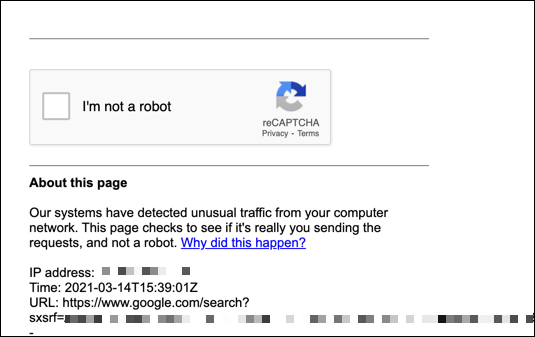
Image source: Online Tech Tips
Steps to Resolve the Error on iPhone and Safari
iPhone users often encounter this error specifically within the Safari browser, even when not using a VPN. This is frequently tied to how Safari handles modern web protocols and specific iOS features that can conflict with Google's traffic detection.
The HTTP/3 Experimental Fix
A significant number of users on Apple Support Communities have found that toggling the HTTP/3 protocol can resolve persistent blocks. HTTP/3 (based on QUIC) is a newer, faster protocol, but discrepancies between how a mobile carrier handles these packets and how Google receives them can trigger a security flag. To adjust this:
The Siri Search Loop Bug
Another platform-specific issue involves Siri. When you ask Siri a question that redirects to a YouTube link or a Google search, it can sometimes create a "search loop" where the request is sent multiple times in a fraction of a second. If you encounter the block after using Siri, clearing your Safari history and tabs often breaks the loop and restores access.
The "Login Reputation" Workaround
Google's security systems are more likely to trust traffic coming from a logged-in, verified Google account. If you are browsing in Safari's "Private" mode or are not signed in, Google has less data to verify your identity. Signing into your Google account through the Safari browser provides a "reputation boost" that can help you bypass the CAPTCHA loop more effectively.
Troubleshooting Techniques for Chrome and Firefox Users
On desktop browsers, the "unusual traffic" error is most commonly caused by browser extensions or corrupted cookies. Because Chrome and Firefox support a wide array of third-party tools, auditing these is a top priority.
Auditing Browser Extensions
Extensions designed for SEO, price tracking, or data scraping are primary culprits. However, even standard adblockers can sometimes trigger the error. Specifically, the AdGuard extension has been identified by Mozilla Support as a potential trigger when its filtering scripts interfere with Google's reCAPTCHA verification process. To test this, disable all extensions and try searching again. If the error disappears, re-enable them one by one to find the offender.
Clearing the "Google Sorry" Cookie
When Google flags your traffic, it places a specific cookie in your browser to track the block. Sometimes, even after the "unusual" activity stops, this cookie can cause the CAPTCHA to reappear in a loop. You can clear this specifically without losing all your other login data:
- In Chrome, go to Settings > Privacy and security > Third-party cookies > See all site data and permissions .
- Search for "google.com".
-
Look for any entries related to
google.com/sorry/and delete them.
Incognito Mode Test
Using Incognito or Private Browsing mode is an excellent diagnostic step. Since Incognito mode typically disables extensions and starts with a fresh set of cookies, it allows you to determine if the issue is local to your browser profile or if it is a network-wide IP block. If Google works in Incognito, the problem is almost certainly an extension or a cookie in your main profile.
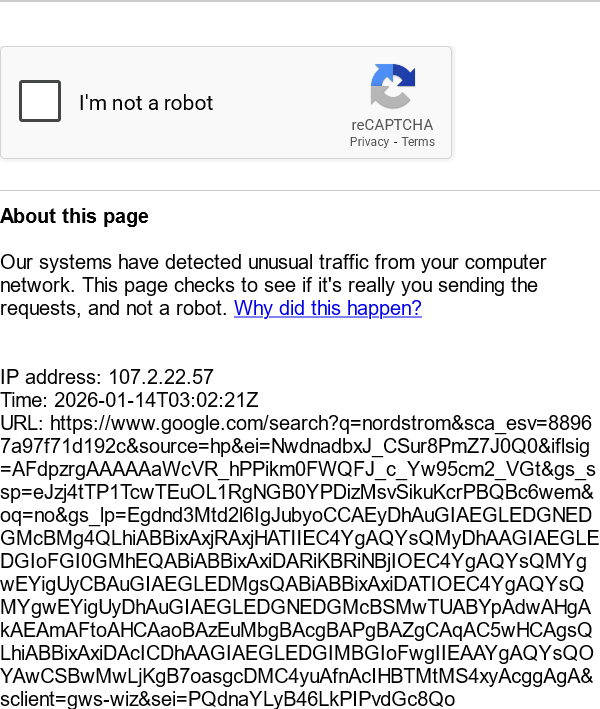
Image source: Mozilla Support
What to Do When the Error Appears Without a VPN
If you are not using a VPN or proxy and are still seeing this message, the situation requires a more thorough investigation of your local network and device security.
Win + R
, paste code into PowerShell, or download a "verification tool" to prove you are human,
close the tab immediately
. A legitimate Google CAPTCHA will only ask you to click images or a checkbox.
Real Google CAPTCHA vs. Malware Lure
| Feature | Legitimate Google Page | Malware/Fake Verification |
|---|---|---|
| URL |
Starts with
google.com/sorry/
|
Often a random domain or IP address |
| Action Required | Clicking images (reCAPTCHA) | Keyboard shortcuts (Win+R), PowerShell commands |
| Downloads | Never asks for downloads | May ask to download a "fix" or "certificate" |
| Visuals | Standard Google branding | May look slightly "off" or use outdated logos |
Resetting Your Router for a Fresh IP
If your IP address has been blacklisted due to a neighbor's activity (CGNAT) or a previous infection, you can often force your ISP to assign you a new one. A simple "restart" may not be enough. Instead, perform a "Hard Reset": unplug your router from the power source for at least 5 to 10 minutes. This duration is often necessary for the ISP's DHCP server to release your old IP and assign a new one upon reconnection.
Checking IP Blacklists
You can check the reputation of your IP address using tools like Spamhaus or Barracuda Central . If your IP appears on these lists, it means your connection has been associated with spam or botnet activity. In this scenario, you should run a full system scan with a reputable antivirus like Malwarebytes and contact your ISP to inform them that your assigned IP is blacklisted.
Managing Unusual Traffic Errors on Corporate Networks
For IT administrators, the "unusual traffic" error is a significant hurdle, especially in medium-sized offices. When 50 to 100 employees search Google simultaneously, the traffic pattern can naturally mimic a scraper.
The IPv6 Tunnel Issue
Google has noted that traffic originating from IPv6 tunnel services is a high-frequency trigger for this error. If your corporate network uses a transition mechanism to tunnel IPv6 traffic over IPv4, Google may flag this as suspicious. Disabling these tunnels and moving to native IPv6 support is a top-rated long-term solution for network admins.
Network Health Checklist for Admins
- Review firewall logs for any internal devices sending excessive requests to Google IPs.
- Ensure that no automated SEO or rank-tracking tools are running on the corporate server.
- Check if the company's public IP range was recently acquired; previous owners may have left a poor reputation.
- Verify that your DNS settings are not routing traffic through a high-latency proxy.
- If the issue persists, use the Google Unusual Traffic Report Form to notify Google, though response times are not guaranteed.
Frequently Asked Questions
Key Takeaways for Resolving Google Traffic Blocks
- Solve the reCAPTCHA immediately to prove you are a human user and clear the temporary flag.
- Disable VPNs, Proxies, and Tor , as these shared connections are the most common triggers for IP-based blocks.
- Audit browser extensions , specifically focusing on SEO tools, scrapers, and aggressive adblockers like AdGuard.
- Toggle HTTP/3 on iPhones via Safari's experimental settings if you encounter the error on mobile data.
- Perform a hard reset of your router by unplugging it for 10 minutes to attempt to secure a new public IP address.
- Stay vigilant against fake CAPTCHAs that ask for keyboard shortcuts or PowerShell commands, as these are signs of malware.
By systematically checking your network configuration and browser environment, you can quickly identify the source of the "unusual traffic" and restore your access to Google Search.
-
Topic: Tried to Google something and it said "our systems have ...https://www.reddit.com/r/techsupport/comments/mx5ipr/tried_to_google_something_and_it_said_our_systems/
-
Topic: Resolve Google Search's "Unusual traffic from your ...https://support.google.com/websearch/answer/86640?hl=en
-
Topic: Google "detected unusual traffic" message on iPhonehttps://discussions.apple.com/thread/251722604

How to Fix the Google Our Systems Have Detected Unusual Traffic Error
Stuck on the Google unusual traffic error? Learn how to bypass the CAPTCHA, fix VPN issues, and remove ClickFix malware on iPhone and Desktop.


How to Enable and Optimize Opera GX VPN for Gaming and Privacy
Learn to enable Opera GX VPN, fix missing buttons, and compare Free vs Pro speeds. Secure your gaming browser with our technical setup guide.


How to Use the inurl: Search Operator for SEO Audits and Site Security
Learn to use the inurl: operator for SEO audits and security. Fix errors and master advanced search strings for 2026.
