How to Enable or Disable Google Search Widget Doodles on Your Home Screen
To manage search widget doodles on Android, open the Google App , tap your Profile Icon , and navigate to Settings > Search Widget > Customize Widget . Look for the "Searchbox effects" toggle to turn animations on or off. If the toggle is missing, clearing the Google App cache or restarting your device often restores the menu. On iOS, these settings are managed directly within the Google App's general preferences.
What Are Search Widget Doodles and Why Do They Appear?
Search widget doodles are condensed, often animated versions of the iconic Google logo that appear within the search bar on your mobile home screen. While the desktop version of Google has featured these artistic variations since 1998, the expansion to the mobile search widget occurred more recently, notably around 2020. These animations are designed to celebrate holidays, anniversaries, and the lives of famous artists, pioneers, and scientists.
The creative force behind these visuals is a dedicated team of illustrators and engineers known officially as Doodlers . According to Google's official archive , the very first doodle was created as a simple "out of office" message by founders Larry Page and Sergey Brin during their visit to the Burning Man festival. Today, these have evolved into complex digital experiences, including interactive games and high-fidelity animations.
Technically, these widget animations are implemented as lightweight Lottie files or GIFs. Unlike traditional video files, Lottie animations are vector-based, allowing them to scale perfectly to any screen resolution without consuming significant system resources. These files are pushed to your device via server-side updates, meaning they can appear and disappear based on your geographic region and the current date without requiring a full app update from the Play Store.
"The doodle team has created over 5,000 doodles for our homepages around the world. The goal is to provide a bit of delight to the daily search experience." — Google Doodler Team
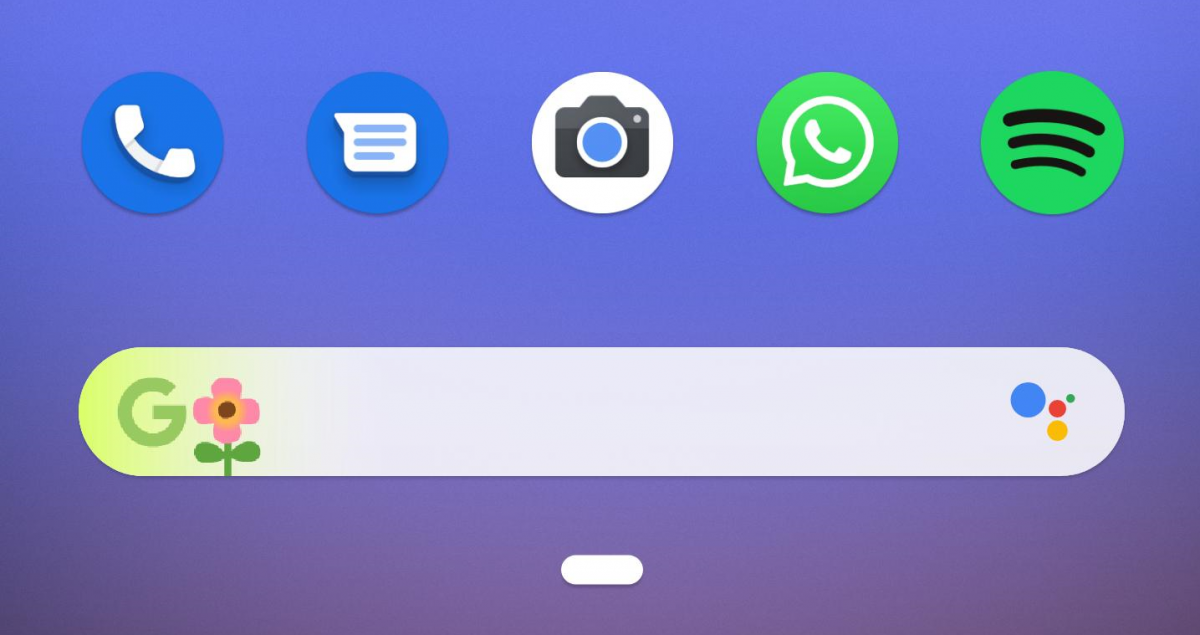
Image source: XDA Developers
How to Turn Search Widget Doodles On or Off on Android
For most Android users, controlling the appearance of the search bar is handled within the Google App settings. However, because Google frequently updates its user interface, the exact path can vary slightly depending on your version of the Android operating system and the Google App itself.
The Standard Customization Path
This is the most common method for modern devices running Android 13, 14, or 15. It allows you to not only toggle doodles but also change the bar's color, shape, and transparency.
- Open the Google App on your Android device.
- Tap your Profile Picture or initials in the top-right corner.
- Select Settings from the dropdown menu.
- Tap on Search Widget .
- Select Customize Widget .
- Look for the icon that resembles a small sun or a magic wand (often labeled Searchbox effects ).
- Toggle the switch to On to see doodles or Off to keep the standard logo.
The "Searchbox Effects" Alternative
On some devices, particularly those using older versions of the Google App, the toggle is located in a different sub-menu. If the steps above don't work, try this path identified by Android Police during the feature's initial rollout:
- Navigate to Google App > Settings .
- Tap on Google Assistant .
- Scroll down to find Searchbox effects .
- Toggle the setting as desired.
Pro Tip: After changing these settings, it is often necessary to restart your phone . Many users report that the toggle does not take effect immediately because the home screen launcher needs to refresh its cache to recognize the new server-side preference.
What to Do if the Searchbox Effects Toggle Is Missing
One of the most frequent complaints among Android enthusiasts is the sudden disappearance of the "Customize Widget" menu or the specific doodle toggle. This is typically not a bug in your phone but rather a result of how Google manages feature rollouts. Because these settings are controlled server-side, Google can remotely enable or disable the menu for specific user groups.
Force a Menu Refresh by Clearing Cache
If your settings menu looks "thin" or is missing the widget options, the Google App may be stuck on an older configuration. Clearing the app's cache can force it to check for the latest server-side settings.
- Go to your phone's Settings .
- Tap Apps or App Management .
- Find and select the Google App .
- Tap Storage & Cache .
- Select Clear Cache (Do not select "Clear Data" unless you are prepared to set up your Assistant preferences again).
- Force stop the app and reopen it.
Joining the Google App Beta
If the toggle remains missing, you might find it by joining the Google App Beta program. Beta versions often include "Labs" features that allow for more granular control over the UI. You can join this via the Google Play Store by searching for the Google App and scrolling down to the "Join the beta" section. Conversely, if you are already a beta tester and experiencing bugs, leaving the program and reverting to the stable version may restore the missing toggle.
Managing Google Search Doodles on Samsung Galaxy Devices
Samsung Galaxy users often face unique challenges because of the One UI overlay. Samsung's software interacts with the Google Search widget differently than "stock" Android found on Pixel devices. On models ranging from the S21 to the latest S26, the widget settings might be nested within Samsung's own customization menus.
One UI Specific Settings
On Samsung devices, ensure you are using the official Google Search widget and not the Samsung "Finder" or "Samsung Internet" search bar, as the latter will never show Google Doodles. If you are using the correct widget, the path is usually
Google App > Settings > Search Widget
. However, if you use
Samsung's "Stack Widgets"
feature, doodles may fail to animate. Stacking widgets puts the background processes of the non-visible widgets to sleep, which can prevent the doodle from triggering its animation sequence when you swipe to the search bar.
Samsung-Specific Conflicts
Samsung's aggressive battery management can also be a culprit. If "Power Saving Mode" is active, One UI limits background data and animations. To ensure doodles appear, you may need to exclude the Google App from battery optimization in
Settings > Apps > Google > Battery > Unrestricted
.
How to Control Doodles on iPhone and iOS Widgets
The experience on iOS is notably different from Android. Apple's widget system is more restrictive, meaning the Google Search widget on an iPhone doesn't "live" update in the same way an Android widget does. Instead, the Google App for iOS offers two distinct types of widgets: Classic and Dynamic .
The iOS Settings Path
To manage doodles on an iPhone, you must use the in-app settings rather than the iOS system settings:
- Open the Google App on your iPhone.
- Tap your Profile Icon .
- Go to Settings > General .
- Tap Search Widget .
- Here, you can choose the "Widget Theme." Selecting the Dynamic theme is required for doodles to appear. If you prefer a clean look, selecting the "Light" or "Dark" static themes will usually suppress the doodle animations.
In iOS 17 and 18, the "Dynamic" widget is designed to show trending searches and doodles. If you find these distracting, switching to the smaller "Square" widget often removes the doodle space entirely, leaving you with just the standard Google 'G' icon.
Why Are My Search Widget Doodles Not Showing Up?
Even when all settings are correctly toggled to "On," you might find that the standard logo remains. This is often referred to in community forums as the "Persistent G" bug . Several factors can prevent a doodle from appearing on your home screen even when it is visible on the Google.com homepage.
Regional and Server-Side Delays
Not every doodle is global. Google often runs regional doodles for local holidays (e.g., Independence Day in a specific country). If you are using a VPN or if your Google Account region doesn't match your physical location, the widget may default to the standard logo. Furthermore, as noted in Google Support threads , there is often a delay of several hours between a doodle going live on desktop and it appearing on mobile widgets.
Digital Wellbeing and Focus Modes
Modern smartphones include features like Digital Wellbeing (Android) and Focus Mode (iOS). If you have set app timers or strict "Do Not Disturb" schedules, your phone may restrict the Google App's ability to fetch new data in the background. Without that background refresh, the widget cannot download the new Lottie animation file for the day's doodle.
Battery and Data Saver Modes
Both Android and iOS will disable "non-essential" animations when the battery is low. If your phone is below 20% or if "Data Saver" is enabled, the search widget will prioritize functionality over aesthetics, displaying the static 'G' logo to conserve energy and bandwidth.
Comparison of Methods to Control Widget Appearance
Depending on your technical comfort level and your device type, there are several ways to manage how your search bar looks. The table below compares the most common approaches.
| Method | Device Type | Reliability | Best For |
|---|---|---|---|
| Official Toggle | Android/iOS | Medium | Casual users who want a simple switch. |
| Cache Clearing | Android | Low | Fixing temporary bugs or missing menus. |
| Third-Party Launcher | Android | High | Users who want a permanent, clean look. |
| Widget Stacking | Samsung/iOS | Medium | Hiding the search bar when not in use. |
| Beta Enrollment | Android | Medium | Accessing new customization features early. |
How to Get a Clean Search Bar Using Third-Party Launchers
For users who find the Google Doodles distracting or who are frustrated by Google's tendency to remove the "off" switch, third-party launchers offer a top-tier solution. These apps allow you to replace the official Google widget with a custom version that looks identical but gives you total control over the visuals.
Nova Launcher Customization
Nova Launcher is widely regarded as one of the most flexible options for Android. It includes a built-in search bar widget that can be configured to trigger a Google search without using the official Google App widget code. This means you can have a search bar that never shows a doodle, regardless of what Google pushes server-side.
- Long-press on the Nova home screen and select Widgets .
- Find Nova Launcher and drag the "Search Bar" to your screen.
- Tap the bar to open Configuration .
- Under "Style," you can choose the logo (Color G, White G, or no logo at all).
Lawnchair and Niagara Launcher
If you prefer a more "Pixel-like" experience, Lawnchair is an excellent choice. It is an open-source launcher that mimics the Pixel Launcher but adds a "Custom Search Bar" (CSB) integration. By using CSB, you can ensure your search bar remains static. For those who want something completely different, Niagara Launcher offers a minimalist list-based interface where the search function is integrated into the alphabet scroll, completely bypassing the need for a traditional, doodle-prone widget.
Frequently Asked Questions
Does the search widget doodle drain my battery?
The impact is negligible. Because doodles use the Lottie format, they are essentially small pieces of code that tell the phone how to draw shapes, rather than playing a heavy video file. While any animation uses more power than a static image, the battery drain from a search widget doodle is typically less than 0.1% of total daily usage. However, if you have an older device with limited RAM, you might notice a slight stutter when returning to the home screen while an animation is loading.
Can I choose a specific doodle to stay on my widget forever?
Unfortunately, no. Google Doodles are designed to be ephemeral. They are pushed from Google's servers for specific 24-hour periods (or slightly longer for major events). Once the event is over, the widget automatically reverts to the standard logo. There is currently no official setting to "pin" a favorite doodle to your home screen indefinitely.
Why does my doodle look different than my friend's doodle?
This is usually due to regional rollouts. Google often creates different doodles for different countries to celebrate local culture. Additionally, Google frequently performs A/B testing, where one group of users sees an animated version of a doodle while another group sees a static version. Your app version and Android OS level can also influence which version of the asset your device is capable of rendering.
How do I go back to the classic "G" logo immediately?
The fastest way is to use the "Customize Widget" menu in the Google App and toggle off "Searchbox effects." If that menu is missing, you can temporarily remove the widget from your home screen and re-add it. This sometimes forces the widget to default back to the standard logo until the next time it syncs with Google's servers.
Is there a way to see the full animation if it's cut off?
Yes. Tapping on the doodle in your search bar will usually open a Google Search results page for that specific topic. At the top of that page, you will often find the full-sized, high-resolution version of the animation, along with a "Share" button and a link to the archive to learn more about the subject being celebrated.
Key Takeaways for Managing Search Widget Doodles
Managing your home screen aesthetics shouldn't be a source of frustration. Here is a summary of how to stay in control of your search widget:
- Check the Google App settings first to find the "Searchbox effects" toggle.
- Restart your device if changes don't appear immediately; this is a common requirement for UI updates.
- Clear the Google App cache if you find that your customization menus have disappeared.
- Monitor battery and data settings , as power-saving modes will often disable these animations automatically.
- Consider a third-party launcher like Nova or Lawnchair if you want a permanent, doodle-free search experience.
- Understand the server-side nature of these updates; sometimes the "missing" feature is simply a result of Google's current rollout phase.
By following these steps, you can ensure your Android or iOS home screen looks exactly the way you want it to, whether that includes a festive animation or a clean, professional logo.
All trademarks, copyrighted content, and quoted material referenced in this article belong to their respective owners. Brief excerpts are used under fair use (17 U.S.C. § 107) for purposes of commentary, criticism, and informational reporting. This article is not affiliated with or endorsed by Google LLC or Alphabet Inc.
-
Topic: Is there a way to disable doodles on the default Google ...https://www.reddit.com/r/AndroidQuestions/comments/1b9ntaw/is_there_a_way_to_disable_doodles_on_the_default/
-
Topic: Google doodles do not appear on app search widget when ...https://support.google.com/websearch/thread/429092761/google-doodles-do-not-appear-on-app-search-widget-when-present-are-delayed-or-never-appear?hl=en
-
Topic: How to turn on or off Doodles on search widget in google ...https://www.youtube.com/watch?v=1rlUvCQqby0

How to Find Your Download Link and Fix Common File Issues
Can’t find your download link? Learn how to locate files, fix broken links, and create direct download URLs for Google Drive and Dropbox.


How to Use the inurl: Search Operator for SEO Audits and Site Security
Learn to use the inurl: operator for SEO audits and security. Fix errors and master advanced search strings for 2026.


How to Fix the Google Our Systems Have Detected Unusual Traffic Error
Stuck on the Google unusual traffic error? Learn how to bypass the CAPTCHA, fix VPN issues, and remove ClickFix malware on iPhone and Desktop.