How to Find Your Download Link and Fix Common File Issues
If you cannot find your download link, follow these three steps immediately:
- Check the Chrome Tray: Look at the top-right corner of your browser (near the extensions icon) for the downward arrow icon.
-
Use Keyboard Shortcuts:
Press
Ctrl + J(Windows) orCmd + Shift + J(Mac) to open your full download history. - Search Your Email: Look for keywords like "access your files," "delivery," or "confirmation" in your inbox and spam folders.
In the modern digital landscape, the simple act of clicking a link can sometimes lead to confusion rather than a file. Whether you are a user trying to locate a missing purchase or a creator attempting to provide a seamless experience for your audience, understanding the mechanics of a download link is essential. As of 2026, browser interfaces and security protocols have evolved, making it both easier and occasionally more complex to manage digital assets.
Where Is My Download Link?
The most common frustration for users occurs immediately after a transaction or a request for a file. You click "Download," but nothing seems to happen, or the link is nowhere to be found. This "lost link" phenomenon is usually the result of automated email filters or recent changes in browser user interfaces.
Locating Links in Your Email Inbox
Most digital products are delivered via automated systems. If the download link does not appear on the "Thank You" page, it is likely waiting in your inbox. However, modern email providers like Gmail and Outlook often categorize these as "Promotions" or "Junk." To find your link, search for specific delivery keywords rather than just the product name. Terms like "your files are ready," "download access," or "order confirmation" are highly effective. If you still cannot find it, check if the sender uses a third-party delivery service, as the email may come from a domain different from the one where you made the purchase.
Navigating the Chrome Download Tray
One of the most significant shifts in web browsing recently is the redesign of the Chrome download interface . For years, downloads appeared in a bar at the bottom of the screen. In the current 2024-2026 UI, Google has moved this to a "Download Tray" located in the top-right corner of the browser window. When a download starts, a small animation occurs in this tray. If you miss the animation, the link to your file remains stored there until you clear it. You can even drag files directly from this tray into your desktop folders or email attachments, which ranks among the top workflow improvements for power users.
Image source: Adobe Stock
Using Browser History to Recover Links
If you closed the tab containing your download link, you don't necessarily need to go back to the source website. Every major browser maintains a master list of every file you have attempted to download. By using the shortcut
Ctrl + J
, you can view the source URL of the file. This is particularly useful for recovering links that were generated dynamically and might otherwise be difficult to find again in your browsing history.
How to Find Downloaded Files on Any Device
Once the download link has done its job, the next challenge is finding where the file actually landed on your hard drive or mobile device. Different operating systems have distinct default behaviors.
Windows 10 & 11
Windows typically directs all downloads to a specific system folder. You can find this at
C:\Users\[YourUsername]\Downloads
. A quick way to access this is by pressing
Win + E
to open File Explorer and selecting "Downloads" from the Quick Access sidebar. Windows 11 also allows you to "pin" this folder to your Start menu for even faster access.
macOS
On a Mac, the default path is
/Users/[YourUsername]/Downloads
. Most users access this via the "Downloads" stack in the Dock, located next to the Trash. If you have "Stacks" enabled on your desktop, macOS may automatically group downloaded files by type, making it a top choice for users who handle large volumes of images and documents.
Finding Files on Android and iOS
Mobile devices handle download links differently than desktops. On Android, the Files by Google app is the standard tool for management. It is highly efficient, requiring less than 20 MB of space while supporting transfer speeds up to 480 Mbps. Files are usually stored in the "Downloads" category within the app.
On iOS, Apple uses the "Files" app. When you click a download link in Safari, the file is saved to either "On My iPhone" or "iCloud Drive," depending on your settings. You can change this by going to Settings > Safari > Downloads .
| Operating System | Default Folder Path | Shortcut Key |
|---|---|---|
| Windows 11 | \Users\[User]\Downloads | Win + E |
| macOS | /Users/[User]/Downloads | Option + Cmd + L |
| Android | /Internal Storage/Download | Open "Files" App |
| Chrome Browser | chrome://downloads/ | Ctrl + J |
Why Your Download Link Isn't Working and How to Fix It
Sometimes you have the link, but clicking it results in an error or unexpected behavior. Troubleshooting these issues requires a basic understanding of how browsers interpret file requests.
Solving the New Tab Preview Problem
A common complaint is that clicking a link for a PDF, MP3, or MP4 file opens the content in a new browser tab instead of saving it to the computer. This happens because modern browsers are designed to "preview" media formats they recognize. To bypass this, do not left-click the link. Instead, right-click the link and select "Save Link As..." . This forces the browser to trigger a download dialog regardless of the file type.
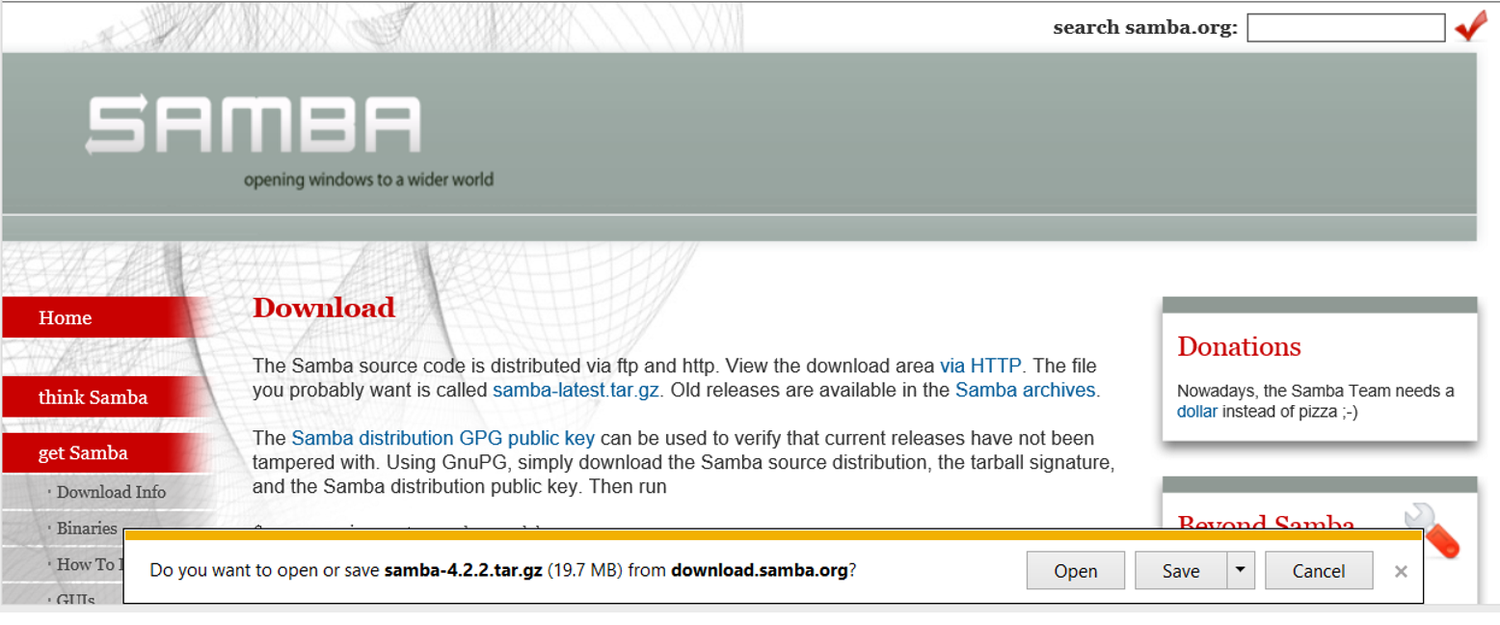
Image source: Lifewire
Troubleshooting CORS Errors and Security Blocks
If a download link does absolutely nothing when clicked, you might be facing a "silent failure" caused by CORS (Cross-Origin Resource Sharing). This is a security feature that prevents a website from downloading files from a different domain unless the server explicitly allows it. According to technical community discussions , this is a frequent issue for users of web-building platforms. To check for this, right-click anywhere on the page, select "Inspect," and click the "Console" tab. If you see red text mentioning "CORS" or "Access-Control-Allow-Origin," the link is being blocked for security reasons, and you may need to contact the site administrator.
Identifying Expired or Tokenized Links
Many download links are "tokenized," meaning they are only valid for a specific amount of time or a set number of clicks. If you see a long string of random characters at the end of your URL (e.g.,
?token=abc123xyz
), the link is likely temporary. If the link fails, check the URL for a timestamp. If the link has expired, you will typically need to request a new one from the source, as these security measures are designed to prevent unauthorized sharing of paid content.
How to Create a Direct Download Link for Others
For creators, providing a standard sharing link from Google Drive or Dropbox can be frustrating for the end-user because it forces them to view a preview page first. Creating a "one-click" direct download link is a significant advancement in user experience.
Use these formulas to convert standard sharing links into immediate downloads:
-
Google Drive:
Change
file/d/[FILE_ID]/viewtouc?id=[FILE_ID]&export=download -
Dropbox:
Change the end of the URL from
dl=0todl=1 -
OneDrive:
Use the "Embed" option in the web interface and extract the URL within the
srcattribute, then changeembedtodownload.
Modifying Google Drive Sharing Links
Google Drive is a top-tier choice for file sharing, but its default links are not direct. To fix this, you must first ensure the file's sharing settings are set to "Anyone with the link." Once you have the link, identify the unique File ID (the long string of letters and numbers). By plugging that ID into the
uc?export=download
formula, you create a link that starts the download immediately, bypassing the preview screen entirely. This method is widely regarded as one of the best ways to distribute large assets to a wide audience.
Adjusting Dropbox and OneDrive URL Suffixes
Dropbox makes this process even simpler. A standard Dropbox link ends in
?dl=0
. By simply changing that zero to a one (
?dl=1
), you instruct the browser to treat the link as a file transfer rather than a web page. OneDrive follows a similar logic, though it often requires using the "Embed" tool to generate a link that can be modified for direct access. These small adjustments can significantly reduce the "friction" your users experience when trying to access your content.
Is This Download Link Safe to Click?
Security is a paramount concern when dealing with download links. Malicious actors often use deceptive URLs to trick users into downloading harmful software. Protecting yourself requires a proactive approach to link verification.
Verifying URLs with the Hover Technique
Before clicking any download link, use the "hover technique." Place your mouse cursor over the link without clicking. In the bottom-left corner of your browser window, the actual destination URL will appear. If the text of the link says "Download Your Invoice" but the hover URL points to a strange domain like
xyz-secure-download.top
, do not click it. This simple check is a highly effective defense against phishing attacks.
Scanning Links with VirusTotal
If you are suspicious of a link but need the file, you can scan the URL before the file ever touches your hard drive. Copy the download link (right-click > Copy Link Address) and paste it into a service like VirusTotal. This tool aggregates data from dozens of antivirus engines to tell you if the destination URL has been flagged for hosting malware. This ranks among the top safety practices for anyone downloading files from unfamiliar sources.
Advanced Download Management and Cloud Streaming
For power users, the standard "click and save" method is just the beginning. Advanced techniques allow you to manage files more efficiently and even bypass your local storage entirely.
Use browser metadata to find exactly where a file came from, even weeks after the download link has been deleted from your history.
Use services like WebsiteDownloader.io to move files directly from a link to your Google Drive, saving your local bandwidth.
Set up rules in your OS to automatically move files from the "Downloads" folder to specific project directories based on file extension.
Bypassing Local Storage with Cloud-to-Cloud Tools
If you are on a limited data plan or have a nearly full hard drive, you can use cloud-to-cloud transfer tools. These services act as a bridge; you provide the download link, and they stream the file directly to your Dropbox or Google Drive. This is a significant step forward for mobile users who need to "save" large files for later viewing on a desktop without actually downloading them to their phone first.
Recovering Source Metadata from Downloaded Files
Did you know that many files store their original download link in their metadata? On macOS, you can right-click a file, select "Get Info," and look at the "More Info" section to see the "Where from" URL. This is an exceptionally strong tool for researchers who need to cite their sources but forgot to bookmark the original page. Windows users can sometimes find this information by checking the "Details" tab in File Properties, though it is less consistently recorded than on Mac systems.
Frequently Asked Questions
Final Takeaways for Managing Your Download Link
Mastering your digital downloads requires a mix of knowing where to look and understanding how to bypass common technical hurdles. Here are the key points to remember:
- Check the top-right tray in Chrome for recently finished downloads.
- Use Ctrl+J to access your full history and recover source URLs.
- Right-click "Save Link As" to prevent files from opening in new tabs.
- Modify cloud URLs using specific formulas to create direct download links for others.
- Verify safety by hovering over links to see the destination URL in the status bar.
- Check for CORS errors in the browser console if a link fails to trigger any action.
- Utilize cloud-to-cloud tools to save local bandwidth and storage space.
By implementing these strategies, you can transform a potentially frustrating technical process into a streamlined and secure workflow.
-
Topic: Download a file - Computer - Google Chrome Helphttps://support.google.com/chrome/answer/95759?hl=en&co=GENIE.Platform%3DDesktop
-
Topic: My Downloads - Chrome Web Store - Googlehttps://chromewebstore.google.com/detail/my-downloads/ienfdfooajmkbebiaplehejbamefbboi?hl=en-US
-
Topic: Download a file - Android phone & tablethttps://support.google.com/chrome/answer/95759?hl=en&co=GENIE.Platform%3DAndroid
How to Fix the 'Sorry We Couldn't Find' Error in Office and Web Apps
Resolve 'Sorry we couldn't find' errors in Word, Excel, Power BI, and Vimeo. Fix broken file paths, cache issues, and permission bugs today.


How to Use the inurl: Search Operator for SEO Audits and Site Security
Learn to use the inurl: operator for SEO audits and security. Fix errors and master advanced search strings for 2026.

How to Enable or Disable Google Search Widget Doodles on Your Home Screen
Learn how to enable, disable, or fix missing Google search widget doodles on Android and iPhone with these updated 2026 troubleshooting steps.