How to Fix the "Sorry We Couldn't Find" Error in Office and Web Apps
If you encounter a "Sorry we couldn't find" error, the most effective first step is to bypass the application's "Recent Files" list. Close the program (Word, Excel, or Power BI) and navigate directly to the file's location in Windows File Explorer . Double-clicking the file from its actual folder often resolves pathing mismatches caused by cached links. For web errors like Vimeo or Goodreads, clearing your browser cache or checking for regional VPN blocks is a top-rated solution.
Understanding Why This Error Message Appears Across Different Platforms
The "Sorry we couldn't find" message is a generic catch-all used by developers to indicate that a requested resource—whether a local document, a cloud report, or a web page—is unreachable. While the wording is simple, the underlying causes range from minor cache glitches to complex permission logic in corporate environments. According to Microsoft Learn , this error most frequently triggers when a file has been moved, renamed, or deleted after the application last indexed its location.
| Software/Platform | Likely Technical Cause | Recommended Quick Fix |
|---|---|---|
| Word / Excel | Broken "Recent Files" path link | Open directly from File Explorer |
| Power BI / Fabric | App Audience permission gap | Use Workspace link instead of App link |
| Vimeo | Privacy tier or embed restriction | Check "Embed Only" settings |
| Web Browsers | Corrupted cookies or API failure | Clear browser cache and cookies |
| Windows System | Broken file association | Reset "Default Apps" in Settings |
In many cases, the error is not a sign of permanent data loss but rather a communication breakdown between the software and the storage location. Identifying the specific platform is the first step toward a resolution.
How to Fix the File Moved or Renamed Error in Microsoft Word and Excel
For users of Microsoft Office, this error is a common occurrence when working with shared drives or cloud-synced folders like OneDrive. When you open Word or Excel, the "Home" screen displays a list of recently accessed documents. These are static shortcuts. If a colleague renames the folder containing the document, or if you move the file to a subfolder, the shortcut breaks, triggering the "Sorry we couldn't find your file" alert.
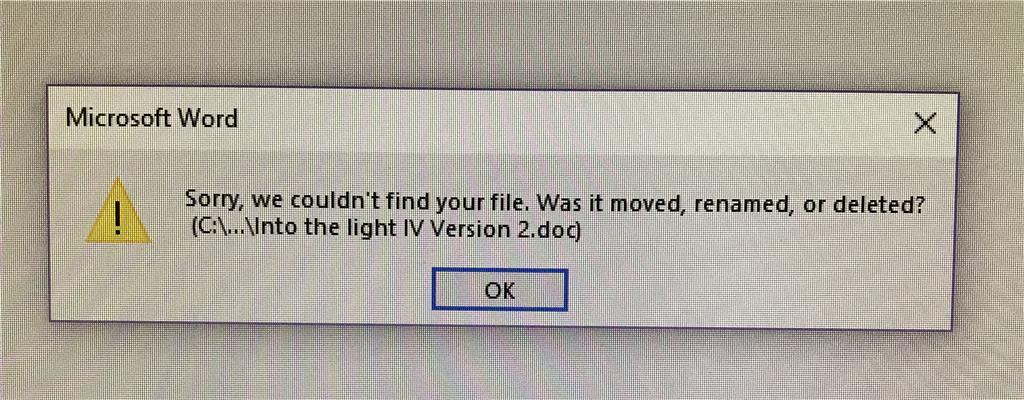
Image source: Microsoft Learn
Using the File Explorer Bypass to Access Documents
One of the most effective ways to resolve this is the "Double-Click Method." Instead of relying on the application's internal memory, you force the OS to handle the pathing. This is a leading choice for users who know the file exists but cannot reach it through the "Recent" menu.
Running an Online Repair for Microsoft Office Applications
If the error persists even when opening files directly, the application's core files or registry entries may be corrupted. Microsoft provides a built-in repair tool that ranks among the most effective ways to fix deep-seated installation issues. Unlike a "Quick Repair," an "Online Repair" performs a comprehensive reinstallation of the Office suite while preserving your settings and documents.
- Right-click the Start button and select Installed Apps .
- Find Microsoft Office or Microsoft 365 in the list.
- Click the three dots and select Modify .
- Choose Online Repair and follow the prompts. This process may take 10-20 minutes depending on your internet speed.
Repairing a Corrupted Normal.dotm Template Path in Word
A less obvious but highly impactful cause of this error in Microsoft Word involves the Normal.dotm file. This is the global template that Word uses to create every new document. If Word cannot find this template—or if the path to the "Templates" folder is incorrectly mapped in the registry—it may throw the "Sorry we couldn't find" error upon launch, even before you try to open a specific file.
%AppData%\Microsoft\Templates
. If you have recently migrated to a new PC or changed your username, this path might still point to a non-existent user directory.
To fix this, navigate to File > Options > Advanced . Scroll down to the General section and click File Locations . Ensure the "User templates" path is correct. If it looks suspicious, you can reset it by deleting the Normal.dotm file (Word will recreate a fresh one on the next launch), which is a top-performing fix for launch-time errors.
Resolving Broken Macros and Mapped Network Drive Failures
In corporate environments, Excel workbooks often rely on VBA macros to pull data from other files. A frequent "hidden" trigger for this error is the "J:/ Drive Mystery." Many organizations map network drives to specific letters (like J:, P:, or S:). If a macro is hardcoded to look for
J:\Data\Report.xlsx
, but the network drive has disconnected or been remapped to a different letter after a reboot, Excel will report that it cannot find the file.
To resolve this, developers should use
UNC paths
(e.g.,
\\ServerName\Share\Data\Report.xlsx
) instead of drive letters. For end-users, simply opening the network drive in File Explorer to "wake it up" before running the macro is a highly effective workaround. According to discussions on the
Excel Forum
, verifying drive mapping is the first step in macro troubleshooting.
Troubleshooting Power BI and Fabric Report Access Issues
Power BI and the Microsoft Fabric ecosystem use a specific logic for the "Sorry we couldn't find that report" error. Unlike many other web services that provide a "Request Access" button when a user lacks permissions, Power BI often displays this generic error instead. This creates a significant logic gap for users who don't know if the report is deleted or if they simply lack the right credentials.
The Technical Difference Between App Links and Workspace Links
A unique finding from the Fabric Community highlights a critical distinction in how links behave:
- App Links: If you share a link to a Power BI App , users who are not part of the "App Audience" will see the "Sorry we couldn't find that report" error. They will not be given an option to request access.
- Workspace Links: If you share a link directly to the report within a Workspace , unauthorized users will see a "Request Access" screen.
If you are an administrator receiving complaints about this error, check the Audience settings in your App deployment. Ensure the user's email or security group is explicitly added to the audience list. This is a leading choice for fixing access issues without changing the underlying report structure.
Fixing Vimeo and Website Page Not Found Errors
When the error appears on websites like Vimeo, it is rarely about a moved file and almost always about Privacy Settings or Routing Bugs . Vimeo, in particular, offers granular privacy tiers that can make a video appear "missing" to certain users.
Checking Privacy Settings and Language Routing Bugs
If you see "Sorry, we couldn't find that page" on a Vimeo video, verify the following:
- Embed Only: The creator may have set the video to be viewable only when embedded on a specific domain. Viewing it directly on Vimeo.com will trigger the error.
- Regional Restrictions: Some content is geo-blocked. If you are using a VPN, try switching to a local server.
- The Spanish Language Bug: A notably innovative finding from the Unreal Engine Forums suggests that on certain platforms like Fab, setting the site language to Spanish can break URL routing, leading to this error. Switching the site language back to English often resolves the issue immediately.
Clearing Browser Cache and Managing VPN Connections
For platforms like Goodreads or general web portals, the "Sorry we couldn't find" error is often device-specific. If the site works on your mobile phone but not on your laptop, the issue is likely a corrupted local cache. Browsers store "snapshots" of pages to speed up loading; if the site updates its API but your browser tries to use an old snapshot, the connection fails.
To fix this, perform a "Hard Refresh" by pressing Ctrl + F5 (Windows) or Cmd + Shift + R (Mac). If that fails, clearing your cookies and site data for that specific domain is a top-tier troubleshooting step. Additionally, ensure your VPN is not flagging the site's security protocols, as some aggressive firewalls mask blocked connections as "Page Not Found" errors to prevent data scraping.
Restoring File Associations in Windows 11 and Windows 10
Sometimes, the "Sorry we couldn't find" error isn't about the file, but about the program . If Windows loses the link between a file extension (like .docx) and the application (Word), it may report that it cannot find the necessary components to open the file. This is common after a major OS update or a failed software uninstallation.
- Open Settings and go to Apps > Default Apps .
- Scroll down to Choose defaults by file type .
- Search for the extension (e.g., .xlsx) and ensure it is linked to the correct application.
- If the association is missing, re-link it to the installed Office app. This is a highly effective way to restore system functionality.
Frequently Asked Questions
This usually happens because you are trying to open the file from the "Recent" list in Word. The "Recent" list stores a static path. If you moved the file even one folder over, the link breaks. The most effective fix is to close Word and double-click the file directly from the folder where you see it. This updates the internal path and clears the error.
On macOS, this error is often related to "Full Disk Access" permissions. Go to
System Settings > Privacy & Security > Full Disk Access
and ensure Microsoft Word or Excel is toggled ON. Additionally, clearing the Office cache in the
~/Library/Containers
folder is a top-rated solution for persistent Mac-specific pathing issues.
Yes, in most cases. First, check your Recycle Bin. If the file was on OneDrive or SharePoint, you can use
Version History
to restore a previous state. If you renamed the file while it was open and it "vanished," check your temporary files folder (
%Temp%
) immediately, as Office often keeps a backup buffer there during active sessions.
This is a known behavior of Power BI "App" links. When a report is shared via an App, the security layer is strictly enforced by the "App Audience" settings. If you aren't in that audience, the system treats the report as non-existent for you. Ask the report owner to either add you to the App Audience or provide a direct Workspace link, which will allow you to trigger a formal access request.
It is a leading choice for web-based errors. Corrupted cookies can send outdated authentication tokens to a server, causing the server to reject the request and return a "Not Found" error. Clearing cookies forces a fresh handshake between your browser and the server, which resolves the majority of non-server-side web errors.
Navigating the "Sorry we couldn't find" error requires a systematic approach to identify whether the issue lies in the file path, the application's cache, or user permissions.
- Bypass the Recent list by opening files directly from Windows File Explorer.
- Check network connectivity if your macros or files rely on mapped drives like J: or P:.
- Verify Power BI Audience settings to ensure users aren't being blocked by App-level security.
- Repair the Normal.dotm template if Word fails to launch correctly.
- Switch site languages to English if you encounter routing bugs on platforms like Fab.
- Perform an Online Repair of Office for deep-seated registry or installation corruption.
- Clear browser cache for device-specific web errors on sites like Goodreads or Vimeo.
For immediate results, try the File Explorer bypass first, as it addresses the most common cause of this error with minimal technical effort.
-
Topic: Troubleshooting: "Sorry, we couldn't find that page"https://help.vimeo.com/hc/en-us/articles/49270441889425-Troubleshooting-Sorry-we-couldn-t-find-that-page
-
Topic: Sorry we couldn't find your file. Was it moved, renamed or ...https://learn.microsoft.com/en-us/answers/questions/5349275/sorry-we-couldnt-find-your-file-was-it-moved-renam
-
Topic: Sorry we couldn't find... Is it possible moved, renamed or ...https://www.excelforum.com/excel-programming-vba-macros/1318804-sorry-we-couldnt-find-is-it-possible-moved-renamed-or-deleted.html

How to Fix Persistent File Not Found .exe Errors in Windows
Resolve persistent 'file not found: .exe' errors in Windows. Learn to fix registry blocks, malware remnants, and developer path issues today.


How to Use the inurl: Search Operator for SEO Audits and Site Security
Learn to use the inurl: operator for SEO audits and security. Fix errors and master advanced search strings for 2026.

How to Find Your Download Link and Fix Common File Issues
Can’t find your download link? Learn how to locate files, fix broken links, and create direct download URLs for Google Drive and Dropbox.