How to Fix Persistent File Not Found .exe Errors in Windows
The redundant error string
"file not found: file not found: .exe"
typically indicates a shell execution failure where a launcher or script attempts to run a file that is blocked by the Windows Registry. If you can see the file in Explorer but it won't run, perform the
Renaming Test
: copy the EXE and rename it to
fix.exe
. If the renamed file works, your issue is a specific registry block in the
Image File Execution Options
. If it still fails, you likely have a broken file association or a missing system dependency.
Why Does the Error Message Repeat File Not Found Twice?
Encountering an error message that repeats itself can be confusing. In the context of Windows executables, the string "file not found: file not found: .exe" is not a typo by the operating system. Instead, it is a symptom of how modern software handles process execution. When you attempt to run a program, Windows uses a chain of commands to locate and initialize the file. If this chain is interrupted, the error is reported back up the stack.
This specific redundancy often occurs in Command Line Interfaces (CLI) or when using "wrapper" applications. For example, a game launcher or a developer script might try to call an executable. When the operating system returns a "File Not Found" error to the launcher, the launcher itself may then re-emit that error to the user interface, resulting in the double-reporting phenomenon. According to developer discussions on StackOverflow , this is frequently seen when environment variables or virtual drives are misconfigured, causing the calling application to lose track of the target path.
It is important to note that this error does not always mean the file has been deleted. In many cases, the file is exactly where it should be, but the "Shell Execution Chain"—the set of instructions Windows follows to open a file—has been hijacked or corrupted. This creates a logical disconnect where the user sees the file, but the system's internal map says it isn't there.
Use the Renaming Test to Find the Root Cause Instantly
Before diving into complex registry edits or system restores, power users employ a diagnostic trick known as the "Renaming Test." This method is widely considered one of the most efficient ways to differentiate between a corrupted file and a registry-based block. Because Windows Registry blocks are often tied to specific filenames (like
chrome.exe
or
setup.exe
), changing the name of the file can bypass these blocks entirely.
How to Perform the Renaming Test
-
Navigate to the folder containing the problematic
.exefile. - Right-click the file and select Copy , then Paste it into the same folder to create a duplicate.
-
Right-click the copy and select
Rename
. Change it to something generic, such as
test123.exe. - Double-click the renamed file to see if it launches.
The results of this test provide a clear path forward. If the renamed file runs without issue, the file itself is healthy. The problem lies in a Registry Block specifically targeting the original filename. This is a common tactic used by malware to prevent security tools from running, or it can be a remnant of a poorly uninstalled program. If the renamed file still returns a "file not found" error, the issue is likely a broader File Association corruption or a missing system library, such as a Visual C++ Redistributable.
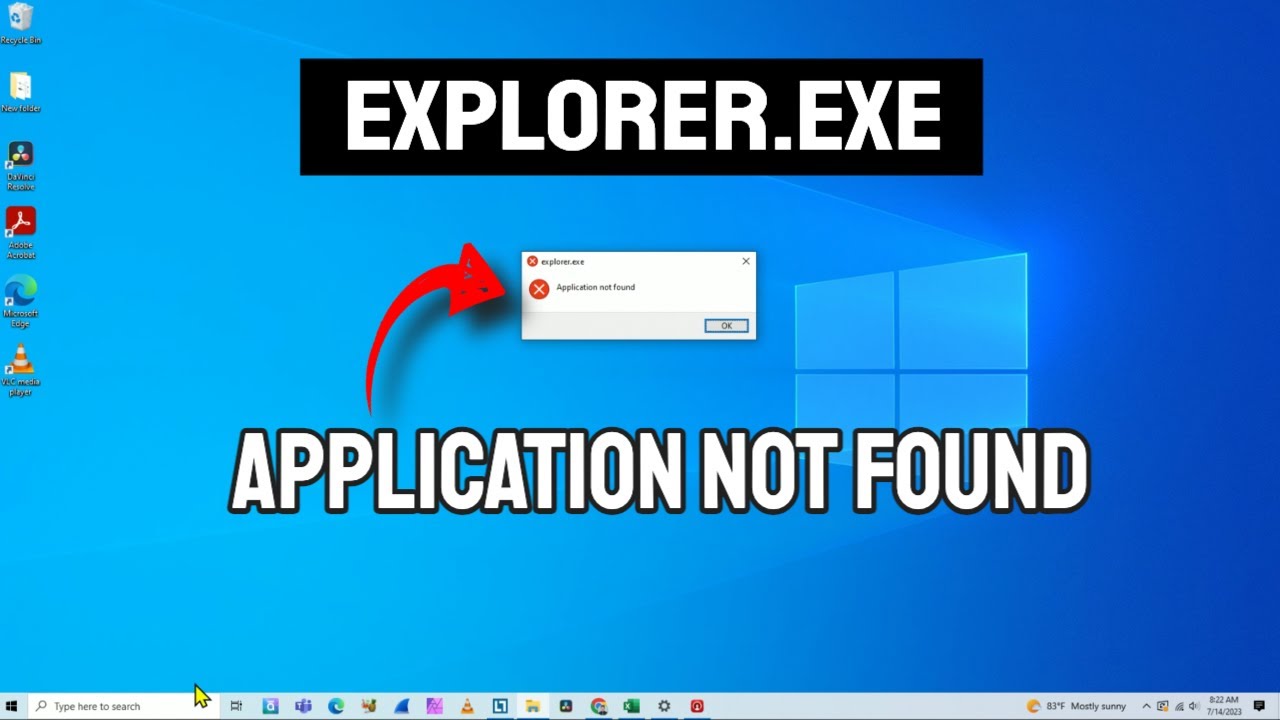
Image source: YouTube
How to Fix Image File Execution Options in the Registry
If the Renaming Test was successful, the most likely culprit is the Image File Execution Options (IFEO) key in the Windows Registry. This area of the registry is designed to allow developers to attach debuggers to programs. However, it is also a popular target for malicious software. By adding a "Debugger" value to a program's key, an attacker can redirect that program to a non-existent file, effectively disabling it. When you try to run the program, Windows looks for the "debugger" instead, fails to find it, and reports that the original program is "not found."
Navigating and Cleaning the Registry Path
To resolve this, you must manually inspect the IFEO keys. Follow these steps carefully, as incorrect registry edits can impact system stability. According to technical guides on SuperUser , this is a top-tier solution for filename-specific blocks.
-
Press
Win + R, typeregedit, and press Enter. -
Navigate to:
HKEY_LOCAL_MACHINE\SOFTWARE\Microsoft\Windows NT\CurrentVersion\Image File Execution Options -
Look for a sub-key named after your failing program (e.g.,
chrome.exe). - In the right-hand pane, look for a value named Debugger . If it exists and points to a path that looks suspicious or incorrect, right-click it and select Delete .
-
Repeat this process for the 32-bit compatibility path if you are on a 64-bit system:
HKEY_LOCAL_MACHINE\SOFTWARE\WOW6432Node\Microsoft\Windows NT\CurrentVersion\Image File Execution Options
.reg
file. If something goes wrong, you can double-click that file to restore your settings.
Restoring Default EXE File Associations via Command Prompt
When the "file not found" error affects every executable on your computer, the problem is usually a corruption of the global file associations. Windows relies on specific registry keys to understand that a file ending in
.exe
is a program that needs to be executed. If these associations are broken, Windows may try to open your programs in Notepad or simply report that it cannot find the instructions to run them.
The most effective way to fix this is through the Command Prompt using the
assoc
and
ftype
commands. These tools reset the system's internal map for how executables are handled. As noted in
Bitdefender's support documentation
, restoring these associations is a critical step after a malware infection has been cleared.
Running the Repair Commands
Open a Command Prompt with Administrative privileges and enter the following commands one by one:
assoc .exe=exefile
ftype exefile="%1" %*
The first command tells Windows that the
.exe
extension belongs to the
exefile
class. The second command, which is exceptionally strong for resolving these issues, defines exactly how an
exefile
should behave. The
"%1" %*
syntax is a critical instruction that tells Windows to simply run the file (the first parameter) and pass along any additional arguments (the second parameter). Without this specific string, the system loses its ability to process executables correctly.
Decision Matrix: Which Fix Do You Need?
Use the following table to identify the most likely cause of your error based on the symptoms you are experiencing. This framework helps you skip irrelevant troubleshooting steps and focus on the most effective solution for your specific scenario.
| Symptom | Likely Cause | Primary Fix |
|---|---|---|
| Only one specific program fails to launch | IFEO Registry Block | Delete "Debugger" key in Registry |
| Every .exe file on the PC fails with an error | Association Corruption |
Run
assoc
and
ftype
commands
|
| Renaming the file allows it to run perfectly | Filename-specific block | Registry Cleanup (IFEO) |
| Error appears in Visual Studio or IDE |
subst
Drive Conflict
|
Match Admin Privileges for drives |
| Error specifically mentions a missing .dll | Runtime Dependency | Install Visual C++ Redistributable |
Why Developers See File Not Found Errors in Visual Studio
For software developers, the "file not found" error often has a more nuanced cause related to the build environment. A common scenario involves the use of the
subst
command, which allows users to map a long folder path to a virtual drive letter (e.g., mapping
C:\Users\Dev\Projects\MyLongPath
to
Z:
). While this is a popular choice for shortening paths, it introduces a significant hurdle regarding administrative privileges.
In Windows, virtual drives created with
subst
are session-specific and privilege-specific. If a developer maps a drive in a standard Command Prompt but runs Visual Studio as an Administrator, the "Admin" instance of Visual Studio will not be able to see the
Z:
drive. When the compiler tries to output the final
.exe
to that drive, it fails with a "file not found" error because the destination literally does not exist in the Admin session. To resolve this, ensure that any
subst
commands are run in a terminal with the same privilege level as your IDE.
Additionally, build artifacts can sometimes become "ghosted." If a previous build was interrupted, the
bin
and
obj
folders might contain locked or corrupted files that prevent the new
.exe
from being recognized. A highly recommended practice is to manually delete these folders and perform a "Clean and Rebuild" within the IDE to force a fresh file generation process.
How to Edit the Registry When EXE Files Won't Open
A frustrating "Catch-22" occurs when the tools you need to fix the error—like
regedit.exe
or
cmd.exe
—are themselves
.exe
files that return the "file not found" error. This prevents you from running the very commands needed to repair the system. In such cases, you must bypass the standard Windows environment to gain access to the registry.
Methods for Bypassing EXE Blocks
-
The Renaming Trick:
Navigate to
C:\Windows, findregedit.exe, and rename it toregedit.com. Windows handles.comfiles differently, and this often bypasses filename-specific blocks or broken.exeassociations. - Safe Mode with Command Prompt: Restart your computer while holding the Shift key to enter the Advanced Startup menu. Select Troubleshoot > Advanced Options > Startup Settings > Restart , then choose option 6 for Safe Mode with Command Prompt. This environment loads a minimal set of drivers and often ignores IFEO blocks.
-
Windows Recovery Environment (WinRE):
If you cannot even get into Safe Mode, boot from a Windows installation USB. Choose "Repair your computer" and open the Command Prompt. From here, you can use the
reg loadcommand to mount your system's registry hive and edit it offline. This is a significant advancement in troubleshooting that works even when the main OS is completely non-functional.
Running System Repairs via SFC and DISM
If registry and association fixes do not work, the underlying Windows system files may be corrupted. Microsoft provides two primary tools for this: the System File Checker (SFC) and the Deployment Image Servicing and Management (DISM) tool. For the best results, you must run these in a specific order. According to Microsoft Q&A support threads , running DISM before SFC is the most effective sequence.
DISM repairs the "Component Store," which is the master library Windows uses to repair itself. If the Component Store is corrupted, SFC will fail because it has no healthy files to use as a reference. Use the following commands in an elevated Command Prompt:
DISM /Online /Cleanup-Image /RestoreHealth
sfc /scannow
The DISM command may take some time as it downloads healthy files from Windows Update. Once it completes, the
sfc /scannow
command will sweep your system and replace any missing or damaged
.exe
files with the verified versions from the now-repaired Component Store.
Checking for Malware Remnants and Ghost Files
It is a common occurrence for this error to appear after a successful malware removal. Many antivirus programs are excellent at deleting malicious files but fail to clean up the registry changes those files made. If a virus set itself as the "Debugger" for your web browser and your antivirus then deleted the virus, Windows will still try to launch the deleted virus every time you open your browser. This results in the "file not found" error.
Beyond registry checks, verify the file permissions of the folder where the EXE resides. Sometimes, malware or system errors can strip the "Read & Execute" permissions from the "Users" or "SYSTEM" groups. Right-click the folder, go to Properties > Security , and ensure that your user account has the necessary permissions to actually run files within that directory. If permissions are missing, even a perfectly healthy EXE will appear as "not found" to the shell execution service.
Frequently Asked Questions
Can a Windows Update cause the "file not found" error?
Why does my shortcut say "file not found" but the EXE is clearly there?
What is VCRUNTIME140_APP.dll and why does it stop my EXE?
Is it safe to delete keys in Image File Execution Options?
chrome.exe
or
vlc.exe
) if they are causing errors. However, you should avoid deleting the main
Image File Execution Options
folder itself or keys related to core Windows processes unless you have a backup and a specific reason to do so.
How do I fix this without losing my personal data?
Key Takeaways for Resolving EXE Errors
Fixing persistent "file not found" errors requires a systematic approach to identify whether the problem is the file itself or the system's path to it.
- ✅ Perform the Renaming Test first to determine if the issue is tied to a specific filename.
- ✅ Check the IFEO Registry Key for "Debugger" values that might be redirecting your programs to non-existent files.
-
✅
Reset File Associations
using the
assocandftypecommands in an administrative Command Prompt. -
✅
Verify Developer Paths
if using virtual drives (
subst), ensuring admin privileges match across sessions. - ✅ Run DISM and SFC in that specific order to repair underlying Windows system corruption.
- ✅ Use Safe Mode or WinRE if the error prevents you from opening the Registry Editor or Command Prompt normally.
By following these steps, you can resolve most shell execution errors and restore your system to full functionality without needing a complete OS reinstallation.
For further technical details, refer to the official Microsoft Learn documentation on system file repairs.
-
Topic: Windows cannot find .exe - Microsoft Q&Ahttps://learn.microsoft.com/en-us/answers/questions/2756704/windows-cannot-find-exe
-
Topic: Windows cannot find '?.exe' - some apps onlyhttps://superuser.com/questions/589030/windows-cannot-find-exe-some-apps-only
-
Topic: “File Not Found” Error Message Causes & Solutionshttps://markzware.com/company/file-not-found-error-message-causes-solutions-omnimarkz-markzportal/

How to Fix the 'Sorry We Couldn't Find' Error in Office and Web Apps
Resolve 'Sorry we couldn't find' errors in Word, Excel, Power BI, and Vimeo. Fix broken file paths, cache issues, and permission bugs today.


How to Sign In to Your MSN Email Account and Fix Common Login Problems
Access your @msn.com email. Fix login loops, recover old accounts, and manage Microsoft storage with this troubleshooting guide.

What Is Un_A.exe and How Can You Tell if It Is Safe?
Learn if Un_A.exe is a safe NSIS uninstaller or malware. Check file locations, digital signatures, and how to fix registry errors safely.
