
What Is Un_A.exe and How Can You Tell if It Is Safe?
Un_A.exe
is a temporary runtime file generated by the
Nullsoft Scriptable Install System (NSIS)
. It is typically a legitimate component used during the uninstallation of software like Mozilla Firefox or MEGAsync. However, because its name is generic, it is frequently spoofed by malware.
It is safe if
it appears during an active uninstallation and is located in your
Temp
folder.
It is dangerous if
it runs spontaneously, lacks a digital signature, or persists after a reboot.
When you open your Task Manager and spot a process named
Un_A.exe
, your first instinct might be to worry about a potential security breach. This cryptic filename, often found in temporary directories, has caused significant confusion among Windows users for years. Understanding whether this file is a helpful system utility or a malicious intruder requires looking at the context of its appearance and its technical metadata.
According to security research from Gridinsoft , the file is a self-copying mechanism designed to allow a program to delete itself entirely. Since a running executable cannot delete its own file on disk, it creates a "helper" in a temporary location to finish the job. While this is a standard practice for many top-rated software packages, the generic nature of the file makes it a popular mask for trojans and miners.
Why Is the Un_A.exe Process Running on Your Computer?
The presence of
Un_A.exe
is almost always tied to the
Nullsoft Scriptable Install System (NSIS)
. NSIS is a widely used open-source tool that developers use to create Windows installers. To understand why
Un_A.exe
exists, you have to understand the "Self-Deletion Loop" that occurs during software removal.
uninstall.exe
) cannot delete itself while it is active. It copies itself to a temporary folder, usually named
~nsuA.tmp
.
Un_A.exe
and launched.
Un_A.exe
process deletes the original program files and the original uninstaller. Finally, it schedules its own deletion upon the next system idle or reboot.
A crucial technical detail often overlooked is the
"A" suffix
. In the NSIS framework, the "A" indicates that the process has been granted
Administrative privileges
. This is necessary because removing files from
C:\Program Files
requires elevated permissions. If you see this process running but did not see a User Account Control (UAC) prompt, it could indicate that a malicious process has already bypassed your system security.
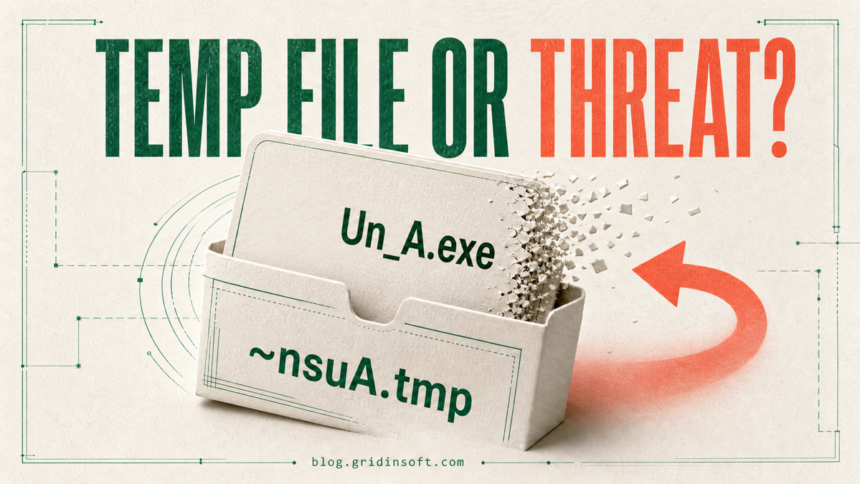
Image source: The Security Blog From Gridinsoft
Common Legitimate Programs That Use Un_A.exe
Many reputable software vendors rely on NSIS for their installation and removal routines. If you have recently updated or removed any of the following applications, the
Un_A.exe
process you see is likely legitimate:
- Mozilla Firefox: Often appears as "Firefox Helper" in the Task Manager. It uses this process to clean up profile data and core binaries during updates or removals.
- MEGAsync: The cloud storage client from MEGA Limited frequently triggers this process during its frequent background updates.
-
Gaming Clients:
Ubisoft Connect (formerly UPlay) and various standalone game launchers use NSIS scripts that generate
Un_A.exe. - qBittorrent: This popular open-source torrent client is a frequent source of NSIS-related temporary files.
- TeamViewer: Remote desktop tools often require administrative cleanup routines that utilize this specific naming convention.
As noted in Microsoft Community discussions , users often find these files left behind if an uninstallation is interrupted. While the file itself is harmless in these cases, it can lead to "Ghost Registry" entries that make Windows think the software is still installed when it is not.
How to Verify the Digital Signature of Un_A.exe
The most effective way to determine the safety of
Un_A.exe
is to check its digital signature. A digital signature is a cryptographic guarantee that the file was created by a specific company and has not been altered by a third party.
Step-by-Step Verification Process
-
Open Task Manager:
Press
Ctrl + Shift + Esc. -
Locate the Process:
Find
Un_A.exein the "Details" tab. Right-click it and select "Open file location." -
Check Properties:
Right-click the file in the folder (it should be in a path like
AppData\Local\Temp\~nsuA.tmp\) and select Properties . - View Signatures: Click on the Digital Signatures tab. If this tab is missing, the file is unsigned.
- Inspect the Signer: Look at the "Name of Signer." A legitimate file will show "Mozilla Corporation," "MEGA Limited," or another recognized developer.
Red Flags That Suggest Un_A.exe Is Malware
Because
Un_A.exe
is a generic name, malware authors use it to hide in plain sight. According to
sandbox analysis from Any.Run
, there are specific behaviors that differentiate a malicious variant from a legitimate one.
| Feature | Legitimate Indicator | Malicious Red Flag |
|---|---|---|
| File Location |
%TEMP%\~nsuA.tmp\
|
C:\Windows\System32
or
\Roaming\
|
| Digital Signature | Signed by a known corporation | Unsigned or "Unknown Publisher" |
| Persistence | Disappears after uninstallation | Starts automatically with Windows |
| CPU Usage | Low (only active for seconds) | High (constant background activity) |
| Associated Files |
Contains
Au_.exe
|
Contains
System.dll
or
Log.txt
|
One specific red flag is the
"System.dll" Drop
. Malicious versions of NSIS installers often drop a file named
System.dll
into the temporary folder. While this sounds like a Windows system file, in this context, it is often a malicious library used to execute code with administrative rights. If you see this file alongside
Un_A.exe
, run a full system scan immediately.
How to Fix the Ghost Registry Entry Problem
A common issue users face is the "Ghost Registry" entry. This happens when
Un_A.exe
successfully deletes the program files but fails to remove the entry from the Windows "Apps & Features" list. When you try to uninstall it again, Windows throws an error saying it cannot find
Un_A.exe
.
Manual Registry Cleanup
To fix this, you must manually remove the stale registry key. Warning: Always back up your registry before making changes.
-
Press
Win + R, typeregedit, and hit Enter. -
Navigate to:
HKEY_LOCAL_MACHINE\SOFTWARE\Microsoft\Windows\CurrentVersion\Uninstall. - Look through the sub-folders for a key that matches the name of the "ghost" program.
-
Check the
UninstallStringvalue. If it points to a non-existentUn_A.exein a Temp folder, you can safely delete the entire folder key for that specific program.
If manual editing feels too risky, using a top-performing uninstaller tool like Revo Uninstaller can automate this process. These tools scan for "leftover" files and registry keys that the standard NSIS routine might have missed due to permission errors or system crashes.
Why Un_A.exe Might Keep Reappearing
If you have deleted the file only to find it returning after every reboot, you are likely dealing with one of three scenarios:
1. Controlled Folder Access Interference
Windows Defender's "Controlled Folder Access" feature is designed to stop ransomware, but it can sometimes block legitimate uninstallers. If Windows blocks
Un_A.exe
from deleting the original program folder, the uninstallation loop never completes. The system will keep trying to run the temporary file, causing it to reappear constantly. Check your Windows Security notifications for "Blocked Folder Access" alerts.
2. Broken Update Cycles
Software like MEGAsync or Discord uses background updates. If an update fails halfway through, the
Un_A.exe
file might get "stuck" in the Temp directory. In this case, the file is not malicious, but the software installation is corrupted. Reinstalling the application over the existing version usually resolves this loop.
3. Malware Persistence
Some trojans use the
Un_A.exe
name to hide their persistence mechanism. They place the file in the
Startup
folder or create a Scheduled Task. According to
process data from File.net
, roughly 67% of community reports flag this file as dangerous when it is found outside of the standard temporary directory. If the file is located in
C:\Users\Username\AppData\Roaming
, it is almost certainly a threat.
Frequently Asked Questions
Un_A.exe
is not a Microsoft Windows system file. It is strictly related to third-party software that uses the Nullsoft Scriptable Install System. While it interacts with Windows components to remove files, it is not part of the Windows operating system itself.
Un_A.exe
is running and you didn't start an uninstall, run a scan with a top-rated security tool like Malwarebytes immediately.
Key Takeaways for Managing Un_A.exe
- Verify the context: Only trust the process if you recently initiated a software update or uninstallation.
-
Check the path:
Legitimate files must reside in
%TEMP%\~nsuA.tmp\. Any other location is a sign of malware. - Inspect the signature: Right-click the file to ensure it is signed by a reputable developer like Mozilla or MEGA.
- Identify the "A" suffix: Remember that "A" means the process has Administrative rights; be wary if it runs without a UAC prompt.
-
Clean the registry:
If you see errors about a missing
Un_A.exe, manually remove the stale key from the Windows Uninstall registry path. -
Monitor for persistence:
A safe
Un_A.exeshould never stay on your system after a reboot.
If you remain uncertain about the file's safety, the most effective next step is to upload the specific
Un_A.exe
file to a multi-engine scanner like VirusTotal to check for hidden malicious code.
-
Topic: What is Un_a.exe? - Microsoft Q&Ahttps://learn.microsoft.com/en-us/answers/questions/4154762/what-is-un-a-exe
-
Topic: Looking for a system checkup after having Un_A.exe ...https://www.bleepingcomputer.com/forums/t/806701/looking-for-a-system-checkup-after-having-un-aexe-on-laptop/
-
Topic: Un_A.exe : r/Windows10https://www.reddit.com/r/Windows10/comments/gfx89s/un_aexe/

How to Remove Malware and Restore Your Device to Safety
Learn how to remove malware from Windows, Mac, and mobile. Step-by-step guide to fixing slow devices and stubborn infections safely.


How to Use a File Checker to Scan for Viruses and Repair System Errors
Scan suspicious files with top online file checker tools. Compare VirusTotal, Internxt, and MetaDefender for large files and data privacy.


How to Fix Persistent File Not Found .exe Errors in Windows
Resolve persistent 'file not found: .exe' errors in Windows. Learn to fix registry blocks, malware remnants, and developer path issues today.
