
How to Find and Run the Windows Experience Index in Windows 10 and 11
To find your Windows Experience Index (WEI) score in Windows 10 or 11, follow these three steps:
-
Run the Test:
Open Command Prompt as Administrator and type
winsat formal. -
View Results via PowerShell:
Open PowerShell and run
Get-CimInstance Win32_WinSat. -
Check the Base Score:
Look for the
WinSPRLevelvalue, which represents your system's overall rating (1.0 to 9.9).
While the graphical interface was removed in Windows 8.1, the Windows System Assessment Tool (WinSAT) remains a built-in feature for benchmarking your processor, memory, graphics, and storage performance.
Evolution of the Windows Experience Index
The Windows Experience Index (WEI) first appeared in Windows Vista as a way to help users understand if their hardware could handle specific software. It provided a simple "Base Score" derived from the lowest-performing component in the system. This "lowest score wins" logic was designed to highlight bottlenecks, ensuring that a fast processor wouldn't mask a slow, mechanical hard drive.
As Windows evolved, so did the scale. In the Vista era, the maximum score was 5.9. Windows 7 increased this to 7.9 to account for the rise of multi-core processors and early SSDs. Today, in Windows 10 and Windows 11, the scale reaches a maximum of 9.9. However, Microsoft made a significant change starting with Windows 8.1: they removed the visual Control Panel interface for the WEI. According to Wikipedia's entry on WinSAT , this shift was part of a broader move toward "universal performance" standards where the OS handles hardware scaling more transparently.
Despite the lack of a "Performance Information and Tools" window, the underlying engine—the Windows System Assessment Tool—is still very much alive. It continues to run in the background during maintenance tasks, and users can trigger it manually to get a detailed snapshot of their system's health. For many IT professionals, it remains a top-rated method for quickly identifying if a refurbished machine has an SSD or if a specific RAM configuration is underperforming.
Running the Assessment with Command Prompt
If you have never run a benchmark on your current Windows installation, or if you have recently upgraded your hardware, you must trigger a "formal" assessment to generate fresh data. The Command Prompt is the most direct way to interact with the WinSAT engine.
Step-by-Step WinSAT Instructions
-
Press the
Windows Key
, type
cmd, right-click the result, and select Run as Administrator . -
In the terminal window, type the following command and press Enter:
winsat formal -
The tool will now begin a series of tests, including:
- Direct3D Batch Assessment: Testing graphics throughput.
- CPU Assessment: Measuring calculations per second.
- Memory Assessment: Testing RAM bandwidth.
- Disk Assessment: Measuring sequential read speeds on your primary drive.
- Wait for the process to finish. It typically takes 1 to 3 minutes depending on your hardware speed.
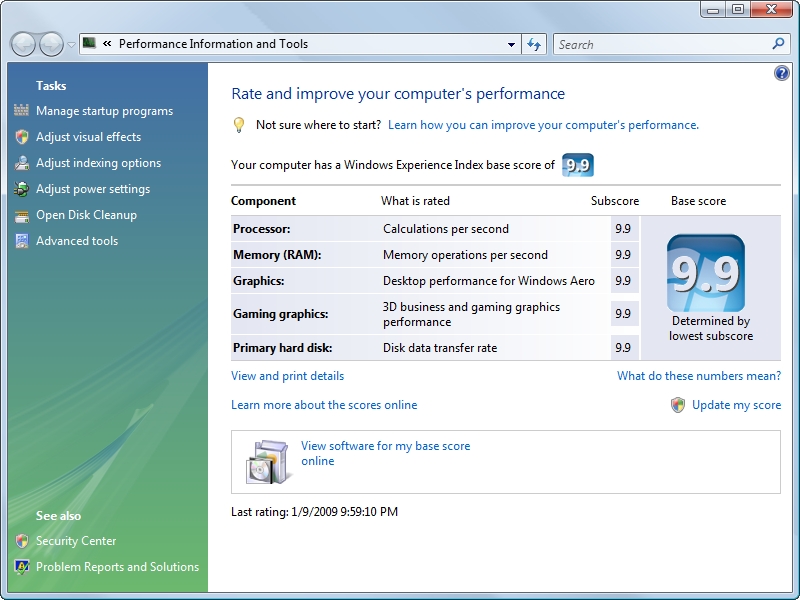
Image source: Microsoft Learn
Where the Results Are Stored
Once the command finishes, it doesn't display a neat summary in the Command Prompt. Instead, it generates a series of XML files. You can find these by navigating to:
%systemroot%\Performance\WinSAT\DataStore
Look for the file ending in
Formal.Assessment (Recent).WinSAT.xml
. When you open this file in a browser or text editor, search for the
<WinSPR>
section. Here, you will see the
SystemScore
(your base score) and individual subscores for your hardware components. This method provides the most granular data available, though it is admittedly less user-friendly than the legacy GUI.
Using PowerShell for Instant Performance Data
For those who prefer a cleaner output without digging through XML files, PowerShell offers a highly effective alternative. This method pulls the data from the most recent WinSAT run and formats it into a readable list.
Get-CimInstance Win32_WinSat
When you run this command, you will see several key values:
CPUScore: Reflects how well your CPU handles calculations and data encryption.
MemoryScore: Measures the speed of data transfer between the CPU and RAM.
GraphicsScore: Evaluates 2D capabilities, such as desktop composition and video playback.
DiskScore: Measures the throughput of your primary hard drive or SSD.
The most important value is the WinSPRLevel . This is your "Base Score." As noted by TenForums' technical guides , this score is always equal to your lowest subscore. If you have a high-end gaming PC but are still using an old mechanical hard drive for your OS, your WinSPRLevel will likely be capped at 5.9, regardless of how powerful your GPU is.
Accessing Hidden GUI Methods
While Microsoft officially retired the WEI interface, there are two "insider" methods to view the score in a graphical format without using third-party software. These are often overlooked by basic tutorials but provide a much more comfortable viewing experience.
The "shell:games" Shortcut
This is perhaps the most surprising "hidden" feature in Windows 10 and 11. The legacy "Games Explorer" folder still exists, and it still displays the Windows Experience Index score in its bottom-right corner.
-
Press
Win + Ron your keyboard to open the Run dialog. -
Type
shell:gamesand press Enter. - Look at the bottom-right corner of the window that appears. You will see your current Base Score.
The Performance Monitor Method
If you want a more detailed report that looks official, the Performance Monitor (perfmon) is a top-tier choice. It generates a "System Diagnostics" report that includes the WEI rating alongside hundreds of other hardware metrics.
-
Press the
Windows Key
, type
perfmon /report, and press Enter. - The system will collect data for about 60 seconds.
- Once finished, navigate to Reports > System > System Diagnostics > [Your Report Name] .
- Expand the Hardware Configuration section and then Desktop Rating . You will see your scores listed clearly there.
| Method | Ease of Use | Detail Level | Best For... |
|---|---|---|---|
| Command Prompt | Moderate | Very High (XML) | Generating fresh data |
| PowerShell | High | Moderate | Quickly checking existing scores |
| shell:games | Very High | Low | Seeing the base score only |
| PerfMon | Moderate | High | Deep system diagnostics |
Third-Party Tools for a Classic Interface
If you miss the aesthetic of Windows 7 and want a dedicated app to manage your scores, several developers have created utilities that restore the classic look. These tools don't perform their own benchmarks; instead, they act as a "skin" for the built-in WinSAT engine.
ChrisPC Win Experience Index is widely regarded as one of the most reliable options in this category. It is compatible with the latest versions of Windows 11 (including 24H2) and provides a pixel-perfect recreation of the original interface. It allows you to re-run the assessment with a single click and displays all subscores in a familiar grid. You can find this utility at the official ChrisPC website .
Another popular choice is the Experience Index System Assessment available on the Microsoft Store . While it is convenient to install, some users find it less detailed than the ChrisPC version. Regardless of which tool you choose, always ensure you are downloading from a verified source to maintain system security.
Understanding the 9.9 Sentinel Value in Modern Systems
One of the most common points of confusion for modern users is why their high-end graphics card is returning a score of 9.9, or why the score seems "stuck." In Windows 10 and 11, Microsoft has essentially "hardcoded" certain parts of the assessment.
Specifically, the D3D (3D Graphics) test is often skipped on modern hardware. Instead of running a complex 3D benchmark, WinSAT identifies that the hardware exceeds a certain threshold and returns a "sentinel value" of 9.9. This happens because Microsoft shifted its focus away from OS-level 3D benchmarking as specialized tools like 3DMark became the industry standard. Therefore, if you see a 9.9 for graphics, it doesn't necessarily mean your GPU is "perfect"—it simply means it is modern enough that WinSAT no longer feels the need to measure it precisely.
Similarly, modern NVMe SSDs almost always hit the 9.9 ceiling for the DiskScore . In the Vista days, a score of 5.9 was the limit for mechanical drives. Today, the WEI acts more like a binary indicator: if your score is below 6.0, you are likely on a mechanical HDD; if it is 9.0 or higher, you are on a modern SSD. For nuanced speed differences between a Gen4 and Gen5 NVMe drive, the Windows Experience Index is no longer the most precise tool.
Troubleshooting WinSAT Failures and Errors
Running a system-level benchmark can sometimes trigger errors, especially on systems with complex driver configurations or background software.
The "Cannot Assess Video Performance" Error
This is the most frequent issue users encounter. It often occurs because a third-party application is "hooking" into the graphics driver. Common culprits include:
- Screen recording software like OBS Studio or Nvidia ShadowPlay.
- Overlay software (Discord, Steam, or MSI Afterburner).
- Outdated chipset or integrated graphics drivers.
To fix this, close all background applications and try running the command again. If it still fails, check your Device Manager to ensure there are no "Generic Display Adapter" entries, which indicate missing drivers.
The XML Reset Solution
If your score refuses to update even after a hardware upgrade, you may need to clear the old data. Windows sometimes clings to cached XML results. Navigate to
C:\Windows\Performance\WinSAT\DataStore
and delete every file in that folder. Once the folder is empty, re-run
winsat formal
in an Administrator Command Prompt. This forces the system to generate a completely new assessment from scratch.
msconfig
to disable all non-Microsoft services, restart your PC, and then run the assessment. This ensures that third-party background processes don't artificially lower your CPU or Disk scores.
Comparing WEI to Modern Benchmarking Standards
Is the Windows Experience Index still relevant in 2026? The answer depends on your goals. As a tool for gamers looking to squeeze every frame out of a new GPU, it is notably limited. It cannot compete with the depth of Cinebench for CPU rendering or 3DMark for gaming performance.
However, for general system health checks, it remains a strong contender. It is built into the OS, requires no installation, and provides a "good enough" snapshot for 90% of users. It is particularly useful for:
- Identifying Bottlenecks: If your PC feels slow and your DiskScore is 5.2, you know exactly what to upgrade.
- Verifying Hardware: Quickly checking if a remote server or a friend's laptop is performing as expected.
- Historical Comparison: Seeing how a 10-year-old PC compares to a modern machine on a unified scale.
Frequently Asked Questions
- How do I check my Windows Experience Index on Windows 11?
-
The most efficient way is to open PowerShell as an Administrator and run the command
Get-CimInstance Win32_WinSat. This will display your subscores and your base score (WinSPRLevel) based on the most recent system assessment. - What is a good Windows Experience Index score in 2026?
- For a modern system running Windows 11, a base score of 9.0 or higher is standard. Most systems with an NVMe SSD and a modern multi-core processor will easily reach this range. If your score is below 6.0, it usually indicates a significant hardware bottleneck, likely a mechanical hard drive.
- Why is my score stuck at 5.9?
- A score of 5.9 is the historical maximum for traditional mechanical hard drives (HDDs). If your system uses an HDD as its primary boot drive, your overall base score will be capped at 5.9, even if your CPU and RAM are top-tier. Upgrading to an SSD is the only way to move past this limit.
- Is the Windows Experience Index accurate for gaming?
- Not entirely. While it gives a general idea of graphics capability, modern versions of Windows often use "sentinel values" (like 9.9) for the 3D graphics score on any reasonably modern GPU. For gaming, you should use dedicated benchmarks like 3DMark or in-game benchmark tools for more accurate data.
- Can I run WinSAT on a Virtual Machine?
- You can, but the results are often inaccurate or return 0.0. Virtual machines use virtualized drivers that do not allow WinSAT to communicate directly with the hardware. This often results in the "video assessment" failing or the disk scores being artificially inflated by the host's RAM caching.
The Bottom Line
While the Windows Experience Index has been hidden from the main interface, it remains a powerful diagnostic tool for those who know where to look. Here are the key takeaways:
-
Use Command Prompt
(
winsat formal) to trigger a fresh hardware assessment. -
Use PowerShell
(
Get-CimInstance Win32_WinSat) for a quick, readable summary of your scores. - The "Lowest Score Wins" rule means your base score identifies your system's primary bottleneck.
- The 9.9 Scale is the modern standard for Windows 10 and 11, up from the 7.9 limit in Windows 7.
- Sentinel Values mean that a 9.9 graphics score is common on modern hardware and doesn't replace dedicated gaming benchmarks.
-
Hidden GUI options
like
shell:gamesstill work for a quick visual check. -
Troubleshoot failures
by closing background recording apps and clearing the
DataStoreXML folder.
To see your current performance level immediately, try running the PowerShell command mentioned above right now.
-
Topic: Windows System Assessment Toolhttps://en.wikipedia.org/wiki/Windows_System_Assessment_Tool
-
Topic: Windows Experience Index on Windows 11, on Windows 10 ...https://win-experience-index.chris-pc.com/
-
Topic: Missing Windows Experience Index in Windows 8.1https://learn.microsoft.com/en-us/answers/questions/2618971/missing-windows-experience-index-in-windows-8-1-su

How to Understand and Use More Options in Language and Technology
Learn the meaning of more options, find professional synonyms, identify UI icons like the kebab menu, and fix Windows 11 menu bugs.


How to Open Command Prompt in Windows 10 and Windows 11
Learn fast ways to open CMD in Windows 10 & 11, including admin shortcuts, File Explorer tricks, and troubleshooting if it won't open.


How to Use the inurl: Search Operator for SEO Audits and Site Security
Learn to use the inurl: operator for SEO audits and security. Fix errors and master advanced search strings for 2026.
